Printer Prints Weird Symbols: Urgent Troubleshooting Guide
Urgent guide for diagnosing and fixing a printer that prints weird symbols. Step-by-step flow, safety notes, and prevention tips from Print Setup Pro.


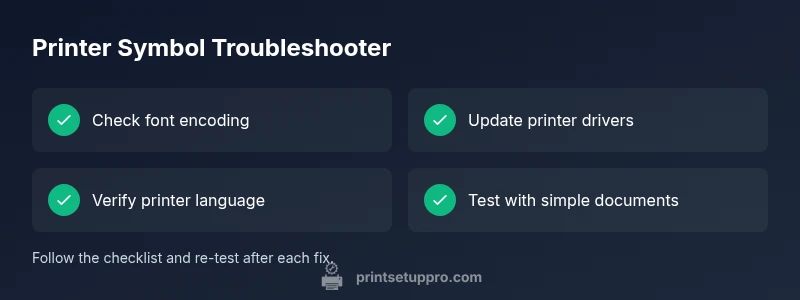
Most likely a corrupted font or driver miscommunication is causing the printer to print random symbols. Start by checking the font encoding in the application, then update or reinstall the printer driver, and verify the printer language settings (PCL/PS/HPGL). If the issue persists, print a test page from the printer's onboard menu to isolate software vs. hardware.
Why printers print weird symbols
When a printer starts spitting out random characters instead of the expected text, it can feel urgent and frustrating. The phrase printer prints weird symbols is more than a nuisance—it signals a mismatch between software encoding and the printer's language, or a faulty driver. According to Print Setup Pro, the most common culprits are font encoding mismatches, outdated drivers, or incorrect printer language selection. This isn’t a hardware failure in most cases, but it can escalate if firmware or cables are involved. By tackling the issue in a structured way, you can quickly determine whether the problem is software-related or caused by the hardware chain. Start with the simplest checks and progressively move toward targeted fixes. Document each change you make so you can revert if needed. The goal is not only to fix the current print but to prevent reoccurrence.
Why printers print weird symbols
When a printer starts spitting out random characters instead of the expected text, it can feel urgent and frustrating. The phrase printer prints weird symbols is more than a nuisance—it signals a mismatch between software encoding and the printer's language, or a faulty driver. According to Print Setup Pro, the most common culprits are font encoding mismatches, outdated drivers, or incorrect printer language selection. This isn’t a hardware failure in most cases, but it can escalate if firmware or cables are involved. By tackling the issue in a structured way, you can quickly determine whether the problem is software-related or caused by the hardware chain. Start with the simplest checks and progressively move toward targeted fixes. Document each change you make so you can revert if needed. The goal is not only to fix the current print but to prevent reoccurrence.
Key takeaways for this section
- The issue is usually software-driven, not a failed printer head.
- Font encoding and driver compatibility determine how text is transmitted.
- Isolate software vs. hardware by printing from different apps and devices.
Steps
Estimated time: 45-90 minutes
- 1
Power cycle and self-test
Turn off the printer, unplug for 60 seconds, then plug back in and power on. Run the built-in self-test page from the printer's menu to see if symbols appear there. If the self-test is clean, the issue is likely software-based on the computer side.
Tip: A clean power cycle clears temporary memory and partial data corruptions. - 2
Update or reinstall the driver
Visit the manufacturer’s site, download the latest driver for your exact model and operating system, and install. Restart both PC and printer after installation to ensure the new driver is active.
Tip: Use the official site to avoid counterfeit or malware-laden drivers. - 3
Check printer language settings
Confirm that the printer language matches the driver (PCL, PS, or HPGL). In the printer properties, switch to the recommended language if you’re unsure, then reprint a test page.
Tip: If your documents rely on simple fonts, PS or PCL can yield different results—choose the one your printer supports best. - 4
Test with a simple document
Print a plain text document from a basic app (like Notepad) or a simple PDF. If symbols persist, move to a firmware check; if not, the issue is document-font related.
Tip: Avoid complex fonts in initial tests to isolate font encoding issues. - 5
Check for firmware updates
If available, install a firmware update from the printer manufacturer. Firmware often fixes encoding bugs that produce garbled output.
Tip: Back up settings before a firmware update if the option exists. - 6
Consider a factory reset (vendor guidance only)
If problems persist after updates, perform a factory reset per the vendor’s instructions. Reconfigure from scratch to ensure clean memory and defaults.
Tip: Skip factory resets unless the vendor explicitly recommends them for this symptom.
Diagnosis: Printer prints random symbols instead of text
Possible Causes
- highFont encoding mismatch between application and printer language
- highOutdated or corrupted printer driver
- mediumIncorrect printer language setting (PCL/PS/HPGL)
- lowFirmware issue or corrupted printer memory
- lowLoose data cables or faulty USB/network connection
Fixes
- easyVerify and align font encoding between the document/app and the printer language
- easyUpdate or reinstall the printer driver from the manufacturer’s website, then restart both computer and printer
- easyCheck and standardize the printer language (PCL/PS); ensure the driver matches the printer language
- mediumUpdate firmware if available and reset to factory defaults if recommended by vendor
- easyInspect and reseat cables; try a different USB port or network cable
People Also Ask
Why is my printer printing random symbols instead of text?
This is usually caused by a font encoding mismatch, driver issues, or incorrect printer language settings. Work through the diagnostic flow to identify software vs hardware causes and apply the recommended fixes.
Symbol printing is usually due to encoding or driver issues—follow the diagnostic steps to fix it.
Can a font change cause symbol garble across all apps?
Yes. If the document or app uses a font that the printer cannot render with its current language, symbols may appear. Align encoding and update fonts where possible.
Fonts can cause garble if they aren’t supported by the printer language.
Will updating firmware fix symbol printing?
Firmware updates can resolve encoding bugs and improve compatibility with newer drivers. Check vendor support for your model and apply updates if available.
Firmware updates can fix encoding issues; check for updates from the manufacturer.
How do I know if the issue is software or hardware?
Print from a different computer or device, and print a self-test page. If symbols appear only from certain apps or documents, it’s likely software-related. If self-tests fail, hardware or memory may be at fault.
Test with another device and a self-test page to isolate software vs hardware.
Is it safe to reset the printer to factory settings?
A factory reset can clear memory and defaults, but it should be done only with vendor guidance. It helps if the issue persists after updates.
Factory resets can help, but follow vendor instructions to avoid losing configurations.
When should I contact professional support?
If symbol issues persist after driver, language, and firmware checks, or if the self-test also garbles output, contact manufacturer support or a printer technician.
If basic diagnostics don’t fix it, seek professional help.
Watch Video
Quick Summary
- Start with font encoding and driver updates
- Test print from multiple apps to isolate software vs hardware
- Standardize printer language across devices
- Keep firmware and drivers current, and document changes