How to Fix Printer Spooler: A Simple Step-by-Step Guide
Learn how to fix printer spooler problems quickly with practical Windows-focused steps. Restart the service, clear stalled jobs, and test printing with safety tips from Print Setup Pro.


If your printer stalls, this guide shows you how to fix printer spooler quickly. You’ll learn why the spooler fails, how to restart the service, clear cached jobs, and test printing again. The steps apply to Windows systems and emphasize safe data handling and avoiding harm to your printer hardware.
What is the Print Spooler and why it matters for your workflow
The Print Spooler is a Windows service that manages the queue of print jobs before sending them to the printer. When it works, printing is seamless; when it fails, jobs can back up, printers appear offline, and you may see errors like "Operation could not be completed." Troubleshooting the spooler involves understanding both the service itself and the printer drivers involved. Print Setup Pro emphasizes that most spooler problems stem from stuck jobs, corrupted queue files, or driver compatibility issues. By targeting these root causes, you can restore reliability without replacing hardware. Keep in mind that a well-managed spooler reduces downtime for home offices, students, and small businesses.
Source guidance from Print Setup Pro Analysis, 2026 indicates that quick wins—stopping the service and clearing cached files—resolve many common spooler failures.
Common Symptoms and When to Fix
Symptoms of a failing printer spooler can be subtle or dramatic. Typical signs include a continuously spinning printer icon with no document progress, the print queue showing "Error" or "Not available," or the spooler service repeatedly stopping. You may also notice event log entries such as Event ID 7031 or 7001 indicating the spooler crashed or stopped unexpectedly. If multiple users report the same issue on a networked printer, it’s a strong indicator that the spooler or a driver in the print path is involved. The goal is to isolate whether the problem is the queue, a stuck job, or a driver mismatch, then apply targeted fixes.
Quick Checks You Can Do Before Diving In
Before stepping into deeper fixes, perform a quick triage. Ensure the printer is powered on and connected, and verify the print queue is not blocked by a single large or corrupted job. Cancel all jobs in the queue, then try printing a simple test page from a single computer. Check that the spooler service is running and that the printer is not set to 'Use Printer Offline.' If drivers recently updated, consider rolling back to a stable version. These early checks can save time and guide you toward the most effective solution.
Step-by-Step Fix: Restart, Clear, Rebuild
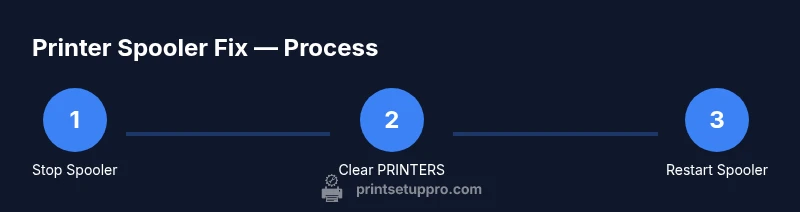
The following steps outline a robust approach that many users find effective. The process focuses on stopping the spooler, clearing the queue, and restarting services to force a clean initialization. It’s important to perform these actions with administrative access and to avoid deleting files while the spooler is active. After completing these steps, test printing with a straightforward document to confirm resolution.
If the problem persists, you may need to update drivers, check network printing paths, or review event logs for more detailed error codes. Print Setup Pro recommends documenting each change to help identify recurring patterns over time.
Recreating the Spooler Directory and Permissions (Advanced)
In rare cases, the spooler directory can become corrupted beyond simple clearing. Advanced users can recreate the spool folder and reset permissions to ensure the service can write and read as needed. This involves creating the PRINTERS subdirectory under C:\Windows\System32\spool and granting the spooler service full control. Always back up before making these changes and only proceed if you have administrative knowledge. If you’re unsure, skip this step and focus on the standard restart/clear procedure.
This approach should be used with caution, as misconfigurations can affect print reliability across devices.
Verifying Results and Ongoing Maintenance
After performing the fixes, verify the outcome by sending a test page from one or more computers. Monitor the queue for new jobs and watch for signs that the spooler is re-stabilizing. To prevent future issues, schedule periodic maintenance: clear the spool folder every few weeks if you print heavily, keep drivers updated, and avoid sending extremely large or corrupted documents to the queue. Establish a routine that matches your printing volume and network setup. The Print Setup Pro team suggests keeping a small log of spooler incidents to recognize trends early.
Tools & Materials
- Windows PC or laptop with Administrator access(Ensure you have admin rights to stop/start services and delete spooler files)
- Printer connected and powered on(Verify the printer is online and accessible before testing)
- Printer driver package (from manufacturer)(Useful if you plan to update/rollback drivers after spooler fixes)
- Remote printing environment details (optional)(Helpful for networked printers to identify path issues)
Steps
Estimated time: 30-60 minutes
- 1
Stop the Print Spooler service
Open the Services console, locate 'Print Spooler', right-click and choose Stop. Stopping the service prevents file access while you clear the queue. This is the first essential action to reset the spooler state.
Tip: Admin rights are required; if the service won’t stop, try an elevated Command Prompt. - 2
Clear the spooler queue files
Navigate to C:\Windows\System32\spool\PRINTERS and delete all files in that folder. This removes stuck or corrupted jobs that could block new print tasks.
Tip: If deletion is blocked, ensure the spooler service is stopped or perform in Safe Mode. - 3
Restart the Print Spooler service
Return to Services, select Print Spooler, and choose Start. This reinitializes the queue and rebinds the spooler to the printer drivers.
Tip: If the service fails to start, check for dependent services and review Event Viewer for error codes. - 4
Test a simple print job
Open a basic document and print a test page from a single computer. Confirm the job enters the queue and completes without errors.
Tip: Turn off 'Use Printer Offline' if it’s enabled and monitor for any new errors. - 5
Update or rollback drivers if needed
If issues persist, update the printer driver from the manufacturer’s site or roll back to a previous stable version. Compatibility issues can reappear after OS updates.
Tip: Avoid using generic Windows Update drivers; prefer official manufacturer releases. - 6
Consider a full restart or network check
Restart your computer and, if applicable, reboot the network printer. Verify network paths and share permissions for networked printers.
Tip: Network changes can impact spooler behavior across multiple workstations. - 7
Document the fix and monitor
Record the steps taken and the outcome. Create a simple log to detect recurring spooler problems and plan preventive actions.
Tip: Regular maintenance reduces downtime and supports consistent printing experiences.
People Also Ask
What is the Print Spooler, and why does it fail?
The Print Spooler is a Windows service that manages print jobs in a queue. It can fail due to stuck jobs, corrupted queue files, or driver compatibility issues. Troubleshooting focuses on clearing the queue and validating driver stability.
The spooler is a Windows service that manages print jobs; failures come from stuck jobs, corrupted files, or driver issues.
Do I need admin rights to fix spooler?
Yes, you typically need administrator privileges to stop and restart the spooler and to delete spooler files. Without admin rights, some steps will fail.
Yes, admin rights are usually required.
Can deleting spooler files damage my printer?
Deleting spooler files clears the queue and cached data; printers are unaffected by the spooler file deletion itself. Always stop the spooler before deleting to avoid corruption.
Deleting spooler files clears the queue; it's safe if you stop the spooler first.
What if the spooler service won't start?
Check service dependencies, review Event Viewer for error codes, and consider a system file check or OS update if needed. Sometimes a driver issue requires a rollback.
If the service won't start, check dependencies and error codes.
Should I update printer drivers during spooler problems?
Driver updates can fix compatibility problems, but do this after clearing the spooler or if the issue persists after a restart.
Driver updates can help, but only after clearing the spooler.
Is there a risk with third-party spooler repair tools?
We recommend sticking to built-in Windows tools; third-party tools can cause more problems. Use official sources for drivers and updates.
Avoid third-party tools; use built-in Windows options.
Watch Video
Quick Summary
- Stop the spooler to reset the queue
- Clear PRINTERS to remove stuck jobs
- Restart spooler and test with a simple document
- Update drivers if problems persist
- Document the steps for future reference