What Causes Printer Error: A Practical Troubleshooting Guide
Learn the common causes of printer error and practical steps to diagnose and fix issues quickly. Practical tips from Print Setup Pro for home offices and students.


Most printer errors stem from simple setup faults or supply problems. The quickest fix is to check power, cables, and consumables, then note any error codes or blinking lights. If the issue persists, restart the printer and clear the queue; a reset often resolves many errors, per Print Setup Pro.
What causes printer error: Understanding root causes
According to Print Setup Pro, most printer errors arise from a small set of predictable factors rather than complex hardware failures. In home offices and classrooms, the culprits are typically simple setup faults, expired consumables, misconfigured drivers, or intermittent connectivity. By grouping issues into four broad categories—power and cabling, consumables and paper path, software and firmware, and network or USB connectivity—you can diagnose most problems quickly. This section guides you through how these factors show up in real-world symptoms, with practical signals to watch for, such as blinking LEDs, error codes on the display, or stuck print jobs. You’ll notice that many errors are self-inflicted or simply neglected maintenance items, which is why a short, routine check can save hours of frustration. Remember, the goal is not just to fix the current message but to understand the pattern so you can prevent recurrences.
Quick checks you can perform now
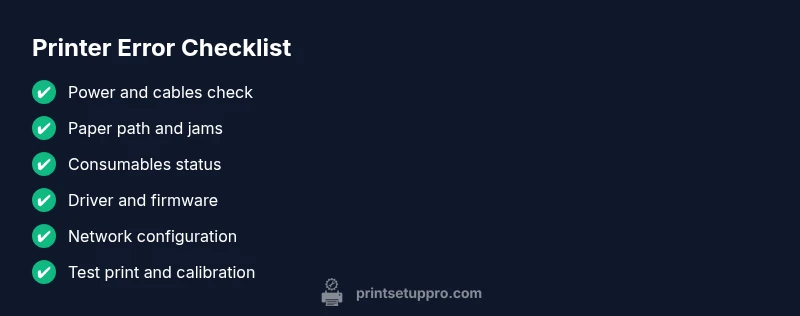
Before diving into diagnostics, perform the simplest checks. Make sure the printer is powered on and plugged into a live outlet, the USB or network cable is securely connected, and the printer has paper loaded correctly. Inspect the ink or toner level and ensure there are no paper jams or misfeeds in the paper path. If you find a jam, power off, gently remove jammed sheets, and resume normal operation. If the message persists, write down the exact error code or blinking pattern; this becomes your map for the next steps.
Diagnostic flow: symptom → diagnosis → fix
A logical diagnostic flow helps prevent guesswork. Start by noting the symptom (error message, blinking lights, or failed print). Then map it to a likely cause among power, consumables, driver/firmware, or connectivity. Finally, apply the smallest, safest fix first (e.g., reseating cables or restarting the device) and re-test. If the symptom remains, expand to more involved steps such as updating drivers or resetting network settings. This flow minimizes downtime and keeps you in control.
Fixes for the most common problem: power and connectivity
For many users, the root cause is something as simple as a loose power cable or a faulty outlet. Start by unplugging and re-plugging both ends of the power cord, then test the outlet with another device. Next, check all data cables (USB or Ethernet) for damage and reseat them firmly. If the printer connects to a router or switch, restart the network gear and re-check the printer's network configuration. After these steps, print a test page to confirm whether the error clears.
Printer consumables and jams: ink/toner, paper, and path
Consumables and the paper path are frequent fault sources. Verify ink or toner cartridge status, replace if necessary, and ensure the cartridge is seated correctly. Inspect the paper tray for correct size and type; use the recommended media and avoid damp sheets. Clear any paper jam in stages, pulling in the direction of paper travel to prevent tearing. Run a nozzle check or printhead cleaning if the printer offers maintenance options.
Drivers, firmware, and network issues
Outdated drivers or firmware can trigger errors that look ominous but are simply incompatibilities. Visit the printer manufacturer's site and install the latest driver package for your model, along with any firmware updates. If the printer is networked, remove and re-add the device in your operating system, or use the built-in printer troubleshooter. For USB-only printers, switch ports to rule out a faulty USB root hub.
Maintenance practices to prevent future errors
Create a simple maintenance routine that matches your usage. Schedule a monthly head-cleaning, alignment checks, and verify consumable levels. Keep drivers and firmware up to date, and back up printer settings if supported. Store spare cartridges in a cool, dry place and dispose of old cartridges according to local guidelines. A proactive approach reduces surprises and keeps the printer ready when you need it.
Safety and when to call a pro
Safety first: always unplug the printer before clearing jams, handling cords, or opening access panels. Do not attempt internal repairs beyond manufacturer-approved steps; this voids warranties and creates shock or fire risks. If you’ve tried the diagnostic flow and the error persists beyond basic maintenance, contact an authorized service provider. The Print Setup Pro team recommends seeking professional help when the device shows signs of hardware failure, persistent electrical issues, or complex network faults.
Steps
Estimated time: 60-90 minutes
- 1
Power cycle and inspect cables
Turn off the printer, unplug it, inspect cords for damage, reseat connectors, then plug back in and power on. Wait for the status lights to settle and run a test page.
Tip: Unplug before touching any internal components; use manufacturer-approved cables. - 2
Check the paper path and jams
Open all access panels, clear jams, check media size and type, and reload the tray. Remove torn pieces and clean rollers if available.
Tip: Work slowly and keep the printer off during jam removal. - 3
Inspect and replace consumables
Verify ink/toner levels, cartridges seated properly, and replace if necessary. Reset the cartridges' alignment or calibration if the printer offers it.
Tip: Keep spare consumables on hand for quick fixes. - 4
Update software
Download the latest printer driver and firmware from the manufacturer site. Install while the printer is connected, then reboot both computer and printer.
Tip: Only use official sources to avoid malware. - 5
Test connectivity
For network printers, re-add the printer in your OS, run a network diagnostic, and ensure the printer has a valid IP or host name.
Tip: If using USB, try a different port and cable. - 6
Run a test page and calibration
Print a diagnostic page and run any nozzle check or alignment routines available. Confirm the print quality and absence of error codes.
Tip: Document test results for future reference.
Diagnosis: Printer shows an error message or fails to print
Possible Causes
- highPower issue or loose cables
- highOut of paper, empty ink/toner, or paper jam
- mediumDriver/firmware or network configuration problem
Fixes
- easyVerify power and reseat all cables; test outlet with another device
- easyCheck for jams, load media correctly, replace consumables as needed
- mediumUpdate drivers/firmware and reconfigure network; re-add the printer if needed
- hardReset printer settings to defaults and perform a clean install of drivers
People Also Ask
What is the most common printer error and how do I fix it?
The most common errors involve power, cables, jams, or low consumables. Start with basics: check power and cables, clear jams, and swap consumables before diving into drivers.
The most common printer error is usually power or jam related. Start with basic checks, then proceed to driver updates if needed.
Can a software update solve printer errors?
Yes, updating drivers and firmware can fix compatibility issues and resolve error codes. Always use official sources and reboot after installation.
Updating drivers and firmware can fix many errors. Use official sources and restart afterwards.
What should I do if error codes keep blinking?
Blinking patterns indicate specific faults. Note the pattern, consult the manual, and follow the recommended steps in the flow.
Blinking codes point to specific issues; note them and follow the recommended steps.
Is it safe to reset network settings to fix connection issues?
Resetting network settings can resolve connectivity errors but may require reconfiguring Wi‑Fi or IP settings. Backup current settings first.
Resetting can help, but back up your config first.
When should I replace printer components vs calling a technician?
If the printer continues to error after basic fixes, especially after firmware resets or hardware faults, professional service is advised.
If issues persist after fixes, contact a tech.
How often should I perform printer maintenance?
A light monthly maintenance is enough for light use; heavy usage may require biweekly checks. Include cleaning and calibration.
Do a quick monthly check; adjust frequency for heavy use.
Watch Video
Quick Summary
- Start with power, cables, and consumables.
- Note error codes and LED patterns for quick diagnosis.
- Update drivers and firmware to fix compatibility issues.
- Perform regular maintenance to prevent recurrence.
- Call a pro if hardware failure is suspected.