What to Do When Toner Is Low in Printer
Learn practical steps for handling low toner in printers, from quick checks to replacement or refilling, calibration, and maintenance tips to keep your prints crisp and consistent.


By following these steps, you’ll handle a low toner situation confidently. You’ll confirm the toner level and model, decide whether to refill or replace, install a new cartridge if needed, and run a calibration to restore print quality. This guide also covers safety notes and model-specific tips for common printer families.
Understanding toner low indicators
Toner level alerts come in several flavors: a simple LED indicator, a software pop-up, or a page-depth warning on the printer's control panel. The exact meaning varies by brand and model, but the core idea is the same: you are running low on usable toner and you should plan a replacement or refill soon. According to Print Setup Pro, understanding your specific cartridge family helps prevent unnecessary replacements. Some printers track page yield and flash a warning after a fixed number of pages; others estimate remaining toner by analyzing print density. If you routinely print graphics or photos, you may reach the low-toner threshold sooner because color toner runs out faster. Before acting, check your printer’s manual or vendor support site to locate the toner reference (color vs. black, cartridge number, and drum unit if integrated).
Immediate safety and first checks
Power down the printer and unplug it before touching any internal parts. Toner dust can irritate the lungs and eyes, so wear a dust mask if you have sensitive airways, and avoid inhaling any powder. Use a clean, lint-free cloth to wipe the exterior and any accessible contacts. If your model provides a warning light, note the color and sequence, then consult the manual for model-specific safety cautions. Record the cartridge family (color, number, and whether the drum unit is integrated) so you can purchase the correct replacement. Keep replacement toner within reach and prepare a clear workspace to prevent spills. Printing a few test pages after you replace toner helps verify alignment and density.
Refilling vs replacing toner: what to know
Refilling toner can be cheaper in the short term, but it may not restore print quality or cartridge reliability, especially in multi-color or high-volume printers. Replacing the cartridge with a genuine or compatible OEM option often yields better consistency and fewer print defects. Always verify compatibility with your specific printer model and color configuration. Be mindful of manufacturer warranties; some warranties void if non-OEM refills are used. If you choose refills, use a reputable supplier and follow their safety guidelines to minimize dust exposure. For some printers, the best practice is to replace the cartridge and the drum together if the drum is separate or nearing the end of its life.
Step-by-step: replace toner cartridge
Follow the manufacturer’s guidance to replace the cartridge. Start by removing the old cartridge, taking care not to spill toner. Install the new cartridge firmly until it clicks and check that seals are intact. Close all panels and perform a calibration if your printer prompts you. Some models require a brief warm-up period after replacement before printing normally. Keep a small waste bag handy for any used packaging or a discarded cartridge. If you have a color printer, ensure each color cart is seated properly to avoid misalignment.
Aligning and resetting after replacement
After installing a new cartridge, run any available alignment or calibration routines. This helps ensure proper print density and register, reducing ghosting or color misalignment. If your device has a built-in cleaning cycle, run that as well to clear any faint residual toner. Some printers also offer a “print quality diagnostic page” you can print to verify alignment and density across the page. If misalignment persists, reseat the cartridge again and re-run the calibration. Small missteps here can cause long-term print quality issues.
Testing print quality and optimization
Print a few pages with a mix of text and graphics to gauge density, color accuracy, and consistency. Look for streaks, blotches, or ghosting that would indicate improper toner seating or a damaged cartridge. If colors appear off, consider performing a color calibration or running the printer’s color-separation test page. Adjust brightness and contrast settings in the printer driver if needed and reprint to verify improvements. Regularly compare printed pages to the original file to catch drift early and prevent wasted paper and ink.
Maintenance tips to prevent future low toner
Schedule regular cartridge inspections and keep a spare cartridge on hand for high-demand periods. Store toner cartridges in their original packaging until use, in a cool, dry place away from direct sunlight. Document page yields for each cartridge and set up a reminder to replace them before you hit your expected limit. Clean the printer’s internal areas periodically following the manufacturer’s guidelines to prevent toner buildup that can affect print quality. Finally, confirm that you’re using the recommended media size and type, as unusual media can cause more toner consumption and lower print quality over time.
Troubleshooting common low-toner issues
If you still see a low-toner message after replacing, verify that the replacement cartridge is the correct model and seated properly. Some printers require a firmware update to recognize new cartridges; check the manufacturer’s site for the latest version. Inspect the toner sensor or cartridge chips for damage or incorrect orientation. If the warning persists, contact support with your printer’s serial number and cartridge details for model-specific guidance.
Tools & Materials
- Replacement toner cartridge (proper model for your printer)(Check model number and color)
- Soft lint-free cloth(For cleaning contacts and surfaces)
- Gloves(Keep hands clean and prevent oil on cartridges)
- Screwdriver set(If your model requires panel removal)
- Printer manual or online support(Model-specific instructions)
- Waste toner bag or container(For spills or packaging disposal)
Steps
Estimated time: 30-45 minutes
- 1
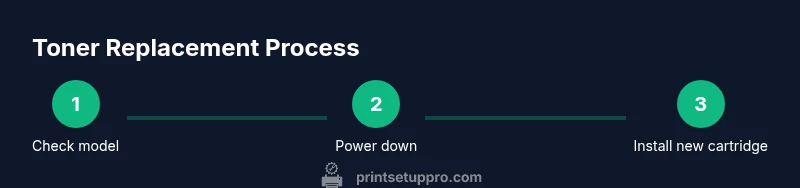
Check toner level and model
Verify the exact cartridge color and model number in the printer’s display or manual. This ensures you buy the correct replacement and prevents wasted parts.
Tip: Have the model number written down before you shop for a refill. - 2
Power down and unplug the printer
To avoid static or accidental startup, switch off and unplug the device before handling cartridges.
Tip: Wait a few minutes for internal components to cool and prevent burns. - 3
Open access area and locate cartridge
Open the front or side panel following the manual; locate the toner cartridge you’ll replace. Note any seals or protective tapes.
Tip: Do not touch the drum surface to avoid image defects. - 4
Remove old cartridge
Carefully lift or slide out the depleted cartridge without spilling toner. Place it in a bag or sealable container.
Tip: Handle by the ends, not the central drum area. - 5
Install new cartridge
Insert the new cartridge firmly until it clicks. Re-seat any color cartridges in their proper slots for color printers.
Tip: Ensure sealing tapes are removed before installation. - 6
Run calibration or alignment
If prompted, start the printer’s calibration or alignment routine to ensure optimal density and alignment.
Tip: Allow the calibration page to dry before handling. - 7
Print a test page and verify
Print a basic test page to confirm density, alignment, and color accuracy. Repeat as needed until clean results appear.
Tip: If issues persist, reseat the cartridge and re-run calibration.
People Also Ask
How can I tell if toner is truly low or just streaking?
A low toner warning indicates limited usable toner, but streaks can happen from a damaged cartridge or improper seating. Run a cleaning page if available and inspect print quality across multiple pages to determine if replacement is needed.
If you see light text or streaks across prints, check the toner level and reseat the cartridge before replacing.
Can I refill toner myself?
Refilling can be cheaper but may affect print quality and warranty. Use manufacturer-approved refill kits if you choose this route and follow safety instructions to minimize exposure to toner powder.
Refilling can be tempting, but it can affect quality and warranty; use reputable kits and follow safety steps.
What should I do if the toner cartridge won't install properly?
Double-check compatibility, remove protective tapes, and reseat the cartridge firmly. If resistance is felt, consult the manual to ensure you’re aligning the cartridge correctly.
If it won’t click in, power down, reopen the access panel, and retry seating the cartridge properly.
Is it better to replace the drum unit with the toner?
In many printers, the drum is separate and has its own life. If you notice headlight streaks or reduced density, inspect both the toner cartridge and the drum unit and replace whichever shows wear.
Drum and toner wear differently; inspect both and replace what’s worn to restore quality.
How often should I replace toner?
Replacement frequency depends on usage and yield. Always check the cartridge yield on the packaging and track pages printed to anticipate replacement timing.
It varies by usage; check the yield label and monitor pages printed to plan ahead.
Watch Video
Quick Summary
- Verify cartridge compatibility before replacing.
- Follow safety steps to avoid toner exposure.
- Calibrate and test after replacement for best results.
- Choose genuine or reputable compatible cartridges.
- Recycle used cartridges to minimize waste.