How to Get Printer Back Online: A Step-by-Step Guide
A practical, step-by-step guide to restore printer connectivity across Windows, macOS, and mobile devices. Learn common causes, quick fixes, driver checks, and network troubleshooting to get your printer back online.


If your printer is offline, this guide shows how to get printer back online with a clear, 7-step approach: verify connections, restart devices, check IP/DNS, update drivers, re-add the printer, and test from multiple devices. You’ll need basic power and network access to begin, plus admin access for driver updates.
Why printers go offline and how to get printer back online
Printers fall offline for a variety of reasons, most of them simple and fixable. The goal is to restore two-way communication: the device that sends the job and the printer itself. Common culprits include loose cables, a paused or stuck print queue, outdated drivers, IP address changes on the network, and firewall settings that block traffic. Understanding these causes helps you apply targeted fixes rather than guesswork. Print Setup Pro emphasizes a structured approach: verify basics, test with multiple devices, then tackle network or driver issues if needed. This makes the process efficient for home offices, students, and small teams. When a printer shows offline in the queue or a fault light on the device, it usually signals a communication problem rather than a dead printer. This section lays the groundwork for a practical, repeatable method to get back online and keep it that way.
Quick assessment before you start
Before touching cables or software, collect essential details: printer model, operating system, connection type (USB, Ethernet, or Wi‑Fi), and whether other devices can print to the same printer. Check the printer display for error messages and inspect the router or access point for connectivity issues. If possible, print a network configuration or settings page from the printer to confirm its current IP address. Note any recent changes—network updates, firmware updates, or a move—to guide fixes. At this stage, you want a baseline: is the printer visible on the network? Is it online or paused in the queue? Are there error codes? These observations reduce back-and-forth between Windows,
Fundamental fixes you can try first
Start with quick wins that don’t require deep technical changes. 1) Power cycle everything: turn off the printer, computer, and router, wait 30 seconds, then power back on. 2) Check all physical connections and relink USB/Ethernet cables; a loose plug often causes intermittent offline states. 3) Clear any stuck print jobs and restart the printer spooler service (on Windows) or the print subsystem (on
Windows-focused steps to get back online
Windows users often resolve offline status with a quick sequence: run the built-in Troubleshooter, restart the Print Spooler, and verify the printer is set as the default. Open Services, find Print Spooler, and restart it if it’s stopped. In the Devices and Printers panel, remove the printer and reinstall it, ensuring the correct driver is selected. If the IP changed (common after router reboots), you may need to reconfigure a static IP or update the printer port to match the new address. A test page from the “Print” command confirms success. If you share the printer over the network, ensure File and Printer Sharing is enabled. These steps are often enough to bring a printer back online without reconfiguring the entire network. Pro tip: print a configuration page from the printer itself to verify its network address before re-adding it to Windows. This accelerates the fix and reduces guesswork. Print Setup Pro notes that consistent results usually come from a disciplined, repeatable process rather than ad-hoc tweaks.
Tools & Materials
- Power cable(Ensure printer is unplugged before inspecting connections)
- USB cable or Ethernet cable(Use the appropriate cable for your setup (USB or wired LAN))
- Admin access(Needed for driver installs and spooler management)
- Latest printer drivers(Download from the manufacturer’s site; avoid third-party sources)
- Router/modem access(Power cycle your network hardware if you suspect router issues)
Steps
Estimated time: 45-75 minutes
- 1
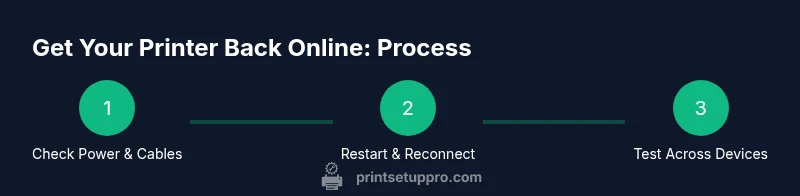
Power cycle everything
Turn off the printer, computer, and network gear. Wait 30–60 seconds, then power them back on in the same order. This resets internal states and clears temporary errors. If the printer shows a specific error message, note it before restarting.
Tip: A full cycle often fixes stuck buffers in the print queue. - 2
Check physical connections
Inspect all cables; reseat USB or Ethernet cables. If you use a wireless connection, ensure the printer is connected to the correct Wi‑Fi network and that signal strength is adequate.
Tip: Try a direct USB connection for baseline testing to rule out network issues. - 3
Clear print queue and restart spooler
Open the printer queue, cancel all jobs, and restart the Print Spooler service (Windows) or reboot the print subsystem (macOS). This clears stuck tasks and reinitializes communication.
Tip: If jobs reappear after restarting, note their IDs for troubleshooting. - 4
Re-add the printer to your computer
Remove the printer from Devices and Printers (Windows) or Printers & Scanners (macOS) and reinstall using the latest driver. Ensure you select the correct port and driver during setup.
Tip: If you see multiple drivers, pick the one labeled for your exact model. - 5
Check network settings and IP
If you’re on a network, verify the printer’s IP address. If it changes after a router reboot, either set a static IP or update the printer port on your computer to the new address.
Tip: Document the IP and MAC addresses for future reference. - 6
Test with multiple devices
Print from at least two different devices (a PC, a smartphone, or a tablet) to ensure the problem isn’t isolated to one computer.
Tip: If mobile printing works while desktop doesn’t, focus on driver or port configuration on the PC. - 7
Confirm default printer and sharing settings
Make sure the correct printer is set as default and, if sharing, that sharing permissions allow other devices to print.
Tip: Set a lightweight test page as the default to ensure quick feedback.
People Also Ask
What’s the first thing I should do when my printer goes offline?
Start with a power cycle of the printer and router, then check cables and the print queue. This often resolves simple communication glitches without needing driver changes.
Start by rebooting the printer and router, then check cables and the print queue to quickly resolve many offline issues.
How can I tell if the issue is network-related or device-related?
If other devices on the same network can print, the problem is likely device-specific (driver, queue, or port). If none can print, focus on network settings, router configuration, and DHCP/static IP assignments.
If multiple devices can’t print, focus on network settings; if only one device is affected, check drivers or the device’s queue.
Should I update printer firmware to fix offline status?
Firmware updates can fix bugs affecting connectivity. Check the manufacturer’s site for your exact model and follow their upgrade instructions carefully.
Updating firmware can help, but follow official steps to avoid bricking the printer.
What if I’m using macOS or iOS to print?
On macOS, use the Print > Status menu and consider resetting the printing system if problems persist. For iOS, use AirPrint if available or install the manufacturer’s app.
Mac users can reset printing system if needed; iOS users should try AirPrint or the manufacturer app.
When should I contact support?
If the printer still shows offline after all basic steps, there may be hardware or deeper network issues. Contact the printer’s support or a local IT professional.
If all fixes fail, seek support to diagnose possible hardware or complex network problems.
Quick Summary
- Verify basics first: power, cables, queue status
- Restart spooler services to reset communication
- Re-add printer with latest drivers to align ports
- Test across multiple devices to isolate device-specific issues
- Document changes for future offline incidents