Brother MFC Printer Setup & Troubleshooting Guide
Learn to install, connect, and troubleshoot your Brother MFC printer with a clear, step-by-step guide from Print Setup Pro. Includes network setup, drivers, scanning, and maintenance tips for reliable home office printing.


With this guide, you will install and configure a Brother MFC printer, resolve common connectivity and printing problems, and optimize scan and fax features. The steps below cover USB and wireless setups, driver installation, and routine maintenance. By following these instructions from Print Setup Pro, home office users and students can achieve reliable printing with a Brother MFC device.
Understanding the brother mfc ecosystem
The brother mfc family combines printing, scanning, copying, and, in many models, faxing into an all‑in‑one device designed for home offices and small businesses. When you start with a brother mfc, it helps to understand two things: the built‑in control panel and the software ecosystem that supports drivers, mobile printing, and cloud integration. This article from Print Setup Pro emphasizes how the brother mfc communicates via standard protocols such as USB, Wi‑Fi, and Ethernet, and how firmware updates influence reliability. A solid setup begins with confirming model specifics (MFC-J-series, MFC-L series, or specialty variants) and ensuring you have the right driver package for your operating system. In practice, a properly configured brother mfc reduces common user errors and improves print quality by aligning paper type, tray settings, and print density. If you own a newer brother mfc with a touchscreen, you can complete many initial steps directly from the panel, but the same principles apply when using PC or mobile app setup. Throughout this guide, we refer to the brother mfc as a versatile workhorse that scales from personal use to shared office tasks.
Getting Ready: prerequisites for a smooth setup
Before you power on, collect essential items and confirm network access. The two most common friction points in a brother mfc setup are missing drivers and incorrect paper sizing. Begin by locating your device’s model number on the front panel or user manual. Gather the items you’ll need: a computer or mobile device, a USB cable if you’re using a direct USB connection, a stable Wi‑Fi or Ethernet network, enough printer paper, and the appropriate driver package from Brother’s official site. Print Setup Pro recommends downloading the latest firmware and driver for your specific model to avoid compatibility issues. If you’re setting up a brother mfc for the first time, consider disabling any VPNs on your computer so the installer can reach Brother’s servers without network restrictions. Finally, make a quick inventory of the ink or toner life, especially if your device blends printing with scanning and fax capabilities, as this helps you budget for replacement supplies and keep the workflow moving smoothly.
Network and connectivity basics for Brother MFC
A reliable network connection is the backbone of a smooth brother mfc experience. Start with a wired Ethernet setup for maximum reliability, then transition to wireless if mobility matters. When using Wi‑Fi, ensure your router supports the latest security protocol and that the printer is within a good range to avoid dropouts. Many users overlook MAC address filtering, which can block the printer from joining the network; if you run into issues, temporarily disable filtering or add the printer’s MAC address manually. For multi‑device environments, assign a static IP to the Brother MFC to prevent address changes after restarts. Print Setup Pro notes that keeping firmware and driver software up to date reduces disconnects and improves compatibility with newer operating systems and mobile apps.
Installing drivers: USB vs wireless
Drivers are the bridge between the Brother MFC and your computer or mobile device. A USB connection provides a straightforward setup and is ideal for single‑user use; wireless setup enables print jobs from multiple devices without cables. Always download drivers directly from the official Brother site and verify you’re choosing the correct operating system version. For USB, connect the printer to your computer after installing the driver package, then run a test page. For wireless, run the network setup from the printer’s control panel, then install the wireless driver package and select the printer from the available devices list. Print Setup Pro emphasizes verifying printer visibility in the OS’s printer list before attempting a print job to avoid misrouting tasks.
Paper, media, and print quality settings
Your print quality hinges on matching paper type, weight, and tray settings with the selected print profile. Start with standard office paper and a basic print setting to calibrate density and color reproduction. If you’re using photo paper or labels, choose the appropriate media type in the printer driver to prevent smearing or misfeeds. In many Brother MFC models, you can set default tray for different tasks (printing, copying, scanning) to minimize user error. Print quality can also improve with a simple alignment print or calibration from the maintenance menu. Regularly inspect rollers for wear and replace them when feed accuracy declines, as worn components can cause paper jams and skewed output.
Scanning and control panel basics
Scanning is a key value proposition for most brother mfc devices; use the control panel for quick scans or initiate from a connected computer or mobile app. Begin by choosing the scan mode (color or black and white) and destination (USB, email, or network folder). If your model supports scan to cloud, set up your preferred service in the application and test with a short document. Use the touchscreen or web interface to adjust resolution, file format, and brightness. For the best results, keep the scan glass clean and remove any labels or stickers that could obscure the image. The more you familiarize yourself with the control panel, the faster you’ll execute typical tasks, creating a smoother workflow for a busy home office.
Common errors and how to fix them
No printer is perfect, but many Brother MFC issues share common causes: outdated drivers, incorrect network settings, and clogged ink or toner pathways. If you see a connectivity error, restart the printer, verify the network, and re‑install the driver package from the official site. Paper jam messages typically point to tray misalignment or foreign objects; carefully open the access panels and clear any debris. For print quality problems, run the printer’s cleaning cycle and adjust the density settings in the driver. If the device still fails to connect, consult the printer’s event log or the connected mobile app for error codes, and cross‑check firmware version against the latest release from Print Setup Pro’s referenced resources.
Maintenance routines to extend life
Proactive maintenance keeps your brother mfc printing reliably for years. Schedule regular firmware checks and driver updates, and perform routine cleaning of the paper path, rollers, and contact surfaces. Use genuine Brother supplies to minimize wear and ensure compatibility. Replace consumables (toner, ink, drums) before a noticeable drop in quality occurs, which reduces the risk of repeat print defects and jams. Create a simple monthly checklist: verify paper stock, inspect the scanner glass for smudges, examine cables for wear, and run a quick diagnostic print. A well‑maintained brother mfc ensures fewer interruptions and lower long‑term costs.
Maximizing efficiency with a consistent workflow
Establishing a predictable workflow is essential for productivity with a brother mfc. Create device profiles for common tasks (invoices, letters, scans) and assign them to specific trays or destinations. Use the mobile app for on‑the‑go printing to reduce desktop clutter and ensure documents are accessible from any workstation. Consider configuring color management profiles for the most frequent print jobs to save time and avoid post‑production edits. With Print Setup Pro guidance, you can tailor settings to your environment, synchronize user permissions, and implement a routine that minimizes downtime. By treating the Brother MFC as an integrated component of your digital workspace, you’ll experience fewer interruptions and more consistent results.
Tools & Materials
- Brother MFC printer(Model varies; confirm exact series (e.g., MFC-J-series, MFC-L-series))
- Power cable(Included in box; ensure not damaged)
- USB cable (if USB setup)(Optional for USB connection; not needed for wireless)
- Computer or mobile device(With internet access for driver downloads)
- Wi‑Fi router or Ethernet access(Network availability for wireless or wired setup)
- Printer paper (various sizes)(For calibration and test pages)
- Official Brother driver/software package(Download from Brother's site for your exact model)
- Toner or ink cartridges(Ensure supply levels before testing)
- Maintenance tools (lint-free cloth)(For cleaning scanner glass and rollers)
Steps
Estimated time: 60-90 minutes
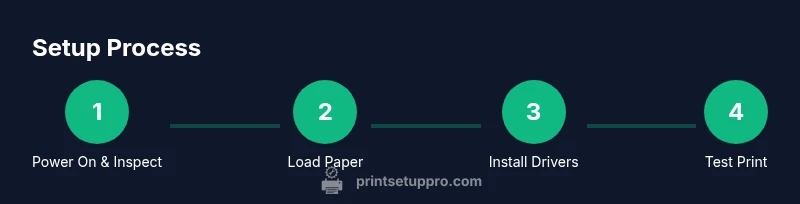
- 1
Power on and verify packaging
Unbox the Brother MFC, remove protective tape, connect the power cord, and press the power button. Confirm the device boots normally and displays the welcome or setup screen. This initial check helps prevent post‑unboxing surprises.
Tip: Keep the manual handy for model‑specific steps. - 2
Load paper and prepare trays
Open the paper tray and set the guides to match your paper size. Fan the stack to prevent multi‑sheet feeds, then insert papers until the guides click. Close the tray securely and power the device on if it was off.
Tip: Use the lowest acceptable paper weight for daily documents. - 3
Connect to power and network
Choose USB or wireless based on your setup. For wireless, select your network on the printer panel and enter the password. If using USB, connect directly to your computer and skip network setup.
Tip: For wireless, place the printer within good range of the router. - 4
Install drivers and software
Download the latest driver package from Brother’s official site and run the installer. Choose network or USB installation as appropriate. Allow the installer to complete without interruption and restart if prompted.
Tip: Verify you’re installing the correct OS version. - 5
Configure network settings on the printer
If wireless, assign a stable SSID and confirm DHCP or a reserved IP address for reliability. Enable printer sharing if you plan to print from multiple devices.
Tip: Consider setting a static IP to avoid address changes. - 6
Print a test page
From the printer’s control panel or the computer, print a test page to verify alignment, density, and color accuracy. If issues appear, run the printer’s cleaning page and adjust density.
Tip: Test both text and image quality on the page. - 7
Enable scanning and fax features
Set up scanning destinations (PC folder, email, or cloud) and configure any fax number or preferences if your model supports faxing. Test a scan to ensure file type and destination work correctly.
Tip: Keep scan destinations organized for easy access. - 8
Establish maintenance reminders
Create a calendar reminder for firmware checks, consumable stock, and periodic cleaning. This proactive routine minimizes downtime and keeps the Brother MFC running smoothly.
Tip: Schedule quarterly checks for best results.
People Also Ask
What is the best way to connect a Brother MFC to my Wi‑Fi network?
Use the printer’s control panel to choose Wireless LAN setup, select your network, and enter the password. Install the official driver and select the printer when prompted. If the connection fails, verify that the router uses a compatible security protocol and that the printer is within range.
Go to the printer’s Wireless settings, pick your network, enter the password, and install the official driver. If it fails, check your router settings and distance.
Why won’t my Brother MFC appear on the network?
This can result from a wrong Wi‑Fi password, MAC address filtering, or outdated firmware. Ensure the printer is on the same network, disable strict filtering temporarily, and update the firmware and drivers from Brother’s site.
Make sure the printer is on the same network, disable filtering temporarily, and update firmware and drivers.
How do I update drivers for my Brother MFC?
Visit Brother’s official site, locate your model, and download the latest driver package for your operating system. Run the installer and follow on‑screen prompts. Reboot if asked and test a print job afterward.
Download the latest driver from Brother, install it, and reboot if needed, then test a print.
Can I print from mobile devices with my Brother MFC?
Yes. Enable the Brother mobile print option, install the Brother iPrint&Scan or your OS’s native printing app, and ensure the mobile device is on the same network or connected via cloud services.
Yes, you can print from mobile by using Brother’s app or your phone’s printing options over the same network.
How can I reset network settings on a Brother MFC?
Access the network settings via the control panel or web interface and select Reset Network. Reconfigure your wireless or Ethernet connection from scratch to restore connectivity.
Reset the network from the panel or web interface, then set up the connection again.
What should I do if I still have paper jams after following steps?
Power cycle the printer, open all jam access points, remove any torn sheets, and ensure the paper guides are aligned. If jams persist, inspect rollers for wear and consider replacement.
Power cycle, clear jams, and check roller wear; replace if needed.
Watch Video
Quick Summary
- Verify model and firmware before install
- Use official drivers for reliability
- Configure network with a stable connection
- Run a test print and cleaning cycle
- Schedule routine maintenance