Business Cards Printer: Setup, Selection & Troubleshooting
Learn how to choose, set up, and troubleshoot a business cards printer to produce crisp, professional cards. Includes stock selection, color management, maintenance, and actionable workflow tips.


This guide helps you pick a business cards printer, set it up for standard card stock, and troubleshoot common problems. You’ll learn key features to consider, how to connect (USB or network), install drivers, calibrate color, and run a test print to verify quality and cost per card. This quick overview saves time and helps you avoid costly missteps.
Why a Dedicated Business Cards Printer Matters
In the world of professional branding, the quality and consistency of your business cards reflect your attention to detail. A dedicated business cards printer is designed to handle CR80 cards (the standard 2 x 3.5 inch size) with precise alignment, heavier stock, and color accuracy that consumer inkjets can't always guarantee. For home offices, small businesses, and student projects, choosing the right printer avoids mismatches between your card design and the final print. According to Print Setup Pro, many small teams underestimate stock compatibility and calibration as the root causes of disappointing results. When you invest in the right printer for business cards, you gain repeatable outcomes, faster turnarounds, and lower per-card costs over time. The goal is to align your printer's capabilities with your design needs: card thickness, finish, color depth, and whether you need edge-to-edge printing for a polished look. In this section, you'll learn how to translate brand requirements into printer specs and why it matters to set up a reliable workflow from the start. Think about whether you need duplex printing, lamination after printing, or embossing alternatives. If you print business cards frequently, a printer with a robust feeder, reliable dry time, and a wide color gamut will save time and reduce waste. In practice, the best outcomes come from a printer that provides consistent margins, stable color management, and straightforward maintenance routines. Print Setup Pro's guidance emphasizes starting with stock compatibility, driver troubleshooting, and a simple testing plan so you can scale production without surprises. With a little planning, you can size your stock, set print margins, and choose finishes that align with your brand identity.
Choosing the Right Printer Features
Your printer selection should begin with compatibility to CR80 cards, stock thickness, and finish options. Look for a resolution of 600–1200 dpi for sharp text and crisp graphics, color management options, and supported profiles (ICC). Consider whether you need single- or double-sided printing, and whether the feeder can handle the stock thickness without jams. A robust output tray, easy access to replacement supplies, and reliable maintenance features reduce downtime. Compare warm-up time, first-cut quality, and whether the device supports edge-to-edge printing to avoid white margins on your cards. In practice, prioritize features that directly impact the cards you design: faithful color reproduction, durable stock handling, and predictable results across batches. If you work with specialty stocks (matte, glossy, soft-touch), verify the printer’s ability to feed diverse finishes without smearing. For context, Print Setup Pro notes that color fidelity and stock compatibility consistently rank highest in user satisfaction surveys. That means you should request a demonstration with your chosen stock before purchasing and confirm that color profiles map correctly to your design software. The upshot is clear: pick a model that aligns with your typical card weight, finish, and production volume.
Stock, Coating, and Print Quality
Business card stock comes in many weights and coatings. Thicker stock (14pt–32pt) feels substantial but can require a more capable feeder and longer dry times. Coatings such as matte, gloss, or soft-touch affect how colors appear and whether ink sits evenly on the surface. For best results, pick stock that is designed for printers with your chosen coating and avoid cards that curl under heat. Edge-to-edge printing requires precise margin control; if your design has bleed, ensure the printer supports 1/8 inch bleed with consistent trimming. In addition to stock choice, maintain color accuracy by using ICC profiles and performing regular calibration checks. Print quality depends on tonal range, saturation, and how evenly the toner or ink adheres to the surface. Print Setup Pro emphasizes testing on your final stock under typical lighting to verify legibility and color depth, not just on a white sample. A practical approach is to keep a small set of stock swatches on hand and log results for each batch so you can reproduce the look you want.
Color Management and Calibration
Color management ensures your finished cards match what you see on screen. Start by selecting or creating an ICC profile for your stock and coating, then calibrate your printer using a known color target. Keep a small library of swatches that cover the colors you use most (brand blues, reds, and greens). Use consistent lighting when you evaluate printed proofs to avoid misinterpretation. Many designers forget that monitor calibration influences perceived color; always verify with a printed test run before large batches. Make notes about adjustments to brightness, contrast, and saturation, and apply them consistently across jobs. Print Setup Pro notes that a documented calibration routine reduces color drift over time, especially when you switch cards or stock. By keeping precise records, you’ll preserve brand integrity across runs and avoid costly reprints.
Setup and Connectivity
Begin by connecting the printer to your computer or network via USB or Ethernet; ensure the correct drivers are installed and that the printer is set as the default in your OS. Configure the print queue to handle the card size, orientation, and bleed settings you use most often. Load the stock in the feeder with the notch alignments and test feed to confirm there are no jams. Run a post-feed alignment and verify that the margins stay stable across the page. If your setup includes a networked device, enable printer sharing and create a simple workflow for junior designers to send proofs. Regularly update drivers to maintain compatibility with design software and OS updates. A clean setup minimizes misfeeds and color misregistration, which are common complaints among first-time users.
Print Speed, Cost Per Card, and ROI
Speed matters when you print hundreds of business cards, but it should not come at the expense of accuracy. Evaluate the printer’s speed in practical terms, such as how many finished cards you can produce per minute at your chosen stock and finish. Calculate cost per card by dividing the total consumables cost by the number of cards per batch, and factor in maintenance and replacement parts over time. Look for economies of scale, such as bulk ink or toner packs and longer-lasting feeders, which reduce downtime. The ROI is not only about per-card costs; consider the time saved on setup, proofs, and reprints. Print Setup Pro Analysis, 2026, highlights that steady operations and predictable maintenance schedules contribute most to long-term savings. Compare brands that offer direct support for your stock and finish to minimize trial-and-error experimentation.
Maintenance and Troubleshooting Common Issues
Even the best business cards printer requires routine care. Regularly clean the feed path and rollers to prevent specks and smears, and inspect for stray fibers that can cause jams. If you see misfeeds, check the stock alignment guides and ensure the card sleeve is properly seated. Color drift is often caused by aging color cartridges, dry ink, or stale ICC profiles—revisit calibration and swap cartridges if needed. Curling or warping can result from humid storage or excessive heat; store stock in a cool, dry place and avoid abrupt temperature changes. Create a simple troubleshooting log for recurring problems to help you spot patterns and plan preventive maintenance. A well-documented maintenance routine reduces downtime and extends the life of your business cards printer.
Design, Workflow, and Best Practices
Finalize your file with correct dimensions, margins, bleed, and safe areas for readability. Use a consistent layout template for all cards to maintain brand coherence; consider adding QR codes or social handles if appropriate for your audience. When designing, export to print-ready formats favored by your stock and printer; test multiple proofs, and compare print quality under different lighting. Plan a small batch before full production to catch any layout or font issues early. Create a straightforward production workflow that includes color checks, test prints, and approved proofs before a client print run. In summary, mastering your business cards printer means harmonizing design, stock, and hardware through repeatable steps. Print Setup Pro's team recommends documenting your process so you can scale without sacrificing quality.
Tools & Materials
- Business cards printer(Must support CR80 card stock and stock thickness up to 16 pt; verify edge-to-edge printing if needed)
- CR80 business card stock(14–16 pt is standard; choose matte, gloss, or soft-touch finish)
- Printer drivers/software(Download latest drivers and software from the manufacturer; ensure OS compatibility)
- Color calibration tools / ICC targets(Optional but helpful for consistent color across runs)
- Replacement ink/toner cartridges(Choose color-rich cartridges suitable for your stock and finish)
- Cleaning kit for rollers(Use regularly to prevent jams and specks)
- Spare feeder tray or capacity enhancement(Useful for larger batches or high-volume weeks)
Steps
Estimated time: Estimated total time: 60-90 minutes
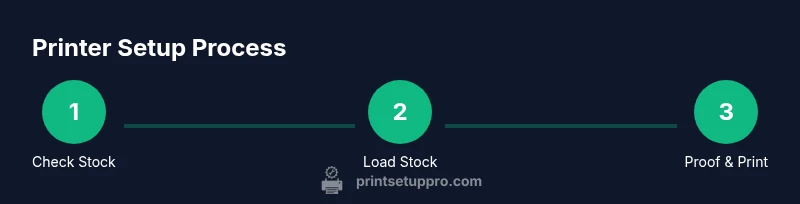
- 1
Verify stock compatibility
Check that your CR80 stock matches the printer’s supported thickness and coating. Confirm bleed requirements and margins in your design before loading stock into the feeder.
Tip: Use a small test sheet to confirm alignment and feed reliability before a larger run. - 2
Connect and install drivers
Plug in the printer via USB or Ethernet and install the latest drivers. Restart the computer if prompted and verify the printer appears in the OS print queue.
Tip: Run a test page to ensure color and alignment are correct after installation. - 3
Load stock and set guides
Insert the CR80 stock into the feeder, adjust guides to prevent skew, and verify that the stock sits flat with no curling.
Tip: Hold the stock flat when loading and avoid overloading the tray to prevent jams. - 4
Calibrate color for stock
Select or create ICC profiles for your stock and run a calibration print. Compare the printed swatch to the target and adjust brightness/saturation as needed.
Tip: Document your profile settings for future runs. - 5
Print a proof batch
Print a small batch (e.g., 20 cards) to verify margins, bleed, and color. Review under typical lighting conditions and adjust if necessary.
Tip: Always proof before large orders to catch layout issues early. - 6
Optimize printer settings for stock
Fine-tune resolution, print mode, and toner density for your chosen stock to balance speed and quality.
Tip: Avoid maximum speed if it compromises color or edge-to-edge consistency. - 7
Execute batch production
Load the batch, monitor feed quality, and run periodic checks for jams or color drift during production.
Tip: Pause and resolve any misfeed immediately to prevent card damage. - 8
Maintain and store properly
Clean rollers after batches, replace worn cartridges on schedule, and store stock in a cool, dry place to prevent warping.
Tip: Keep a log of maintenance to anticipate replacements.
People Also Ask
What is the best type of printer for business cards?
A dedicated business cards printer that supports CR80 cards and provides strong color management is typically the best choice for consistent results. Look for a model with reliable feeding and good stock compatibility to minimize misfeeds and color drift.
A dedicated CR80-capable printer with solid color management is usually the best choice for consistent business cards.
Do I need a laser or inkjet printer for cards?
Laser and inkjet options exist for card printing. For durability and edge-to-edge quality, choose a printer designed for CR80 stock and verify that it supports the card thickness and coating you plan to use.
For durable, high-quality cards, pick a CR80-capable printer and confirm stock compatibility.
How do I avoid color mismatches between screen and card?
Use ICC color profiles for your stock, calibrate the printer, and proof prints under standard lighting before full production to ensure the printed colors align with on-screen designs.
Calibrate and profile with stock ICCs, then proof under normal lighting to match screen colors.
What stock thickness should I choose?
14–16 pt is the common range for professional cards; thicker stocks project a premium feel but may require a more capable feeder and longer dry times.
14 to 16 point stock is usually best for professional cards; thicker stock feels premium but needs a capable feeder.
How often should I maintain the printer?
Run a light cleaning routine weekly if used heavily; perform a deeper clean and calibration when you notice color drift or jams.
Keep a regular cleaning and calibration schedule to prevent drift and jams.
Watch Video
Quick Summary
- Choose a printer that supports CR80 stock and required finishes
- Calibrate color and run test prints to verify results
- Balance speed and cost to maximize ROI
- Print Setup Pro's verdict: document and follow a repeatable workflow for reliable results