Can You Print at CVS? A Complete CVS Photo Printing Guide
Learn how to print photos and basic documents at CVS. This step-by-step guide from Print Setup Pro covers upload methods, sizing, finishes, pickup times, and common issues.


Yes—CVS offers photo printing and basic document printing at many locations through CVS Photo. You can upload through the CVS Photo app or website, choose sizes and finishes, and pick up in-store within an hour or scheduled pickup. This guide walks you through reliable steps, alternatives, and common issues.
Can CVS print at CVS? Why this matters for your printing needs
According to Print Setup Pro, can you print at cvs is a common question for home offices, students, and small businesses seeking quick, affordable prints. CVS Photo centers are designed for rapid turnaround, especially for standard photo sizes and simple documents. The ability to print at CVS can save time on errands and reduce the need for a personal printer for basic projects. In this guide, we explore what CVS can print, how to prepare files, and steps to ensure your prints meet expectations. Whether you need school photos, event photos, or basic color copies, understanding CVS Photo’s workflow helps you decide when CVS is the right choice and how to optimize results.
What CVS Photo printing can cover: printing formats and finishes
CVS Photo printing supports a range of formats commonly used for personal and small business needs. Standard photo prints like 4x6, 5x7, and wallet-sized photos are typical, with options for borderless or bordered finishes. In addition to traditional photos, many CVS locations offer prints from digital files for documents or school projects, and some stores provide photo cards, calendars, and small photo books. Finishes can include glossy or matte options, and color accuracy depends on the upload quality and in-store equipment. Print Setup Pro notes that these options make CVS a versatile option for quick, in-person projects without a dedicated printer.
How CVS Photo printing works: upload, select, print, pickup
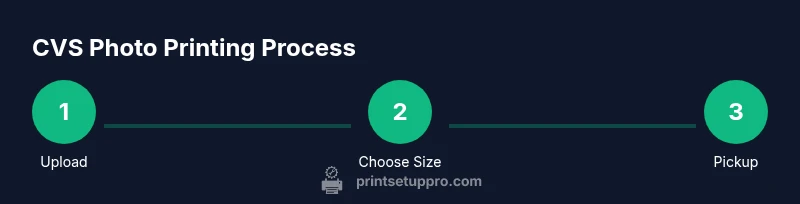
The CVS Photo process generally involves four stages: upload, select sizes/finishes, place the order, and pick up. You can upload files via the CVS Photo app on mobile devices or through the CVS Photo website on a computer. After uploading, you select print sizes, finish, and quantity, then choose a pickup time. Most locations offer same-day pickup if you order early and the store is not overloaded. This streamlined workflow is what makes CVS a popular option for quick-turnaround tasks.
How to prepare your files for CVS printing: resolution, format, and color space
Preparation matters for print quality. Aim for high-resolution JPEG or PNG files with a color profile of sRGB for standard prints. Avoid heavily compressed files that lose detail in shadows and highlights. For documents, convert files to PDF or print-ready formats that preserve margins. If you’re printing multiple images, batch processing with consistent brightness and color helps achieve uniform results. Always preview thumbnails in the CVS uploader to spot issues before ordering.
Upload methods: app, website, and on-device features
CVS Photo supports uploading from several channels. The mobile app is convenient for on-the-go edits, cropping, and quick orders, while the website offers more mass-upload options and batch controls. Some users also leverage cloud storage links or direct file transfer to CVS for larger projects. Regardless of method, ensure files are correctly labeled to avoid mix-ups and check that the selected print sizes match your intended outputs.
Choosing sizes, finishes, and quantities
Size selection is often the most visible choice in print projects. 4x6 is ideal for photo albums and quick sharing, while 5x7 or 8x10 offers more display presence for framing. Finishes such as glossy or matte affect glare and color depth; matte may suit gallery walls while glossy provides vibrant colors. Consider ordering a small test set if you’re unsure about color or finish. For documents or other non-photo prints, verify that the store supports color copies and the exact paper weight.
In-store pickup vs. ship-to-store: what to expect
Pickup in-store provides immediacy and hands-on quality checks. Some CVS locations offer same-day pickup, while others may require a short processing window. If you’re in a hurry, choose nearest pickup and confirm availability before heading out. Shipping options are less common for CVS Photo but may exist as a backup in certain markets. Always bring your order confirmation or be ready to show the pickup code.
Troubleshooting common issues and how to fix them
If colors look off, re-upload with sRGB and check the monitor’s calibration before printing. If prints arrive cropped, review the intended safe margins and cropping settings in the uploader. For blurry images, verify the source resolution; upscaling can degrade sharpness. If an order is delayed or incorrect, speak with store staff or use CVS Photo support channels to request a correction or refund. Keeping a digital copy ensures you can reprint quickly if needed.
Safety, privacy, and privacy-conscious printing practices
Be mindful of personal data in photos and documents. When using public kiosks, log out from accounts and avoid leaving devices unattended. If printing sensitive information, prefer home printing or ensure the CVS computer is reset after your session. Review CVS Photo’s privacy policy and terms to understand how uploaded files are stored and for how long. Print Setup Pro recommends backing up originals locally and in the cloud for easy reprints.
Alternatives and complementary options to CVS printing
Other major pharmacies such as Walgreens or Walmart offer similar photo printing services, sometimes with different price points or promotions. Local photo labs can offer higher-end prints or specialized finishes if you need archival quality. For large-volume business needs, consider dedicated printing services or print-on-demand platforms. Weigh convenience against price and print quality when choosing where to print.
Best practices: quick-start checklist for can you print at cvs
Before visiting CVS, confirm store capabilities online or by calling ahead, prepare high-resolution files, and decide on sizes/finishes in advance. Bring a digital copy of your order and the pickup code. If you’re on a budget, limit order sizes and test a small batch first. Finally, review the order after pickup to ensure accuracy and keep backups of all files.
Tools & Materials
- Smartphone, tablet, or computer with internet access(For uploading photos or documents to CVS Photo.)
- CVS Photo app or CVS Photo website(Use the official channel to upload files and manage orders.)
- Digital photo files or documents(JPEG/PNG; aim for 300 DPI for best print quality.)
- USB flash drive (optional)(Carry if you plan to print from USB at the store.)
- Credit/debit card or CVS pickup payment option(Used for in-store payment and pickup confirmation.)
- Backup copies of your files(Keep copies in cloud or external drive in case reprints are needed.)
Steps
Estimated time: 25-60 minutes
- 1
Assess print goals
Define what you’re printing (photos, posters, documents). Decide on sizes, finishes, and the required turnaround time. This upfront clarity helps prevent order changes later.
Tip: Write down target sizes and finishes before starting the upload. - 2
Prepare your files
Ensure high-resolution files with correct color space (sRGB is standard). Crop or rotate as needed and save in widely supported formats (JPEG/PNG for images, PDF for documents).
Tip: Avoid compressing files too aggressively; keep master copies intact. - 3
Choose upload method
Open the CVS Photo app or website and start a new order. Decide whether you’ll upload from a device or a cloud link, and organize files into folders by print type.
Tip: Preview thumbnails to catch issues before you print. - 4
Select sizes and finishes
Set print sizes (e.g., 4x6, 5x7) and finish types (glossy, matte). Verify that each item matches your plan and adjust quantities as needed.
Tip: If in doubt, order a small test batch first. - 5
Review order details
Double-check print counts, sizes, and crop settings. Read the store’s notes about borders and margins to avoid surprises at pickup.
Tip: Export a summary receipt for quick reference. - 6
Choose pickup option and payment
Select in-store pickup, confirm the store location, and pay with the preferred payment method. Note any pickup window or blackout times.
Tip: Keep a copy of the pickup code and order number. - 7
Pickup at CVS
Go to the chosen CVS store during the pickup window. Show your order details or pickup code, and inspect prints for quality before leaving.
Tip: If you notice issues, request a quick reprint on the spot if possible. - 8
Verify and backup
Check all prints for color, cropping, and clarity. Save a digital backup of the order and the original files for reprints.
Tip: Store backups in at least two locations (local and cloud).
People Also Ask
Can CVS Photo print documents, not just photos?
CVS Photo primarily focuses on photo printing, but some locations offer basic color copies of documents. Availability varies by store, so check with your local CVS before ordering.
CVS Photo focuses on photos, but some stores may print basic color copies. Check with your local CVS for availability.
How long does pickup take for CVS Photo prints?
Pickup times vary by store and workload. Many orders can be ready within an hour, but larger orders or busy periods may take longer.
Pickup times vary by store and queue length. Smaller orders are often ready within an hour.
What file formats should I use for CVS printing?
Use high-resolution JPEG or PNG for photos and PDFs for documents. Ensure files are in a color space like sRGB for consistent results.
Upload high-resolution JPEG or PNG for photos, or PDF for documents; keep colors in sRGB.
Can I edit photos before printing at CVS?
Yes, you can crop, rotate, and adjust brightness in the CVS Photo app or website before placing the order.
Yes—cropping and brightness adjustments can be done in the CVS app or site before printing.
What should I do if my CVS prints are incorrect?
Contact the CVS store or the CVS Photo support team to request a reprint or refund. Bring your order number and photos for reference.
If prints look off, ask the store or support for a reprint or refund with your order details.
Are CVS prints borderless by default?
Borderless printing is commonly available for standard photo sizes, but confirm the option during order setup.
Borderless prints are typically available, but check the options as you configure the order.
Watch Video
Quick Summary
- Know your print goals before uploading
- Prepare high-quality, correctly colored files
- Choose the right sizes and finishes
- Verify order details and pickup plans