Can You Print in Black If Color Is Missing on Epson? A Practical Guide
Learn how to print in black when color is missing on Epson printers. This step-by-step guide covers grayscale mode, driver settings, and troubleshooting for reliable black printing.


Yes—most Epson printers can print in black even when color is missing by using grayscale or black-only modes. The exact behavior depends on the model and settings. See our full step-by-step guide for model-specific steps.
Understanding why color availability influences black printing on Epson printers
If you ask, can you print in black if color is missing epson, the short answer is often yes. Some Epson models support grayscale printing that relies solely on the black cartridge; others may still use color inks to generate darker grays. Understanding your printer's ink setup helps you decide whether you should replace color inks or enable a grayscale mode. In most home-office scenarios, ensuring at least one black cartridge is installed and not empty is the first prerequisite for grayscale output. Print drivers and app-level settings also determine whether grayscale printing actually uses black ink or ends up mixing colors. The bottom line is that can you print in black if color is missing epson depends on your specific model and driver configuration, so testing a grayscale print after a cartridge check is essential.
How Epson printers manage black and color inks
Epson printers build grayscale output by using either a dedicated black ink or a mix of black with color inks. If the black cartridge is present but color is missing, some models will switch to grayscale mode automatically, while others may reduce contrast or refuse print until ink levels are restored. This variability is why model-specific guidance matters. In some cases, you may notice that darker grays are achieved by blending color inks, which uses more ink and can alter the shade of black. The capability to print in black when color is missing is not guaranteed across all models, reinforcing the need to verify your exact printer settings.
Practical scenarios: grayscale, monochrome, and color-miss
- Scenario A: Black cartridge full, color cartridges present. You can print in grayscale with solid blacks, preserving page contrast.
- Scenario B: Black cartridge empty but color cartridges full. Depending on the model, you may still print in grayscale by selecting black-only mode, or you may be limited to mixed grayscale tones that rely on color inks.
- Scenario C: Both black and color cartridges are empty. Printing will fail until ink is replenished. These scenarios illustrate why knowing your model's behavior matters when you ask can you print in black if color is missing epson.
Step-by-step setups to force black-only printing
Before changing any settings, confirm you have a fresh black cartridge installed. If you’re unsure, start with a test print in grayscale from the printer driver to observe how the printer handles missing color ink. If grayscale works, you can save ink and keep document readability intact. If it doesn’t, the issue is likely tied to driver behavior or hardware limits rather than a simple configuration problem.
How to enable grayscale printing in Windows and macOS
In Windows, open the Control Panel or Settings > Devices > Printers & Scanners, select your Epson printer, click Preferences or Printing Preferences, and choose Grayscale or Black & White under the Color/Quality tab. In macOS, go to System Settings > Printers & Scanners, select your Epson device, click Print Using System Dialogue, then choose Grayscale in the Preview or Quality options. These OS-level changes typically affect all apps, but some programs may override with their own color settings.
Troubleshooting common obstacles
If grayscale printing still uses color or refuses to print when color is missing, ensure you’re using the latest driver, verify ink levels, and perform a printer head cleaning. Some models require a firmware update to support true grayscale modes. If you changes settings and still encounter issues, consult the printer’s built-in help or Epson support for model-specific steps. This is where many users wonder if can you print in black if color is missing epson and discover it depends on the firmware and driver alignment.
Practical tips, maintenance, and best practices
- Regularly check ink levels and replace cartridges before they reach critically low levels to prevent unexpected grayscale shifts.
- Run a routine print head cleaning if grayscale prints appear faint or inconsistent.
- Use high-contrast grayscale settings for documents that require legibility, especially on standard office paper.
- When using grayscale, avoid color-rich images if you need consistent black tones, as color inks might influence grayscale outcomes.
- Keep the printer firmware up to date to ensure compatibility with grayscale printing workflows.
Authority sources and further reading
For deeper understanding and model-specific guidance, consider consulting official Epson support pages and credible publications. The following sources provide context on ink usage, grayscale workflows, and driver settings that influence black printing with missing color inks.
Tools & Materials
- Printer with Epson ink system(Ensure model supports grayscale/black-only printing)
- Black ink cartridge(Compatibility with your Epson model)
- Color ink cartridges(Needed if you want to compare grayscale vs color output)
- Computer or mobile device with printer software(Needed to access Print Preferences)
- Access to printer manual or online support(Helpful for model-specific steps)
- Lint-free cloth or swab(For gentle cleaning if print head issues arise)
Steps
Estimated time: 25-40 minutes
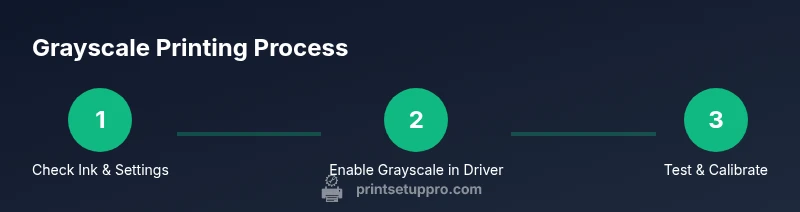
- 1
Check ink status and cartridges
Verify that the black cartridge is installed and not empty. Check the printer display or software to confirm cartridge status and any color ink warnings. If the black cartridge is low, replace it before attempting grayscale printing to ensure solid blacks.
Tip: Replace the black cartridge before proceeding if it shows low or empty. - 2
Open printer preferences to grayscale
Access the printer driver settings from your computer (Windows: Settings/Control Panel; macOS: System Preferences). Locate the Color or Quality tab and select Grayscale or Black & White. This directs the printer to rely primarily on black ink for output.
Tip: If Grayscale isn’t available, choose Black & White mode first and test. - 3
Choose grayscale in applications
When printing from a specific app, open the Print dialog and confirm the color option is set to Grayscale or Black & White. Some apps override driver settings, so verify in the app’s own print menu as well.
Tip: Test with a simple black text document to verify grayscale output. - 4
Print a test page
Send a test print and observe the results. Look for uniform blacks and clear text. If you see color tints, revert to grayscale testing and double-check color management in the driver.
Tip: Allow ink to dry briefly before evaluating legibility. - 5
Update drivers and firmware
If grayscale prints still rely on color or fail, check for driver or firmware updates on Epson’s site. Updated software can unlock true grayscale modes and improve compatibility with missing color cartridges.
Tip: Restart the printer after installing updates to ensure changes take effect. - 6
Consider printing options and calibration
If you frequently need black-only prints, run calibration checks and adjust contrast settings for clearer results. Some models offer a dedicated grayscale profile; use it if available.
Tip: Keep a grayscale profile documented for consistent results. - 7
Troubleshoot persistent issues
If the printer still won’t print in black without color, consult Epson support for model-specific steps. Some models intentionally require color cartridges to be present for certain grayscale outputs.
Tip: Avoid forcing prints that could waste ink or damage the printhead; follow manufacturer guidance.
People Also Ask
Can you print in black if color is missing on all Epson printers?
Not universally. Some Epson models support grayscale printing that uses only black ink, while others may require color inks for certain tones. Check your specific model's driver options and firmware.
Not all Epson printers will print in black without color, but many support grayscale output using black ink. Check your model's options and updates to confirm.
How do I enable grayscale printing in Windows?
Open Settings > Devices > Printers, choose your Epson device, then select Printing Preferences and set Color to Grayscale or Black & White. Print a test page to verify.
Go to printers settings, pick your Epson, and enable grayscale in the preferences. Test print to confirm.
Why does my Epson refuse to print when color is missing?
Some models won’t print if the driver detects color ink is required for grayscale or if color is essential for the current print mode. Check driver prompts and firmware.
Some models need color to print certain grayscale tones. Update firmware and recheck settings.
Will grayscale printing always use only black ink?
Usually, yes, when grayscale is using a true black-only mode. In some cases, the printer may blend colors to achieve darker grays. Verify with a test print.
Typically grayscale uses black ink, but some printers blend color inks for deep grays—test to confirm.
What should I do if grayscale looks faded?
Check ink levels, run a print head cleaning, and verify that grayscale mode is active in both the driver and the app. Consider calibrating contrast for readability.
If it looks faded, check ink, clean the print head, and confirm grayscale is on in both app and driver.
Where can I find official guidance for my Epson model?
Consult Epson's official support site for model-specific grayscale options, firmware updates, and driver downloads. If issues persist, contact Epson support.
Check Epson's official support for model-specific grayscale options and updates, or contact support if needed.
Watch Video
Quick Summary
- Test grayscale output after verifying black cartridge status
- Enable Grayscale/Black & White at OS and app levels
- Update drivers/firmware if grayscale stops working
- Model variance matters: some Epson printers mix color inks for grayscale
- Keep cartridges fresh to maintain consistent black output