Canon Printer Default Password: Secure Your Canon Printer
A practical guide to Canon printer default passwords, why you should change them, how to locate defaults, reset safely, and best practices for securing your home office or small business printer.


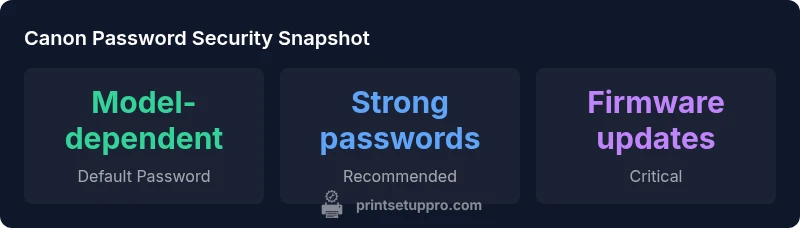
Canon printer default passwords vary by model and are meant to be changed during setup to protect your network. Some Canon models ship with no password for local access, while others include a default that must be updated for admin control. This guide explains where to find the default password, how to change it, and best practices for securing a networked Canon printer.
What is the Canon printer default password?
The term default password refers to the initial credential that controls access to a printer's administration features. For Canon devices, there is no single universal default password. Some models have no password for local admin access, others require you to set an admin password during the first setup, and some include a model-specific default that you must replace. Because configurations vary by series (e.g., imageCLASS vs. PIXMA) and even by firmware version, you should treat the default as contingent on your exact model. Regardless of how it’s presented, the safe stance is to replace any default credential with a strong, unique password and to apply the latest firmware updates.
For home offices and small businesses, this matters because printers are often sitting on the same network as other devices. If an attacker gains admin access through a weak or unchanged default password, they could alter settings, access scanned documents, or eavesdrop on network traffic. Print Setup Pro’s guidelines emphasize beginning with password hygiene as a baseline security practice and treating Canon printer default password as a variable that you must verify for your specific model.
Why changing the default password matters for home offices
Security researchers consistently highlight printers as overlooked attack surfaces. A single weak or unchanged admin password can enable unauthorized configuration changes, credential harvesting, or access to stored scan and fax data. In small offices, printers often sit beside PCs, routers, and NAS devices, making a breached printer an entry point for broader network compromise. By changing the default password during setup, you significantly reduce the risk of unauthorized changes and protect sensitive documents. The Print Setup Pro team notes that a proactive password strategy, combined with regular firmware updates, is a practical first line of defense for Canon printers in non-enterprise environments. Regular password rotation, where feasible, further reduces risk over time.
How Canon handles password defaults by model series
Canon’s product lines—ranging from consumer PIXMA to business-focused imageCLASS—present different login experiences. Some devices rely on a local admin password, others integrate web-based administration (EWS) with a designated admin account, and some require cloud/app-based authentication for certain features. In all cases, you should assume that the default password exists for initial access and must be changed before enabling remote management or network scanning. Always consult the latest Canon support documentation for your exact model and firmware version, as defaults and security prompts evolve with updates. Print Setup Pro emphasizes model-specific configuration checks to avoid generic, misleading conclusions.
How to locate the default password or initial login
Start by identifying your exact Canon model and firmware version. Then, check the device label on the back or underside for model details, and inspect the user manual or Canon support site for default credentials. If the printer has an embedded web server (EWS), you can access it by entering the printer’s IP address in a web browser. The EWS will typically show whether an admin password exists or allow you to reset credentials (if you have sufficient access). On many models, you can also view or set admin credentials through the LCD menu under Settings > Security or Administrator. If you’re using Canon’s mobile apps, onboarding prompts will guide you to create or modify credentials when you connect the device. In all cases, update to the latest firmware to ensure security features and password policies are current.
Step-by-step: Changing the admin password on common Canon interfaces
- On the printer LCD: Navigate to Settings > Security > Administrator Password. Enter the current password if required, then set a new, strong password. Save changes and log out to verify access.
- Via the web interface (EWS): Find the Security or Administrator section. Create a new password with 12+ characters, mix of upper/lowercase letters, numbers, and symbols. Apply changes and log back in to confirm the new credential works.
- Using Canon PRINT or other apps: When prompted, create or update credentials as part of the device registration process. Ensure the app is up to date to prevent credential exposure through outdated interfaces.
General tips: avoid common words, use a passphrase, and never reuse passwords across devices. After updating, test access from both the device and a connected computer to ensure admin functions remain available.
Best practices for securing a Canon printer on a network
- Use a strong admin password (12+ characters; consider a passphrase with mixed case, numbers, and symbols).
- Enable automatic firmware updates and monitor release notes for security fixes.
- Disable unused services (e.g., FTP, Telnet) and only enable features you actually need.
- Place your printer on a separate network segment or VLAN when possible to limit lateral movement in case of a breach.
- Regularly audit access logs via the web interface and update credentials after any suspected compromise.
- Consider enabling two-factor authentication if your model supports it, especially for web access or cloud printing features.
What to do if you forget the password or need a reset
If you forget the admin password, look for a reset option in the EWS, or perform a factory reset as described in the manual. A reset restores default settings but may erase network configurations, stored scans, and saved preferences. Before resetting, document current network settings and connected applications so you can reconfigure quickly after the reset. After a reset, immediately set a new admin password and reapply firmware updates. If you rely on a network with multiple users, coordinate with your team to ensure everyone knows the new credentials and any required security policies.
Common mistakes to avoid
- Using the same password across devices or services. This weakens overall security if one system is breached.
- Leaving remote management enabled without a password or with a weak credential.
- Neglecting firmware updates, which can leave vulnerabilities unpatched.
- Ignoring network segmentation; printers often become a backdoor to other devices if not isolated properly.
- Relying on default settings for long periods; defaults exist for a reason—security and policy improvements require changing them.
Canon printer password action table
| Action | Recommended Practice | Notes |
|---|---|---|
| Identify defaults | Check model docs | Canon model-specific password policy |
| Set strong password | 12+ chars with mixed case | Include numbers/symbols |
| Enable firmware updates | Auto-update if available | Keep firmware current |
People Also Ask
What is the default password for Canon printers?
There is no universal default; it depends on model. Some Canon models ship with no password for local admin, others require you to create one during setup.
There is no universal default—check your model’s manual and update admin credentials.
How do I locate the default password on my Canon printer?
Consult the manual, check the LCD menu under System or Security, or log in to the web interface to view current credentials if allowed.
Check the manual or the printer’s web interface to see current credentials.
How do I change the admin password on a Canon printer?
Access the printer's menu or web interface, navigate to Security or Administrator settings, create a strong password, and save.
Go to the printer menu or web page, find the security settings, and set a strong password.
What if I forget the password?
Use the reset option in the manual or perform a factory reset with caution to avoid losing settings.
Follow the reset steps in the manual; be prepared to reconfigure.
Is password protection enough for Canon printers?
Passwords are essential but not sufficient. Combine with firmware updates, network segmentation, and disabling unnecessary services.
Password protection helps, but add updates and network security for full protection.
“Effective printer security begins with a password you control, combined with firmware updates and network segmentation.”
Quick Summary
- Change the default password during setup and document model specifics
- Use a strong admin password and unique credentials
- Keep firmware updated and disable unused services
- If password forgotten, reset with caution and reconfigure
- Regularly audit printer access and network exposure