How to Get Your Printer Online: A Practical Step-by-Step Guide
Learn how to get a printer online with a clear, practical setup. From network prep to driver installation, this guide walks home offices and student setups through reliable steps to minimize offline issues.


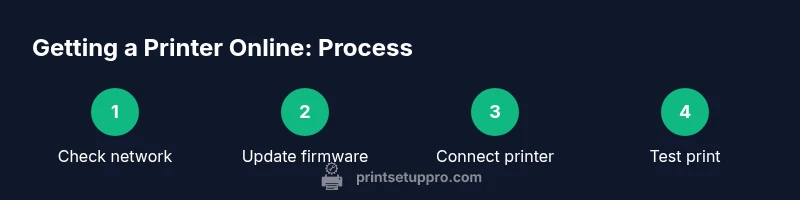
To get your printer online, connect it to a working home or office network, install or update drivers, and add the device to your computers and mobile devices. Verify your router’s frequency (2.4 GHz is common), enter the correct credentials, and print a test page. If issues persist, update firmware and check for IP conflicts. This quick guide follows Print Setup Pro best practices.
Verify Network Readiness\n\
Prepare Devices and Drivers\n\
Connect the Printer to the Network\n\
Configure IP Address and Network Settings\n\
Add the Printer to Your Devices\n\
Test Print and Troubleshooting\n\
Advanced Options and Security\n\
Common Pitfalls and Quick Fixes\n\
Maintenance to Prevent Future Offline Status\n\
Tools & Materials
- Printer user manual(model-specific setup steps)
- Computer or mobile device(for driver installation and adding printer)
- Active Wi‑Fi network name (SSID) and password(needed for wireless setup)
- Router admin access(to review network settings or reservations)
- Ethernet cable (optional)(for wired connection)
- USB cable for initial driver installation (optional)(some printers require USB-first setup)
- Printer drivers/software for your OS(download from the manufacturer)
- DHCP reservation plan (optional)(helps maintain a stable IP address)
Steps
Estimated time: 60-90 minutes
- 1
Gather network details
Collect your SSID, password, and confirm the router is powered and connected to the internet. Record your printer model and current firmware version for reference. This ensures you can apply the correct settings during setup.
Tip: Have your phone or computer ready to copy credentials securely. - 2
Update firmware and drivers
Check the printer and computer for the latest firmware and drivers. Install updates before attempting network setup to avoid compatibility issues. Restart devices after updates to finalize changes.
Tip: Use the vendor’s official site or app to download updates. - 3
Connect printer to network
Choose wired Ethernet or wireless Wi‑Fi. For Wi‑Fi, enter the SSID and password on the printer’s control panel. If using Ethernet, plug the cable and confirm the link light is active.
Tip: If the printer supports WPS and your router’s settings permit it, you can use it for quick setup but be aware of security considerations. - 4
Configure IP settings
Decide between DHCP or a static IP. For stability, set a DHCP reservation or assign a static IP in your local network range. Note the IP address for device setup.
Tip: Avoid using addresses that may be assigned to other devices. - 5
Add printer to devices
On Windows, add the printer via Settings; on macOS, add via System Preferences; on mobile, use the printer’s app or print service. Ensure the printer shows as online on all devices.
Tip: If the printer doesn’t appear, retry the network discovery or manually add by IP. - 6
Test print
Print a simple text page and a colored image to confirm both output and color accuracy. If the page fails, revisit credentials, IP settings, and driver versions.
Tip: Keep a test page result for future troubleshooting. - 7
Secure and maintain
Enable automatic firmware updates if available and configure basic network security. Schedule periodic checks to prevent offline status and ensure continued connectivity.
Tip: Document changes to your network and printer settings.
People Also Ask
What does it mean when a printer shows as offline?
Offline status usually means the printer cannot be reached on the network due to a connectivity issue, driver mismatch, or a blocked IP. Start by checking power, network connection, and the printer’s IP address, then verify the device is added correctly in your OS.
Printer offline means your device can’t reach the printer over the network. Check power, connection, and IP, then re-add the printer.
Do I need to install drivers if I’m using a USB connection?
If you connect the printer over USB, many operating systems can use built-in drivers, but for full functionality you should install the manufacturer’s drivers. USB‑only setups may not discover the printer on the network, so install drivers if you plan to print over the network as well.
If you’re using USB, drivers may still help with features. For network printing, install the manufacturer’s drivers.
How can I assign a static IP to my printer?
Assigning a static IP typically involves reserving an IP on your router or manually setting a fixed address on the printer’s network settings. Use a high enough local address and ensure it doesn’t conflict with other devices.
Set a reserved IP on your router or a fixed printer address to keep it stable.
What should I do if my printer still isn’t found after setup?
Double‑check the network name, password, and that the printer is on the same subnet as your devices. Reinstall drivers, reboot printer and router, and try adding the printer by IP address if discovery fails.
If it’s not found, verify the network and try adding the printer by its IP.
Is WPS safe for printer setup?
WPS can simplify setup but has known security weaknesses. If possible, configure the printer with a manual WPA/WPA2 password instead of using WPS.
WPS is convenient but less secure. Use manual setup with a strong password when you can.
How often should I update printer firmware?
Check for firmware updates monthly or when the manufacturer releases a security or reliability fix. Enable automatic updates if your printer supports it.
Check monthly for updates or enable automatic updates.
Quick Summary
- Verify network readiness before wiring or pairing.
- Update firmware and drivers to avoid compatibility issues.
- Prefer a stable IP via DHCP reservation or static address.
- Add printer to all devices and run test prints to confirm connectivity.
- Regular maintenance keeps the printer online longer.