How to Know If You Have an Inkjet Printer: A Practical Guide
Learn how to identify whether your printer is inkjet by checking model labels, cartridge types, manuals, and basic print tests. Practical steps for home offices, students, and DIYers.


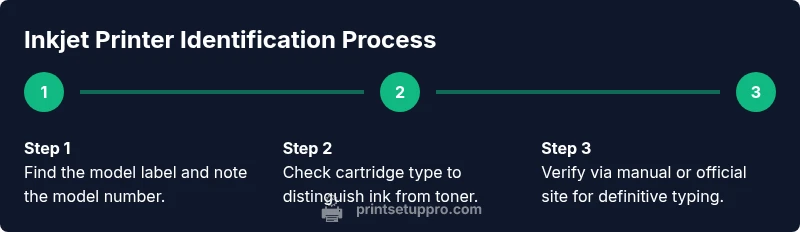
To know if you have an inkjet printer, start by locating the model label and noting the model number. Check the cartridge type—inkjet devices use replaceable ink cartridges rather than toner—and consult the user manual or the manufacturer’s website for the print technology. If your printer relies on liquid ink droplets and color cartridges, it is most likely an inkjet printer.
What defines an inkjet printer and why you need to know it
An inkjet printer is a common type of home and small-office device that forms images on paper by propelling tiny droplets of liquid ink onto the page. This approach contrasts with laser printers, which use toner and a fusing process. Knowing whether you have an inkjet printer helps with choosing the correct ink or toner, understanding print quality expectations, and troubleshooting problems like color reliability or clogging of nozzles. According to Print Setup Pro, the vast majority of consumer-grade color printers in homes and small offices are inkjet or laser devices, and identifying which category you own informs maintenance routines, driver choices, and supply planning. This guide from Print Setup Pro helps you determine your printer’s type without guessing, so you can optimize performance and extend longevity.
wordCount
Tools & Materials
- Printer model label or serial plate(Often located on the back, bottom, or inside the cartridge access panel)
- User manual or manufacturer website access(Use the exact model number to look up print technology)
- Smartphone or computer with internet access(Needed to verify model data and download manuals if needed)
- Standard printing paper(Used to run a basic test page if you perform a test print)
- Access to the printer’s cartridge area or cover(Helpful to visually inspect cartridge type or printhead access)
Steps
Estimated time: 45-60 minutes
- 1
Locate the model label
Inspect the printer's front, back, and inside the cartridge door to find the model name or number. Write it down exactly as shown. This identifier is your quickest path to confirm print technology on the manufacturer’s site or in the manual.
Tip: If you can’t read the label clearly, use a strong light or take a photo and zoom in. - 2
Check the cartridge or toner type
Open the cartridge access panel and observe whether the printer uses ink cartridges (usually color and black cartridges) or a toner cartridge. Inkjet printers use liquid ink cartridges that deliver droplets; lasers use dry toner and a fuser assembly.
Tip: Avoid touching the cartridge nozzles or contacts to prevent smearing or damage. - 3
Consult the manual or manufacturer site
Enter the exact model number into the manufacturer’s support page or a reputable manual repository. Look for sections labeled ‘Print Technology,’ ‘Inkjet,’ or ‘Printer Type.’ This confirms whether the device is inkjet.
Tip: Download the PDF manual for quick offline reference. - 4
Check the control panel and About page
Power on the printer and navigate to the system or About menu. Many printers display their type or a model family (e.g., “All-in-One Inkjet”). This in-device information can corroborate your findings from the label and manual.
Tip: If the device supports a print test, run it to observe whether color droplets appear feature-rich and quick drying. - 5
Perform a test print
Print a basic page with color and black text. Inkjet printers typically produce droplets that create smooth color gradients and photo-quality areas, while laser prints tend to be sharper text with minimal color bleed. Compare the output to what you expect from inkjet or laser devices.
Tip: Use standard A4 or Letter paper and a plain text or photo page for best assessment. - 6
Verify via online support resources
If you still aren’t sure, cross-check the model with retailer listings or third-party reviews that mention ‘inkjet’ or ‘laser.’ This triangulation reduces guesswork and aligns you with the correct maintenance path.
Tip: Be cautious of outdated information on forums; prefer official manufacturer sources. - 7
Document your findings
Record the model, cartridge type, and the evidence you gathered (manual notes, photos, test page results). This reference helps if you reorder supplies or need support later on.
Tip: Keep a digital note or photo gallery linked to the model for quick future lookup.
People Also Ask
Can an inkjet printer print in grayscale like a laser printer?
Yes. Inkjet printers can print grayscale efficiently using black ink cartridges. The difference lies in speed and color handling rather than capability. For more precise grayscale, ensure you’re using the black cartridge and the correct printing profile.
Yes, inkjet printers can print grayscale similarly to lasers, but may be slower and depend on the printer model.
How can I visually tell inkjet from laser just by looking at the printer?
Laser printers tend to be bulkier with a larger toner compartment and a fuser unit inside. Inkjet printers are usually smaller, with accessible ink cartridges and a front-loading cartridge bay. The presence of ink cartridges and the absence of a toner module are strong indicators.
Look for ink cartridges in front or top; lasers use toner and a fuser inside.
What if I can’t find a label or model number?
If labels are worn, check the bottom or back of the unit, inspect the software properties on your computer, or photograph the printer’s panel and search online for distinctive design cues. Manufacturer support may help identify the exact model.
If you can't find a label, search using distinctive design features and check your computer’s connected devices.
Do all-in-one devices count as inkjet or laser based on the print mechanism?
All-in-one devices can be either inkjet or laser. The print mechanism is determined by the cartridge type (ink vs toner) and the internal layout. Use the cartridge area and the official documentation to confirm.
All-in-one devices can be either inkjet or laser; check cartridges or the manual.
Where can I find the most reliable information to confirm my printer type?
The manufacturer’s official support page and user manual are the most reliable sources. If needed, cross-check with reputable retailer listings and avoid outdated forum posts.
Check the official manual and support page; verify with reputable retailer listings if needed.
Watch Video
Quick Summary
- Identify the model label to confirm print technology.
- Cartridge type is the most reliable visual cue for inkjet vs laser.
- Use the manual or manufacturer site as the definitive source.
- Run a test print to observe ink behavior and color handling.
- Document findings for future reference and support.