How to Print Names on Already Printed Certificates
Learn practical, printer-safe methods for adding names to certificates that are already printed, including reprinting with the name, applying labels, or using overlays. This step-by-step guide covers stock matching, typography, alignment, and quality checks for a professional result.


You can add names to certificates that are already printed by choosing a safe method: reprint the certificate with the name, affix a correctly sized label, or apply a clear overlay that aligns with the existing design. Always test on the same stock first, match the font and color, and verify alignment before finalizing to avoid damage or misprints.
Assessing the certificate and choosing the safest method
Adding a name to an already-printed certificate is a task that hinges on preserving the certificate's integrity while maintaining readability. The first step is to inspect the document: note the paper stock, finish (matte or glossy), and any embossed seals or foil details that could complicate alterations. Consider the amount of space available for the name, the area where it should appear, and whether any decorative borders might be affected by overprinting or adhesion. According to Print Setup Pro, prioritizing the certificate's original appearance and legibility should guide your decision. If the name can be accommodated without altering major design elements, a light touch with a label or overlay may be appropriate; otherwise, reprinting the entire certificate with the name is often the simplest path to a clean, professional result.
Methods to add names: three practical paths
There are three practical paths to add a name after printing: reprinting the entire certificate with the name, attaching a printed name via labels, or applying a clear overlay that carries the name. Each method has trade-offs in cost, time, and appearance. Reprinting guarantees a seamless look but requires identical stock and careful color matching. Labels offer flexibility and speed, especially for larger batches, but require precise alignment. Overlays preserve the original print without altering the underlying stock, yet demand precise measurement and high-quality overlay materials. Print Setup Pro recommends weighing your options against durability, appearance, and your available equipment before choosing a path.
Method 1: Reprint the certificate with the name
Reprinting with the name is often the most reliable way to ensure a cohesive, professional finish. Start by updating the certificate layout in your design software so the name can be placed in the same position as the original. Use the exact document size and stock type, and select the same print settings (dpi, color profile, margins). Print a test sheet on the same stock to verify that the name aligns correctly and that the color matches the original print. If the design incorporates seals or foil accents, consider whether they need reapplication or a close replica. This method minimizes risk of misalignment and keeps the record visually consistent with the rest of the batch.
Method 2: Add a printed name using labels
Labels are a practical alternative when reprinting is not desirable or feasible. Choose label stock that matches the certificate stock in weight and texture, and select a size that fits neatly into the name area without crowding borders. Create the name in the same font family and color as the original, then print on the label sheets. Cut carefully to avoid jagged edges and align with the name area using a straightedge. Apply adhesive labels only after confirming the position with a dry fit. For best results, use high-quality label stock that resists curling and tearing during handling.
Method 3: Use a clear overlay or stamp/emboss technique
A clear overlay is a transparent sheet printed with the name that can be placed over the existing certificate in the same position. Ensure the overlay matches the certificate size and uses translucent material to avoid obscuring details. Print the name on the overlay using the same font and color, then trim to fit exactly. Alternatively, a name stamp or laser-engraved embossing can add the name with a professional touch, but requires careful alignment and potentially protective lamination to prevent smudging. Always test on a replica sheet before applying to the final certificate.
Tools & Materials
- Printer (laser or inkjet)(Use the same printer settings as the final print to ensure color and alignment fidelity.)
- Certificate stock or the original certificates(Match weight, finish, and color to avoid noticeable differences.)
- Label sheets (paper label stock)(Choose a size that fits the name area; ensure compatibility with your printer.)
- Overlay sheets (clear acetate or printable transparency)(Transparent overlay should align exactly with the certificate margins.)
- Adhesive options (double-sided tape or removable adhesive)(Use archival-safe adhesives to prevent damage over time.)
- Scissors or a craft knife(Sharp blades for clean, straight cuts.)
- Ruler and alignment guide(Helpful for precise positioning and trimming.)
- Design software (Word, Publisher, Illustrator, or Canva)(Used to format name text and ensure font matching.)
- Test stock for calibration(Always practice on scrap stock before final print.)
Steps
Estimated time: 30-60 minutes
- 1
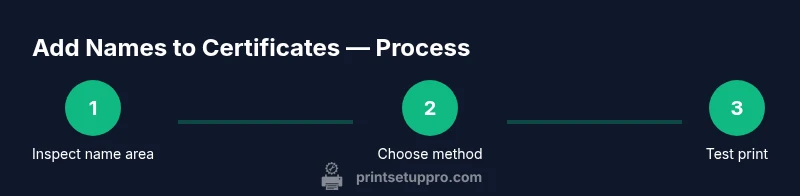
Inspect name area
Examine the certificate to locate the name field, margins, and decorative elements that must stay intact. Note available space and whether any borders could be affected by overlay or label placement.
Tip: Mark the area lightly with a pencil or use removable alignment tape to keep measurements consistent. - 2
Choose the method
Decide whether to reprint with the name, attach a label, or use an overlay. Factor in time, cost, durability, and how closely you must match the original design.
Tip: If the certificate has foil or embossing, overlay or reprint often yields the best results. - 3
Gather tools and materials
Collect the printer, matching stock, and any labels or overlays you will use. Prepare scissors, ruler, and design software for layout.
Tip: Lay out everything on a clean workspace to prevent misfeeds or accidental damage. - 4
Prepare the name layout
Create the name text in your chosen software, ensuring the font, size, and color replicate the original. Include exact margins to avoid cropping.
Tip: Export a test print that mirrors the final stock and settings. - 5
Print a test run
Print the name on scrap stock or a photocopy of the certificate to verify alignment, color, and legibility before using final stock.
Tip: Check for any smudging or misalignment before proceeding. - 6
Reprint with the name
If you selected reprint, print the full certificate with the name in the exact position. Use identical stock and confirm margins match the original.
Tip: Save a file version with the name field for future edits. - 7
Print name on label stock
If using labels, print the name on the label sheet, then cut to fit. Align carefully to avoid covering critical design elements.
Tip: Choose a high-quality label to prevent peeling over time. - 8
Print name on overlay
If using an overlay, print the name on the overlay sheet and trim to fit precisely. Prepare for a clean placement over the certificate.
Tip: Test fit on a scrap before final application. - 9
Apply overlay or label and finalize
Position the overlay or label exactly over the name field. Smooth out air pockets and press firmly to secure.
Tip: Allow adhesive to set before handling heavily.
People Also Ask
Can I add a name without reprinting the entire certificate?
Yes, you can use labels or overlays to add a name without reprinting. However, alignment and legibility are critical, and this approach may not be suitable for all designs. Always test on scrap stock first.
Yes, you can add a name without reprinting by using labels or overlays, but you should test first to ensure alignment and readability.
Will adding a label look professional on a certificate?
A well-aligned label can look professional if it matches the certificate’s color, font, and finish. Avoid visible edges and ensure the label does not cover critical design elements.
A properly aligned label can look professional if it matches the design and you avoid covering important parts.
What stock should I use to avoid mismatches?
Use the same certificate stock or a stock with identical weight, texture, and finish to minimize visual differences. Any noticeable mismatch can reduce perceived quality.
Stick with the same stock or something nearly identical to keep the certificate looking uniform.
How do I ensure the font matches the original?
Use the same font family and similar size as your original. If you cannot reproduce it exactly, choose the closest clear font with similar weight and spacing.
Try to match the original font as closely as possible for a seamless look.
Are there risks to damaging the certificate when adding a name?
There is a risk of smudging, tearing, or creasing if you’re not careful with adhesives or overlays. Always practice on scrap stock before applying to a final certificate.
Yes, handling can risk damage; practice on scrap first to minimize that risk.
Is laminating the certificate advisable after adding a name?
Lamination can add durability but may alter the appearance and finish. Test laminate on a sample to ensure it doesn’t distort colors or textures.
Lamination can help durability, but test first to see if the finish remains acceptable.
Watch Video
Quick Summary
- Choose the method that preserves integrity and readability
- Match stock, font, and color for a seamless result
- Test on scrap stock before final print
- Ensure precise alignment to maintain a professional appearance