How to Print on Both Sides of Paper
Learn how to print on both sides of paper with automatic duplex or manual duplex methods. Step-by-step guidance, tips, and troubleshooting for home offices, students, and small businesses.


Learn how to print on both sides of paper by enabling duplex printing or using a manual duplex workflow. This quick guide covers when to use automatic duplex, how to prepare your document, and how to verify results. According to Print Setup Pro, most modern printers support duplex printing, and adjusting margins helps prevent bleed-through.
Understanding duplex printing: what it is and why it matters
Duplex printing, commonly known as two-sided printing, prints on both sides of a sheet, saving paper and reducing clutter. This capability exists in two primary forms: automatic duplexing, where the printer feeds the sheet to print on the reverse side without user intervention, and manual duplexing, where you print one side, flip the sheet, and print the other side. For home offices and classrooms, duplex printing minimizes paper waste and lends a professional look to reports, handouts, and lecture notes. When planning duplex printing, consider layout choices such as margins, margins shifts, and edge binding. The aim is to align front and back content so it remains easy to read and does not bleed through. In this guide, we’ll walk you through how to print on both sides of paper, from checking capabilities to final proofs, with practical steps you can apply immediately. According to Print Setup Pro, adopting duplex printing is a reliable way to streamline workflows and cut paper usage over time.
Checking if your printer can print on both sides
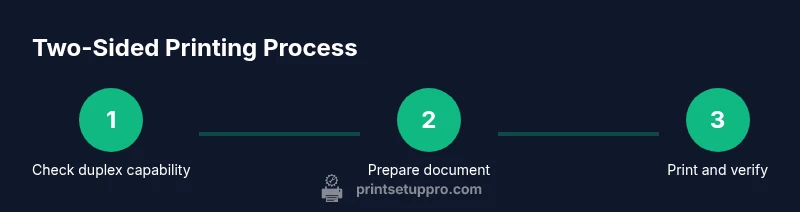
First, confirm your printer’s duplex capability. Some models include automatic duplexing built into the driver, while others require manual intervention. Look for the option labeled “Two-Sided,” “Duplex,” or “Print on both sides” in the printer preferences. If you don’t see any duplex options, your printer may not support it, or you may need a firmware update. In many cases, you can still achieve two-sided results by printing a page, reinserting it with the correct alignment, and printing the reverse side. Always test with a single-page document to verify edge margins and orientation before running a full job. Print Setup Pro notes that driver updates can enhance reliability for duplex printing, so keep your software up to date.
Tools & Materials
- Printer with duplex capability (automatic or manual)(Check model specs; if only manual duplex is available, plan the workflow accordingly.)
- Computer or mobile device with printer driver(Ensure the driver is up to date to access duplex options reliably.)
- Plain paper compatible with your printer (Letter or A4)(Plain, smooth paper reduces bleed-through and jams.)
- Test sheets for alignment(Optional for verifying margins before a large print run.)
- Color/black-and-white settings as needed(Match print mode to your document for optimal results.)
Steps
Estimated time: 25-40 minutes
- 1
Verify duplex capability and settings
Open the printer properties and confirm there is a duplex option (Two-Sided or Duplex). If missing, check your printer manual or vendor support for manual duplex steps. This verification ensures you pick the correct workflow before printing any pages.
Tip: If unsure, consult the Print Setup Pro guidance for your printer model. - 2
Prepare your document and margins
Review margins to prevent cropping on the back page. Set the page orientation to landscape or portrait based on your content, and decide whether to bind on the long edge or short edge. Use print preview to confirm page order and edge alignment.
Tip: Saving a duplex preset in your printer driver can save time on future jobs. - 3
Print the first side (automatic duplex)
In the Print dialog, choose Two-Sided or Duplex and select the preferred binding edge. Start with a small batch to confirm results before a larger run.
Tip: Enable print preview to catch layout issues before sending the job. - 4
Reload the pages for the second side (manual)
If your printer doesn’t support automatic duplex, print the odd pages first, then reinsert the stack according to your printer’s orientation guidance. Flip pages as required to print on the back side.
Tip: Keep a small test page to verify orientation after reloading. - 5
Print the second side (manual or automatic)
Proceed with printing the reverse side, ensuring the correct edge (long vs short) and matching page order. If using manual duplex, double-check that the back content aligns with the front.
Tip: Pause between steps if the printer slows down to avoid misfeeds. - 6
Verify final output and adjust as needed
Inspect alignment, margins, and readability. If any back-side bleed or misalignment is observed, adjust margins or use a different paper stock in future runs.
Tip: Document any printer-specific quirks for quicker futures runs.
People Also Ask
What is duplex printing and why should I use it?
Duplex printing is the ability to print on both sides of a page. It saves paper, reduces bulk, and creates cleaner documents for handouts and reports.
Duplex printing prints on both sides of a page, saving paper and making your documents neater.
How do I know if my printer supports duplex printing?
Check your printer’s driver settings for a Two-Sided or Duplex option. Consult the user manual or vendor support if the option isn’t visible.
Look in the printer settings for Two-Sided or Duplex. If you don’t see it, check the manual or contact support.
What should I do if the second side is misaligned?
Verify margins, orientation, and page order. Run a test page and adjust the flip edge (long vs short) in the printer driver.
If the back side is misaligned, recheck margins and flip edge, then test with a page.
Can I use duplex printing with any paper?
Most standard papers work well. Avoid heavy or glossy stock unless your printer supports it, as jams can occur.
Most plain paper works, but avoid glossy or very thick stock unless your printer says it’s okay.
Is manual duplex harder than automatic duplex?
Manual duplex requires flipping pages and reinserting them correctly. It’s more hands-on but works on printers without automatic duplex.
Manual duplex takes a bit more effort because you flip and reinsert pages, but it works when automatic duplex isn’t available.
Will duplex printing slow down my workflow?
Slightly, especially if you’re printing complex layouts or using manual duplex. The time saved on paper often compensates for the extra handling.
It can be a little slower if you’re doing manual duplex, but you’ll save paper and bulk on your documents.
Watch Video
Quick Summary
- Check printer duplex capability before starting
- Test margins with a duplex preview page
- Choose the correct edge for flipping
- Use automatic duplex when available to save time
- Verify output and adjust settings for future prints