How to Use an HP Printer with Your Phone
Learn how to use an HP printer with your phone. This educational guide covers setup, HP Smart app usage, Android and iOS printing, and troubleshooting to ensure smooth mobile printing.


This guide shows you how to use an HP printer with your phone, including setup via the HP Smart app, wireless or direct connections, and printing from Android or iOS. Before you begin, confirm your phone and printer are on the same network, the printer is powered on, and the HP Smart app is installed. You’ll learn how to print photos and documents quickly and securely from your handheld device.
Why mobile printing matters
In today’s connected world, being able to print directly from your phone saves time and reduces juggling between devices. The basic idea behind how to use HP printer with phone is simple: your smartphone sends a print job to the printer via a wireless link, and the printer executes the job. For home offices, dorm rooms, and small businesses, mobile printing enables on-demand document sharing, photo printing, and quick receipts without firing up a laptop. The Print Setup Pro team highlights that most modern HP printers support mobile printing through the HP Smart app or native OS printing features, making this a practical skill for students, remote workers, and DIY enthusiasts. As you follow this guide, you’ll learn terminology and steps that apply across Android and iOS ecosystems.
According to Print Setup Pro, starting with the right prerequisites reduces friction and makes the mobile printing experience more reliable. You’ll gain confidence handling common issues such as finding the printer, resolving network gaps, and choosing the correct print settings. By the end, you’ll be able to print from your phone to an HP printer with consistency and ease.
Compatible HP printer features and requirements
Not every printer mirrors the same capabilities, but most HP printers released in the last several years support mobile printing through the HP Smart app or AirPrint-compatible services. When you ask how to use HP printer with phone effectively, you’ll want to verify a few basics: the printer supports wireless printing, it’s connected to the same network as your phone, and you have the HP Smart app installed on your device. If you’re using Android, you may encounter the HP Print Service Plugin or the native Android printing framework; iOS devices typically rely on AirPrint compatibility, or the HP Smart app’s built-in print function. A key factor is ensuring firmware is up to date to access the latest mobile printing features. In all cases, keep a tidy network—avoid secluded guest networks or frequent router reboots during a print job.
Getting ready: prerequisites and setup basics
Before attempting to print from your phone, gather the essentials: a supported HP printer, a smartphone (Android or iOS), and a stable Wi‑Fi network. You’ll also need the HP Smart app installed from the Google Play Store or Apple App Store. Ensure the printer is powered on and connected to the same network your phone uses. If your printer supports Bluetooth, you can enable a direct link for initial setup, though ongoing printing usually benefits from a shared Wi‑Fi connection. Finally, have some test media ready for a quick print test to confirm alignment and color accuracy after setup.
Installing and signing into the HP Smart app
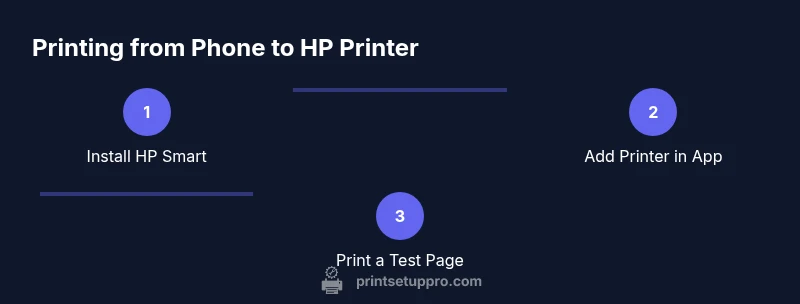
The HP Smart app is the central hub for mobile printing. Start by downloading the app, then create or sign into an HP account if prompted. Add your printer by letting the app search for devices on the same network, or manually enter the printer’s address if needed. Grant the app the required permissions (storage, camera for scanning, and location for device discovery) to ensure smooth operation. Once connected, you can access print, scan, and copy features from a single interface. If you encounter problems signing in, verify your network configuration and ensure you’re using the latest app version.
Connecting your phone to the printer
With the app installed, the typical connection flow is: open HP Smart, tap Add Printer, then choose your printer from the discovered list. If you don’t see it, verify the printer’s wireless radio is enabled and that both devices are on the same network. For printers with a physical USB or direct Bluetooth option, you may be able to establish a direct link, but printing from mobile generally benefits from a reliable wireless connection. After pairing, set your printer as the default within the app to speed up future print jobs.
Printing from Android devices: quick reference
Android users commonly print through the Android printing framework or the HP Smart app. Open the document or photo you want to print, tap the share or print option, and select HP Smart or the HP printer from the list. Confirm the number of copies and page range, then tap Print. If you encounter driver prompts, installing the HP Print Service Plugin can streamline the process. Consider enabling “Always show details” in the app for repeat tasks like batch photo printing.
Printing from iPhone and iPad (iOS): AirPrint and beyond
iOS devices typically rely on AirPrint if your HP printer supports it. To print, open the content you want to print, tap the Share or Print option, and select the HP printer from the list. Adjust settings such as pages, color, and paper size, then print. If AirPrint is unavailable, use the HP Smart app as an alternative bridge. Regularly updating iOS and the HP Smart app helps maintain compatibility and reduces print errors.
Troubleshooting common issues
If your phone cannot find the printer, recheck that both devices are on the same Wi‑Fi network and that the printer’s firmware is current. Fire up the HP Smart app to verify the printer status, including ink levels and paper tray issues that could block a print. For intermittent prints, consider temporarily turning off Bluetooth on the phone and using a pure Wi‑Fi connection, then reattempt printing. If you receive a “printer offline” message, try restarting the printer and router, then reconnect through the app.
Security, privacy, and best practices
When printing from a phone, keep security in mind. Use secure networks, enable password protection for your Wi‑Fi, and review printer privacy settings in the HP Smart app. If you share a printer with guests, consider enabling temporary access codes and clearing print queues after large jobs. Regular firmware updates typically include security improvements, so schedule automatic updates when possible. By following these practices, you’ll minimize exposure while maintaining smooth mobile printing workflows.
Quick troubleshooting checklist
- Confirm both devices are on the same network and that the printer is powered on.
- Check for app permissions and firmware updates.
- Try printing a test page from the HP Smart app.
- If problems persist, restart devices and re-add the printer in the app.
- Review color, paper size, and print quality settings before long print runs.
Tools & Materials
- HP printer(Make sure it supports mobile printing and is connected to Wi‑Fi.)
- Smartphone (Android or iOS)(Updated to the latest OS version.)
- Wi‑Fi network or mobile hotspot(Both printer and phone must be on the same network.)
- HP Smart app installed(From Google Play or Apple App Store; create or sign into an HP account.)
- Printed media (paper/photos)(Useful for a quick test print.)
- USB or Bluetooth auxiliary cable(Optional for direct connection on some models.)
Steps
Estimated time: 20-30 minutes
- 1
Verify connectivity
Power on the printer and confirm it is connected to your Wi‑Fi network. Check the phone is also on the same network to allow discovery and printing via the HP Smart app. If networks differ, rejoin both devices to a common network for reliable printing.
Tip: A quick network reboot can help reconnect devices if discovery fails. - 2
Install the HP Smart app
Download and install the HP Smart app on your phone. Sign in if prompted and grant the necessary permissions so the app can access files, photos, and the camera for scanning. This app becomes the central hub for printing tasks.
Tip: Keep the app updated to access the latest features and bug fixes. - 3
Add your printer to the app
Within HP Smart, choose Add Printer and let the app search for your device. If it doesn’t appear, ensure printer Wi‑Fi is active and the LED status indicates normal operation. Once found, name the printer for easier selection in future prints.
Tip: If the app can’t find the printer, try restarting the printer and re‑initiating the search. - 4
Set default printer and preferences
In HP Smart, set your printer as default if you plan to print frequently. Configure preferences like print quality, color mode, and paper size to save time in future tasks.
Tip: Creating a preset profile speeds up routine print jobs. - 5
Print a test page
From the app, select a document or photo and send a test print. Review alignment, margins, and color. Adjust settings if necessary before printing multiple pages.
Tip: Test pages help catch issues early rather than wasting paper. - 6
Print from Android
On Android, use the share or print option in the app or the Android print framework. Select your HP printer and confirm copies and pages. Tap Print to complete the task.
Tip: If you don’t see the HP printer, enable the HP Print Service Plugin in Android settings. - 7
Print from iPhone/iPad
On iOS, open the content and use the Share/Print option, then choose the HP printer via AirPrint or HP Smart. Adjust settings and print. For AirPrint issues, resort to HP Smart as a workaround.
Tip: AirPrint availability depends on printer compatibility and firmware. - 8
Troubleshoot issues
If prints fail, check ink/toner levels, paper jams, and tray settings. Reboot devices and re‑add the printer in HP Smart if needed. Review network stability and try a direct print if wireless issues persist.
Tip: Document error messages exactly as shown to guide fixes.
People Also Ask
Can I print from my phone without Wi‑Fi?
Some HP printers offer direct connections via Bluetooth or USB, but most reliable mobile printing requires a Wi‑Fi network. If your printer supports Bluetooth setup, you can pair the devices and print directly while in range. For broader compatibility, use a local Wi‑Fi network.
You can print with Bluetooth or USB on some models, but Wi‑Fi is the most reliable for mobile printing.
Do I need the HP Smart app to print from my phone?
The HP Smart app is the most convenient way to print from a phone, offering easy setup, monitoring, and access to printing options. If you prefer, Android’s built‑in print framework or iOS AirPrint can work, but HP Smart provides broader features and easier device management.
HP Smart makes printing from your phone simpler and often more reliable.
Is AirPrint supported on HP printers?
Many HP printers support AirPrint, enabling direct printing from iOS devices without extra drivers. If AirPrint isn’t available, you can use the HP Smart app as an alternative bridge. Always check your printer’s specs for AirPrint compatibility.
AirPrint works on many HP models, but not all—check your printer’s specs.
What if my printer isn’t found by HP Smart?
First, ensure both devices are on the same network and the printer is powered and online. Restart the printer and phone, then reopen HP Smart and try Add Printer again. If still missing, verify firmware and app permissions, or re‑install the HP Smart app.
If your printer isn’t found, restart devices and re‑link through HP Smart.
Can I print from Android and iOS on the same printer?
Yes. Most HP printers support printing from both Android and iOS via respective pathways (Android printing framework or HP Smart for Android; AirPrint or HP Smart for iOS). Ensure both devices are on the same network and that the printer firmware is up to date.
You can print from Android and iOS using either AirPrint or HP Smart.
What should I do if I see a ‘printer offline’ message?
This usually means the printer and phone lost network contact. Check power, network connection, and printer status. Restart the printer and the router if needed, then re‑add the printer in HP Smart.
If it says offline, power cycle and reconnect the devices through HP Smart.
Watch Video
Quick Summary
- Verify both devices share a network before printing.
- Use the HP Smart app as the central printer hub.
- Android and iOS have complementary printing paths (Android via Print/HP Smart; iOS via AirPrint/HP Smart).
- Keep firmware and apps updated for reliability.