How to Use a Thermal Printer: A Practical Guide
Learn how to use a thermal printer for receipts, labels, and shipping docs with a clear, step-by-step approach. Includes setup, media loading, driver setup, calibration, and troubleshooting.


You will learn how to use a thermal printer to print receipts or labels, including setup, loading media, configuring print settings, and troubleshooting. This quick guide covers common models, essential cables, and best practices to ensure clean, legible prints every time.
What is a thermal printer and what can it do
Thermal printers are compact, fast devices that create images by heating specially coated media. There are two main types: direct thermal, which uses heat-sensitive paper, and thermal transfer, which relies on a ribbon for durability. Direct thermal is ideal for short-term receipts, while thermal transfer shines for durable labels and barcodes. If you’re wondering how to use a thermal printer effectively, this guide walks you through setup, media choices, and tuning for crisp results. According to Print Setup Pro, the most reliable home office setups pair a small direct-thermal model with USB and Bluetooth so you can print from a laptop or phone with minimal fuss. Print Setup Pro’s analysis for 2026 shows that user-friendly presets, stable drivers, and proper media handling dramatically cut misfeeds and faded prints. Your decision should hinge on print longevity needs, available media, and print frequency, not just price.
Loading media and aligning guides
Before you print, you must load the correct media and align it precisely. Open the printer’s media compartment and remove any old stock. Place the media so the coating faces the correct direction for your device (direct thermal requires the heat-sensitive layer facing the print head). Feed a short length through the exit slot to confirm alignment. Use the adjustable edge guides to center the stock; misalignment causes skewed lines and bad barcodes. Close the cover, gently feed a page, and watch for straight travel. If you see curling or jamming, gently re-seat the media and re-test.
- Ensure the media core is snug against the guides.
- Do not over-tighten the side rails, as this can distort the stock.
- For best results, run a quick print-out from the printer’s built-in diagnostic page if available.
Installing drivers and software
Most thermal printers ship with a basic driver that lets you print from common apps. Start by connecting the printer to your computer via USB, then download the latest driver from the manufacturer’s site or rely on your operating system’s built-in print services if compatibility exists. For Bluetooth or Wi‑Fi printers, pair the device, then install any companion apps or firmware updates. After installation, print a test page to verify the driver routes to the correct printer. If your device supports generic drivers, you can often get reliable results with minimal configuration. Print Setup Pro advises keeping drivers updated and testing with a simple label to confirm fonts, barcodes, and margins align with expectations.
Configuring print settings for best results
Print settings govern the legibility and durability of your outputs. Select the appropriate media type (direct thermal vs thermal transfer), resolution (dpi), print density or darkness, and line speed. Increase darkness sparingly to prevent smudging on low-quality stock, and set a conservative speed if you’re printing long labels to avoid overheating the print head. If your printer supports margin presets, enable edge-to-edge printing only if your media allows it. Calibrate the feed length to avoid partial labels or truncated barcodes. For best compatibility, create a dedicated profile for receipts and a separate one for shipping labels, so you don’t swap settings by mistake. Always run a sample print to confirm alignment and readability.
Connecting and printing from devices (USB, Bluetooth, Wi‑Fi)
Thermal printers are designed to work across platforms. USB connections are the simplest path for laptops and desktops; Bluetooth extends printing to tablets and phones within a few meters. Wi‑Fi printing enables multi-device sharing in homes or small offices. If you print from mobile apps, verify that the app supports the printer model and media type you’re using. When possible, use native printing support (AirPrint on Apple devices or Google Cloud Print alternatives) to simplify workflows. In environments with multiple printers, assign each a unique IP or Bluetooth name to avoid misrouting of print jobs. Regularly check for firmware updates, as these can improve reliability and compatibility.
Calibrating and testing your first print
Calibration ensures the print head aligns with the media and that text, barcodes, and graphics appear correctly. Start with a simple test page supplied by your printer or software, check for straight text lines, and verify barcode readability at typical viewing distances. If the print head is not aligned, use the printer’s calibration tool or a manual alignment procedure described in the user manual. After calibration, print a few sample receipts and labels with real content to observe margins, fonts, and density. If any element is unclear or blurred, re-run calibration and adjust density in small increments. Print Setup Pro’s testing workflow recommends performing calibration after media change or driver updates.
Common issues and long-term care
Even reliable devices need occasional maintenance. Common issues include faded prints, ghosting, skewed media, and occasional jams. Faded prints often signal the wrong media type, incorrect density, or worn print heads; verify media compatibility and replace the stock if needed. Ghosting can result from cheap stock or heat buildup; ensure good ventilation and avoid overdriving the head. Jams are more likely with thin or rolled stock; check for debris in feed paths and clean guides regularly. For long-term care, keep the printer covered when not in use, clean the rollers with a lint-free cloth, and replace consumables as recommended by the manufacturer. Regular firmware updates and a simple maintenance routine go a long way toward reliability.
Safety and maintenance reminders
Safety comes first with any electrical device. Always unplug the printer before cleaning or when changing media types. Use only the recommended cleaning tools and avoid liquids that could damage the print head. When printing large batches, give the device brief rests to prevent overheating. Store media in a cool, dry place to preserve print quality and avoid corrosion of components. If you notice persistent issues despite following best practices, consult the manufacturer’s support and consider service options.
Tools & Materials
- Thermal printer(Direct-thermal or thermal-transfer model depending on print durability needs)
- Media stock(Direct thermal labels or receipt paper; or thermal-transfer label stock)
- Driver/software(Latest official driver or compatible software package)
- USB cable or network credentials(For wired or wireless setup)
- Cleaning supplies(Lint-free cloth and isopropyl alcohol (or manufacturer-approved cleaner))
- Paper guides and tools(Edge guides, scissors for media trimming, label stacker if applicable)
Steps
Estimated time: 45-60 minutes
- 1
Prepare and organize
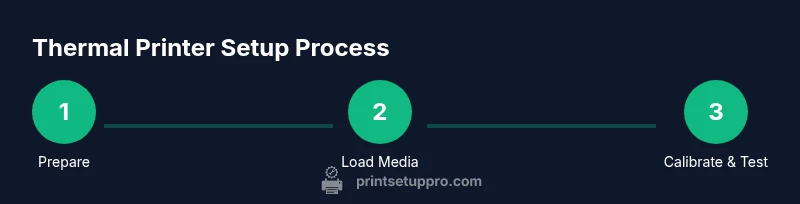
Collect printer, media, cables, and your device. Confirm the media type matches the printer’s capabilities (direct thermal vs thermal transfer). Ensure you have a clean, dry workspace and access to a power source.
Tip: Lay out supplies in order of use to minimize switching tasks mid-work. - 2
Load media correctly
Open the media compartment, insert the stock with the coating facing the print head (for direct thermal, the heat-sensitive layer is on the right side). Align the stock with the guides and close the cover. Feed a short length to verify straight travel and proper alignment.
Tip: If stock is skewed, adjust guides before the next feed and run a test page. - 3
Install drivers and connect
Connect the printer via USB or Ethernet/Wi‑Fi. Install the official driver or a compatible driver, then add the printer in your OS settings. Print a basic test page to confirm the device is recognized.
Tip: Prefer a wired connection for stability in busy environments. - 4
Set print preferences
Open printers settings and select the appropriate media type, density, and speed. Create separate presets for receipts and labels, and adjust margins so content prints within safe boundaries.
Tip: Start with a conservative density and test before increasing for busy runs. - 5
Calibrate and test print
Run the printer’s calibration routine if available. Print a test label with barcode to confirm readability across expected distances. Tweak density or alignment as needed and re-test.
Tip: Keep a small stock of calibration labels for quick checks. - 6
Run a sample batch
Print a short run of actual receipts or labels to ensure consistency over multiple prints. Observe for streaks, misfeeds, or fading and adjust settings accordingly.
Tip: Batch testing helps catch issues before large orders.
People Also Ask
What media types can a thermal printer use?
Most direct-thermal printers use heat-sensitive label stock or receipts. Thermal-transfer printers require ribbon-backed media for durability. Check your model’s manual for supported media thickness and coating.
Direct-thermal uses heat-sensitive stock, while thermal transfer uses a ribbon. Always verify your model’s media compatibility before printing.
Do I need to install drivers on every computer?
Most printers require a driver or compatible driver, but many modern models also work with built-in OS print services. Install the official driver when possible for best results and updated features.
Usually you’ll install a driver, or use your OS’s built-in printer service; keep drivers up to date.
Why are my prints fading or streaking?
Fading can result from wrong media type, improper density, or old stock. Clean the print head if needed, ensure media is compatible, and test with a calibration page.
Fading or streaks usually come from wrong media, density, or worn print head. Clean and recalibrate as needed.
Can I print high-resolution photos with a thermal printer?
Thermal printers are optimized for text, barcodes, and simple graphics. For photos, use dedicated photo printers or format the image to appropriate resolutions with simple color schemes.
Thermal printers aren’t ideal for photos; use them for receipts and labels instead.
How often should I calibrate the printer?
Calibrate after media changes, driver updates, or if you notice misalignment. Routine calibration helps sustain print quality over time.
Calibrate whenever you switch media or update software to maintain alignment.
Watch Video
Quick Summary
- Load media correctly and align guides to prevent skew.
- Install updated drivers and set appropriate print profiles.
- Calibrate and test before full production runs.
- Regular maintenance reduces jams and ghosting.