HP Color LaserJet Pro M454dw: Setup Guide & Troubleshooting
Step-by-step setup and troubleshooting for the HP Color LaserJet Pro M454dw. Learn installation, wireless setup, driver updates, print quality checks, and common fixes with Print Setup Pro.


Learn how to set up and troubleshoot the hp color laserjet pro m454dw with clear, step-by-step instructions. This guide covers unboxing, driver and firmware installation, network and wireless setup, print quality checks, and common issues like jams and connectivity. You’ll need a computer, a USB or network connection, and basic supplies. Print Setup Pro guides you to a successful, hassle-free setup.
hp color laserjet pro m454dw: Hardware and prerequisites
The hp color laserjet pro m454dw is designed for small offices and homeworkers who need reliable color printing with minimal fuss. Before you start, ensure you have access to a network (wired or wireless), a computer to install drivers, and a steady power source. Place the printer on a flat surface with at least 6 inches of clearance on all sides for ventilation and paper handling. Prepare a standard ream of paper and a typical color print job in mind to test settings during setup.
From the Print Setup Pro perspective, begin by verifying physical components (power cord, cartridges, and user manual). Keep the printer’s documentation handy and identify where to load paper and where to access the control panel. This reduces back-and-forth during installation and helps you arrive at a stable baseline configuration faster.
Unboxing and initial inspection
Carefully unbox the printer and remove all protective materials. Inspect the device for any shipping damage and confirm that the toner cartridges are seated correctly. Install the cartridges if they arrived loose, and shake them gently to distribute toner evenly. Check that the printer’s display boots normally and that the control panel responds to touch input. A clean, undamaged start helps avoid calibration errors later.
Note: Handle components with clean hands to prevent smudges on glass and toner residue inside the cartridge bays. Record any cosmetic or functional concerns and address them before proceeding.
Network readiness and placement considerations
For best reliability, position the hp color laserjet pro m454dw within easy reach of your network router or access point. If you plan to use Ethernet, run a short cable directly to the router switch; for Wi-Fi, prepare your network name (SSID) and password. Avoid placing the printer near heat sources, direct sunlight, or moisture, as these conditions can affect print quality and component life. Finally, ensure that your workspace has ample ambient lighting to read status indicators on the display easily.
Print Setup Pro emphasizes consistent placement for predictable print results and trouble-free updates.
Wireless setup and HP Smart App workflow
Connecting the printer to a wireless network typically involves navigating the control panel menu to select Network, then Wireless Setup Wizard. You’ll choose your SSID and enter the password. If the setup fails on the printer, use the HP Smart app on a smartphone or tablet to complete the connection and manage basic tasks. The app can help with firmware checks, cartridge status, and rapid mobile printing.
Once connected, print a wireless test page from your computer and a mobile device to confirm that print jobs traverse the network without stalling. Enabling wireless printing reduces USB cable clutter and makes shared usage across devices straightforward.
Installing drivers and software on Windows and macOS
Start by downloading the latest drivers from HP’s official site and run the installer on your computer. The installer typically guides you through adding the hp color laserjet pro m454dw as a printer, selecting the appropriate connection (USB or network), and enabling optional software like scanning utilities or PDF print features. On macOS, you may need to add the printer via System Preferences > Printers & Scanners and select the correct driver version.
During installation, accept default settings for a clean baseline. If prompted, allow the installer to install any firmware updates that accompany the driver package. After installation, print a test page to verify color accuracy and alignment.
Configuring default printing preferences and color calibration
Access the printer preferences from your operating system to adjust defaults such as paper size, print quality, color calibration, duplex printing, and toner-saving options. For color accuracy, use the printer’s built-in calibration function or run a print-quality diagnostic page to fine-tune color saturation and brightness. If your documents frequently misalign or have banding, re-run the calibration after printing several pages to stabilize color output.
Print Setup Pro notes that creating a profile for common job types (color graphics, text documents, or mixed content) can speed up future printing and ensure consistent results across devices.
Printing from multiple devices: Windows, macOS, iOS, Android
The hp color laserjet pro m454dw supports printing from Windows, macOS, and mobile platforms. Install the necessary drivers on PCs and use AirPrint or the HP Smart app for iOS devices. On Android, use the HP Print Service or the vendor’s recommended app to enable wireless printing. For best results, share a single color-priority profile across devices and avoid mixed device configurations that cause inconsistent color output.
Test prints from each platform can help you confirm that the printer responds quickly and remains connected across devices. If one device experiences delays, check the network settings and ensure there are no conflicting print queues.
Troubleshooting common issues: offline status, jams, misfeeds
If the printer goes offline, verify device status in the operating system’s printer settings and ensure the printer is on the same network as other devices. Check for paper jams by opening all access panels and removing obstructions along paper paths. Misfeeds can be caused by worn rollers or incorrect paper loading; reload paper correctly and adjust the paper guides snugly against the stack. Firmware updates often resolve connectivity and performance issues, so keep the device current.
Print Setup Pro highlights keeping a log of recurring issues to identify patterns and preempt failures. When in doubt, run a diagnostic page to isolate problem areas between hardware, firmware, and software.
Maintenance routines: cleaning, replacing toner, sensor checks
Regular maintenance extends the life of the hp color laserjet pro m454dw. Clean the exterior surfaces and the scanner glass with a soft microfiber cloth. Use the recommended cleaning solutions to avoid residue that can affect print quality. Replace toner cartridges only when a page count threshold indicates color balance drift. Periodically check sensor areas and clean dust from interior components if you notice unexplained print defects.
Create a simple monthly cadence: inspect cartridges, run a cleaning page, and verify that print alignment remains consistent. These small routines prevent larger calibration issues down the line.
Security, firmware updates, and keeping firmware current
Keep the printer’s firmware up to date to guard against vulnerabilities and improve compatibility with new drivers and mobile apps. Enable automatic firmware checks if available and review security settings in the control panel to limit access to sensitive features. Consider enabling a guest network or firewall rules to minimize exposure while maintaining convenient printing for authorized devices.
Print Setup Pro recommends performing firmware updates during off-peak hours to minimize disruption to your workflow.
Cost-conscious printing strategies with the M454dw
Analyze your color vs. black-and-white printing needs to optimize cartridge usage. When possible, select draft modes for internal documents that don’t require glossy color, and enable duplex printing to halve paper usage. Rotate media types to maximize yield and avoid printing on lower-quality stock that may smear or misfeed. Keep a spare set of toner in a cool, dry place to prevent degradation over time.
For busy households or small offices, establishing a color print quota per user can further reduce costs without sacrificing essential color output. Print Setup Pro notes that monitoring ongoing usage helps refine profiles and budgets over time.
Final verification before going live
Before you deploy the hp color laserjet pro m454dw for daily use, run a comprehensive test: print pages with text, graphics, and color photos; verify alignment; test duplex printing if needed; and ensure the device remains stable across a standard work session. Confirm wireless printing from multiple devices, check for drift in color calibration, and document any recurring errors for resolution.
Having completed these checks, you’re ready to integrate the printer into your workflow with confidence. The setup path should feel smooth, predictable, and scalable as your needs grow.
Tools & Materials
- hp color laserjet pro m454dw printer(Model and unit in good working order; check power supply and network ports.)
- Power cable(Ensure the cable is not frayed; keep a spare on hand.)
- User manual(Reference for on-device menus and supported configurations.)
- USB cable (optional)(For direct computer connection if needed.)
- Ethernet cable (optional)(Needed for wired network setup or office LAN.)
- Computer with Windows or macOS(Used to install drivers and configure settings.)
- Active internet connection(Needed for driver download and firmware updates.)
- Paper (A4/Letter)(Standard printing stock for tests and daily tasks.)
- HP Smart app (mobile)(Optional for mobile setup and monitoring.)
- Toner cartridges (color)(Check compatibility with M454dw color toner set.)
Steps
Estimated time: 1 hour 20 minutes
- 1
Power up and prepare workspace
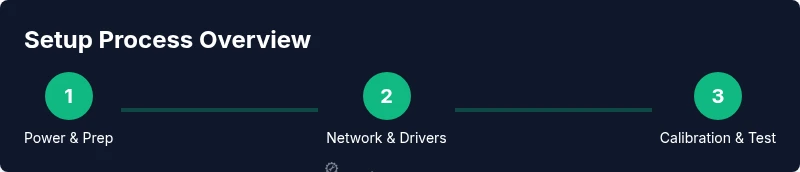
Place the printer on a stable surface near power and network access. Connect the power cable and turn on the device. Ensure room temperature is within the manufacturer’s recommended range. This initial setup reduces reboots later.
Tip: Verify power indicator is steady before proceeding. - 2
Connect to network or USB
Decide between wireless, Ethernet, or USB connections. For wireless, use the control panel to run the network setup wizard and select your Wi-Fi network. If you’re using a wired connection, plug in the Ethernet cable and wait for the network lights to validate.
Tip: If wireless, keep the router’s signal strong and avoid interference. - 3
Install drivers and software
On your computer, download the latest hp color laserjet pro m454dw drivers from HP’s official site. Run the installer and follow prompts to add the printer. Accept recommended defaults unless you have a specific need.
Tip: Install any bundled software only from HP to avoid bloatware. - 4
Add printer to OS and set defaults
Open Printer settings on your OS and add the new printer if not automatically detected. Set color preferences, paper size, and default print quality. Run a test page to verify the setup.
Tip: Choose color calibration as a baseline for first prints. - 5
Calibrate color and run a test page
Access the printer’s calibration feature either via the control panel or driver software and print a diagnostic page. Compare color balance and alignment on the test page and adjust as needed.
Tip: Calibration may take several minutes; don’t interrupt the process. - 6
Enable mobile printing and scanning features
Install the HP Smart app to enable printing from mobile devices and scanning to cloud storage if desired. Ensure mobile devices can discover the printer on the same network.
Tip: Enable push notifications for cartridge and firmware alerts. - 7
Set up maintenance reminders
Create a reminder schedule to check paper trays, cartridge levels, and sensor cleanliness. Regular maintenance prevents unexpected downtime.
Tip: Document routine tasks so users can follow consistently. - 8
Review security and firmware
Check that security settings limit access to authorized users. Visit HP’s site to verify that firmware is up to date and install updates if available.
Tip: Schedule firmware updates during off-peak hours to minimize impact.
People Also Ask
What cables do I need to set up the hp color laserjet pro m454dw?
You’ll typically need a power cable and an option USB or Ethernet cable depending on your connection choice. Wireless setup uses your network rather than physical cables. Have a computer ready to install drivers and verify the connection during setup.
You’ll need a power cable and the option of USB or Ethernet for setup; wireless uses your network.
Why is my hp color laserjet pro m454dw showing offline?
Offline status usually indicates a connectivity issue between the printer and your computer or network. Check power, network status, and ensure the printer is set as the default device. Restart the printer and router if needed, then re-add the printer.
If it shows offline, check power and network, then re-add the printer after a restart.
How do I update firmware on hp color laserjet pro m454dw?
Firmware updates are typically available on HP’s official site. Download the latest version and install it through the printer’s software utility or the HP Smart app. Updates can improve compatibility and fix known issues.
Get the latest firmware from HP and install via the printer software or HP Smart app.
Can I print from my phone with this model?
Yes. Use the HP Smart app or AirPrint (iOS) / Google Cloud Print alternatives where supported to print wirelessly from mobile devices. Ensure the mobile device and printer share the same network.
Yes—use HP Smart or AirPrint to print from your phone.
What should I do if I jam my printer?
Carefully open access panels and remove jammed sheets without tearing. Use the printer’s manual path guides to re-feed paper correctly. Check for leftover scraps and ensure the paper stack is aligned.
If you jam, clear the path carefully and re-feed the paper using guides.
Is there a recommended color profile for business documents?
Start with a standard color profile provided by the driver and adjust based on your output needs. For graphics, run calibration pages and create profiles for different job types to maintain consistency across devices.
Use driver-provided profiles and calibration pages to keep colors consistent.
Watch Video
Quick Summary
- Verify power and network connections before starting
- Install and update drivers to ensure compatibility
- Calibrate color and run test pages for accuracy
- Enable mobile printing for convenience and flexibility
- Schedule regular maintenance to extend printer life