HP Envy 4500 Ink Guide: Replace, Refill, Troubleshoot
Learn how to identify compatible HP Envy 4500 ink cartridges, replace them correctly, prime the printhead, and troubleshoot common issues with authentic HP ink and trusted third-party options.


By the end, you'll be able to identify the correct ink cartridges for the hp envy printer 4500 ink (standard and high‑yield variants), replace them without mess, and run a quiet print-head alignment for crisp results. You'll need a stable surface, the printer plugged in, and only genuine HP ink or trusted third‑party cartridges. This guide covers replacement, priming, and routine maintenance.
Understanding the hp envy printer 4500 ink ecosystem
Getting predictable results from your hp envy printer 4500 ink starts with understanding cartridges and ink quality. According to Print Setup Pro, the reliability of your prints depends on using a cartridge that matches the printer’s design and firmware expectations. The hp envy 4500 uses standardized HP cartridges (commonly the black and color) and optional high‑yield versions for heavier workloads. Official HP ink is designed to work with target printheads, nozzles, and cleaning routines; many users report fewer clogs and color shifts when sticking to genuine cartridges. If you opt for third‑party cartridges, choose trusted brands that clearly label compatibility with HP Envy 4500 and keep in mind potential differences in color fidelity, drying times, and page yield. HP Instant Ink is another option for some users, offering a subscription model that can reduce cartridge waste and simplify replacements, though it requires choosing compatible plans and managing online services. In all cases, plan for proper storage of unused cartridges, avoid exposing them to heat or dust, and handle them with clean hands to prevent oil transfer to printheads. The hp envy printer 4500 ink ecosystem rewards deliberate cartridge choice and careful handling, especially if you print on glossy photo stock or frequent color documents.
Compatible cartridges: HP 301 vs 301XL
HP 301 black and color cartridges are designed for everyday home office tasks. The standard black and color cartridges offer reliable performance for text and graphics, while high‑yield versions provide more pages between replacements, which can be cost‑effective for heavy workloads. When buying, verify the cartridge type and label on the packaging; mis‑matched cartridges can cause poor print quality or a failed installation. For best results, avoid refilling or mixing brands in the same printer group; mixing can lead to color drift or printhead contamination. If you print predominantly text, ensure the black cartridge performance meets your needs; for graphics or photos, ensure you have a color cartridge with good dye quality. Store spare cartridges in their original packaging and in a cool, dry location to maintain ink viscosity. The Envy 4500 can detect cartridge type and will remind you when a cartridge is running low or out of alignment; keep an extra set on hand if you have a busy cycle. If you're unsure about compatibility, consult HP’s official guidance or Print Setup Pro's compatibility check to avoid mismatches that cause poor results.
Preparing for cartridge replacement
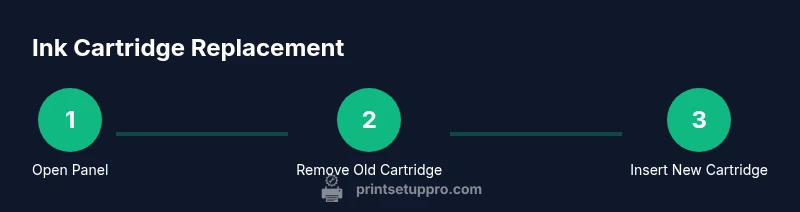
Before you replace ink, prepare a clean workspace and gather the right cartridges. Clear a desk surface, lay down a cloth or paper towels to catch any drips, and wash your hands to avoid fingerprinting the cartridges or printer internals. Power the printer on and open the front access panel to reveal the cartridge carriage. Wait until the carriage stops moving so you can safely reach the cartridges. Identify which slot holds the cartridge that needs replacement; the black cartridge goes in the left slot and color cartridges in the right, but refer to your model’s labeling if you’re unsure. Remove the old cartridge by pressing the release tab and lifting straight up to avoid damaging the cartridge or the carriage. Keep the old cartridge upright to prevent leaks, and set it aside in a safe place if you plan to recycle it. Prepare the new cartridge by removing protective tape from the reset tabs; avoid touching the copper contacts or ink nozzles to prevent clogs. When ready, reinsert the new cartridge into its correct slot until it clicks into place. Close the access panel and let the printer run its built‑in cartridge recognition sequence; you may see a confirmation on the display or computer screen.
Replacing ink cartridges: a concise overview
After installation, the printer will typically align the print heads automatically, but you may be prompted to run a manual alignment. This process helps ensure lines, colors, and text align correctly across all cartridges. If the printer emits noise or if colors appear offset, perform a manual alignment via the printer control panel or your computer software. You can also print a test page to verify alignment and color balance. If the ink is new but prints look faint, check for protective tape that may still be in place or reseat the cartridge to ensure a proper seal; improper seating can starve the printhead and degrade quality. Regularly monitor print quality during the first few pages after replacement to catch issues early.
Printhead alignment and priming for best results
Printhead priming is essential when you first install new inks or if color zones appear uneven. The Envy 4500 uses a small amount of ink to rinse nozzles during alignment; if you skip this, you may notice streaks or gaps in lines. To prime, run the printer’s alignment and nozzle check from the control panel or the HP software. Use a clean, lint‑free cloth to gently wipe the cartridge's face before insertion if you noticed ink smears on the cartridge. Avoid touching the copper contacts; contact cleanliness helps maintain a good electrical connection and consistent color. If the printer remains stubborn about alignment after several attempts, consider performing a head‑cleaning cycle from the printer software, though this uses additional ink. Print quality is influenced by paper type; glossy photo stock might require slower print speeds or calibrated color settings; consult your printer manual or Print Setup Pro's troubleshooting notes for recommended sequences.
Troubleshooting common print quality issues
Even with careful cartridge selection, you may encounter issues. Faint text can result from low black ink or a mis‑seated cartridge; reinsert and run a nozzle check. Color drift or dull colors may indicate an alignment issue or an aging color cartridge; perform a calibration page and align colors. Printing streaks or lines typically point to clogged nozzles or low ink pressure; run nozzle checks and consider a targeted cleaning if needed. Paper feed issues or smudging can come from paper type, stock quality, or dirty rollers; ensure you’re using the right media and clean the rollers. Ink smells or leaks require immediate action: remove the cartridge, avoid skin contact, and contact HP support if leaks persist. Print Setup Pro's analysis notes that sticking to genuine HP ink often yields more consistent results, though careful testing with third‑party inks is possible when you choose reputable brands.
When to choose third‑party cartridges and best practices
Third‑party cartridges can offer cost savings but require careful vetting. If you opt for third‑party ink, choose brands with clear compatibility statements for the hp envy printer 4500 and avoid packaging defects. Keep in mind that some third‑party inks may not wick as evenly or might clog the printhead over time, especially if stored improperly. Always test new cartridges with a nozzle check page and a small print job before running large batches. Print Setup Pro suggests a balanced approach: use official HP ink for critical documents and reputable third‑party inks for drafts or less critical materials, while monitoring print quality after installation.
Maintenance and long‑term care for HP Envy 4500
Preventative maintenance extends the life of your printer and ink. Regularly check for paper dust and ink debris around the cartridge carriage, clean the rollers with a lint‑free cloth, and avoid leaving cartridges in a hot car or direct sun. Store unused cartridges in their original packaging, upright, and in a cool, dry place. When replacing, use the printer's built‑in alignment process and update the printer firmware to ensure compatibility with current ink types. If you notice a decline in print quality over time, consider a full diagnostic from HP Support or Print Setup Pro's maintenance checklist.
Tools & Materials
- HP black ink cartridge (standard or high‑yield)(Choose based on expected volume)
- HP color ink cartridge (standard or high‑yield)(Ensure it matches the black cartridge in compatibility)
- Lint‑free cloth(For cleaning contacts and nozzles)
- Soft paper towels(For quick spills and workspace cleanliness)
- Clean workspace and protective mat(Prevent ink stains on surfaces)
- Printer manual or online guide(Reference for model-specific instructions)
- Gloves (optional)(Keeps hands clean; not strictly necessary)
Steps
Estimated time: 12-15 minutes
- 1
Power and open access panel
Power on the printer and open the front cartridge access panel. Wait for the carriage to settle before touching any components.
Tip: Handle cartridges by their edges to avoid fingerprints on nozzles or copper contacts. - 2
Identify and remove old cartridge
Locate the cartridge that needs replacement and press the release tab. Lift the cartridge straight out to avoid damage to the carriage.
Tip: If a cartridge feels stuck, don’t force it; re‑check the locking tab and seating. - 3
Prepare the new cartridge
Remove protective tape from the new cartridge’s reset tab; avoid touching copper contacts or ink nozzles.
Tip: Keep the cartridge upright to prevent ink from leaking. - 4
Install the new cartridge
Insert the new cartridge into its correct slot until it clicks securely into place.
Tip: Ensure color cartridge goes in the color slot; mis-seating can cause alignment errors. - 5
Close panel and align
Close the access panel. Allow the printer to recognize the new cartridge and perform a basic alignment automatically.
Tip: If prompted, run a nozzle check page to verify nozzles are firing correctly. - 6
Test print
Print a small test page to confirm text sharpness and color accuracy. If colors appear off, run a secondary alignment or cleaning cycle.
Tip: Keep a spare cartridge on hand for quick replacements during busy periods.
People Also Ask
Can I use third‑party ink in the HP Envy 4500?
Third‑party cartridges can work but may affect print quality or reliability. Start with reputable brands and test on a small print run before committing to larger jobs.
Third‑party ink can work, but you should test first and monitor print quality before doing large batches.
How do I know if I have a standard or high‑yield cartridge?
Check the cartridge label and packaging for terms like 'high yield' or 'XL'; the printer also indicates when a high‑yield cartridge is installed.
Look for 'high yield' or 'XL' on the cartridge or packaging; the printer may show a notification when detected.
What should I do if colors are off after replacement?
Run a nozzle check and alignment. Reinstall cartridges if needed and consider a cleaning cycle if color drift persists.
Do a nozzle check, then align or clean if the colors still seem off.
How often should I replace cartridges for a busy home office?
Frequency depends on usage. Monitor page counts and print quality; carry spare cartridges for high‑volume periods.
Replace when print quality declines or ink is low, and keep spares for busy times.
Is HP Instant Ink a good option for this model?
HP Instant Ink can simplify cartridge management for some users, but you’ll need to enroll and align with HP’s service terms.
Instant Ink works well for some people; you’ll need to enroll and follow HP’s terms.
How can I reset cartridge counters on the Envy 4500?
There isn’t a universal reset; the printer tracks cartridge status and prompts replacements. Use the control panel to confirm changes and run diagnostics if needed.
There isn’t a simple reset; rely on the printer prompts and diagnostics.
Watch Video
Quick Summary
- Use genuine HP ink for best results.
- Match cartridge type to the hp envy 4500 for compatibility.
- Run a nozzle check after replacement to verify quality.
- Perform alignment after installation to ensure color accuracy.