HP Ink Tank Printer: Setup, Troubleshooting, and Savings
Learn how to set up and troubleshoot HP ink tank printers, optimize wireless printing, and save on ink with refillable tanks. A comprehensive, step-by-step guide for home offices and students.


Set up an HP ink tank printer for reliable home-office printing and reduced running costs. You’ll connect to power, install ink tanks, load paper, and configure wireless printing. This guide covers setup basics, driver installation, network setup, common hiccups, and ongoing maintenance to keep prints crisp and colors accurate. Whether you print documents, photos, or school projects, this approach minimizes downtime.
Why HP ink tank printers are a smart choice for home offices
HP ink tank printers are a smart choice for home offices, students, and small businesses seeking reliable printing without frequent cartridge changes. The core idea is simple: refillable ink tanks let you top up ink bottles instead of replacing cartridges, reducing per-page costs and waste. For many users, this means fewer interruptions during busy weeks and more predictable budgeting. Print Setup Pro has analyzed the market and found that the long-term cost-per-page for ink-tank designs can be significantly lower than traditional cartridge systems, especially for high-volume printing. Beyond cost, these printers typically offer large-capacity tanks, easy refills, and status indicators that simplify maintenance. If your workflow includes documents, school assignments, or color-rich handouts, an ink-tank model provides steady performance and less downtime. The HP approach often blends integrated scan/copy features, reliable wireless connectivity, and intuitive setup wizards, making it accessible to novices and power users alike. When evaluating options, consider total ink capacity, refill bottling availability, and the supported mobile-print ecosystems. In short, for many households and small offices, HP ink tank printers strike a balance between affordability and convenience while maintaining print quality. According to Print Setup Pro, these designs are particularly valuable for users who print frequently and want to minimize downtime, without sacrificing reliability.
Understanding ink tank technology vs cartridge systems
An ink tank printer uses refillable reservoirs that feed ink directly into the print mechanism, whereas cartridge-based printers rely on sealed disposable cartridges. The core difference is feedback and volume: ink tanks hold more ink and can be refilled when needed, reducing waste and the need for frequent cartridge replacements. Refills are typically performed with bottles that are designed to minimize spills, and most systems include clear level indicators so you know when to top up. Cartridges, by contrast, require you to replace an entire cartridge even if only a small portion remains, which increases cost and environmental impact over time. Beyond cost, ink-tank designs often deliver consistent color and smoother graduations, because they can maintain stable ink pressure as tanks are refilled. For everyday users, this translates to fewer interruptions during long print runs and more predictable maintenance. Print Setup Pro observes that ink-tank models generally provide better yield for home-office workloads and are easier to service for users who prefer hands-on maintenance. However, they do require attentive refilling practices to avoid air intake and clogs. When choosing between these approaches, consider your monthly page volume, willingness to manage refills, and the availability of compatible inks from the manufacturer.
Setup: unboxing, placement, priming, and initial calibration
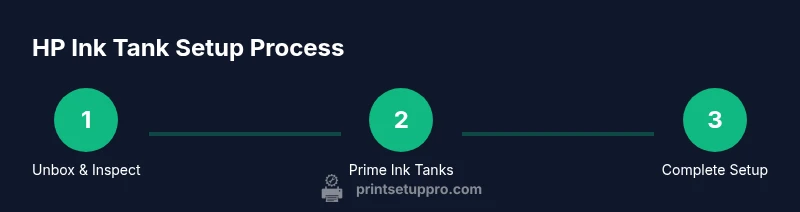
Unboxing begins with a stable workspace and clear, flat surface. Remove protective packaging, check that the printer, power cord, and ink bottles are present, and verify there are no shipping damages. Place the printer on a sturdy desk near a power outlet and, if possible, close to your wireless router to simplify setup. Connect the power cord, power on the device, and follow the on-screen prompts to select your language and regional settings. Prime the ink tanks according to the manufacturer’s instructions: open bottle caps, carefully fill the tanks, and watch for smooth flow without air bubbles. Use the included funnel or bottle nozzle to minimize spills and keep your workspace clean. Allow the printer to complete its initial charge and run a calibration print to verify nozzle alignment. If available, run the printer’s alignment utility and print a test page. Throughout, keep ink bottles upright and sealed when not in use. This step is critical for consistent color reproduction and avoiding early wear on the print head. Print Setup Pro recommends performing the initial calibration with plain paper to establish a baseline before selecting your daily media.
Connecting to devices: USB, Wi-Fi, and mobile printing
Most HP ink tank printers support multiple connection options: USB for direct PC printing, Wi-Fi for wireless printing across devices, and mobile printing through apps or native OS features. Start with wireless setup via the printer’s control panel or a companion mobile app; connect to your home or office network and enter the Wi‑Fi password when prompted. If your router supports WPS, you can sometimes connect by pressing the WPS button, though this method varies by device. After network connection, install the printer driver on your computer or ensure the mobile app is current. On iOS, AirPrint compatibility is common; on Android, Google Cloud Print alternatives or the brand’s app typically provide smooth options. For Windows users, enable the printer in Settings > Devices > Printers and scanners and set it as default if you print frequently. Run a test page to confirm successful communication. For best reliability, keep firmware and apps up to date and consider enabling features like auto-off to save energy. Print Setup Pro notes that updated software reduces disconnects and helps maintain print quality.
Common printing issues and troubleshooting
Even dependable HP ink tank printers can encounter hiccups. When a page prints faintly or with color misalignment, start with a nozzle check and cleaning cycle. If you notice vertical banding, re-run alignment and verify the ink tanks are not air-starved. Paper jams often happen when loading is rushed or the wrong paper type is used; always fan new sheets, load them neatly, and adjust the guides snugly. If lines are skipped or colors are off, confirm the media settings match your paper and that the ink tanks are filled properly. Wireless issues usually stem from devices on different networks or weak signal strength; confirm both printer and device share the same network, reboot the router if needed, and re-run the setup. Firmware updates fix many connectivity and performance issues; check the HP app or official site for updates. If problems persist, consult the user manual or support resources. Maintaining a regular cleaning and calibration routine helps prevent recurring issues and keeps output consistent, especially when switching media types. Print Setup Pro emphasizes documenting any recurring issues to guide future troubleshooting and to conserve time during busy periods.
Maintenance and long-term care for HP ink tank printers
Regular maintenance extends the life of any ink tank printer. Schedule monthly checks for ink levels, nozzle alignment, and cleaning cycles. Wipe exterior surfaces with a soft, dry cloth and avoid harsh cleaners near ink ports. Store ink bottles upright, capped, and away from direct sunlight; reopen caps only when refilling. When refilling, pour slowly to avoid overfilling and air intake; never force ink into the tank. Keep ink lines clean by wiping with a lint-free cloth and avoid touching the print head. Periodically run a calibration or cleaning cycle to prevent nozzle clogs, especially if you print infrequently. Update firmware from official sources only, as unsafe updates can harm the device. If your printer includes a maintenance counter or waste-ink counter, monitor it and follow the manufacturer’s guidelines for resets, if applicable. The Print Setup Pro team believes that consistent care reduces long-term costs and yields durable performance, making routine upkeep a proactive habit rather than a reactive fix.
Cost-saving strategies and best practices
To maximize savings with HP ink tank printers, plan ink purchases around your typical usage and avoid overbuying. Refill promptly to prevent ink from drying and causing clogs, but refrain from overfilling. Use standard, reliable paper for everyday documents; reserve specialty media for photos or presentations to minimize waste. Explore official bottles and trusted ink sources with good warranty terms and acceptance of return policies. Compare total cost of ownership by considering refill frequency, ink yield, and device reliability, not just the sticker price. Maintain a log of page counts to forecast future ink needs and buy in bulk when advantageous. The Print Setup Pro approach recommends pairing efficient workflows with smart maintenance routines to lower overall costs and keep printers productive. For teams, implement print quotas and optimized settings to reduce waste. Following these practices ensures dependable results and smoother operation over the printer’s lifespan.
Tools & Materials
- Power outlet (surge-protected)(Accessible near the setup location; stable power supply)
- HP ink tank printer unit(Basic printer with refillable ink tanks)
- Ink bottles (HP ink tank required)(Assorted colors; use manufacturer-recommended inks)
- Paper (A4/Letter, standard 24-28 lb)(For test pages and everyday printing)
- USB cable (optional but helpful for direct setup)(Use if you plan to install via USB instead of network)
- Wi-Fi network credentials (SSID and password)(Needed for wireless setup)
- Smartphone or computer with printing app/driver(For mobile printing and driver installation)
- Lint-free cloth(For cleaning ink ports and exterior surfaces)
- Funnel or nozzle cap(Minimizes spills during refilling)
Steps
Estimated time: 45-60 minutes
- 1
Unbox and inspect contents
Unpack the printer on a stable surface and verify all items are present. Remove protective packaging and check for any shipping damage. Keep packaging handy until after initial calibration, in case you need to reseat components. This step prevents surprises during setup.
Tip: Keep a written note of any missing parts and contact support immediately. - 2
Choose location and prepare workspace
Place the printer on a flat, vibration-free surface near power and, if possible, your router. Leave space for ink bottle access and venting. Connect nearby cables or plan cable management to avoid accidental disconnections during use.
Tip: Avoid placing the printer on carpet or in a cramped corner to prevent overheating. - 3
Install ink tanks and prime
Open ink bottle caps and carefully fill each corresponding tank until the indicator shows full. Make sure the bottles stay upright and do not spill. Close caps securely and wipe any drips. Run a brief test to ensure ink flows without air gaps.
Tip: Use the funnel provided to minimize spills; never overfill beyond the tank line. - 4
Load paper and adjust guides
Open the paper tray and align the stack; adjust the guides to fit the paper size. Fan the stack to prevent sticking and avoid overloading the tray. Confirm the paper type setting matches what you loaded in the tray.
Tip: Always use fresh, wrinkle-free paper for best results. - 5
Power on and follow setup wizard
Connect the printer to power and turn it on. The on-screen wizard will guide language, region, and initial ink-job alignment. Select wireless setup or USB, depending on your preference, and let the device test its connections.
Tip: If you run into connectivity prompts, retry with a simpler network name (SSID) and password. - 6
Install drivers and connect to network
Install the printer driver on your computer or the mobile printing app on your phone. Connect the printer to Wi-Fi by selecting your network and entering the password. Update firmware if prompted and reboot devices to ensure proper recognition.
Tip: Use the official app or driver from the manufacturer to avoid compatibility issues. - 7
Print a test page and calibrate colors
Print a test page to verify alignment and color accuracy. If colors look off, run the auto-calibration or nozzle check again. Adjust print settings if necessary and reprint a small sample to confirm improvements.
Tip: Always start with plain paper for calibration before switching to media you’ll use regularly. - 8
Set up maintenance reminders and registration
Configure notifications for ink levels, firmware updates, and maintenance tasks. Register the printer if offered by the manufacturer to access support and warranty benefits. Keep a simple log of maintenance events for future reference.
Tip: Set reminders in your calendar to perform monthly maintenance checks.
People Also Ask
What is an ink tank printer and how does it differ from cartridge printers?
An ink tank printer uses refillable tanks that feed ink to the print heads, reducing waste and per-page costs. Cartridge printers rely on replaceable cartridges. Ink tanks can offer better long-term value for high-volume printing, while cartridges can be simpler for low-volume users.
Ink tank printers use refillable bottles and tanks, which can lower ongoing ink costs. Cartridges are replaced when empty, which can be more convenient but pricier over time.
Do HP ink tank printers work with third-party ink?
HP ink tank printers are designed to work best with HP inks. Using third-party inks may affect print quality and can impact warranty terms. Always check your model’s guidance before using non-OEM inks.
They perform best with HP inks. Third-party inks can affect quality and warranty.
How often should I refill the ink tanks?
Refill when the ink levels are low to prevent air intake. Do not wait until the tank is completely empty, as this can lead to printing issues and longer calibration times.
Refill when levels are low, don’t wait until empty to avoid problems.
What causes paper jams in ink tank printers?
Jams are usually caused by loading paper improperly, using the wrong paper type, or worn feed rollers. Ensure paper is faned, loaded correctly, and aligned with guides. Check for damaged sheets and clear jams carefully.
Most jams come from improper loading or wrong paper. Fan and align the stack, then try again.
Can I print from my phone with HP ink tank printers?
Yes. Mobile printing is typically supported via an official app and standard OS features like AirPrint (iOS) or Android printing services. Ensure your phone and printer are on the same network for seamless printing.
Yes—use the official app or built-in mobile printing features.
Are there ongoing maintenance tasks to extend printer life?
Yes. Regularly check ink levels, run nozzle cleanings, perform calibrations, and keep firmware updated. Proper storage of ink bottles and routine cleaning prevent clogs and extend printer life.
Regular cleaning, calibration, and firmware updates help longevity.
Watch Video
Quick Summary
- Choose ink-tank models for long-term savings.
- Prepare network credentials before setup to speed up connections.
- Prime ink tanks thoroughly to avoid air intake and clogs.
- Regular maintenance reduces downtime and extends printer life.
- Use Print Setup Pro guidance to optimize workflow and costs.