HP LaserJet Pro MFP M130fw: Complete Setup Guide
A comprehensive, step-by-step guide to set up and troubleshoot the HP LaserJet Pro MFP M130fw, including wireless configuration, driver installation, and maintenance tips from Print Setup Pro.


You will successfully set up and troubleshoot the hp laserjet pro mfp m130fw, including wireless network config, driver installation, and basic maintenance. Required: a power outlet, network access (Wi-Fi or Ethernet), and a computer or mobile device to install drivers. Print Setup Pro guides you through each step for reliable printing.
Understanding the hp laserjet pro mfp m130fw and why it fits small offices
The hp laserjet pro mfp m130fw is a compact monochrome all-in-one printer designed for home offices and small workspaces. It combines printing, scanning, copying, and fax capabilities in a single device with a focus on reliability, low operating costs, and straightforward maintenance. In practice, it suits tasks like monthly reports, class handouts, and basic forms processing. According to Print Setup Pro, this model offers consistent print quality, minimal warm-up times, and manageable toner usage, making it a strong choice for budget-conscious users. The Print Setup Pro Team also notes that understanding the control panel and the HP Smart app can dramatically reduce setup time and troubleshooting. When selecting this model, consider your network setup (Wi‑Fi vs Ethernet), paper handling needs, and whether you expect to print from mobile devices or cloud apps. By setting expectations up front, you’ll avoid common bottlenecks and keep your printer running smoothly in a busy home office or small business space.
Quick-start: Unbox, power on, and initial checks
Unboxing the hp laserjet pro mfp m130fw should be straightforward. Start by removing packing materials, inspecting the paper path, and locating the power cable and accessories. Plug the printer into a grounded outlet and press the power button. Wait for the startup page and status lights to stabilize. If the printer includes an initial alignment page, print it to verify the toner and imaging drum are seating correctly. As you begin, keep the printer in a draft-free area away from direct sunlight to avoid misfeeds and toner issues. For a smooth start, have your computer or mobile device within reach to access the HP Smart app or the driver installer. If you plan to run the device on a wireless network, note your network name (SSID) and password for later steps. Print Setup Pro’s approach is to complete these checks before connecting to the network to prevent connectivity surprises later on.
Wireless setup and network configuration
Most users connect the M130fw over Wi‑Fi to keep desks clutter-free. Start by selecting Wireless on the printer's control panel or using the HP Smart app. Choose your home or small office network from the list, then enter the Wi‑Fi password. If you have both a 2.4 GHz and 5 GHz network, prefer 2.4 GHz for compatibility with older devices, and verify you have adequate signal strength in the printer's location. After you connect, print a wireless test page to confirm the link and note the printed IP address for future reference. If your network uses WPA2, ensure the printer’s firmware is up-to-date to support current security standards. Print Setup Pro analysis shows that a stable wireless link dramatically reduces lost jobs and reprints, especially for documents with graphics or mixed fonts. For wired setups, connect an Ethernet cable to the printer and your router, then obtain a new IP using the printer’s control panel. You can also disable Wi‑Fi later if you prefer to operate entirely wired.
Installing drivers and printing from devices
With the network confirmed, install the official HP drivers on your computer or the HP Smart app on mobile devices. On Windows or macOS, visit HP’s support site, select the hp laserjet pro mfp m130fw model, and download the latest driver package. Run the installer and follow on-screen prompts to choose components (printer, scanning features, and fax if available). On iOS and Android, install the HP Smart app and add the printer via the app’s Add Printer flow. After installation, print a test page from each device to ensure consistency across your Windows, macOS, and mobile platforms. If a device cannot locate the printer, try adding it by IP address or enabling UPnP/Bonjour discovery on your network. HP’s official guidance is precise here, and Print Setup Pro’s experience confirms that consistent driver versions reduce cross-device issues.
Maintenance and troubleshooting common issues
Routine maintenance helps prevent mid-project delays. Check the toner levels and replace cartridges when the page yield declines and colors fade. Clean the scanner glass and rollers per HP’s maintenance guidelines to avoid streaks or feed jams. If you encounter paper jams, evacuate jammed sheets gently, then reinsert paper from the tray, ensuring the guides align with the paper size. For print quality problems, run the printer’s cleaning and alignment routines from the driver software, and verify the imaging drum is seated properly. Connectivity issues are usually caused by weak network signals, outdated firmware, or incorrect printer IP settings. Update firmware from HP’s support site, reset network settings if needed, and re-run the network setup. Print Setup Pro’s field notes emphasize documenting your network topology and keeping a recovery plan in case the printer goes offline during a critical print job.
Security, firmware updates, and long-term care
Keeping the M130fw secure is as important as keeping it functional. Enable automatic firmware updates if available, or check HP’s site monthly for new releases that improve security, bug fixes, and performance. Review the printer’s built‑in security settings, such as password protection for the web interface and restricted admin access. Regularly clean the device exterior, keep the paper path clear, and store consumables in a cool, dry place to prevent degradation. If you plan to share the printer across a network, enable secure printing and consider setting up a guest network with limited access. Print Setup Pro’s verdict is to treat firmware updates as a routine maintenance task, not a one-off event, to sustain performance and guard against vulnerabilities. For more advanced users, documenting your firmware version and printer IP helps in quick troubleshooting and future upgrades.
Tools & Materials
- Printer power cable(Connect to a grounded outlet and ensure power is available)
- Computer or mobile device with internet access(Windows/macOS or iOS/Android for driver installation or HP Smart app)
- Wi-Fi network with internet access(4G/5G considered secondary; 2.4 GHz recommended for broader compatibility)
- USB cable for direct setup (optional)(Use if wireless setup is not feasible)
- Ethernet cable (optional)(For a wired network connection)
- Printer manuals or digital guide (optional)(Helpful for reference during advanced configurations)
Steps
Estimated time: Estimated total time: 25-45 minutes
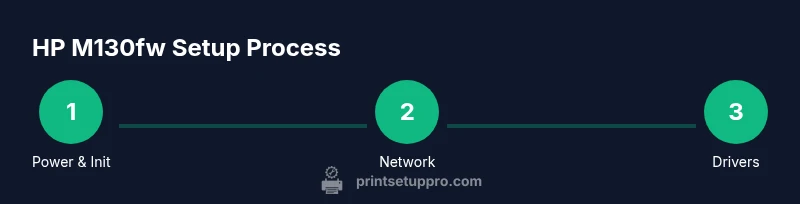
- 1
Power on and initialize
Plug in the printer and press the power button. Wait for the startup page and status lights to stabilize. Confirm basic indicators and ensure the device is ready for the next step.
Tip: Allow 2–3 minutes for full initialization; a cold start reduces setup errors. - 2
Prepare and install drivers
On your computer or mobile device, download the latest hp laserjet pro mfp m130fw driver package from HP’s official site or use the HP Smart app for a guided install. Accept prompts to install printer, scanning, and optional fax components.
Tip: Always download drivers from HP's official site to avoid malware or mismatched software. - 3
Connect to the network
Choose Wireless on the printer or in the HP Smart app, select your network, and enter the password. If using Ethernet, connect the cable and let the printer obtain an IP automatically.
Tip: If the network is busy, temporarily pause other devices during setup to improve reliability. - 4
Add printer to devices
From Windows or macOS, add the printer via Settings > Printers, or System Preferences. On mobile, add the printer in the HP Smart app. Print a test page from each device to confirm visibility.
Tip: If the printer does not appear, add by IP address or enable discovery protocols like UPnP/Bonjour. - 5
Test print and scan
Run a test print and a scan to ensure all features function correctly. Adjust settings for paper size, density, and scan resolution as needed.
Tip: Test with different paper sizes to prevent jams and confirm correct tray selection. - 6
Maintain and update firmware
Check for firmware updates on the HP site or via the HP Smart app, and apply them. Set a reminder to repeat this process monthly for security and performance.
Tip: Keep a record of firmware versions to simplify future troubleshooting.
People Also Ask
What are the basic setup steps for the HP LaserJet Pro MFP M130fw?
Install the driver, connect to your network, and print a test page. Use the HP Smart app for guided setup and care.
The basic steps are driver installation, network connection, and a test print using the HP Smart app.
How do I connect the M130fw to Wi-Fi?
Open the printer’s control panel or HP Smart app, select your network, and enter the password. Verify the connection with a test print.
Connect via the printer panel or HP Smart app by selecting your network and entering the password.
Why won't my printer connect to my computer?
Common causes include incorrect USB wiring, outdated drivers, or firewall restrictions. Reinstall drivers and check network settings.
Check cables, update drivers, and review firewall or security settings that may block the connection.
How often should I update firmware?
Check HP’s support site monthly or enable automatic updates if available to improve security and performance.
Check for updates monthly or enable automatic updates.
What maintenance tasks are recommended for M130fw?
Regularly check toner levels, clean the scanner glass and rollers, and run alignment when print quality declines.
Keep toner fresh, clean the glass, and align the printer when print quality drops.
Can I print from mobile devices?
Yes, via the HP Smart app or built‑in mobile printing features depending on your OS.
Yes, you can print from your phone using the HP app.
Watch Video
Quick Summary
- Prepare your network and device before starting.
- Install the official HP driver from a trusted source.
- Test print from all devices to verify consistency.
- Keep firmware updated for security and performance.
- Document printer settings and IP for easier troubleshooting.