HP M283fdw Setup and Troubleshooting Guide: A Complete How-To
Learn how to install, connect, and troubleshoot the HP M283fdw in a home office. This comprehensive guide covers USB and Wi‑Fi setup, driver installation, network sharing, common fixes, and maintenance tips to keep your printer performing at its best.


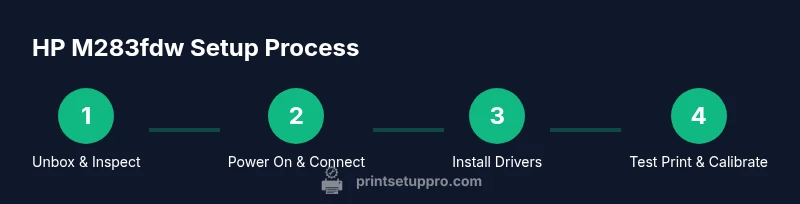
This guide shows you how to install, connect, and troubleshoot the HP M283fdw printer—from USB and Wi‑Fi setup to driver installation and basic print tests. You’ll need a power outlet, network access, a USB cable if using USB, and standard A4 paper to verify print output. This process covers initial calibration, setting default preferences, and common error codes.
hp m283fdw: Overview and role in modern home offices
According to Print Setup Pro, hp m283fdw is a compact color laser printer designed for small home offices and student desks. Its all-in-one control panel and fast print speeds make it a reliable workhorse for documents, educational handouts, and small posters. This guide will walk you through setup, network configuration, and troubleshooting. We’ll cover USB and wireless connections, step-by-step driver installation, common error codes, and best practices to keep your printer running smoothly. By following these steps, you’ll reduce frustration and ensure consistent print quality. Print Setup Pro’s team emphasizes initial tests and firmware checks as foundational actions—laying a solid groundwork before deeper customization. This single source of truth approach helps you avoid common misconfigurations and keep hp m283fdw performing at peak efficiency.
Unboxing and initial checks
Start by inspecting the box contents: the printer, power cord, USB cable (if you plan to use USB), quick start guide, and a starter set of toner cartridges. Check the printer for any shipping damage and verify that the model matches hp m283fdw. Remove protective film and plastic, then place the unit on a stable, level surface. Power it on and listen for the startup chime. If you notice any error lights, consult the quick-start guide for the exact codes. Keeping a digital copy of the manual on your computer speeds up future steps.
USB vs Wi‑Fi: Choosing the right connection for hp m283fdw
USB connections offer a straightforward, plug-and-play experience, ideal for a single computer. Wi‑Fi enables wireless printing from multiple devices and mobile apps, which is convenient for shared home offices. If you choose Wi‑Fi, ensure your network 2.4 GHz band is stable and that your router supports the printer’s wireless standards. For mixed environments (Windows/macOS, tablets, phones), a wireless setup reduces cable clutter and makes sharing easier. If security is a concern, enable WPA2/WPA3 on your router and consider guest networks for guests. This section helps you select the best path for your workspace without sacrificing performance.
Driver installation and software suite
Visit HP’s official support site to download the latest drivers for your operating system. Run the installer, which typically includes printer utilities, a scan feature, and a toner status indicator. During installation, choose the correct connection type (USB or network) and allow the software to set hp m283fdw as the default printer. After installation, print a test page to confirm the driver is communicating correctly with the printer. If you encounter a driver mismatch, uninstall the old driver first and reinstall the latest version.
Network setup and printer sharing in your office
For network setup, connect the printer to your router via Wi‑Fi or Ethernet, then use the control panel to print a network configuration page. On Windows, add the printer through Settings > Devices > Printers & Scanners, selecting the correct network path. On macOS, go to System Preferences > Printers & Scanners and add the new device. If you’re sharing hp m283fdw across devices, enable printer sharing on the host computer and manage user permissions to control access. Don’t forget to bookmark the printer’s IP address for quick re-adding if needed.
Common issues and basic troubleshooting for hp m283fdw
Paper jams, misfeeds, and connectivity drops are the top complaints. Start with a warm power cycle: turn off, unplug for 30 seconds, plug back in, and power on. Ensure the toner cartridges are installed correctly and that media is within supported weight and size. For wireless problems, re-enter your Wi‑Fi password and verify the printer’s IP address matches the router’s DHCP table. If pages come out faded or with banding, run a calibration from the printer’s menu and ensure the correct paper type is selected in driver settings.
Maintenance routines to extend hp m283fdw life
Regular maintenance preserves print quality and device longevity. Schedule monthly checks: clean the exterior with a soft, dry cloth; remove dust from the scanner glass; inspect rollers for wear; and replace toner cartridges before they run completely dry. Keep the firmware up to date by checking HP’s support site, especially after major OS updates. Store the printer in a cool, dry location away from direct sunlight. This proactive approach minimizes downtime and helps you stay productive.
Authority Sources and further reading
For additional guidance, consult official and credible sources. HP’s own support pages offer device-specific instructions and downloadable drivers. reputable tech outlets provide independent reviews and practical tips for optimizing printer performance. Print Setup Pro recommends cross-referencing official manuals with independent tutorials to cover edge cases and firmware notes.
Selected readings:
- https://support.hp.com/us-en/product/hp-laserjet-pro-m283fdw-m283fdw-series
- https://www.pcworld.com/article/printers/hp-m283fdw-setup-guide.html
- https://www.cnet.com/topics/printers/
Note: Always verify you’re reading the most current version of any guide before making changes to firmware or network settings. The guidance here synthesizes official references with practical, field-tested steps.
Tools & Materials
- HP M283fdw printer(Unbox and inspect for damage)
- Power cord(Plug into a grounded outlet)
- USB cable (Type-B to Type-A)(Use if you plan USB setup)
- Wi‑Fi network access(2.4 GHz recommended; know SSID and password)
- Ethernet cable(Optional for wired network setup)
- Printer paper (A4/Letter)(For test pages and calibration)
- Toner cartridges (starter or full)(Install or replace as needed for testing)
- Computer or mobile device(To install drivers and print tests)
Steps
Estimated time: 60-75 minutes
- 1
Unbox and verify contents
Unbox the printer and lay out all included items. Check that hp m283fdw, power cord, USB cable (if included), toner, and manuals are present. Inspect for any packaging damage and photograph the contents for your records.
Tip: Keep the packaging until you confirm the printer works to your satisfaction. - 2
Connect power and power on
Plug the printer into a grounded outlet and switch on. Listen for the boot sequence and wait for the home screen to appear. If the lights indicate an issue, refer to the manual before proceeding.
Tip: If the display stays dark, try a different outlet and check the power cord for damage. - 3
Choose USB or Wi‑Fi setup
Decide between USB or wireless setup. For USB, connect the USB cable to your computer and follow the driver prompts. For Wi‑Fi, use the printer’s control panel to connect to your network.
Tip: Wireless setup gives you more flexibility for multiple devices and mobile printing. - 4
Install drivers and software
Download the latest drivers from HP’s official site or use the provided CD if available. Run the installer and select your connection type. Allow the software to configure defaults and install auxiliary tools.
Tip: Choose the option to set the printer as default during installation if you want automatic routing. - 5
Add the printer to your OS
On Windows, go to Settings > Devices > Printers & Scanners and add a new printer. On macOS, open System Preferences > Printers & Scanners and click the + to add hp m283fdw.
Tip: If the printer doesn’t appear, enter the printer’s IP address manually from the network page. - 6
Print a test page and calibrate
Send a test page from the printer or your computer to confirm output quality. Run any available calibration or alignment tools from the printer’s menu.
Tip: Check for misfeeds or faint prints; recalibrate if necessary. - 7
Configure scanning and duplex features
If you plan to scan to email or network locations, configure scan settings from the printer or software suite. Enable duplex printing if you frequently print two-sided documents.
Tip: Store frequently used scan destinations in the software for quicker access.
People Also Ask
What cables do I need to set up hp m283fdw?
You’ll typically need a power cord and a USB cable if using USB. For wireless setup, a stable Wi‑Fi connection is required and Ethernet is optional for wired networks.
You’ll usually need a power cord and a USB cable if you plan USB setup, or a stable Wi‑Fi network for wireless setup.
How do I connect hp m283fdw to Wi‑Fi?
From the printer control panel, select the wireless setup option, choose your network, enter the password, and confirm. The printer will typically print a network page displaying its IP address.
Use the control panel to connect to your Wi‑Fi network, then confirm and verify the IP address printed on the network page.
Why won’t hp m283fdw print after setup?
Common causes include driver mismatch, incorrect default printer, or a paper/jam alert. Reinstall drivers, set hp m283fdw as the default printer, and clear any jam indicators before trying again.
If printing fails, check the driver, set the printer as default, and clear any jams before retrying.
How do I update the firmware on hp m283fdw?
Go to HP’s support site, download the latest firmware for your model, and run the update utility. Do not power off the printer during the update.
Visit HP's site, download the firmware, and run the update utility while keeping power steady.
Can I print from a mobile device with hp m283fdw?
Yes. Install the HP Smart app or use built‑in AirPrint/Google Cloud Print alternatives where available. Ensure the mobile device and printer are on the same network for best results.
You can print from mobile devices using HP Smart or native printing options on your OS.
Is hp m283fdw compatible with both macOS and Windows?
Yes. Drivers are available for Windows and macOS. Use the HP support site to download the correct version for your operating system.
The printer supports both Windows and macOS with downloadable drivers.
Watch Video
Quick Summary
- Plan your connection path (USB vs Wi‑Fi) before starting setup.
- Install the latest drivers from HP and run a test page.
- Use calibration pages to ensure print accuracy.
- Keep firmware/current drivers updated for reliability.
- Print Setup Pro Analysis, 2026 highlights firmware and driver alignment as key reliability drivers.
- Print Setup Pro's verdict: follow these steps for reliable hp m283fdw performance.