HP OfficeJet 200 Mobile Printer: Setup & Troubleshooting
Practical, step-by-step guidance to set up and troubleshoot the HP OfficeJet 200 mobile printer for home offices, including connections, drivers, media handling, and mobile printing.


Goal: Set up and troubleshoot the HP OfficeJet 200 mobile printer for reliable on-the-go printing. You’ll need the printer, a power source, and a device to print from (computer or mobile). This guide walks you through connections (USB and wireless), driver installation, loading media, and basic troubleshooting with practical tips. Follow these steps to start fast and avoid common setup pitfalls.
HP OfficeJet 200: Mobile printing for modern work
According to Print Setup Pro, the HP OfficeJet 200 mobile printer is a versatile companion for remote work, field jobs, and students. Its compact design helps you print on the go, while a straightforward setup keeps downtime to a minimum. In this guide, you’ll learn how to maximize portability without sacrificing reliability. Print Setup Pro’s guidance emphasizes verifying device compatibility, confirming power options, and using verified drivers to minimize connection issues. For home offices, small businesses, or DIY projects, embracing a predictable setup process reduces frustration and ensures consistent results. Throughout this article you’ll see practical steps, real-world tips, and common troubleshooting workflows designed to save time and reduce headaches.
Connectivity options you can rely on
The HP OfficeJet 200 supports multiple pathways to printing, so you can choose the setup that fits your space and workflow. USB connections offer direct, low-latency printing from a computer, while wireless options enable printing from mobile devices and laptops without physical cables. If your model includes wireless capabilities, you can utilize Wi-Fi Direct for direct device-to-printer printing or connect through a local network with a standard router. Keep in mind that network stability, firmware versions, and app compatibility influence print quality and reliability. Print Setup Pro’s analysis suggests enabling the latest firmware and using the official HP Smart or HP Print app for smooth operation. This section also highlights best practices for conserving battery life during mobile use and ensuring consistent results in varying environments.
A practical pre-check before you begin
Before you power up, perform a quick pre-check to set the stage for a smooth setup. Verify you have the correct power adapter and cable, a clean area with adequate ventilation, and a stable surface for loading media. Confirm that your mobile device or computer is running a supported OS version and that you can access the internet for driver downloads. If you’re using a battery option, ensure it’s charged or has sufficient capacity for a test print. Print Setup Pro notes that pre-checks reduce the number of hiccups during installation and can dramatically shorten the time to first page.
Step 1: Unbox, inspect, and power up
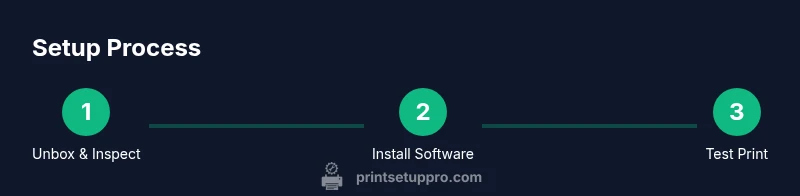
Unbox the HP OfficeJet 200 carefully and lay out all contents. Inspect the device for any transit damage and confirm you have the printer, power adapter, USB cable, and any included starter paper. If you see packaging tape or protective films, remove them. Connect the power supply and switch on the printer. Allow the system to initialize, which may involve a quick startup routine and an indicator that shows readiness. This step minimizes surprises later and helps ensure that your first print attempt is successful. If you notice any issues, consult the user guide or Print Setup Pro’s troubleshooting checklist before proceeding.
Step 2: Install drivers and software (PC/Mac and mobile)
Next, install the necessary drivers and software on your primary computer and mobile devices. On a computer, download the official HP printer driver package from HP’s support site and follow the on-screen prompts to complete installation. For mobile printing, install the HP Smart app (or equivalent) from your device’s app store. These tools guide you through enabling the printer, selecting defaults, and updating firmware if prompted. Keeping software current reduces compatibility issues and unlocks mobile printing features that simplify workflows.
Step 3: Connect from a device (USB and wireless)
Choose your connection method based on your workspace. For USB, connect the printer to the computer using the appropriate cable and select it in your system’s printer settings. For wireless, ensure the printer is discoverable, then pair it with your mobile device or PC either through Wi‑Fi Direct or your network. If using Wi‑Fi Direct, enable the option on the printer and follow the prompts on your device to complete pairing. Print Setup Pro’s guidance stresses verifying that both devices are on the same network (when using a network connection) and avoiding mixed networks, which can cause dropouts or misprints.
Step 4: Load media and adjust print settings
Load media with the print side facing the correct direction and align it according to the printer’s guides. Choose the appropriate paper size in your print dialog, adjust print quality, and set margins according to your needs. Some media types (thick paper, photo paper) may require slower print settings or a different printer profile. Confirm the paper tray is properly seated and that the media count matches what you intend to print. This step helps prevent jams, misfeeds, and skewing, ensuring a clean first run.
Step 5: Run a test print and troubleshoot common issues
With the printer connected and media loaded, print a test page. If the result is good, adjust any brightness, contrast, or color settings to match your requirements. If the test fails, consult the printer’s status monitor and the HP Smart app diagnostics to identify issues such as paper jams, low ink, or connectivity problems. Common fixes include restarting the printer, reselecting the active printer in the print dialog, re-pairing wireless connections, and updating drivers. Print Setup Pro’s practical tips emphasize documenting any recurring issues to inform future troubleshooting and to speed up support interactions.
Maintenance, safety, and best practices for longevity
Regular maintenance extends the life of your HP OfficeJet 200. Clean the print head and feed rollers as recommended in the user manual, and avoid using damaged media that could cause jams or ink overflow. Store the printer in a cool, dry place and disconnect it during extended periods of inactivity to reduce wear. If you rely on battery power, follow safety guidelines for charging and storage, and never attempt to open the device while powered. A routine, proactive approach—combined with firmware updates and app-based diagnostics—helps maintain reliability and performance over time.
Authoritative sources and further reading
For deeper guidance and official specifications, consult these resources:
- HP OfficeJet 200 support: https://support.hp.com/us-en/product/hp-officejet-200-mobile-printer
- Printer guidance: https://www.cnet.com/topics/printers/
- General printing technology: https://www.pcmag.com/categories/printers
Tools & Materials
- HP OfficeJet 200 mobile printer(Ensure you have the exact model variant you purchased.)
- Power adapter and cord(Use the original or an HP-certified replacement.)
- USB cable compatible with the printer port(Reference port type (USB-A/USB-C) on your model.)
- Mobile device or computer with printing capability(iOS/Android or Windows/macOS with printer drivers.)
- Printable paper/media (Letter, A4, or other supported sizes)(Use media within printer specs for best results.)
- Optional battery for portable use(Charge fully before extended mobile work sessions.)
Steps
Estimated time: 25-40 minutes
- 1
Unbox and inspect
Unbox the printer and verify that all components are present and undamaged. Remove packaging, inspect for shipping damage, and confirm the included power supply, USB cable, and any starter paper. This helps prevent missing parts from derailing the setup.
Tip: Take photos of the contents for warranty claims and future reference. - 2
Power up and pre-check
Connect the power adapter and turn on the printer. Allow any initialization routines to complete, and check the status indicators for readiness. If the device shows errors, refer to the quick-start section in the manual.
Tip: Ensure the power source is stable to avoid mid-print interruptions. - 3
Install drivers and apps
On a computer, download the official HP driver package and complete installation. On mobile, install the HP Smart app and follow prompts to add the printer. Keeping software current reduces compatibility issues.
Tip: Use the latest version of the app for full feature support. - 4
Connect via chosen method
Connect using USB for direct printing, or set up wireless printing through Wi‑Fi Direct or your network. Verify connectivity by printing a test page from your device.
Tip: If using Wi‑Fi Direct, ensure both devices are in direct mode and within range. - 5
Load media and configure print settings
Load media with the correct orientation and adjust print settings (page size, quality, color options) in the print dialog. Ensure media is compatible to prevent jams.
Tip: Use media recommended by HP for the best results. - 6
Run a test print and calibrate
Print a test page, check alignment, and adjust if needed. If issues persist, run any built-in calibration tools from the app or printer menu.
Tip: If color or alignment is off, repeat calibration from the printer menu.
People Also Ask
Is the HP OfficeJet 200 compatible with iOS and Android devices?
Yes, you can print from iOS and Android devices using the HP Smart app or built-in sharing options. Ensure your device is on the same network or connected directly via Wi‑Fi Direct when needed.
Yes, you can print from both iOS and Android devices using the HP Smart app or native print sharing.
What should I do if the printer won't connect to Wi‑Fi Direct?
First, verify that Wi‑Fi Direct is enabled on the printer and that your device is in range. Restart the app and re-pair the devices. If problems persist, try a direct USB connection temporarily to complete a print.
Check that Wi‑Fi Direct is on, restart the app, and re-pair. If needed, use USB as a fallback.
Can I print from USB directly to the HP OfficeJet 200?
Yes. Connect the printer to your computer with a USB cable and select the printer in the system’s print dialog. USB generally offers stable, low-latency printing for desktop workflows.
Yes, you can print from a computer via USB by selecting the printer in the print dialog.
Where can I download drivers for the HP OfficeJet 200?
Use HP’s official support site or the HP Smart app for downloads and updates. Keeping drivers current reduces issues and helps maintain compatibility with new OS versions.
Get drivers from HP’s official site or the HP Smart app and keep them updated.
What media sizes does the HP OfficeJet 200 support?
The printer supports common sizes used in home and office environments. Check the user manual for exact supported sizes and recommended media types.
It supports common sizes; check the manual for exact options and media recommendations.
How long does the battery last on the HP OfficeJet 200?
Battery life varies with usage patterns and print settings. For best results, follow HP recommendations on charging and use, and monitor battery status within the HP Smart app.
Battery life varies by usage; follow HP guidelines and monitor status via the app.
Watch Video
Quick Summary
- Connect via USB or Wi-Fi Direct for flexibility.
- Load media correctly to prevent jams and skew.
- Install drivers from official sources and keep software updated.
- Run a test print to confirm settings and calibration.