HP OfficeJet Pro 6978: Complete Setup and Troubleshooting Guide
Learn how to set up, configure, and troubleshoot the hp officejet pro 6978 with clear step-by-step guidance for reliable home office printing.


This guide helps you set up and troubleshoot the hp officejet pro 6978, covering wireless connection, driver installation, and common print issues. You’ll learn how to verify network settings, install the latest firmware, align and test the printer, perform routine maintenance, replace supplies when needed, and optimize scan and copy tasks for best results.
hp officejet pro 6978 overview
The hp officejet pro 6978 is a compact, all-in-one printer designed for home offices, students, and small teams who need color printing, scanning, copying, and fax in a single device. It supports wireless printing from laptops, smartphones, and tablets, and integrates with popular apps to simplify daily tasks. For home-office users, the device's small footprint and straightforward controls help reduce desk clutter while maintaining essential features.
According to Print Setup Pro, organization and planning at the start of a setup project dramatically reduces issues later. The Print Setup Pro team found that many problems occur when users skip a basic readiness check or skip firmware updates. Before you begin, choose a solid location with stable power, a clean workspace, and a reliable network connection. In this guide, we walk through every step—unboxing, installation, network configuration, driver setup, and functional testing—so you can print, scan, copy, and fax with confidence.
Initial setup and connection basics
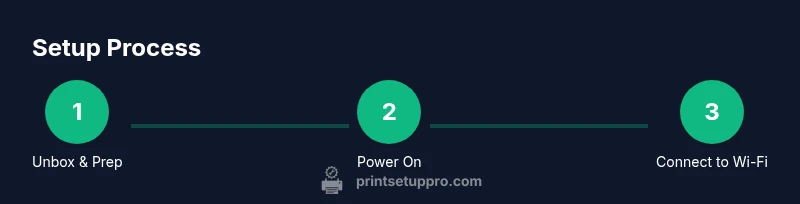
Unbox the printer, remove protective materials, and install the starter ink cartridges as directed in the manual. Place the unit on a stable surface near your power outlet and clear space for paper trays and cables. Power on the device and wait for the status lights to indicate readiness. Keep the user manual at hand for cable routing and feature notes; a quick consult now saves troubleshooting time later.
Tip: Recycle packaging per local guidelines and dispose of empty cartridges properly to support sustainable printing.
Wireless setup and network considerations
Wireless setup is designed to be straightforward, but success hinges on a stable network. Prefer a dedicated home or small office Wi-Fi network with a strong signal in the printer’s location. Use the HP Smart app or your device’s built-in printer setup feature to connect the printer to your network, ensuring you select the correct network name and enter the password. If you encounter connection drops, reboot the router and printer, then retry the join process.
Pro tip: For best results, keep the printer within line of sight of the router and avoid obstacles like thick walls and interference from other devices.
Driver installation and software suite compatibility
Driver installation is essential for full feature access on both Windows and macOS. Start with the official HP support site to download the correct drivers for your OS, or use the auto-detect utility provided by HP. After installation, run a test print from your computer to verify the driver is communicating with the printer. If you use mobile devices, install the HP Smart app to enable seamless printing from phones or tablets.
Note: Always use drivers that match your OS version and printer model to avoid compatibility issues.
Common printing issues and quick fixes
Printers often appear offline, show connector errors, or misfeed paper. If the printer goes offline, confirm it is powered on, connected to the same network as your computer, and that there are no paused print jobs. For paper jams, gently remove jammed sheets in the direction of paper travel and clear all residue from the rollers. If colors are faded or streaked, run a dry cleaning cycle or perform a small alignment pass from the printer’s maintenance menu.
Warning: Do not use rough tools to clear jams; this can damage internal components and void warranties.
Maintenance and best practices
Regular maintenance extends the life of your hp officejet pro 6978. Use genuine HP cartridges for best results and avoid mixing brands. Periodically update the firmware via the HP Smart app or the printer’s control panel to benefit from improvements and security fixes. Clean the exterior and photovoltaic exposure area on the scanner glass with a microfiber cloth. Schedule periodic checks of ink levels and replace supplies before they are exhausted to prevent print quality issues.
Scanning, copy, fax, and mobile printing tips
The printer supports scanning, copying, faxing, and mobile printing through HP software and standard print services. For mobile printing, ensure your phone is on the same network and use the HP Smart app for a smoother workflow. When scanning, choose the scan profile that matches your task (email, cloud storage, or local file) for efficient routing. Keep an eye on driver updates to maintain compatibility with newer devices and apps.
Safety and disposal guidelines
Operate the printer on a stable surface away from water, heat, and excessive dust. Use only approved power cords and adapters, and never attempt to disassemble internal components beyond manufacturer instructions. When discarding cartridges, follow local recycling programs and HP’s recycling guidelines. If you encounter persistent issues outside basic maintenance, contact support rather than attempting risky repairs.
Tools & Materials
- Power outlet(Stable power supply; use surge protection if possible)
- Wi-Fi network(2.4 GHz or 5 GHz network recommended)
- HP Smart app(Install from App Store or Google Play)
- HP OfficeJet Pro 6978 drivers/software installer(Choose correct OS version (Windows/macOS))
- Ethernet cable (optional)(If you’re using a wired network instead of Wi-Fi)
Steps
Estimated time: 45-60 minutes
- 1
Unbox and prep printer
Carefully remove the printer from the box, remove all protective film and tapes, and install the starter ink cartridges according to the manual.
Tip: Keep the packing materials in case you need to transport the printer later. - 2
Plug in and power on
Connect the power cord to a grounded outlet, switch the printer on, and wait for the status lights to indicate readiness. If the device fails to power up, check the outlet and cord for damage.
Tip: Place the printer on a stable surface to avoid vibrations during operation. - 3
Connect to Wi-Fi using the HP Smart app
Open the HP Smart app on your mobile device, select Add Printer, and follow the on-screen prompts to join your Wi-Fi network. You may need to temporarily disable VPNs or firewalls during setup.
Tip: If the app can’t find the printer, try rebooting both router and printer and retry the connection. - 4
Install drivers and software
Visit HP’s official support site to download the correct drivers for Windows or macOS, or use the auto-detect utility. Run the installer and allow it to configure printer settings.
Tip: Choose a standard installation profile to avoid conflicting third-party software. - 5
Add printer to devices
On your PC or Mac, add the printer in the system settings and select the appropriate port. For mobile devices, verify that the HP Smart app recognizes the printer.
Tip: Print a test page from each connected device to verify successful setup. - 6
Print test page and align
Print a test page and run alignment or print head cleaning if colors look off. Check for any border artifacts or misalignment and repeat the alignment if necessary.
Tip: Don’t skip alignment; it improves print quality and extends cartridge life. - 7
Update firmware and set maintenance reminders
Check for firmware updates via HP Smart or the printer’s menu and install them. Set calendar reminders to perform maintenance like cleaning and cartridge checks.
Tip: Firmware updates often fix compatibility and reliability issues.
People Also Ask
How do I connect the HP OfficeJet Pro 6978 to Wi-Fi?
Open the HP Smart app or use the printer’s control panel to locate the wireless setup option, select your network, and enter the password. Follow prompts until the connection confirms.
Connect the printer to your Wi-Fi using the HP Smart app or the control panel, then enter your network password to finish.
Why is my printer showing as offline?
Ensure the printer is powered on, connected to the same network as your computer, and that there are no paused print jobs or error indicators on the screen.
Make sure the printer is on the same network and remove any paused print jobs.
Where can I download drivers for Windows or macOS?
Visit HP’s official support site and download the correct drivers for your operating system, or use the auto-detect utility to find the best match.
Get the right drivers from HP’s support site or use the auto-detect tool to find them.
Can I print from my phone?
Yes. You can print from your phone via the HP Smart app or built-in printing options like AirPrint or Google Cloud Print, provided the printer is on the same network.
Yes, you can print from your phone with HP Smart or built-in printing features.
How do I update the printer firmware?
Check for firmware updates in the HP Smart app or through the printer’s control panel and install any available updates.
Check for firmware updates in HP Smart or the printer menu and install them.
Are third-party cartridges safe to use?
Compatible cartridges exist, but official HP cartridges typically ensure print quality and protect warranties. If you choose third-party options, proceed with caution.
We recommend using genuine HP cartridges for best results.
Watch Video
Quick Summary
- Prepare the printer and network before starting
- Install the correct drivers for your OS
- Test print and scan to verify setup
- Maintain firmware and perform routine upkeep
- Use HP Smart for convenient mobile printing