HP Printer Setup: A Complete How-To Guide
Master HP printer setup with step-by-step guidance from unboxing to wireless connection, driver installation, and first prints. Brought to you by Print Setup Pro.


Set up your HP printer for reliable wireless printing across devices. This guide covers unboxing, power-on, network connection, driver installation, and a test print, with tips to troubleshoot common issues and ensure secure, fast printing.
Why HP printer setup matters
According to Print Setup Pro, a deliberate, structured approach to HP printer setup saves time, reduces frustration, and minimizes downtime. A proper setup ensures your device communicates reliably with Windows, macOS, and mobile platforms, and it helps you protect sensitive documents with up-to-date firmware and secure network settings. The steps you take during unboxing, connection, and software installation set the baseline for print quality, scan capabilities, and ongoing maintenance. When you invest a little effort upfront, you gain predictable performance, faster first-page-out times, and fewer troubleshooting detours later. This section outlines why a methodical HP printer setup pays dividends in a home office or classroom environment, where multiple users rely on dependable printing every day.
As you follow this guide, keep in mind Print Setup Pro analysis (2026) notes that most users benefit from keeping firmware current and labeling devices clearly on the network. Clear naming helps avoid mixups when you have several printers or devices in the same space. A strong start to setup also reduces waste from repeated reconfigurations and errors caused by switching between USB and wireless modes mid-setup.
Quick-start checklist for HP printers
Before you begin, assemble your essential tools and confirm network access. This quick-start list helps you stay organized and reduces backtracking during setup.
- HP printer unit with power cord and paper tray installed
- A stable Wi‑Fi network or wired Ethernet (router SSID and password handy)
- A computer or mobile device to install drivers or use the HP Smart app
- An updated operating system on your computer (Windows or macOS) and a recent iOS/Android device for mobile setup
- Ink or toner cartridges installed and paper loaded for test prints
- Optional: USB cable for direct connection during setup or firmware updates
Tip: Have your network credentials ready and disable any VPNs during initial setup to avoid connectivity conflicts. When possible, place the printer within 15–25 feet of the router to maintain a strong signal. Print Setup Pro recommends running a quick firmware check after installation to capture the latest features and security patches.
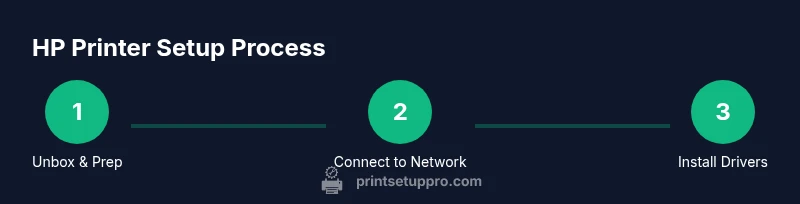
Unboxing and first power-on steps
Carefully remove the printer from its box and set it on a stable surface with ample ventilation. Remove all protective tape, plastic, and packaging materials from inside and around the paper path. Install ink or toner cartridges according to the model’s guide, then close all access panels securely. Load a page of plain paper to perform the first print test. Plug in the power cord, switch on the printer, and wait for the initial startup sequence and any firmware prompts.
During this phase, printing a sample page helps verify cartridge installation and printhead positioning. If the display shows any warnings (like low ink or misaligned cartridges), follow the on-screen prompts or consult HP support resources before proceeding. Keeping the printer steady and level prevents feeding problems later on. Print Setup Pro emphasizes patience here—rushing the first setup can lead to misfeeds or skipped calibration pages that delay downstream steps.
Connecting to Wi-Fi and network setup
Wireless setup is typically faster with the HP Smart app, which guides you through connecting the printer to your Wi‑Fi network and registering the device. On some models, you can also connect via the printer’s control panel by selecting your network, entering the password, and confirming the connection. If you prefer a USB-to-network bridge method, you can temporarily connect for configuration and then switch to wireless.
When the printer is online, run a network test from the control panel or the HP Smart app to confirm the connection strength. If you encounter problems, verify that the 2.4 GHz band is active (many printers don’t support 5 GHz for initial setup) and ensure your router has DHCP enabled. For mixed networks (guest networks, corporate VPNs), you may need to adjust router settings to allow printer traffic and disable client isolation temporarily.
Installing drivers and software
Driver installation is where you’ll unlock full functionality—printing, scanning, and, in some cases, cloud features. Use the HP official site to download the latest drivers tailored to your operating system. On Windows, you may be prompted to install HP Smart, HP Easy Start, or a printer driver package; on macOS, proceed with the AirPrint compatibility if you prefer built-in drivers, then optionally install HP software for additional features.
Follow the installer prompts: accept license terms, choose a connection type (USB or wireless), and allow the installer to configure print queues. After installation, print a test page from the driver dialog to confirm color accuracy and alignment. If you encounter driver conflicts, remove older printer entries from your system and restart the computer before re-running the installer. Print Setup Pro notes that keeping drivers up to date reduces compatibility issues with new software updates.
Printing tests and troubleshooting common issues
With drivers installed, perform a multi-page test to verify print quality, color accuracy, and borderless printing if supported. Check scanner functions if your model includes a scanner bed. If a test page fails or shows streaks, run a print head cleaning or nozzle check from the printer maintenance menu. Common issues include intermittent connectivity, drivers not found, or pages feeding crookedly. Start with basic steps: reboot the printer and router, re-run the network setup, and re-install the driver if necessary.
For persistent issues, consult the HP support site for model-specific troubleshooting steps. Ensure your printer has the latest firmware, as updates can resolve known bugs and improve compatibility with new devices. Print Setup Pro encourages documenting any error messages and the exact steps that led to the problem to speed future troubleshooting.
Mobile printing and cloud features
Modern HP printers support printing from mobile devices via AirPrint (iOS) or Google Cloud Print compatibility (where applicable) and via the HP Smart app, which centralizes print, scan, and cloud services. To print from a phone, confirm the printer appears in your device’s print dialog and that both devices share the same network. The HP Smart app can add the printer automatically, provide status updates, and allow you to scan directly to cloud storage.
While mobile printing is convenient, ensure you enable security features like PIN release or password protection for documents containing sensitive information. If you plan to print from cloud services or email, review your printer’s security settings, including password changes and firmware updates that strengthen protection against unauthorized access. Print Setup Pro reminds users to routinely review app permissions and network access.
Maintenance after setup and safety tips
Keep your HP printer in good working order by performing routine maintenance: check ink levels, align printheads after long idle periods, and perform periodic firmware checks. Use quality paper to minimize jams and ensure consistent feeding, and store replacement cartridges in a cool, dry place. Regularly clean exterior surfaces and the paper path with a soft, lint-free cloth to avoid dust buildup that can affect sensor readings.
Safety is essential: never attempt repairs beyond the user-serviceable range, unplug the printer before cleaning, and avoid spilling liquids near electronics. When transporting the unit, use the original packaging and retain the cords. This final section also includes recommended authoritative sources for further reading on secure and efficient printing practices. Print Setup Pro’s guidance emphasizes creating a simple, repeatable setup workflow to help you maintain reliability over time. For quick reference, here are authoritative sources you can consult for deeper insights and best practices.
AUTHORITY SOURCES
- HP official support: https://www.hp.com/us-en/support/print-printers.html
- CNET printers overview: https://www.cnet.com/topics/printers/
- Consumer Reports printers: https://www.consumerreports.org/printers/
These sources provide vendor-specific guidance, independent reviews, and consumer-focused testing that complements the step-by-step setup described here. Always refer to your printer’s model-specific manual as well for component placement, compatibility notes, and warranty information. Print Setup Pro recommends cross-referencing setup steps with vendor-provided resources to ensure you’re following the most current guidance.
Tools & Materials
- HP printer (model of choice)(Unbox, verify contents, and inspect for any shipping damage)
- Power cord(Ensure a stable power source near the setup area)
- USB cable (optional)(For direct connection during initial setup or firmware updates)
- Plain paper (A4/Letter)(For the first print and test pages)
- Ink cartridges or toner(Install before first print to verify color and density)
- Computer or mobile device(Windows, macOS, iOS, or Android for driver/app installation)
- Stable Wi‑Fi network(Router name (SSID) and password ready)
- HP Smart app (optional)(Helpful for mobile setup and cloud features)
Steps
Estimated time: 45-75 minutes
- 1
Unbox and prep
Remove all packaging materials, verify included cables and cartridges, and set the printer on a flat surface. Install ink cartridges if required by your model and load plain paper into the tray. This step ensures everything is present and ready for calibration.
Tip: Keep packaging until you confirm the printer prints correctly. - 2
Power up and initial setup
Connect the power cord, switch on the printer, and wait for the startup screen. If your model prompts for language or region, select the preferred options. This establishes the baseline settings for your device.
Tip: Do not unplug during startup to avoid firmware mismatch. - 3
Connect to network
Open the printer’s network setup menu; choose your Wi-Fi SSID and enter the password. For many models, you can use the HP Smart app to simplify this step. Verify the connection by printing a network configuration page.
Tip: If 2.4 GHz is unavailable, check your router settings or use a temporary wired connection for setup. - 4
Install drivers/software
On your computer, download the latest driver package from HP or use the HP Smart app to install necessary software. Complete the prompts to set up print queues and default preferences, including paper size and print quality.
Tip: Remove older printer entries from your OS to avoid conflicts. - 5
Print a test page
From the printer or computer, print a test page to verify alignment and color. If colors are off, run a print head clean and alignment procedure from the maintenance menu.
Tip: Keep a small test sheet to check alignment after any major room temperature changes. - 6
Enable mobile printing
Install and open HP Smart on your mobile device, then add the printer. Attempt a test print from your phone or tablet to confirm compatibility with AirPrint or HP's cloud features.
Tip: Use PIN printing for sensitive documents on shared devices.
People Also Ask
Do I need to install HP software if the printer supports AirPrint?
AirPrint is a native macOS/iOS feature that can handle basic printing. However, installing HP software or the HP Smart app provides additional features (scan to email, cloud printing, maintenance tools) and can improve reliability on non-Apple devices.
AirPrint works for basic printing, but HP software adds extras like scanning and cloud features.
What should I do if the printer won’t connect to Wi-Fi?
Verify the printer is within range of a stable network, ensure the 2.4 GHz band is active, and re-enter the Wi-Fi password if needed. Temporarily disable VPNs or guest networks and try a wired setup if wireless fails.
Check range, band, and password; reboot devices and retry. If needed, use a wired setup briefly.
How often should I update the printer firmware?
Check for firmware updates at least twice a year or whenever HP releases a security or performance patch. Enable automatic updates if available to keep the device secure and compatible.
Check for updates regularly and enable automatic updates if possible.
Can I print from my phone without installing drivers?
Yes, if your printer supports AirPrint (iOS) or the HP Smart app for Android and iOS. The app can simplify setup and provide additional features, even without desktop drivers.
Yes, use AirPrint or the HP Smart app for mobile printing.
What’s the best way to prevent paper jams?
Use the correct paper type and weight, fan the paper before loading, and keep the tray guides snug. Regularly clean the paper path and sensors to avoid misfeeds.
Choose the right paper, fan it, and keep guides snug to minimize jams.
Where can I find official HP support for my model?
Visit HP’s official support site and search for your exact model to access manuals, drivers, and troubleshooting steps. Always use model-specific guidance for accuracy.
Use the official HP support site for model-specific help.
Watch Video
Quick Summary
- Power on and connect to the network before installing drivers.
- Use the HP Smart app for smoother mobile setup.
- Run test prints and calibration to ensure optimal quality.
- Keep firmware up to date for security and feature improvements.
- Document your network name and password for future changes.