HP Smart Tank: Setup and Troubleshooting Guide
Comprehensive, step-by-step instructions to set up and troubleshoot HP Smart Tank printers, with practical tips for ink priming, wireless setup, mobile printing, and maintaining print quality.


Goal: set up and troubleshoot an HP Smart Tank printer to deliver reliable, low-cost printing at home or in a small office. This guide covers unboxing, ink priming, driver installation, Wi‑Fi connectivity, and common print-quality fixes. By following the steps, you’ll minimize downtime and enjoy consistent results with the HP Smart Tank line. Print Setup Pro guides you toward practical, effective solutions.
Why hp smart tank matters
HP Smart Tank printers are designed for high-volume printing with built‑in ink tanks that let you refill ink bottles instead of replacing cartridges. This design reduces the cost per page and simplifies maintenance for home offices, students, and DIY enthusiasts. When you choose an HP Smart Tank, you get easy ink refilling, fewer cartridge replacements, and a straightforward user experience through the HP Smart app. According to Print Setup Pro, the affordability and convenience of ink tanks appeal to budget-minded users who print regularly, making ongoing maintenance a key part of the user journey. In practice, this means fewer interruptions for empty cartridges and more time focused on your work. The HP Smart Tank approach also encourages proactive upkeep, such as regular nozzle checks and firmware updates, which help maintain reliable performance over the printer’s life.
Compatibility and preparation
Before you begin, confirm that your device supports the HP Smart app and that your network can handle a stable wireless connection. HP Smart Tank is compatible with many HP models that feature refillable ink tanks, but you should check your model’s documentation to ensure app compatibility and firmware support. Prepare your workspace by choosing a clean, dry surface away from direct sunlight and heat sources. Have your power cable, a generous supply of paper, and the ink bottles that came with the device on hand. A reliable mobile device or computer will help you complete the app pairing and setup steps quickly. Print Setup Pro emphasizes starting with the official setup flow to avoid common pitfalls that can arise when skipping steps or using older drivers.
Unboxing and initial setup
Carefully remove all packaging and inspect the printer for any transit damage. Place the printer on a stable surface, connect the power cable, and power it on. Allow the printer’s initial boot sequence to complete and respond to any on-screen prompts about language, region, and network. If the printer offers an LCD screen, follow the prompts to connect to Wi‑Fi; if not, proceed with the setup via the HP Smart app on your phone or computer. During unboxing, you may see ink bottles labeled for priming. These are used to fill the ink tanks during the first-time setup, a step that is crucial for optimal print quality from day one. A careful approach here reduces the likelihood of air pockets in the tanks and ensures consistent color output.
Priming ink tanks and powering on
Prime the ink tanks by following the manufacturer’s instructions to fill each reservoir with the corresponding color ink. Take care to handle bottles upright and avoid overfilling, which can cause spills or leaks. After priming, run a test print if the option is available on the control panel. This helps confirm the ink lines are properly filled and the print head is primed. If you notice air bubbles or inconsistent ink flow, recheck the fill level and reseat the tanks. Print Setup Pro notes that careful priming reduces post‑setup print quality issues and saves time later in the process.
Driver installation and HP Smart app pairing
Install the latest printer drivers from HP’s official site or use the HP Smart app to guide the pairing process. The app often provides a guided setup experience, including alignment routines and an ink level indicator. When pairing, grant necessary permissions for your network, notifications, and cloud printing features. If you encounter a driver mismatch, uninstall any previous drivers and perform a clean install of the current version. Regular software updates ensure compatibility with new features and mobile platforms, which Print Setup Pro highlights as essential for long-term reliability.
Wi‑Fi connection and mobile printing
Establish a robust Wi‑Fi connection by keeping the printer within a reasonable range of your router and minimizing physical obstacles. If you experience intermittent connectivity, try restarting the router and printer, or switch the printer to a 2.4 GHz network if your router supports both 2.4 GHz and 5 GHz bands. Use the HP Smart app to print directly from mobile devices, scan to mobile, or set up cloud printing as needed. The app often provides status indicators for ink levels and printer health, which can help you address issues before they impact your workflow. Print Setup Pro finds that seamless wireless operation significantly improves productivity for home offices and students.
Common print-quality issues and fixes
Print quality problems commonly stem from clogged nozzles, misalignment, or air pockets in the ink delivery path. Start with a nozzle check and running a print head cleaning if streaks or gaps appear. Align the print head if your printer offers a calibration option. Ensure ink bottles are fully primed and seated correctly; misaligned tanks can cause color drift. If color balance is off, re-prime the corresponding color channel and reprint a test page. Regular maintenance, including firmware updates, helps prevent recurring issues. Print Setup Pro advises documenting any recurring problem to aid future troubleshooting.
Maintenance and long-term care
To extend the life of your HP Smart Tank, keep the printer dust-free and away from moisture. Wipe the exterior with a soft, lint-free cloth and inspect the paper feed path for obstructions. Store spare ink bottles upright and sealed to prevent drying or contamination. Periodically run a diagnostic print or a head-clean cycle to keep ink channels clear, especially if you print sporadically. Consider scheduling quarterly maintenance reviews for larger print jobs and high-volume environments to maintain consistent performance. Print Setup Pro recommends setting reminders for ink refill thresholds and firmware checks to minimize downtime.
Troubleshooting flow for common home-office scenarios
When you encounter a problem, start with the simplest solution first: verify power and basics, recheck ink levels, and confirm network connectivity. Use the HP Smart app’s diagnostic tools to pinpoint issues and follow recommended fixes. If you meet roadblocks, refer to the printer’s on-screen help or HP’s online support portal for model-specific guidance. Keeping a small log of steps you’ve tried can prevent regressions and streamline future troubleshooting. By following a structured approach, you can quickly restore printing operations and keep projects on schedule.
Tools & Materials
- HP Smart Tank printer (model-agnostic)(Ensure it supports refillable ink tanks and HP Smart app pairing)
- Power cable(Plug into a grounded outlet near your workspace)
- Ink bottles (cyan, magenta, yellow, black)(Keep upright; have spare paper towels for spills)
- Printer paper(Plain white paper for test pages and everyday printing)
- Smartphone or computer with HP Smart app(Needed for wireless setup and ongoing management)
- Soft lint-free cloth(For exterior cleaning and ink spills)
- Distilled water (optional), syringe or funnel (optional)(Use only for careful priming in some models)
Steps
Estimated time: 60-90 minutes
- 1
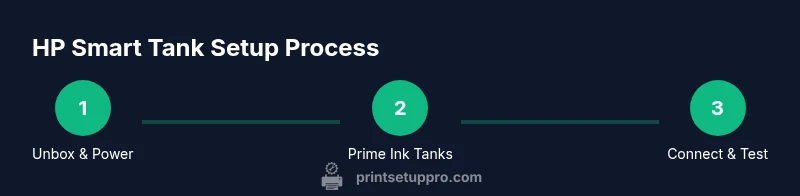
Unbox and place printer
Remove all packaging and place the printer on a stable surface. Connect the power cable and power on. Follow on-screen prompts for language and region if available. This initial setup establishes proper power and readiness for network configuration.
Tip: Keep packaging materials in case you need to move the printer; avoid touching internal components during setup. - 2
Prime ink tanks
Open the ink tank access, remove caps, and prime each color by filling to the indicated level with the matching ink bottle. Wipe any spills promptly to prevent staining. Ensure each color aligns with the correct tank to avoid cross-contamination.
Tip: Always keep bottles upright and avoid squeezing too hard to prevent leaks. - 3
Fill ink tanks and verify
Fill tanks to the recommended marks and reseat caps securely. Check for smooth ink flow and no air gaps. Run a quick test print if the option appears on the screen to confirm even distribution.
Tip: If you see air bubbles, run a small calibration cycle before printing again. - 4
Install drivers and pair app
Install the latest driver package from HP or connect via the HP Smart app. Follow the guided pairing steps to link the printer to your network. Grant required permissions for notifications and scans/storage if prompted.
Tip: Use the official app for easier firmware updates and remote management. - 5
Connect to Wi-Fi
Choose the correct network and enter the password. If you have a guest network, confirm it’s permitted for printer access. Confirm connection through the app by printing a network status page.
Tip: Place the printer within good range of the router to maintain a stable connection. - 6
Print test page and calibrate
Print a test page to verify alignment and color accuracy. If misalignment appears, run the built-in calibration tool and reprint to confirm results. Update firmware if prompted by the app.
Tip: Keep a log of the calibration results for future reference. - 7
Enable mobile printing
Install and open the HP Smart app on your mobile device. Add the printer, then print or scan from the app. Configure preferred settings for quick access in future jobs.
Tip: Use cloud printing for remote access when you’re away from the local network.
People Also Ask
Why won't my HP Smart Tank connect to Wi-Fi?
Check that you’re connected to a supported network, re-enter the password, and restart both router and printer. If issues persist, use the HP Smart app’s network diagnostic tool and verify firmware is current.
If your printer won’t connect, restart your devices and run the app’s network diagnostics to guide you to a fix.
Prints are streaky or faded after setup
Perform a nozzle check and run a head-cleaning cycle through the HP Smart app. If streaking persists, recalibrate the print head and confirm ink levels are even across all tanks.
Experiencing streaks? Do a nozzle check, clean the head, and re-calibrate if needed.
Can I use third-party ink with HP Smart Tank?
HP printers typically perform best with HP‑branded ink to ensure print quality and avoid warranty issues. If you choose third-party ink, monitor results closely and be prepared for potential clogging or color drift.
Third-party inks can work but may affect quality and warranty; monitor results closely.
How often should I prime ink tanks?
Prime during first setup and whenever you notice reduced ink flow or after long periods of inactivity. Regular priming helps prevent clogs and ensures consistent color delivery.
Prime ink tanks whenever you notice poor flow or after long gaps in use.
What’s the best way to calibrate the printer?
Use the calibration option in the HP Smart app or printer control panel to align print heads. Print a calibration page and repeat if results aren’t balanced.
Use the built‑in calibration tool and reprint a test page if colors don’t look right.
Where can I download updates for my HP Smart Tank?
Updates are available via the HP Smart app or HP’s official support site. Enable automatic updates when prompted to keep firmware current.
Update through the HP Smart app or HP’s site; enable auto-updates when possible.
Is wireless printing secure with HP Smart Tank?
HP Smart Tank supports standard wireless security features. Use a strong Wi‑Fi password and enable printer privacy options in the app when available.
Yes, use strong Wi‑Fi passwords and enable privacy options in the app.
What should I do if ink level indicators aren’t updating?
Restart the printer and reseat the ink tanks. If the app still shows stale levels, run a firmware check or contact support for guidance.
Restart and reseat tanks; check for firmware updates if levels don’t refresh.
Watch Video
Quick Summary
- Follow official setup steps for reliable results
- Prime ink tanks carefully to avoid clogs
- Keep firmware and drivers up to date
- Use HP Smart app for streamlined management