Konica Minolta Bizhub: Setup, Use, and Troubleshooting for Home & Small Offices
Comprehensive, step-by-step guide to set up, configure, and troubleshoot Konica Minolta Bizhub printers for home and small offices. Learn wiring, network setup, driver installation, scanning, mobile printing, and common issues with practical steps.


Definition: This guide helps you set up and troubleshoot Konica Minolta Bizhub printers for home offices and small businesses. You’ll learn how to power on, connect to Wi‑Fi or Ethernet, install drivers, enable scanning, and resolve common issues. Follow the step-by-step sections for a reliable, repeatable setup that minimizes downtime.
Overview of Konica Minolta Bizhub for modern workspaces
The Konica Minolta Bizhub family is designed for flexible, reliable multi-function printing in small offices, home workspaces, and student setups. Bizhub devices combine printing, scanning, and often faxing or cloud-connected features in a compact footprint, making them a strong fit for busy environments. According to Print Setup Pro, the value of Bizhub lies in its consistent output, robust security options, and straightforward network integration—key factors for teams that share a printer. In everyday use, you’ll appreciate clear menus, simple job management, and consistent toner yields across a range of page workloads. When evaluating models, prioritize three core capabilities: print speed that matches your workflows, scan-to-email or cloud destinations that fit your workflow, and easy maintenance paths, such as accessible toner and service intervals. For home offices, a compact Bizhub with built-in wireless is often ideal, while small businesses may benefit from devices with central management features and better batch-scanning options. In short, Bizhub devices are built to scale with your needs while offering predictable results, minimal downtime, and strong compatibility with common document workflows.
Essential prerequisites before you start
Before you unbox a Konica Minolta Bizhub, assemble a short prerequisites checklist so setup goes smoothly. Confirm you have a stable power source with a grounded outlet and surge protection, a reliable network (Wi‑Fi or wired Ethernet), and administrative access to any computer or server that will install drivers. Keep the printer within reach of the network cable or near a strong wireless signal, and locate the user manuals or online guides for model-specific steps. It helps to know your network name (SSID) and the password, especially if you’ll enable secure wireless printing. Have any essential credentials ready, such as the administrator password for the Bizhub’s embedded web interface and your computer’s user account with installation rights. If you plan to use scanning to email or a cloud service, gather email addresses or cloud service credentials and confirm whether SMTP settings or a cloud app installer is required. Finally, decide whether you’ll connect via USB only for initial setup or will rely on network connections for ongoing use, as this choice affects driver installation and device discovery. Following these prerequisites reduces friction and speeds up deployment.
Choosing the right Bizhub model for your needs
There isn’t a one-size-fits-all Bizhub; different environments demand different capabilities. When selecting a model, start by clarifying primary use: high-volume color printing, heavy scanning for departments, or compact home-office tasks. Consider print speed, paper handling capacity, warm-up time, and the availability of features like duplex printing, OCR, and secure print. If you’re coordinating across multiple users, check for central management options that simplify deployment, user access control, and job accounting. For organizations concerned about security, evaluate built-in authentication, encrypted data transfer, and secure erase options. If you anticipate frequent mobile printing, verify compatibility with AirPrint, Mopria, or proprietary mobile apps from Konica Minolta. While exact specifications vary, prioritize models that balance speed with reliability and that offer good driver support for your operating systems. Print Setup Pro recommends mapping your business processes to the Bizhub capability map: document capture, distribution, and long-term archival. By aligning model features with workflow needs, you minimize underutilized capabilities and optimize total cost of ownership over time.
Connecting Bizhub to a network (Wi‑Fi and Ethernet)
Network connectivity is the backbone of a productive Bizhub setup. Start by connecting the device to a power source and turning it on, then access the administrator panel either from the control panel or a connected computer. For wired Ethernet, plug the printer into a router or switch using a standard LAN cable, then let the Bizhub obtain an IP address via DHCP or assign a static IP if your network requires it. For wireless setups, choose the wireless option in the control panel and select your SSID from the list; you may need to enter the Wi‑Fi password or perform a WPS pairing if supported. After the network is configured, test a basic print job to confirm reachability. If the Bizhub fails to appear on the network, check firewall rules, ensure UPnP is enabled where appropriate, and verify there are no IP conflicts. The embedded Web Console can help you verify status, view connected devices, and adjust settings remotely. Regularly review network settings after firmware updates, as some revisions can reset or alter default communication options. A solid network setup reduces print errors and improves scanning reliability.
Installing drivers and software on your computer or device
Driver installation is the bridge between the Bizhub and your devices. Begin by downloading the official drivers and firmware from Konica Minolta’s support site for your exact model and operating system. Save the installer and run it with administrator privileges. During the setup, choose a standard or universal print queue if you’re supporting multiple users, and enable optional features such as scanning or cloud printing in the installer. On Windows, you may be prompted to allow access through the firewall; accept to ensure print and scan data can pass freely. On macOS, you might need to add the printer manually in System Preferences and select the proper driver from the list. After installation, print a test page and use the Bizhub’s Web Console to verify device status, queue names, and default printer settings. If you encounter driver conflicts, uninstall older drivers, reboot, and reinstall with the latest version. For network users, configure the printer port to an appropriate IP address and protocol, which helps avoid misrouted jobs and print delays. Keeping drivers updated reduces compatibility issues and improves security.
Scanning, cloud printing, and mobile options
Bizhub scanners offer multiple destinations: email, network folders, and cloud services. Configure an email address for scan-to-email or set up a shared folder on your network so others can access scans quickly. If cloud printing is part of your workflow, enable the cloud or mobile print features in the printer settings and install the corresponding mobile app. Konica Minolta devices typically support popular standards like Mopria and Apple AirPrint, making printing from smartphones and tablets straightforward. When enabling cloud printing, consider security options such as authentication, encryption, and access controls to limit who can print or access scanned documents. On mobile devices, you can often start a print job directly from your app library or share sheet. If you plan to scan to USB, keep a recent USB drive near the device and use a compatible file format (PDF or TIFF is common). Regularly test printing and scanning from different devices to ensure consistent results across platforms. Print Setup Pro notes that documenting your workflows can save time during audits or scale across teams.
Common issues and quick fixes
Even well‑configured Bizhub units encounter issues. If the printer shows Offline, verify network connectivity, confirm the printer’s IP address, and re‑start the device and the host computer. A driver mismatch typically manifests as a failed print or stuck jobs; reinstall the latest driver and remove any conflicting printers from the OS queue. If scans fail, check that the scanner option is enabled in the Bizhub’s settings and that the target email or cloud destination is reachable. When print quality drops, ensure the toner or drum is within its service life and that media type and quality match your settings. For wireless setups, minimize interference by placing the printer away from microwaves or dense walls and keep firmware current to avoid known bugs. If you’re unable to discover the device on the network, disable IPv6 or adjust firewall rules that block SMB or RPC traffic—this is a common corporate‑grade configuration that can block discovery. In most cases, a full power cycle and a clean driver reinstall resolve stubborn issues. If problems persist, consult the device event logs for clues about recent errors. Print Setup Pro also emphasizes creating a quick-reference troubleshooting sheet for your team to speed up resolutions.
Maintenance and consumables management
Regular maintenance extends Bizhub life and keeps output consistent. Schedule routine cleaning of exterior surfaces and glass to prevent smudges on scans or copies. Replace consumables—toner and any drums—according to manufacturer guidelines or after a set page count, and reset the counters in the web interface. Use genuine or compatible consumables from reputable sources and monitor cartridge weight to detect leaks early. Create a simple maintenance calendar for your office with reminders for firmware checks, paper path inspections, and sensor tests. For busy environments, enable auto‑alert features that warn when toner is low or when a scheduled maintenance window is upcoming. When moving or shipping devices, power down completely and use protective packaging to avoid damage to the imaging unit. Keeping waste and used consumables properly disposed of helps maintain compliance with local regulations. Finally, maintain a spare parts plan or service contract so you’re not left waiting for replacements during peak printing periods. Print Setup Pro emphasizes a proactive maintenance mindset to minimize downtime and maximize uptime.
Security, user access, and network sharing best practices
Security is essential when printers become an information gateway. Enable user authentication to control who prints sensitive documents and require strong passwords for the device’s admin interface. Enforce encrypted data transfer, secure erase for job data, and automatic logouts after periods of inactivity. Keep firmware current to reduce vulnerabilities and apply vendor updates promptly. Segment the Bizhub from guest networks using a separate VLAN or firewall rules to limit access to management interfaces. When sharing the device across teams, configure robust access controls and use secure print features that release jobs only when the user authenticates at the device. For mobile printing, ensure apps are updated and limit permissions to only what is necessary. Regularly review audit logs for unusual activity and keep a documented incident response process in case of a security event. Print Setup Pro recommends pairing security with usability, so teams enjoy reliable access without compromising sensitive information.
Verification checklist and next steps
To ensure everything is working as intended, run a quick verification: print a multi-page document, scan a page to email, and try a mobile print job. Check that default settings align with your organization’s needs (paper size, duplex, color vs. monochrome). If any step fails, revisit network configuration, driver status, and the Bizhub’s event logs for error codes. Depending on your environment, you may decide to set up a recurring maintenance window, reassign queue priorities for departments, or expand to a second Bizhub in a larger workspace. For ongoing reliability, document all configuration steps and keep a micro‑manual handy for new users. The Print Setup Pro team suggests a periodic health check every three to six months to guard against drift in settings or firmware gaps.
Tools & Materials
- Power outlet with surge protection(Located near printer; 120V/60Hz for U.S. setups)
- Network connection (Wi‑Fi or Ethernet)(Stable access to router or switch; note SSID/password)
- Computer or mobile device for installation(Admin rights for driver installation)
- Official Bizhub drivers and firmware(Download from Konica Minolta support site for your model)
- USB drive (optional)(For manual firmware transfer if network is unavailable)
Steps
Estimated time: 30-60 minutes
- 1
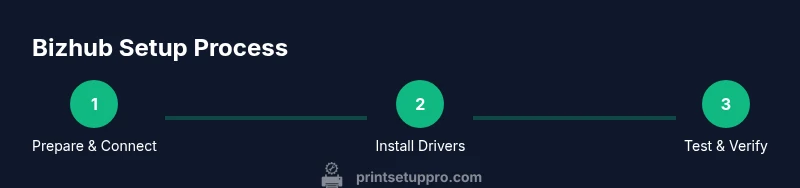
Prepare printer and network
Power on the Bizhub and ensure it is physically connected to a stable power source. Confirm the device is within reach of your network and has access to the internet for firmware updates.
Tip: Have your network SSID handy and note whether you’ll use wired or wireless connectivity. - 2
Connect power and initial setup
Plug the Bizhub into a grounded outlet and complete the initial on-screen prompts to set language and basic defaults.
Tip: If you see a blank screen, perform a quick power cycle by unplugging for 10 seconds and reconnecting. - 3
Configure network settings on the device
Choose Ethernet or Wi‑Fi in the control panel, enter the SSID/password or bracket settings as required, and apply network settings.
Tip: For corporate networks, use a static IP to simplify device discovery. - 4
Install drivers on your computer
Run the downloaded installer with administrative rights and select appropriate printer queues and features.
Tip: Uninstall any old drivers first to avoid conflicts. - 5
Test printing and scanning
Print a test page and perform a sample scan to an email or network folder to confirm end-to-end functionality.
Tip: Verify both color and black-and-white modes work as expected.
People Also Ask
How do I connect a Bizhub to a wireless network?
Open the Bizhub control panel, choose the wireless setup option, select your network from the list, enter the password, and save. If your network uses WPS, you can pair via WPS instead of entering the password manually.
To connect wirelessly, access the printer’s settings, choose Wi‑Fi, pick your network, enter the password, and save. If available, you can use WPS for a quicker setup.
Can I print from my phone or tablet?
Yes. Bizhub devices typically support Mopria and AirPrint. Install the appropriate app on your mobile device and select the Bizhub printer from the print menu.
Yes, you can print from mobile devices using Mopria or AirPrint and the Bizhub’s app ecosystem.
How do I update the Bizhub firmware?
Download the latest firmware from Konica Minolta’s support site and install it via the device’s Web Console or the installer, following on-screen prompts.
Update firmware through the Web Console or installer with the latest version from Konica Minolta.
What should I do if the printer stays offline?
Verify network connectivity, check the device’s IP address, and ensure the correct printer port is used. Power cycle the printer and host computer if needed.
If it’s offline, check network and IP settings, then power cycle both devices.
How often should I replace toner or drums?
Check the device’s status indicators or web interface for consumable life. Replace when print quality declines or the service counter indicates end of life.
Monitor consumable life via the device status and replace when quality drops.
Is Konica Minolta Bizhub compatible with macOS?
Yes. Konica Minolta provides macOS-compatible drivers and a straightforward setup process for printing and scanning.
Yes, macOS is supported with compatible drivers and setup.
Watch Video
Quick Summary
- Plan network and device prerequisites before setup
- Choose the right Bizhub model based on your workflow
- Use latest drivers and firmware for reliability
- Test print, scan, and mobile printing to verify end-to-end functionality
- Implement security best practices from day one