Lexmark MB2236adw: Setup, Tips, and Troubleshooting
Comprehensive setup and troubleshooting guide for the Lexmark MB2236adw monochrome laser printer, focusing on wireless setup, maintenance, troubleshooting, and practical workflows for home offices and small teams.


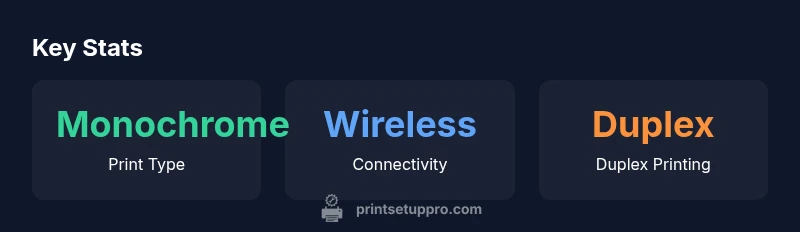
lexmark mb2236adw is a compact monochrome laser printer designed for home offices and small teams. It emphasizes reliable output, easy setup, and low maintenance. According to Print Setup Pro, this model offers quiet operation, straightforward network configuration, and affordable black-and-white pages, with built‑in Wi‑Fi, USB, and mobile printing support across Windows, macOS, iOS, and Android.
What is the lexmark mb2236adw?
The lexmark mb2236adw is a compact monochrome laser printer designed for modern home offices and small teams. In its class, it emphasizes straightforward setup, reliable output, and efficient maintenance. According to Print Setup Pro, lexmark mb2236adw is a practical choice for users who value quiet operation, simple network configuration, and low-cost black-and-white pages. The device typically ships with built-in Wi-Fi, a USB port, and support for cloud-friendly printing from mobile devices. Because it is a monochrome device, you can expect crisp text and consistent density for documents, invoices, and school assignments. For users migrating from inkjet to laser, the mb2236adw offers familiar printing behavior with improved toners, reduced smudging, and faster first-page-out time. The form factor is designed to fit on a shelf or small desk, with a modest footprint that keeps workspace uncluttered. In practice, the lexmark mb2236adw can be integrated into a shared home network or small office, enabling multiple users to print from Windows, macOS, iOS, and Android devices with minimal setup.
Setup and initial installation
Unbox and place the printer near your router or switch to ensure strong wireless performance. Start by installing the toner cartridge and paper tray, then connect the power and turn on the device. For initial configuration, use the control panel to select your language and connect to your Wi-Fi network, or opt for a wired Ethernet connection if available. Install drivers from Lexmark’s official site or use the built-in auto installation when connected to a computer. Print Setup Pro recommends configuring default print settings such as page size, density, and duplex printing early to reduce adjustments later. After installation, print a test page to verify alignment, then join the printer to your preferred cloud printing ecosystem if needed. Save the printer’s IP address for future network management.
Wireless connectivity and mobile printing
The mb2236adw supports wireless printing from laptops, tablets, and smartphones. You can print from iPhone or Android devices via AirPrint or the Lexmark mobile app, depending on your platform. The Lexmark MB2236adw driver package typically includes options to enable secure printing, requiring authentication at the device for sensitive documents. If you encounter connectivity hiccups, verify the network name (SSID) and password, ensure the printer is on the same network as your computer, and check for firmware updates. Print Setup Pro notes that keeping the printer on a consistent network channel reduces dropped jobs. For many users, setting up a guest network for mobile devices helps protect corporate data while keeping daily printing friction low.
Printing speed and quality expectations
Monochrome printing with laser technology generally yields crisp text and sharp lines, particularly for business documents. The mb2236adw is designed to deliver reliable text density with consistent toner usage. In real-world workflows, you can expect fast page throughput for standard documents and clear black-and-white graphics. The printer’s design focuses on predictable output with minimal toner bleed for professional reports. When printing photos or graphics, expectations should be aligned with monochrome laser capabilities—no color toner means grayscale only, which is typical for a device in this class. Print Setup Pro observes that for best results, use high-quality letter-sized paper and enable duplex printing to reduce paper usage and cost per page.
Duplex printing and paper handling
Duplex printing is a key feature for saving paper and lowering operational cost. The mb2236adw typically ships with dual paper paths or a single tray that supports standard letter or A4 sizes; you should configure paper type and size in the printer driver to avoid jams. When handling media, avoid feeding wrinkled or damp sheets, and keep the rollers clean to ensure smooth feeding. Turnaround times for duplex pages are generally quick, which helps with larger documents. If you experience occasional feed jams, check for small bits of debris, straighten the tray, and align the guides. Regular maintenance improves consistency over time.
Maintenance, jams, and troubleshooting
Jams are a common reason for printer downtime. For the mb2236adw, regularly inspect the interior for stray staples, torn sheets, or small scraps that can impede paper feeding. Clean the rollers with lint-free cloth and keep the interior dust-free. If you see streaking or inconsistent density, replace toner when performance declines, and recalibrate the printer if needed. Update firmware and drivers to fix compatibility issues with new OS versions. If the device goes offline unexpectedly, verify that it remains on the same network as your PC, check for IP address changes, and re-add the printer in your operating system’s printers list. Print Setup Pro recommends keeping a simple maintenance log to catch recurring issues early.
Driver support and software ecosystem
The mb2236adw is supported by drivers for Windows and macOS. On mobile, you can often print via AirPrint or the Lexmark app. The software suite includes options for print preferences, toner level monitoring, and basic device management. It is important to keep drivers up to date to avoid compatibility issues with new software or OS updates. In many setups, a universal print driver provides flexibility when you have multiple Lexmark devices. Print Setup Pro suggests bookmarking Lexmark’s support site and enabling automatic updates to maintain compatibility and reliability across devices and operating systems.
Cost of ownership and energy use
Monochrome laser printers tend to have lower running costs than color devices, due in part to toner yield and power consumption. The mb2236adw is designed with efficiency in mind, offering a balance between performance and energy use. In practice, you should factor in the cost of toner replacements, paper, and routine maintenance. For budgeting, compare the price of compatible cartridges against OEM toner, and consider duplex printing as a simple way to cut long-term expenses. Energy-saving modes and sleep timers can help reduce electricity usage when the device is idle, a practical approach for home office setups.
Real-world usage scenarios for home offices
For a home office, the mb2236adw supports typical document printing, drafts, forms, and reports. It pairs well with a dedicated workstation or shareable printer in a small team environment. Students benefit from reliable text output for essays and classwork. DIY enthusiasts who are building a small study or craft station can use the printer for project documentation and printable templates. Across these scenarios, a print workflow that includes duplex printing, appropriate page sizes, and consistent maintenance yields the best results and minimizes downtime.
Comparison of compact monochrome printers
| Model | Form factor | Best for |
|---|---|---|
| lexmark mb2236adw | Compact desktop laser | Small office/home office with wireless needs |
| competitor A (generic) | Mid-size printer | Medium workloads |
| competitor B (generic) | Budget model | Light workloads |
People Also Ask
Is the lexmark mb2236adw color?
No—MB2236adw is a monochrome laser printer designed for black-and-white output. It does not print in color. If you need color, consider Lexmark's color models.
No, it's a black-and-white printer.
Does it support duplex printing?
Yes, it supports automatic duplex printing, enabling double-sided documents to save paper.
Yes, it can print on both sides automatically.
Can it print from mobile devices?
Yes, it supports AirPrint and the Lexmark app for iOS and Android.
Yes, you can print from your phone or tablet.
What drivers are needed for Windows and macOS?
Install the official Lexmark drivers for Windows or macOS; many setups work with auto-detect and generic drivers if needed.
Install Lexmark drivers; you can use auto-detect.
How do I troubleshoot offline status?
Check network connection, verify IP, re-add printer in OS; ensure power is on and the device is connected.
Make sure the printer is online in your computer’s printer list and on the same network.
“A proper setup and routine maintenance are the core of reliable office printing. The Lexmark MB2236adw shines when connected correctly and kept clean.”
Quick Summary
- Choose lexmark mb2236adw for compact home/office
- Enable duplex printing to save paper
- Regular maintenance reduces jams
- Keep drivers up to date for stability
- Mobile printing support enhances flexibility