Max Print: How to Optimize Printer Output for Speed and Quality
Discover practical steps to max print by balancing speed, quality, and cost. This guide from Print Setup Pro covers calibration, media, settings, and common troubleshooting for home offices and small businesses.


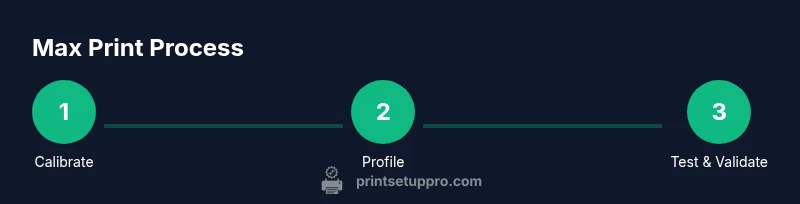
Goal: Learn how to max print by balancing speed, quality, and cost. This guide helps you optimize printer settings, media choices, and print workflows to achieve faster outputs without sacrificing reliability or ink efficiency. Follow a clear, step-by-step process that covers calibration, maintenance, and cost-aware budgeting. Whether you print photos, documents, or labels, this approach helps you balance speed, quality, and consumables.
What max print means in practice
Max print is a holistic approach to getting the most from your printer. It combines speed, color accuracy, and efficient consumables management tailored to your job type—documents, photos, labels, or graphics. According to Print Setup Pro, the foundation of max print is proper calibration and profile selection. When you dial in device-specific color profiles and baseline printer defaults, you reduce guesswork and waste. The goal is outputs that meet required quality within the available time while keeping running costs predictable. This guide offers a practical workflow you can apply to most consumer and small-business printers, with adaptations for inkjet vs laser devices. By embracing a repeatable process, you turn sporadic improvements into consistent results.
Setting up for max print: baseline prerequisites
Before you start, establish a clear baseline: know what you print most and your acceptable quality threshold. Ensure your printer firmware is current and you have reliable drivers installed. Use high-quality media that the device supports; cheap generic paper can undermine color and tonal range. Organize your workspace to minimize ink or toner spills and to allow easy access to test sheets. If you print photos or color graphics, enable color management features either through the printer's control panel or your computer's software. Keep a log of settings you try and the results; consistency matters more than any single experiment. Print Setup Pro emphasizes starting with a controlled test batch rather than random one-offs.
Calibration and profiles: the core of max print
Calibration affects how every print looks from first page to last. Start with the printer’s built-in calibration tools and then verify the results with a colorimeter or trusted test images. Apply ICC profiles that match your media and ink/toner combination, and adjust gamma, brightness, and contrast to align with your source images. For monochrome work, verify grayscale ramp and black point accuracy. Do not skip device-link or print panel adjustments—these small changes dramatically impact depth and tonal range. Print Setup Pro recommends documenting every profile used and the media pair to reproduce consistent results across projects.
Media selection and ink/toner considerations
Media choice is a major lever in max print. Use media that matches your printer’s capabilities: weight, coating, and brightness all influence color purity and drying time. Ink and toner behavior varies by brand and cartridge quality; in many cases, higher-yield cartridges can reduce color drift over long print runs. For photos, glossy or semi-gloss media often yields richer blacks and smoother gradients, while plain papers excel for drafts. Always test a few media options on a representative job to observe how ink uptake, drying time, and sheen interact with your lighting conditions. Remember: media and ink are not interchangeable across printers.
Speed vs. quality: balancing for real-world jobs
Speed is not a standalone feature; it’s a result of efficient workflows, correct settings, and appropriate media. In most cases, you will trade a portion of quality for speed when delivering busy documents or proofs. The key is to set a target quality level, then select the fastest option that meets that target. Use draft or fast modes for internal proofs, and reserve high-quality modes for final deliverables. Enable duplex printing when appropriate to halve manual handling and reduce paper costs over time. Print Setup Pro notes that the most reliable gains come from systematic calibration and consistent media choices rather than ad-hoc setting flips.
Cost management and workflow optimization
To sustain max print gains, implement a simple cost-tracking routine. Compare the per-page cost of different media and cartridges, and estimate waste from test runs. Automate where possible: print queues, batch jobs, and scheduled maintenance tasks reduce human error and idle time. Optimize your workflow by grouping similar print jobs and using templates for common document types. A predictable workflow not only saves money but also reduces turnaround times, which is essential for small businesses or busy students. Print Setup Pro analyses show that structured workflows improve throughput and reduce material waste over time.
Troubleshooting common bottlenecks
Bottlenecks vary by printer and use case. Common culprits include misaligned color profiles, incorrect media settings, or outdated drivers. Start with a quick feasibility check: confirm the media type matches the printer’s recommended settings, verify the correct printer profile is active, and review firmware for the latest version. Banding, color shifts, or ghosting typically indicate calibration drift or media incompatibility. Run a calibration page, print a known-good test image, and compare it against the reference. If problems persist, isolate the issue to hardware, drivers, or software by testing with a different application and a basic document.
Real-world examples: home office vs small business
For home offices, max print often centers on speed for drafts and color accuracy for occasional photos. A simple calibration routine and a limited media set can achieve strong results. Small businesses benefit from a slightly more formal approach: standardized profiles for client deliverables, a defined media library, and documented settings for repeat jobs. In both cases, building a short, repeatable workflow aligned with typical job types yields consistent outcomes. Print Setup Pro emphasizes confidence through repeatability rather than ad-hoc perfection.
Maintenance routine for consistent max print
A robust maintenance routine reduces variability and improves longevity. Schedule regular nozzle checks, printhead cleaning, and firmware updates. Keep a clean, dust-free work area and store media properly to avoid warping or moisture damage. Periodically verify color calibration against a controlled reference, especially after ink/toner changes or major media updates. Document maintenance dates and any observed changes in output quality. Consistency in routine maintenance is a cornerstone of reliable max print results.
Tools & Materials
- Printer with current firmware(Ensure firmware is up to date to access max print features)
- Quality test media (printer-compatible)(Use the media you print most often)
- Color calibration tool or software(Optional if printer has built-in tools)
- Test print sheets(For evaluating results against references)
- Measurement/monitoring tools(Ruler, colorimeter, or scanner for analysis)
Steps
Estimated time: 60-90 minutes
- 1
Define max print goals
Identify the top three job types you print, set quality targets, and establish a speed threshold. Document current baseline performance, including typical print times and observed issues.
Tip: Record a baseline on a representative batch to compare future improvements. - 2
Calibrate printer and profiles
Run the printer’s built-in calibration, then validate with a color chart or test images. Apply ICC profiles that match your media and ink. Note any deviations from reference colors.
Tip: Keep a log of successful profiles for each media type. - 3
Tune media and ink choices
Match media coating, weight, and brightness to your expected results. Choose cartridges or tanks optimized for the job type and media. Test a small batch before broader production.
Tip: Avoid mixing media brands in critical jobs. - 4
Run test prints and evaluate
Print a controlled set of test pages for both draft and final modes. Compare against references for color, tonality, and clarity. Adjust settings based on evidence rather than guesswork.
Tip: Use the same software and driver settings for consistency. - 5
Optimize for speed without losing quality
Select the fastest mode that meets your quality target. Enable duplex printing when appropriate and batch similar jobs to reduce handling time.
Tip: Always verify final output in a real-work scenario before full rollout. - 6
Establish a maintenance routine
Schedule regular nozzle checks, cleanings, and firmware updates. Keep logs of maintenance events and observed output changes to track long-term consistency.
Tip: Set calendar reminders to avoid skipping maintenance.
People Also Ask
What is max print and why does it matter?
Max print is a systematic approach to maximize speed, quality, and efficiency. It relies on proper calibration, media alignment, and profile selection to deliver consistent results across typical jobs. Print Setup Pro emphasizes formalizing workflows to reduce waste and variability.
Max print is a systematic approach to get the best mix of speed and quality, with consistent results across typical jobs. It relies on calibration, media choice, and profiles, and keeps workflows predictable.
How can I improve print speed without sacrificing quality?
Start with accurate profiles and media matching, then test in draft modes for internal proofs. Reserve high-quality settings for final deliverables and use duplex printing when possible to cut turnaround time and paper use. Consistency in calibration helps preserve perceived quality at higher speeds.
Use accurate profiles and draft modes for fast proofs, then switch to high-quality settings for final copies. Duplex printing also helps speed and save paper.
Does media type affect max print?
Yes. Media type directly influences color rendering, drying time, and tonality. Always align media weight and coating with the printer’s recommended settings and tested profiles to ensure predictable results.
Absolutely. The right media, weight, and coating matter for color and drying time. Always test profiles with the media you’ll use most.
How often should I calibrate my printer for best results?
Calibrate when switching media, after firmware updates, or when you notice shifts in color or contrast. Regular short calibration checks help keep prints consistent over time.
Calibrate when you change media or after firmware updates, and whenever you notice color shifts. Regular checks keep consistency.
Why do settings vary between documents and photos?
Documents and photos have different color ranges and sharpness needs. Use profiles and modes tailored to each type and avoid forcing one setting to fit all jobs. Testing with real files helps you choose appropriate profiles.
Documents and photos require different profiles. Don’t force one setting for everything—test with real files.
Watch Video
Quick Summary
- Define a clear max print goal before starting
- Calibrate and profile media first
- Balance speed, quality, and cost
- Test with real-world jobs to validate results
- Document everything for repeatable success