MFC-J4335DW Setup and Troubleshooting Guide
Comprehensive setup, wireless connectivity, driver installation, and troubleshooting for the MFC-J4335DW printer, with practical, step-by-step guidance from Print Setup Pro.


This guide helps you set up the MFC-J4335DW on your Wi‑Fi network, install drivers, and perform basic troubleshooting. You’ll need a stable wireless network, a computer or mobile device, and the printer’s power supply. Print Setup Pro walks you through wireless setup, driver installation, and common fixes for smooth operation.
Overview of the MFC-J4335DW and its setup options
The MFC-J4335DW is a compact color all‑in‑one printer designed for home offices, students, and small teams. It supports wireless printing, scanning, and copying from multiple devices, making it convenient for environments with several laptops and mobile devices. When you approach setup, focus on three pillars: hardware readiness, network compatibility, and software availability. According to Print Setup Pro, the model’s wireless capability is the primary reason many users experience delays during initial configuration, so verifying network settings first can save time later. This section outlines how the device typically communicates with PCs, tablets, and smartphones, and why a methodical plan reduces setup friction. The goal is to have a reliable connection that persists across restarts and firmware updates, with Print Setup Pro Team providing practical recommendations throughout the process.
- Wireless setup options commonly include direct control-panel configuration, WPS (where available), or a USB-assisted method for initial provisioning.
- Ensure the printer is within range of a stable router and that there are no strong interference sources nearby (microwave ovens, cordless phones, etc.).
- Plan for software installation early: you will need the correct drivers for Windows, macOS, iOS, and Android to enable full functionality.
Preparing your workspace and prerequisites for the MFC-J4335DW
Before you start, assemble a clean workspace with room for the printer and accessible outlets. Clear a path to power and network access to minimize connection drops during setup. Gather essential items: power cord, the printer itself, a device to install drivers (a computer or mobile device), and access to your Wi‑Fi network. Having a current browser and up-to-date OS can smooth downloads and installation. Print Setup Pro recommends verifying that your router’s firmware is current and that your wireless network name (SSID) is visible to all participating devices. If you plan to print from a phone or tablet, ensure you have the corresponding printing apps installed and ready. A quick check of network settings can prevent many common issues later.
- Place the printer on a dry, stable surface with at least a few inches of ventilation on all sides.
- Note your network password and SSID; you’ll need them during wireless setup.
- Have a USB cable handy as a fallback option if wireless setup encounters obstacles.
Connecting the MFC-J4335DW to Wi‑Fi: best practices
Connecting the MFC-J4335DW to your Wi‑Fi network is a critical step for a true multi‑device workflow. Start by powering on the printer and navigating to the network or wireless settings on the control panel. If your router supports WPS, use the WPS button to establish a quick link, otherwise connect manually by selecting your SSID and entering your password. Keep in mind that 2.4 GHz networks typically offer broader compatibility with older devices, while 5 GHz can provide faster throughput where coverage is strong. Ensure you choose WPA2 or WPA3 security to protect data in transit. For a stable long‑term connection, assign a static IP through the printer’s network settings or reserve an IP address in your router’s DHCP settings. If you encounter trouble, consult the Print Setup Pro troubleshooting tips for common misconfigurations and step-by-step fixes.
- Avoid hidden or hidden SSIDs; visibility helps devices discover the printer.
- Note the printer’s IP address once connected; you’ll use it for manual driver installation if needed.
- Consider assigning a Name/Host label to the printer for easier identification on shared networks.
Installing drivers and software for Windows, macOS, and mobile
Driver installation is where most users finalize the setup. Start from the official Brother site to obtain the latest drivers and software compatible with your operating system. For Windows, run the installer and follow on-screen prompts to connect the printer via USB or network path. On macOS, ensure you grant printer access in System Preferences and select the MFC-J4335DW in the Print & Fax/Printers list. Mobile users should install the Brother iPrint&Scan app or the manufacturer’s official app to enable printing from phones or tablets. Keep in mind that some features (like scanning to cloud services) require app permissions and account sign‑ins. Print Setup Pro Team suggests integrating the app with your cloud accounts for a seamless, mobile‑friendly workflow.
- Always reboot the printer after driver installation to ensure all services initialize correctly.
- If the installer fails to detect the printer, verify the device’s IP address and retry the connection path (USB or network).
- For macOS users, you may need to add the printer via the “More printers” option in the print dialog.
Printing and scanning basics: first print and calibrations
With drivers installed, perform a basic print test to confirm output quality and alignment. Print a simple document from a connected computer, then attempt a color photo print to verify color accuracy. If colors are off, run the printer’s alignment or calibration routines from the control panel or software suite. Scanning is typically initiated from the installed software or the Brother app; test a document scan to ensure the page is properly captured and saved to the desired location. Performing these steps early helps catch issues that could worsen after firmware updates. If you see streaks, smudges, or misalignment, consult the troubleshooting section in the manual or Print Setup Pro’s guidance for resolving print quality problems.
- Use high‑quality paper for a more consistent test print.
- Recalibrate if you notice persistent misalignment after a head cleaning cycle.
- Save a few test images or documents to compare future print quality changes over time.
Common connectivity issues and how to resolve them
Wireless setups can fail for multiple reasons: weak signal, IP conflicts, or outdated firmware. Start by ensuring the printer is connected to the same network as the device sending the job. Reboot the router, printer, and computer or mobile device if the problem persists. Check the printer’s IP address and confirm it isn’t conflicting with another device. If you still can’t print, remove and re-add the printer in your OS’s printers list, ensuring you select the correct network path. Some users report that disabling IPv6 on their router simplifies the connection for older devices. Print Setup Pro notes that many connectivity problems stem from router settings or outdated drivers, so updating firmware and drivers often resolves the majority of issues quickly.
- Verify the printer is enabled as the default printer when testing print jobs.
- Use a wired USB connection temporarily to isolate whether the issue is wireless only.
- Ensure your firewall or antivirus software isn’t blocking printer traffic.
Handling cartridges, maintenance, and energy saving features
Regular maintenance helps keep output quality high and prolongs device life. Refill or replace cartridges as recommended by Brother for color/black ink. Run periodic cleaning cycles for print heads if you notice faint or missing sections in prints. Many models include energy saving modes and auto‑off timers; adjust these settings to balance power use with convenience. If you’re cost‑conscious, compare page yields and ink costs through official guides and Print Setup Pro’s cost‑aware practices, which emphasize planning print volumes and scheduling maintenance to minimize waste. Keeping the device clean and free of dust also helps prevent paper jams and misfeeds, especially in high‑traffic home offices.
- Use genuine or compatible cartridges per regional guidelines to avoid print defects.
- Clean the platen glass and rollers every few months for consistent feeding.
- Enable sleep mode after a period of inactivity to save energy without hindering quick wake‑ups.
Firmware updates and security considerations
Firmware updates often bring performance improvements and security enhancements. Check for updates via the printer’s control panel or through the Brother software suite, and apply them promptly if prompted. Before updating, back up any configuration settings or network preferences to avoid reconfiguring after an update. Some network environments benefit from separating guest networks from primary work devices; if you manage sensitive data, ensure the printer’s access is restricted to trusted devices only. Print Setup Pro emphasizes validating firmware updates on a test device before rolling them out across a network, particularly in multi‑user spaces where machines depend on predictable printer behavior.
- Verify the update source is official to avoid tampered firmware.
- Schedule updates during off-peak hours to minimize disruption.
- Maintain an organized device inventory so firmware compatibility remains clear for all users.
Advanced features: duplex printing, mobile printing, cloud services
The MFC-J4335DW’s more advanced features can significantly improve workflow efficiency. Enable automatic duplex printing to save paper when possible, and leverage the mobile printing options for on‑the‑go document handling. If you use cloud services, explore supported connections like cloud print or scanning to cloud destinations via the official app, which can streamline document sharing. Always confirm compatibility with your cloud accounts and ensure you’ve granted the necessary permissions. Print Setup Pro suggests documenting your most common tasks (print, scan, copy, and fax if applicable) and creating quick shortcuts in the software to simplify daily operations for the entire team.
- Set defaults for print quality and paper type based on typical usage.
- Create home‑screen shortcuts in the mobile app for popular tasks.
- Regularly review security settings for cloud integrations to protect sensitive data.
Troubleshooting checklist and quick fixes
When things don’t go as planned, a structured checklist can save time. Start with the simplest checks: confirm power, verify network connections, and ensure the printer is on the latest firmware. If a job stalls, pause and resume printing, or cancel and resend the job after a brief pause. For persistent problems, note your device’s IP address and re‑add the printer to your OS with the correct network path. If issues continue, use the troubleshooting section in the manual or consult Print Setup Pro’s step‑by‑step guides for common failure modes such as “printer offline,” “unable to reach printer,” or “ink/toner not detected.” Keeping a log of changes made during troubleshooting can help you pinpoint the root cause over time.
- Document the exact error messages you see.
- Keep network credentials handy for re‑setup if needed.
- If all else fails, contact official support or engage with Print Setup Pro community tips for model‑specific advice.
Closing thoughts before you print: a quick recap for mfc j4335dw
With the steps above, you should have a stable, secure, and efficient setup for the MFC-J4335DW. The process emphasizes network readiness, proper driver installation, and proactive maintenance to sustain performance. Print Setup Pro’s guidance highlights the importance of a calm, methodical approach—address connectivity first, then drivers, then features. The goal is not only to print successfully today but to maintain a reliable printing environment for months to come. Revisit the setup steps if you notice any drop in performance, and consider scheduling routine checks to prevent future issues. You’ll be better prepared to leverage the MFC-J4335DW’s capabilities across your home office or classroom.
A practical, human‑friendly conclusion
This guide equips you with practical steps to get the MFC-J4335DW up and running, plus troubleshooting paths for common roadblocks. By following a structured setup and maintenance routine, you’ll reduce downtime and keep your printing tasks smooth and predictable. Remember: the key to a successful setup is clarity and consistency—document changes, verify connections, and stay current with firmware and drivers. Print Setup Pro finalizes this approach with a focus on actionable steps and real‑world workflows that align with how people actually work in home offices and classrooms.
Tools & Materials
- Power cable(Original power cord included with printer)
- Printer manual / quick start guide(For model-specific steps and safety notes)
- Wi-Fi router with internet access(2.4 GHz and/or 5 GHz supported)
- Computer or mobile device(For driver installation and mobile printing)
- Printer drivers/software(Download from the official Brother site)
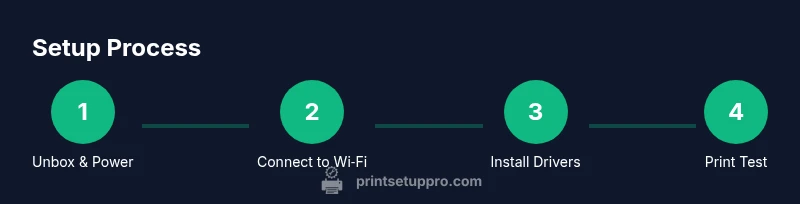
Steps
Estimated time: 45-60 minutes
- 1
Unbox and prepare the printer
Remove protective materials, connect the power cord, and power on the device. This initial step ensures the printer boots correctly and is physically ready before you begin network setup.
Tip: Keep packaging nearby until you finish the setup to reference model numbers in documentation. - 2
Choose a setup method
Decide between wireless setup or USB connection based on your environment. Wireless is ideal for shared devices; USB is a reliable fallback for troubleshooting.
Tip: If you anticipate frequent mobile printing, start with wireless setup to test app functionality early. - 3
Connect to power and power cycle
Plug in the printer and perform a full power cycle. This helps initialize all internal modules and clears transient errors.
Tip: If the printer won’t power on, check the power outlet and try a different cord if available. - 4
Connect to Wi‑Fi via control panel
Navigate to the wireless settings on the printer’s control panel and select your SSID. Enter the password and confirm the connection.
Tip: If the network is hidden, manually enter the SSID and security details instead of scanning. - 5
Install drivers on your computer
Run the driver installer on your computer and follow prompts to add the printer to your system. Choose network (or USB) as the connection type.
Tip: Restart the computer after installation to ensure drivers initialize properly. - 6
Add printer in the OS and print a test page
Open the printer settings and add the MFC-J4335DW as a new device. Print a test page to verify output and confirm settings.
Tip: If the test page fails, check the IP address and re‑run the driver installation. - 7
Install mobile printing app
Install the Brother app or the recommended mobile printing app on your phone or tablet. Create any required accounts to enable printing from mobile.
Tip: Grant the app required permissions for photos and storage to save scanned outputs. - 8
Run a calibration and first scan
Initiate a print quality calibration and perform your first scan to verify scanning settings and destinations.
Tip: If colors look off, run a color calibration and clean printer heads if available. - 9
Update firmware and software
Check for and apply any firmware updates. Updates can improve reliability and security.
Tip: Back up settings before updating and perform updates during a low‑traffic period. - 10
Document and back up configuration
Record your network settings, driver versions, and default preferences for quick recovery if needed.
Tip: Keep a digital copy of the network name, password, and printer IP address in a secure note.
People Also Ask
How do I connect the MFC-J4335DW to Wi‑Fi?
Start from the printer’s control panel: choose Wireless settings, select your SSID, and enter the password. If your router supports WPS, you can use that method for a quicker connection. Verify the printer appears in your device’s list of available printers, then install the appropriate driver on each computer or device.
Go to the printer's wireless settings, pick your network, enter the password, and confirm the connection. If your router supports WPS, you can use it for a faster setup.
Where can I download the latest drivers for the MFC-J4335DW?
Visit Brother’s official support site and search for MFC-J4335DW drivers and software. Choose the correct version for your operating system (Windows, macOS, iOS, Android) and follow the installation prompts. Always download from a trusted source to avoid tampered software.
Download the official drivers from Brother’s site and install them following the on-screen prompts.
My printer shows offline even though it’s connected to Wi‑Fi. What should I do?
First, confirm the printer is set as the default device and that it’s actually connected to the same network as your computer. Reboot the printer, router, and computer. Remove and re‑add the printer in your OS, ensuring you select the correct network path.
Make sure it’s on the same network, restart the devices, and re‑add the printer in your OS.
Can I use a USB connection with the MFC-J4335DW, or must I use Wi‑Fi?
The MFC-J4335DW supports USB as a direct connection and Wi‑Fi for network printing. If wireless is unreliable, you can temporarily switch to USB to complete tasks while you troubleshoot the Wi‑Fi setup.
You can use either USB or Wi‑Fi; USB is a good fallback if Wi‑Fi has issues.
How do I scan from the MFC-J4335DW to my computer?
Install the Brother scanning software or the compatible app, then select Scan to PC as the destination. You can also scan to cloud services if your app supports it and you’ve signed into the relevant account.
Install the scanning software and choose Scan to PC as the destination.
What maintenance tasks should I perform regularly?
Regularly replace cartridges as needed, run head cleaning if prints have missing lines, and wipe the platen glass to prevent smudges. Check for firmware updates and run them to maintain performance and security.
Keep ink fresh, clean the glass, and update firmware when available.
Watch Video
Quick Summary
- Prepare your network and device prerequisites first.
- Install official drivers from Brother for best results.
- Test print and scan functions early to catch issues.
- Keep firmware up to date for reliability and security.
- Document settings for quick recovery after updates.