All-in-One vs Separate Office Printer and Scanner: A Practical Guide
Compare all-in-one office printers with separate scanners to decide on space-saving design, total cost of ownership, and performance for home offices and small businesses.


TL;DR: For most home offices and small teams, an all-in-one printer and scanner is the best starting point, combining printing and scanning in one box to save space and simplify maintenance. If your workflow demands very high-volume scanning, consider separate devices for optimal speed and reliability. This guide explains why. Keep in mind your space, budget, and scanning needs.
Why a printer and scanner for office matters in modern workflows
For home office users, small businesses, and students, having a reliable printer and scanner for office tasks streamlines document workflows, reduces manual steps, and speeds decision-making. According to Print Setup Pro, the right balance between convenience and capability in a combined device can reduce repetitive tasks and improve data consistency. The Print Setup Pro team found that when organizations optimize their printing and scanning workflow, they spend less time chasing papers, fewer maintenance cycles, and experience fewer interruptions during busy periods. In this opening section, we explore why integrating printing and scanning capabilities matters for productivity, archival quality, and data security, and how a single device can anchor a resilient office workflow.
How to identify your office printing and scanning needs
Start by mapping typical document flows. Consider how many pages you print weekly, how often you scan invoices or forms, and whether you require color documents or black-and-white copies. A printer and scanner for office use is most valuable when it aligns with your day-to-day tasks. Ask: Do you mainly print drafts, or do you produce client-ready color materials? Do you often convert paper documents to searchable PDFs? Are you collaborating over cloud storage or a local network? By answering these questions, you set clear criteria for speed, capacity, and connectivity. In addition, consider the physical workspace: a compact all-in-one device can save desk space in a small home office, while a room with two desks might accommodate separate devices with dedicated roles. Your choices should reflect your actual workflow, not just the advertising hype. Print Setup Pro suggests starting with a simple needs audit and building a preference profile for scanning, printing, and sharing capabilities.
Top features to compare in printers and scanners
Modern devices for the office market share several core features that determine value. You should look at print and scan speed in practical terms, scan resolution, and the presence of an automatic document feeder (ADF). Duplex printing and duplex scanning dramatically affect efficiency for multi-page documents. Connectivity matters too: Wi-Fi, Ethernet, USB-C, and compatibility with common operating systems ensure you can print from laptops, tablets, and smartphones. Security features such as user authentication, encrypted data transfer, and secure erase options protect sensitive documents. Finally, consider media handling (paper sizes and weights), ink or toner options, and maintenance accessibility. When you assess a printer and scanner for office usage, you’re balancing performance with reliability and long-term costs. These criteria help you filter options quickly while maintaining an eye on the total cost of ownership.
All-in-One vs Dedicated devices: which is right for you?
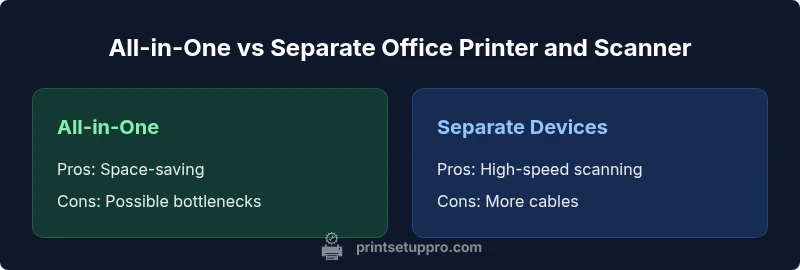
All-in-One devices offer convenience and a smaller footprint, combining printing and scanning in a single chassis. This setup is typically ideal for spaces with limited desk real estate and for teams that value simplicity and low management overhead. On the other hand, dedicated printer and scanner configurations can deliver higher scanning speed, better duty cycles, and potentially more ergonomic scanning workflows. This approach is attractive for teams with heavy scanning requirements, advanced OCR needs, or workflows that demand high-volume paper-to-digital conversion. When deciding, weigh the frequency of use, the diversity of tasks, and the likelihood of future growth. The best choice matches your operational profile rather than your latest marketing pitch.
Cost of ownership and budgeting for a printer and scanner for office
Understanding total cost of ownership (TCO) goes beyond sticker price. Consider initial purchase price, maintenance, ink or toner costs, and the lifespan of consumables. All-in-one devices may offer lower upfront costs but could incur higher per-page costs if they use more expensive consumables or require more frequent servicing. Separated devices can optimize per-task spending, letting you upgrade print quality or scanning speed without replacing the entire system. In practice, you should estimate monthly print and scan volumes, color vs monochrome needs, and the expected replacement cycle for components like print heads or scanning glass. A disciplined budgeting approach also accounts for software subscriptions, warranty extensions, and energy consumption, which, over several years, affect affordability and reliability. Print Setup Pro emphasizes balancing upfront affordability with predictable ongoing costs to minimize surprises over the device’s lifetime.
Real-world scenarios: home office vs small business
In a home office, space is precious, and a compact all-in-one device is usually the first choice. For students, a combination of portability, robust mobile printing, and reliable scanning features makes a big difference for academic submissions. In a small business, a mixed model often wins: a compact all-in-one for general tasks and a dedicated high-speed scanner for bulk document processing, legal or financial records, and OCR-heavy workflows. These scenarios highlight that there is no one-size-fits-all solution; rather, there is a recommended starting point based on typical workloads. Print Setup Pro’s framework encourages you to map daily tasks, identify peak times, and align hardware with your actual workflow rather than vendor promises. The result is a configuration that remains effective as your needs evolve.
Setup and troubleshooting basics you should know
Getting started requires a solid plan for drivers, network configuration, and basic maintenance routines. Install the latest drivers from the manufacturer’s site to ensure compatibility with your operating system. If you use a shared network, configure correct access permissions and enable secure printing to protect sensitive material. For scanning, test with common document types: legal size, letter size, and envelope sizes, and verify that OCR operates correctly in your preferred software. Regular calibration, firmware updates, and cleaning schedules extend device life and maintain performance. When issues arise, check connectivity first, verify firmware, and consult vendor guidelines before assuming a failure. A methodical setup reduces downtime and improves long-term satisfaction with a printer and scanner for office.
Choosing between vendors and models: a decision framework
A structured decision framework helps you avoid buyer’s remorse. Start by defining top-priority features: speed, color accuracy, scan quality, or integrated software. Then match these criteria to three or four candidate models that fit your budget. Check for compatibility with your devices and cloud workflows, review user feedback for reliability, and confirm service availability in your region. Consider future needs such as team growth and potential regulatory requirements (for example, secure printing for financial documents). Finally, run a short pilot with real documents to measure print speed, scan clarity, and ease of use. This approach minimizes risk and ensures the selected setup remains viable over time.
Practical test plan before purchase
Before you buy, design a practical test plan that mirrors your daily workflow. Create a small set of print jobs (color and monochrome), test duplex printing, and run a batch of scans with OCR to verify recognition accuracy. If you rely on mobile printing, evaluate app stability and ease of use across devices. Verify compatibility with your preferred cloud services and ensure that scanned documents can be saved in your standard formats (PDF/A, searchable PDFs, or image formats). Finally, assess the device’s physical footprint in your workspace and confirm the energy usage aligns with your sustainability goals. A thoughtful test plan yields clarity and confidence in your final decision.
Comparison
| Feature | All-in-One Printer/Scanner | Separate Printer + Scanner |
|---|---|---|
| Convenience | Very convenient (single device, fewer cables) | Requires coordinating two devices |
| Space/Footprint | Compact footprint suitable for small desks | Larger footprint; may require two work areas |
| Setup & Compatibility | Unified setup and drivers | Separate drivers/updates for each device |
| Cost of Ownership | Lower upfront for many all-in-one models | Potentially higher upfront but modular upgrades |
| Reliability & Maintenance | Single vendor support | Two devices with independent maintenance |
| Performance (Scan/Print Speed) | Balanced performance suitable for regular tasks | Potential bottlenecks on heavy scanning or high-volume printing |
| Best For | Small teams needing simplicity and space efficiency | Teams needing speed and specialization for heavy scanning |
Benefits
- Consolidated device saves desk space and reduces cable clutter
- Simplified driver management with a single vendor
- Faster setup for basic workflows and straightforward maintenance
- Coherent software ecosystems improve ease of use
Downsides
- Higher risk of bottlenecks if scanning needs are very heavy
- Limited upgrade paths for all-in-one devices
- Potentially higher per-page running costs on some models
- If one function fails, both printing and scanning are affected
All-in-One generally wins for space and simplicity; separate devices excel when speed and workload separation matter
Choose all-in-one if your needs are modest and space is tight. Opt for separate devices if document throughput and OCR performance are critical for your workflow.
People Also Ask
What is the difference between an all-in-one printer and a separate scanner?
An all-in-one device combines printing and scanning in a single chassis, offering convenience and space savings. A separate scanner and printer provide dedicated hardware for each task, often delivering faster scanning and greater flexibility for heavy workflows.
An all-in-one saves space by combining print and scan functions in one device, while separate devices can offer faster scanning and more scalability for heavy workloads.
Does every all-in-one device support advanced scanning features like OCR?
Many all-in-one devices include OCR and PDF creation, but performance varies by model. For mission-critical OCR, verify software compatibility and test recognition quality with your typical document types.
Most all-in-ones include OCR, but you should test it with your typical documents to be sure it meets your needs.
Can all-in-one printers handle high-volume scanning without performance drops?
All-in-one devices can handle moderate scanning workloads, but very high-volume scanning may expose bottlenecks. If you regularly process large batches, consider a dedicated scanner with a faster duty cycle.
They work for daily use, but heavy scanning benefits from a dedicated high-speed scanner.
How should color vs monochrome printing influence my choice?
Color printing is more versatile for professional materials, but monochrome devices can reduce running costs for long drafts or internal documents. If color is not essential for most tasks, prioritize models with strong monochrome efficiency.
Choose color when you need vivid output; otherwise, monochrome can save costs.
What factors most affect the total cost of ownership?
TCO is driven by initial price, ink or toner costs, maintenance, energy use, and the frequency of replacements. An all-in-one model may be cheaper upfront, but per-page costs and service intervals influence long-term affordability.
Consider ongoing ink/toner costs, maintenance, and energy use, not just the purchase price.
Which brands tend to be reliable for office printer-scanner setups?
Reliability varies by model within a brand, not just by name. Look for recent reliability reviews, robust customer support, easy firmware updates, and a solid warranty. Prioritize devices with good service coverage in your region.
Pick models with strong reviews, solid warranties, and good local support.
Quick Summary
- Assess space and workflow before buying
- Balance upfront cost with ongoing operating expenses
- All-in-One is best for simple teams; separation suits high-volume scanning
- Verify driver compatibility and security features
- Test with real documents before committing