Printer App Setup, Printing, and Troubleshooting
A comprehensive, step-by-step guide to selecting, installing, and using a printer app for mobile and desktop printing. Learn setup, connectivity, security, and troubleshooting with practical tips for home offices, students, and small businesses.


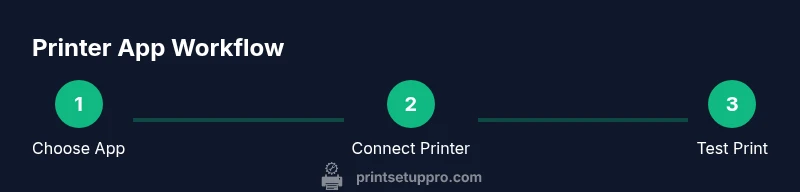
According to Print Setup Pro, a printer app can streamline printing from your phone or computer by managing connections, queues, and cloud transfers. In this guide, you’ll learn how to choose a compatible app, connect to your printer, and troubleshoot common issues across iOS, Android, Windows, and macOS. You’ll gain practical steps, safety tips, and workflows to print with confidence. The Print Setup Pro team found that adopting a dedicated printer app often improves consistency and control.
What a printer app does for you
Printer apps centralize control of your printer from mobile devices, tablets, and computers. They manage job queues, device discovery, and cloud transfers, reducing manual steps and minimizing misprints. A well-chosen app can support multiple printers, save preferred settings, and provide real-time status updates. For home offices and classrooms, this means fewer trips to the printer and fewer failed prints due to driver mismatches. Print Setup Pro's analysis indicates that users adopting a dedicated printer app report more consistent results and fewer print errors, especially when handling mixed paper sizes and print-quality profiles. By consolidating control into a single interface, you gain visibility into ink or toner levels, device health, and warranty information. In short, a good printer app optimizes workflows and makes printing more predictable across devices.
Platform scope and cross-device compatibility
Most printer apps support
Real-world workflows and scenarios
Common scenarios include printing from email attachments, cloud storage apps, or directly from within the printer app itself. Some apps let you store presets for recurring tasks (e.g., reports, slides, or weekly invoices) and auto-select the optimal settings for each file type. For students, this can mean fast-printing class packets; for small businesses, it can mean standardized reports across teams. Keep an eye on how the app handles color management, paper trays, and duplex printing to prevent surprises at the printer.
How Print Setup Pro frames the benefits
Print Setup Pro analysis shows that users who adopt a dedicated printer app often experience faster onboarding, fewer driver conflicts, and better control over print queues. A key advantage is the ability to push print jobs from mobile devices without installing multiple drivers for each printer. The app also simplifies monitoring printing activity across devices, which helps with IT support and cost tracking. This broader visibility supports smarter ink usage and reduces waste in busy environments.
Practical considerations for choosing features
When evaluating printer apps, prioritize compatibility with your printer’s firmware, secure connectivity options (encrypted transfers, access controls), and ongoing support from the vendor. Look for features like scan-to-app, cloud storage integration, easy job-restart after failures, and robust notification systems. For families or teams with shared printers, multi-user access control and usage analytics can be especially valuable. Finally, assess how well the app integrates with your existing cloud storage and productivity tools to keep workflows simple and consistent.
Tools & Materials
- Smartphone or computer with internet access(Needed to install and run the printer app)
- Printer compatible with the app(Verify model support and firmware version)
- Printer app (official or trusted third-party)(Install from official store or vendor site)
- Wi-Fi network (2.4 GHz or 5 GHz)(Ensure stable connection between devices)
- Cloud storage account (optional)(If you plan to print from cloud sources or enable cloud printing)
- Account credentials for the app and printer service(Keep credentials secure and use strong passwords)
Steps
Estimated time: 40-60 minutes
- 1
Check device compatibility
Confirm your phone or computer supports the printer app and that your printer model is compatible. Review firmware requirements and ensure your OS version is current. This prevents driver conflicts and feature gaps later.
Tip: If in doubt, check the manufacturer site for a compatibility matrix before installation. - 2
Install or update the printer app
Download the official app or a trusted third-party app. Install or update to the latest version to access current features and security improvements. Restart the device after installation.
Tip: Enable automatic updates to stay protected against known issues. - 3
Connect printer to the network
Power on the printer and connect it to your Wi-Fi network using the printer's control panel. Ensure the network name (SSID) and password are correct. A successful connection is shown by a steady indicator light or on-screen confirmation.
Tip: If the printer supports WPS, you can use it for a quick connection, but disable it after setup for security. - 4
Add the printer to the app
Open the app and use the Add Printer or Discover Device feature. The app should locate the printer automatically via UPnP/Bonjour beyond basic discovery. If not, enter the printer IP address manually.
Tip: Enable the app’s notifications so you’re alerted if discovery fails. - 5
Configure print presets
Set default paper size, print quality, color settings, and duplex options. Save these as presets for common tasks to save time and avoid errors.
Tip: Create separate presets for draft prints and final versions to reduce ink usage. - 6
Print a test page
Select a document and print a test page to verify alignment, margins, color, and duplex settings. Adjust as needed and reprint until the output matches expectations.
Tip: If colors look off, check color management and ICC profiles in the app. - 7
Set up cloud or remote printing
If your workflow includes cloud sources, link the app to your cloud storage or enable remote printing features. Ensure you understand any data transfer permissions and privacy settings.
Tip: Only enable cloud features if you trust the network and use strong authentication. - 8
Review permissions and security
Audit app permissions (storage, network access, camera/scanner if applicable) and adjust as needed. Enable auto-lock and two-factor authentication where available.
Tip: Disable unused features to minimize attack surface.
People Also Ask
What is a printer app and why should I use one?
A printer app is software that lets you control print jobs from phones, tablets, and computers. It handles device discovery, queues, and settings in one place, which simplifies printing and reduces driver conflicts. It’s especially useful in homes and small offices with multiple devices.
A printer app is software that controls prints from your devices, simplifying setup and management.
Can I use third-party printer apps with my printer?
Many printers support official apps from the manufacturer, plus trusted third-party apps. Check compatibility lists and security reviews before installation. Some features may be limited in non-official apps.
Yes, you can use trusted third-party apps if your printer supports them, but check compatibility and security.
Is cloud printing secure for business documents?
Security depends on encryption, access controls, and trusted services. Use strong authentication, encrypt data in transit, and review who can access cloud-stored prints. Disable cloud features when not needed.
Cloud printing can be secure if you use encryption and strong access controls.
Which devices support printer apps?
Printer apps commonly support iOS, Android, Windows, and macOS. Always verify your exact device model and firmware version in the app’s compatibility list.
Most printer apps work on phones and computers across major operating systems.
Why isn’t my printer discovered by the app?
Common reasons include incorrect Wi‑Fi network, printer not in pairing mode, or firewall restrictions. Restart devices, re-run discovery, and confirm the correct network bandwidth is available.
If your printer isn’t discovered, check network and retry discovery after a quick reboot.
How often should I update the printer app?
Update whenever a new version is released to address security and compatibility. Enable automatic updates if possible to ensure you always have the latest features.
Update the app when updates are available to stay secure and compatible.
Watch Video
Quick Summary
- Choose a printer app with broad compatibility.
- Connect printers securely over trusted networks.
- Create and reuse print presets for consistency.
- Secure cloud features with strong authentication.
- Test prints to ensure output quality before large jobs.