Printer HP: Setup, Troubleshooting, and Fixes
A comprehensive, step-by-step guide to setting up and troubleshooting HP printers for home offices, students, and DIY enthusiasts.


Set up and troubleshoot your printer hp with a clear, step-by-step process. You’ll learn how to connect, install drivers, run tests, and fix common issues, with practical tips for ink, paper jams, and network printing. This guide is designed for home offices, students, and DIY enthusiasts who need reliable results from their HP printers.
Why HP Printers Remain a Favorite for Home Offices
According to Print Setup Pro, HP printers are known for reliable performance, affordable ink solutions, and user-friendly interfaces that help non-technical users complete tasks efficiently. For home offices and students, HP's broad product range means you can choose an all-in-one model with scanning and copying or a straightforward monochrome printer for sharp text. The goal is predictable results, minimal maintenance, and easy driver updates. With HP, you typically get robust software support, automatic firmware updates, and broad compatibility with Windows, macOS, and mobile platforms. This section will explain why the HP ecosystem often fits busy workstreams, including small teams and solo projects, and what that means for setup and ongoing maintenance.
Choosing the Right HP Model for Your Needs
HP offers a wide spectrum of printers, from compact inkjets designed for desks to high-volume laser models for small offices. Before you buy, map out your typical tasks: document-heavy printing vs. photo printing, color vs. monochrome, and how often you print. Look at page yield, cost per page, and the availability of features such as duplex printing, auto-document feeder, and wireless n. If you share the printer across devices or coworkers, consider a network-ready model with easy mobile printing and robust security options. This section helps you align features with your workflow and budget, reducing post-purchase regret.
Understanding Common Connectivity Options (USB, Ethernet, Wi-Fi)
Most HP printers support USB, Wi-Fi, and often Ethernet networking. USB connections are straightforward for single-user setups, while Wi-Fi enables flexible placement and mobile printing. If you’re in a shared space, ensure your router supports stable 2.4 GHz or 5 GHz bands and that the printer can join the network with a simple WPS or manual password entry. For mixed environments, a wired Ethernet connection can offer more stable throughput than wireless. This section will guide you through choosing and verifying the best method for your space.
Driver Installation and Basic Software
Install the official HP drivers from the HP support site or use the installation CD if provided with your device. Choose your connection type (USB, Wi‑Fi, or Ethernet) during setup, and follow the prompts to install the correct printing software and scanning utilities. After installation, restart the printer and computer to ensure communications are properly established. This step reduces common errors caused by mismatched drivers or incomplete software packages.
Common Print Quality Issues and Fixes
If your documents show streaks, faint text, or color errors, run a nozzle check and cleaning cycle from the printer’s maintenance menu. Ensure you’re using the recommended paper type and settings in the print dialog. For inkjet HP models, align ink cartridges if misalignment is visible. For laser models, clean the image drum if you notice banding or smudges. This section provides a practical, fail-safe approach to restoring print quality without expensive service calls.
Troubleshooting Connectivity Problems
Connectivity problems are usually caused by misconfigured networks, outdated firmware, or incorrect printer status settings. Start by checking the printer’s network status screen, confirm the IP address, and ensure the device is on the same network as your computer or phone. Reboot the router, printer, and computer in sequence if issues persist. Update firmware from HP’s site and re-add the printer in your devices list. This approach minimizes repeated trips to the store or service center.
Maintenance Tips to Extend HP Printer Life
Regular maintenance pays off with fewer jams and better overall performance. Clean exterior surfaces with a soft, lint-free cloth and keep the paper path clear of dust. Replace cartridges before they’re completely empty to avoid printhead damage, and keep firmware up to date to fix bugs and add features. Use quality paper and store ink cartridges in a cool, dry place. This preventative approach helps you avoid surprises and keeps your HP printer running smoothly.
Safe Paper Handling and Jam Prevention
Proper loading and handling of media reduces jams and skewing. Use the correct paper weight and type for your model, align the paper guides, and fan your stack to prevent sticking. Avoid overfilling the tray and remove any jammed sheets using the documented process in the control panel. If you run into frequent jams, inspect the paper feed path for scraps or stray fibers that interfere with movement.
Tools & Materials
- HP Printer (inkjet or laser)(Model should be compatible with your needs (color vs. monochrome, multi-function vs. print-only))
- Power cable(Use the original power adapter; avoid third-party alternatives)
- USB cable or network cable (Ethernet)(USB for direct setup; Ethernet for stable network access)
- Computer or mobile device(Device to run drivers and print tests)
- Wi‑Fi network credentials(Needed for wireless setup and mobile printing)
- HP ink/toner cartridges(Install full cartridges prior to first print)
- Paper stock (plain office paper)(Begin with standard 20 lb bond/80 g/m²)
- User manual or quick start guide(Helpful for model-specific steps)
- Firmware/driver USB (optional)(Alternative installation method if network fails)
Steps
Estimated time: 30-45 minutes
- 1
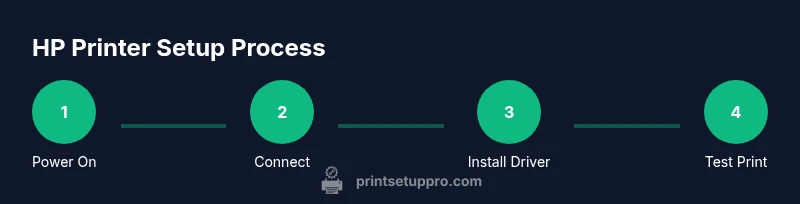
Power on the printer
Connect the power cable and switch on the printer. Wait for the display to show the ready state and any initial prompts. This confirms the device has power and basic hardware initialization completed.
Tip: Ensure the power outlet is stable and avoid power strips with surge protection that could cut power during startup. - 2
Connect the printer to your device
Choose a connection method (USB or Wi‑Fi) and establish the link. If using Wi‑Fi, verify the printer appears on your network and obtain its IP address for later setup.
Tip: For wireless setups, place the printer within 15-20 feet of the router to minimize signal loss. - 3
Install the HP driver and software
Download the official driver from HP’s support site or use the supplied CD. Select your connection type during installation and complete the software package installation.
Tip: If the installer can’t find the printer, try the USB method first, then add the device manually. - 4
Load paper and cartridges
Install fresh cartridges and load plain paper into the main tray. Make sure the paper guides are snug but not tight to avoid feed issues.
Tip: Always handle cartridges by the edges and avoid touching the contact points. - 5
Print a test page
From the printer or driver software, print a basic test page to confirm print quality and alignment. Check for color accuracy and legible text.
Tip: If test pages show issues, run a nozzle check (for inkjets) or a calibration (for lasers) before deeper troubleshooting. - 6
Run maintenance if needed
Access the maintenance menu to perform a nozzle check, cleaning, or alignment. Repeat tests to confirm improvements after each operation.
Tip: Don’t over-clean; excessive cleaning can waste ink and cause printhead wear.
People Also Ask
What is the best way to connect an HP printer to my computer?
The best method depends on your space and needs. USB is simple for a single computer, while Wi-Fi enables mobile printing and shared access. Ethernet can offer stable performance in busy networks.
Use USB for a quick setup on one computer, or Wi-Fi for wireless printing across devices.
How can I fix streaks or blurred prints on an HP printer?
Start with a nozzle check or cleaning cycle, verify paper type, and run alignment if needed. Replace cartridges if color is off and ensure print quality improvements after maintenance.
Check the nozzle, align the printheads, and ensure good paper quality.
Why won't my HP printer connect to Wi‑Fi after a firmware update?
Firmware updates can reset settings. Reconnect to the network, re-enter the password, and verify the printer's network status. If issues persist, roll back or perform a full reinstallation.
Reconnect to Wi‑Fi and re-check the network after the update.
Do I need to install HP's software to print from mobile devices?
Mobile printing is often possible with built-in OS features or HP's official app. Install the HP Smart app if you want advanced controls and scanning from your phone.
Yes, often you can print from your phone using built-in features or HP's app.
How often should I run nozzle cleaning?
Run nozzle checks and clean only when you notice faint or missing lines. Refrain from excessive cleaning to conserve ink and avoid printhead wear.
Only clean when you see printing issues.
What should I do if the printer is offline?
Check the printer status on its display, confirm network connection, and re-add the printer on your computer or phone. A simple restart often resolves the offline state.
Check status, reconnect, and re-add the printer; a restart can fix offline issues.
Watch Video
Quick Summary
- Follow the step-by-step setup for reliable HP printer results
- Keep drivers and firmware current to prevent compatibility issues
- Use quality media and proper paper loading to minimize jams
- Regular maintenance reduces common print-quality problems