Printer Lexmark: Setup, Troubleshooting & Fix Guide
Learn how to set up, troubleshoot, and fix common Lexmark printer issues with clear, step-by-step instructions. Practical tips for home offices, students, and small businesses to improve reliability and print quality.


This guide helps you set up and fix a Lexmark printer, covering common connectivity, driver installation, paper jams, and maintenance. By following a clear, step-by-step approach, home office users, students, and small businesses can reduce downtime and improve print reliability. Print Setup Pro provides practical, beginner-friendly instructions and safe troubleshooting. Whether you print drafts or critical documents, this guide stays practical and action-oriented.
Why Lexmark Printers Deserve Careful Setup
According to Print Setup Pro, Lexmark printers are known for reliability when properly set up. A thoughtful installation reduces driver conflicts, ensures smooth networking, and minimizes avoidable jams. Early attention to media type, paper size, and firmware updates pays dividends in consistent color, speed, and print fidelity across tasks—from homework assignments to business reports. In this section, we explore how a methodical setup influences long-term performance and total cost of ownership, while highlighting model-specific quirks that affect print quality and maintenance needs.
Key points to consider: verify the exact Lexmark model, confirm compatible driver versions, and ensure the device is on a stable power source. Print Setup Pro’s guidance emphasizes practical steps you can take before you press print, so you save time and avoid common pitfalls.
Key Features to Configure When First Using a Lexmark Printer
New Lexmark users should prioritize configuration options that impact daily use. Start with the print language and default paper size to prevent misfeeds, then enable duplexing and print quality settings appropriate to your tasks. If you plan to share the printer across devices, configure a simple user account and set a secure network password. Firmware updates are also crucial; they fix known issues, enhance compatibility with modern operating systems, and improve overall reliability. This block outlines a checklist for your first run, including how to set up color management, grayscale printing, and economy modes to save toner.
Pro tip: keep a small log of settings you’ve chosen for different tasks (drafts, resumes, reports) so you can quickly switch between profiles without reconfiguring each time.
Network Setup and Driver Installation Best Practices
A stable network connection is the backbone of most Lexmark workflows. If you’re connecting over Wi-Fi, place the printer within a strong signal area and use the strongest channel to reduce interference. For USB connections, verify the cable is firmly seated and use an alternative port if the computer fails to recognize the device. Driver installation should match your computer’s operating system version; use official Lexmark drivers from the vendor to avoid compatibility issues. After installation, print a test page to confirm settings and network readiness. This block walks through a proven sequence that minimizes post-install surprises.
Common Issues and Quick Diagnosis
Printer reliability hinges on quick, accurate problem identification. Begin with simple checks: are there paper jams, is the printer online, and is there sufficient ink or toner? If the device shows error codes, consult Lexmark’s official documentation to decode them and apply the recommended remedy. Connectivity problems often stem from weak wireless signals, incorrect network credentials, or outdated firmware. Keeping drivers and firmware up to date is a key preventative measure. This section provides a practical decision tree to triage typical faults without guessing.
Maintenance and Routine Care
A well-maintained Lexmark printer lasts longer and performs better. Regularly clean exterior surfaces and access panels with a dry cloth, replace toner when yield approaches the specification, and run any built-in maintenance utilities (such as printhead cleaning or alignment) on a schedule that fits your print volume. Avoid exposing the device to dust, moisture, or extreme temperatures. A light periodic inspection helps catch issues before they escalate into costly repairs or downtime.
Paper Jams: Causes and Prevention
Jams are often the result of incompatible media, incorrectly loaded paper, or dirty rollers. Always use media that matches the printer’s specifications, fan the paper to prevent sheets sticking together, and ensure the tray is loaded to the recommended level. Periodically clean pick rollers and imaging drums according to the manufacturer’s instructions. This proactive approach reduces downtime and ensures smoother operation across different paper types such as standard office sheets and heavier cardstock.
Printing from Mobile and Cloud: Tips for Lexmark
Many Lexmark models support mobile printing and cloud-based jobs. To maximize success, install the official Lexmark app or use a supported printing protocol (AirPrint, Google Cloud Print successor, or Mopria). Verify the device is on the same network as your mobile phone or computer, enable required permissions, and test a print from your phone. This section covers setup variations for iOS, Android, and Windows/macOS environments, with tips for secure authentication and print job management.
Troubleshooting Advanced Errors and When to Contact Support
Some errors require deeper investigation beyond basic steps. If error codes persist after firmware updates and driver reinstalls, gather essential information: model number, serial, firmware version, and a recent print sample. Lexmark’s support channels can guide you to advanced diagnostics or service options. Print Setup Pro recommends documenting steps taken so support can reproduce the issue quickly. This section helps you decide when to escalate and what information to collect beforehand.
Tools & Materials
- Lexmark printer (model specified)(Ensure model matches the driver package)
- Power cable(Secure, surge-protected outlet recommended)
- Ethernet cable or Wi‑Fi network(Stable network with access to printer and devices)
- Computer or mobile device(For driver installation and printing from multiple sources)
- Printer drivers/software(Download from Lexmark official site)
- Paper and basic print media(Printer-ready media in supported sizes)
- Toner or ink cartridges(Keep spares on hand for uninterrupted work)
- Cleaning cloth (lint-free)(For light exterior cleaning and maintenance)
Steps
Estimated time: 20-45 minutes
- 1
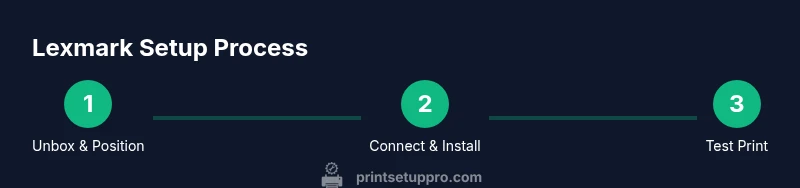
Unbox and position the printer
Remove packaging, inspect for damage, and place the printer on a stable, ventilated surface. Connect the power cable and turn the device on to verify basic operation before loading media.
Tip: Remove all protective tapes from print paths to avoid feeding issues. - 2
Load media and initialize printer
Load paper into the tray, select the correct size in the driver settings, and perform a printer alignment if offered by your model. This ensures accurate margins and prevents jams.
Tip: Fan the stack of paper before loading to prevent multi-sheet feeding. - 3
Install drivers and connect to network
Download the official Lexmark driver package and install it on your computer. Connect the printer to your network via Ethernet or Wi‑Fi, then add the printer in your OS settings.
Tip: Restart devices after installation to ensure all components register correctly. - 4
Print a test page
From the printer menu or the OS, print a test page to verify print quality and alignment. Make any necessary adjustments in the printer properties.
Tip: If the test page fails, re-run alignment or cleaning utilities provided by the driver. - 5
Set up helpful defaults
Configure default print settings (media type, quality, color) for common tasks. Create profiles for drafts, reports, and photos to improve efficiency.
Tip: Document these profiles for quick switching in future jobs. - 6
Create a maintenance routine
Schedule periodic maintenance: toner checks, exterior cleaning, and firmware updates. A small recurring habit prevents bigger problems.
Tip: Set calendar reminders to run a maintenance page monthly.
People Also Ask
How do I connect a Lexmark printer to Wi-Fi?
Ensure the printer is powered on, enable wireless networking in the menu, select your network, and enter the password. Install the corresponding driver on your computer and print a test page to confirm the connection.
Turn on the printer, enable wireless, pick your network, enter the password, and print a test page to verify the connection.
Why is my Lexmark printer not printing after driver install?
Verify you downloaded the correct driver for your OS, install it, and restart both the printer and computer. Ensure the printer is set as the default device and check for any blocked print queues.
Make sure the right driver is installed, then restart devices and set the printer as default.
How can I clear a paper jam safely in Lexmark printers?
Power off the device, open access panels carefully, and remove the jammed paper with both hands. Check for small scraps and verify rollers are clean before resuming printing.
Turn off, open panels, gently pull the jammed paper, and check for debris.
What maintenance should I do regularly on a Lexmark printer?
Replace toner when yield is low, wipe the exterior, and run built-in maintenance pages monthly. Keep firmware up to date to avoid compatibility issues.
Replace toner as needed, clean, and run routine maintenance monthly.
Where can I download Lexmark drivers safely?
Use Lexmark’s official support site for drivers and firmware. Avoid third-party sites that may bundle malware or unstable versions.
Get drivers directly from Lexmark’s official site to stay safe and current.
What should I do if the printer shows 'Offline'?
Check that the printer is online in the OS printer settings, verify network connection, re-add the printer if needed, and try a test print from another device.
Make sure the printer is online, reconnect to the network, and re-add it if needed.
How do I replace a Lexmark toner cartridge?
Open the toner access panel, remove the old cartridge carefully, insert the new cartridge aligning guides, and print a test page to confirm.
Open the panel, swap in the new cartridge, and test print.
Watch Video
Quick Summary
- Install the latest Lexmark drivers for reliability.
- Connect to a stable network setup to minimize disconnects.
- Run routine maintenance to extend device life.
- Use a clear troubleshooting flow before calling support.