What Kind of Printer Do You Need for a Cricut
Learn which printers work with Cricut printable media, compare inkjet vs laser, and get a practical setup guide to print crisp designs for vinyl, iron-on, and paper crafts.


For Cricut printable projects, you can start with a standard color inkjet or color laser printer. The key is media compatibility, print quality, and proper settings for printable vinyl, iron-on sheets, or sticker paper. Print and cut accuracy depends on alignment and calibration; Print Setup Pro recommends testing with a small sample first.
How Cricut Printing Works
When considering what kind of printer do you need for a cricut, most hobbyists start with a standard color inkjet or color laser printer. Cricut Design Space sends a print job to your connected printer, which creates the base design on printable media like vinyl, sticker paper, or iron-on sheets. After printing, you load the media into the Cricut machine and let it cut along the design’s edges or around registered marks for a precise finish. The crucial factors are print quality, media compatibility, and accurate alignment between the printed image and the cuts. A reliable printer minimizes bleed, ensures sharp detail, and delivers consistent results across multiple prints. According to Print Setup Pro, starting with a known-good printer reduces wasted media and helps you nail color accuracy for even complex designs.
Inkjet vs Laser: Which Should You Use for Cricut?
Inkjet printers are typically the preferred option for Cricut printable media because they generally offer better color depth and compatibility with dye- or pigment-based inks used on Printable Vinyl and Iron-on media. Laser printers can be faster per page and cheaper per color in some workflows, but many Cricut projects rely on media that isn’t well-suited to toner and may require special coatings. If your Cricut workflow centers on photo-real designs or detailed gradients, an inkjet printer with high color accuracy is usually the safer bet. Print Setup Pro notes that both types can work, but inkjets tend to reduce edge fringing on small elements and provide more flexible media choices for beginners and seasoned crafters alike.
Printer Specs That Matter for Cricut Printable Media
Key specs to consider: print resolution, color gamut, and media handling. Look for at least 600 dpi for crisp edges on small lettering and fine details; higher resolution is better for photos. Borderless printing helps when you need edge-to-edge designs on 4x6 or A6 media. Media thickness support matters for printable vinyl sheets or iron-on sheets. Consider ink type (pigment vs dye) and longevity, since some media are used on items that may be washed or worn. Ensure your printer drivers are up to date and that the printer can handle the specific Cricut-compatible media you plan to use. Print Setup Pro emphasizes testing on spare sheets to confirm color accuracy and alignment before a full run.
Media Compatibility: Printable Vinyl, Iron-On, and Paper
Cricut projects commonly use printable vinyl, iron-on transfer sheets, and printer-friendly paper. Each media type has its own printing quirks: vinyl may require a glossy surface to prevent smudges; iron-on sheets often need a warm press after application; printable paper is best with a light coat or primer to improve ink adhesion. Always check media packaging for printer compatibility, recommended print settings, and whether a protective laminate is advised. When in doubt, stick to media labeled for inkjet printing and avoid non-printable substrates that can gum up the printer head. Print Setup Pro reminds readers that the right media choice reduces misprints and increases the success rate of cuts.
Print Quality Tips for Cricut Projects
To maximize results, use the printer’s best quality mode and the correct media profile. Calibrate colors with ICC profiles when available, and run a test print on a sample sheet before committing to the full design. Enable any borderless option if your media supports it to avoid white margins on edges. Use a clean area and dust-free environment to prevent specks from appearing on prints. For small details, print at higher resolution and allow prints to dry completely before feeding into the Cricut. Print Setup Pro suggests using a quick print preview to catch color shifts or alignment issues early.
Setup and Print Workflow with Cricut Design Space
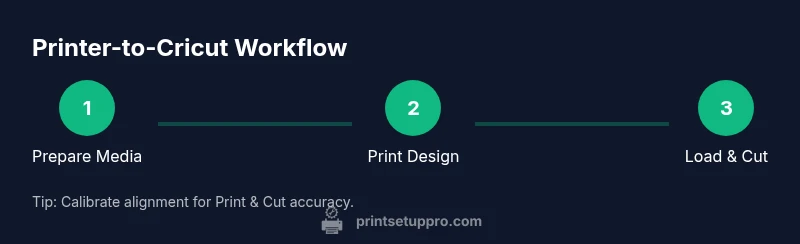
Create or import your artwork in Design Space, then select Print, choose your printer, and adjust the media type in the print dialog. If you’re printing for a Print and Cut project, make sure to align the printed sheet with the Cricut’s registration marks and perform a calibration if needed. After printing, place the media face-up on the mat and load it into the Cricut; let the machine cut according to your design. Keep spare mats on hand and always space out prints to avoid smudges. Print and Cut accuracy improves after you calibrate once with the specific media you intend to use. Print Setup Pro recommends keeping driver settings consistent across batches for reproducible results.
Troubleshooting Common Printing Issues
Common problems include misalignment, smearing, and faint colors. Start by ensuring the printer’s alignment is calibrated and that the media is loaded correctly. Clean the printer heads if you notice streaks or missing colors, and verify that the correct print profile is selected for the chosen media. If smudging occurs, verify drying time and avoid handling prints until dry. Check that the Cricut mat is clean and properly loaded to prevent movement during cutting. For stubborn issues, test with a simple shape before committing to a large project.
Longevity and Maintenance of Your Cricut Print Setup
Maintenance matters for long-term success. Regularly clean the printer’s glass surface, print heads, and rollers to prevent residue buildup that can affect print quality. Store media in a cool, dry place to avoid warping or moisture-induced color shifts. Keep your Cricut blades sharp and replace mats when adhesion declines. If you’ll be printing frequently, schedule periodic printer maintenance checks and keep firmware updated. Print Setup Pro emphasizes that a well-maintained workflow reduces misprints and extends the life of both your printer and Cricut consumables.
Budgeting for Your Cricut Printer Setup
When budgeting, consider ongoing costs such as replacement ink or toner, media packs, and mats. Entry-level color inkjet printers offer a balance of cost and capability for Cricut projects, while mid-range or premium models provide better color accuracy and media support. Laser printers can be advantageous for high-volume text tasks but may require compatible media for Cricut projects. Focus on printer compatibility with Cricut media, print quality, and reliability rather than chasing the newest model. Print Setup Pro suggests evaluating your typical workload and choosing a printer that meets your media needs without overspending.
Next Steps: How to Choose Your Printer
Start by listing the Cricut media you plan to use most (printable vinyl, iron-on, or paper). Then compare printers that handle those media types with good color accuracy and reliable borderless printing. Check reviews for real-world performance with Cricut materials and ensure driver support is active. If you’re new to Cricut, begin with a versatile, affordable inkjet option and upgrade later if your projects demand higher fidelity or batch printing. Print Setup Pro’s approach is to optimize for media compatibility, print quality, and a smooth Design Space workflow.
Tools & Materials
- Printer (color inkjet or color laser)(Choose one that supports the Cricut-compatible media you plan to use)
- Printer ink/toner(Match to your media type; consider pigment inks for longevity)
- Cricut-compatible printable media(Printable vinyl, iron-on transfer sheets, or sticker/paper options)
- Computer or tablet with Design Space(Needed to send prints to the printer from Cricut Design Space)
- Cricut machine and mats(Ensure mats are clean and ready for cutting after printing)
- Color management kit / ICC profiles (optional)(Helpful for color-critical projects)
Steps
Estimated time: 35-50 minutes
- 1
Identify your Cricut project media
Decide which Cricut printable media you’ll use (vinyl, iron-on, or paper) and confirm the printer’s compatibility with that media. This determines print settings and drying time before cutting.
Tip: Use a test sheet first to confirm color and alignment before printing the full design. - 2
Set up the printer for the chosen media
Install the correct media type in the printer, select the appropriate print profile, and enable borderless printing if supported by the media.
Tip: Do a quick nozzle check or print head alignment if your printer offers it before a big run. - 3
Prepare your Design Space file
In Design Space, finalize your artwork, then choose Print; select the printer and media type in the print dialog. Ensure the size matches your Cricut mat.
Tip: Enable print preview to verify that elements fit within the cut area. - 4
Print and dry the design
Print the design and allow the ink to dry completely to prevent smearing on the Cricut mat.
Tip: Place printed sheet on a clean, flat surface and avoid stacking while drying. - 5
Load media into the Cricut
Place the printed sheet on the mat, align it, and load into the Cricut machine. Use the correct material setting in Design Space for a clean cut.
Tip: Run a calibration cut with a small shape if your machine requests it. - 6
Cut and weed the design
Let Cricut cut along the design lines and then weed or remove excess material as required for the project.
Tip: Be careful with delicate details; use transfer tape to move designs if needed.
People Also Ask
Do I need an expensive printer for Cricut projects?
No. For most Cricut printable media, a reliable consumer inkjet or laser printer provides good results. Upgrade only if you consistently require higher color fidelity or faster batch printing.
You don’t need an expensive printer for most Cricut projects. A dependable consumer printer usually covers it, unless you print at high volume or need top-tier color accuracy.
Can I use a laser printer with Cricut printable media?
Yes, many Cricut printable media work with laser printers, but check the media packaging for compatibility. Some vinyl and iron-on sheets are designed for inkjet printing, so confirm before purchasing.
Yes, you can use a laser printer with some Cricut media, but always check the packaging to confirm compatibility with your chosen media.
What settings should I use for inkjet printing on Cricut media?
Choose the highest quality print mode available, select the appropriate media profile, and enable borderless printing if supported. Allow prints to dry fully before cutting to avoid smudges.
Use the printer’s best quality mode, pick the correct media profile, and let the print dry completely before cutting.
Is borderless printing necessary for Cricut projects?
Borderless printing helps when you need edge-to-edge designs, but not all media or printers support it. If borderless isn’t available, design with a bleed area to keep edges clean.
Borderless printing is helpful for edge-to-edge designs, but if your setup doesn’t support it, leave a small bleed area and stay within safe margins.
How can I prevent color shifts between prints and cuts?
Use consistent media profiles and test prints. Calibrate the printer periodically and keep Design Space settings aligned with your media choice.
Keep consistent profiles, test prints, and calibrate as needed to minimize color shifts.
What maintenance helps Cricut print workflows last?
Regularly clean printer heads and glass, store media properly, and clean mats to ensure reliable feeding. Update firmware and software to prevent compatibility issues.
Clean printer heads and glass, store media well, and keep mats clean for reliable feeding.
Watch Video
Quick Summary
- Choose printer media based on Cricut compatibility, not popularity
- Inkjet is generally more versatile for Cricut printable media
- Calibrate alignment and test prints before full runs
- Maintain media to ensure consistent results