What Printer Can Print on Cardstock: A Practical Guide
Explore which printers print on cardstock, how to choose stock, and how to configure settings for crisp, durable results. Practical tips from Print Setup Pro for home offices, students, and DIY projects.


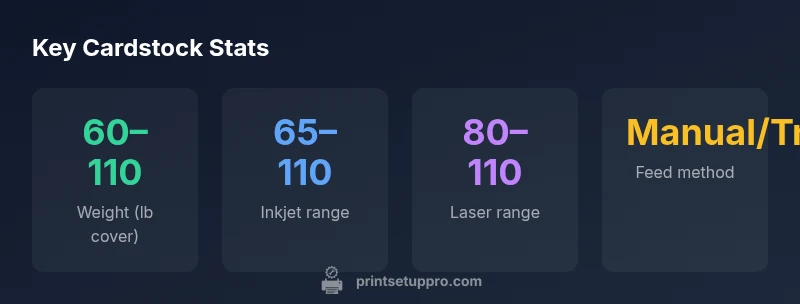
Most home and small-office printers can handle cardstock in the 60–110 lb cover (164–276 gsm) range. Inkjets commonly support 65–110 lb, while many laser printers address up to 80–110 lb with a manual feed or high-end units. For best results, verify your printer's specs and run a test print first.
What printers can print on cardstock
If you are asking what printer can print on cardstock, the short answer is: many inkjets and several laser printers can handle heavier media—though not all models are created equal. The safe starting point is to review the stock weight rating in your printer’s specifications and confirm the printer supports cardstock or heavy media types. Look for terms like 'heavy paper', 'card stock', or 'thick media' in the user manual or on the manufacturer’s site. In practice, most inkjet printers in home and small-office environments can print cardstock in the 60–110 lb cover range, while laser printers may require a dedicated feeder or a manual-feed path for the heaviest weights. The key is matching stock weight to the printer’s media handling capabilities and adjusting the print settings accordingly.
Cardstock basics: weights, finishes, and compatibility
Cardstock is defined by weight (often expressed as lb Cover for US standards or gsm internationally), thickness, and finish. Heavier weights generally yield sturdier cards but can cause feed issues if the printer isn’t rated for that stock. If you’re printing invitations, business cards, or crafts, start with a medium-weight stock (around 80–100 lb cover / 210–270 gsm) and test a few sheets with the printer’s stock settings. Finishes (matte, satin, gloss) affect ink drying and rubbing resistance; glossy stocks may require slower print speeds to prevent smearing. Always verify compatibility in the printer’s documentation and choose a stock labeled for photo or heavy media when applicable.
How to test stock and set up printer profiles
Begin with a small test batch on scrap cardstock to validate feeding, alignment, and print quality. Check the printer’s media type setting (often labeled as Heavy, Thick, Cardstock, or Thick Paper). Set the print quality higher for better ink transfer and enable any two-sided printing only if you know your stock passes moisture and curl tests. Create a custom profile if your software supports it, saving margins, scaling, and color settings specific to the cardstock. Keep a note of the stock’s weight, coating, and any tray adjustments you used for future runs.
Printing on cardstock with inkjet vs laser: pros and limitations
Inkjet printers generally handle a broad range of cardstock weights with vibrant color rendering, making them ideal for craft projects and invitations. Laser printers can produce sharp text and durable output, particularly for monochrome cards, but heavier stock (beyond typical limits) may require special feeders or manual feeding. In practice, inkjets are often more forgiving with textured or coated stocks, while lasers excel with clean text and higher-volume runs—provided the stock is within the printer’s media rating. Always consult the device’s specifications and run a controlled test to determine the best approach for your project.
Practical workflow: from choosing cardstock to finishing
- Select cardstock weight and finish appropriate for your project. 2) Verify compatibility in the printer manual and set the correct media type. 3) Align margins to avoid clipping—cardstock can curl slightly, affecting edge placement. 4) Run a test print on a scrap sheet and adjust scaling or centering as needed. 5) Use trimming tools for precise edges and consider sealing or coating for durability if finishing is required. 6) Keep a simple archive of settings for repeat projects.
Common issues and solutions: jams, smears, curling
Jams are usually caused by feeding too thick a stock or warped sheets; ensure the tray and rollers are clean and the stock is flat. Smearing often results from wet ink or slow drying on glossy finishes; switch to a compatible stock, enable longer drying times, or increase ambient humidity if possible. Curling may occur with moisture exchange or thick sheets; placing printed cards under a weight or using a cooling rack after printing helps flatten them. If issues persist, rotate stock orientation and verify that the printer’s calibration aligns with the media type.
Maintenance and feeding strategies for cardstock printing
Regularly clean rollers and feed paths to prevent buildup that can cause misfeeds. Store cardstock flat in a cool, dry place to minimize warping. Use a dedicated tray for thick stock if available, and avoid mixing weights in the same batch. Update printer firmware and drivers to ensure the latest media handling profiles are available. For frequent cardstock work, consider maintaining a small stockpile of tested sheets with known run data for quick projects.
Tips for high-quality results: color accuracy, finishing options
For best color fidelity on cardstock, calibrate your monitor and printer together using a target print. Allow sufficient drying time before handling to reduce smearing, especially with glossy finishes. Finishing options like matte spray, corner rounding, or die-cutting can elevate presentation. If you regularly produce cards or invitations, keep a reference sheet of preferred stock weights and finish combinations that consistently deliver reliable results.
Cardstock printing compatibility by printer type
| Printer Type | Typical Weight Range | Recommended Use |
|---|---|---|
| Inkjet printers | 60–110 lb cover (164–276 gsm) | General purpose cards, invitations, crafts |
| Color laser printers | 60–100 lb cover (164–270 gsm) | Heavy cardstock, greeting cards with color ink |
| Monochrome laser printers | 60–90 lb cover (164–230 gsm) | Basic cards, labels |
People Also Ask
Can all printers print on cardstock?
Not all models are designed for thick media. Inkjet printers generally support a moderate range, and many laser printers require specific trays, settings, or higher-end models to handle heavier stock.
Not every printer can handle cardstock; check the manual for weight limits and tray options.
What cardstock weights work best for home printers?
For most home printers, start with 60–110 lb cover (164–276 gsm). Lighter stocks are easier to feed; heavier stocks may require testing and, occasionally, manual feeding.
Typically, 60 to 110 pounds works well for home printers; test before batch runs.
Do I need special drivers or software to print on cardstock?
No special drivers are required beyond selecting the correct media type in printer settings. Some software allows you to set up a custom profile for consistent results.
You usually just pick the right media type in settings; profiles help with consistency.
How do I avoid jams when printing cardstock?
Use the correct tray or feeder for the stock, ensure sheets are flat, and set the printer to a thicker media option. Feed one sheet at a time if necessary.
Feed one sheet at a time and use thick-paper settings to reduce jams.
Can glossy cardstock be printed on inkjet printers?
Yes, but allow extra drying time and choose a compatible glossy stock. Some coatings can smear if not given time to dry fully.
Glossy cardstock works on inkjets with proper drying time.
Should I adjust margins or alignment for cardstock?
Yes. Cardstock can curl, so verify margins and centering in a test print. Adjust scaling to avoid clipping the edges.
Check margins with a test print and adjust alignment as needed.
“Cardstock printing success hinges on matching stock weight to your printer’s capabilities and using the appropriate feed method.”
Quick Summary
- Check your printer's specs before buying cardstock
- Use manual feed for heavier stock to prevent jams
- Test print on scrap stock before final run
- Finish with trimming or coating for a polished look