What Printer Setting Is 11x17?
Learn which printer setting matches 11x17 (tabloid), how to configure Tabloid/11x17 in Windows and macOS, and practical tips to ensure crisp, accurate 11x17 prints.


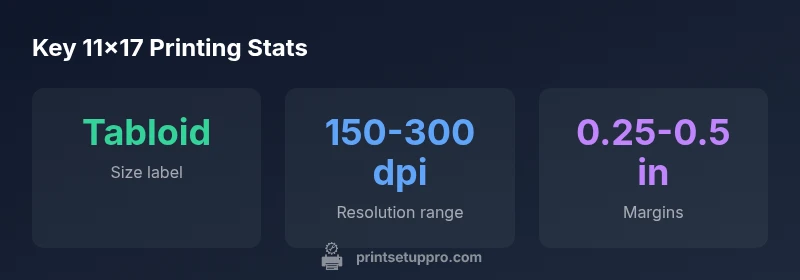
According to Print Setup Pro, the 11x17 printer setting is typically labeled Tabloid or 11x17 in your printer driver, corresponding to tabloid size (11 by 17 inches). In Windows and macOS, choose Tabloid/11x17 in Page Size or Paper Size, then adjust orientation, margins, and print quality. For multi-page documents, ensure consistency across pages.
Understanding 11x17: Tabloid Size and Use Cases
11x17, commonly referred to as tabloid, is a larger paper size ideal for posters, diagrams, architectural drawings, and professional proofs. When you send a document to print, the printer driver must know the exact page size to scale content correctly and avoid clipping or excessive whitespace. Print Setup Pro emphasizes associating 11x17 with a single, consistent paper size across all pages in a project for predictable results. If you’re coordinating layouts across multiple designs (e.g., a poster series), set the document size to 11x17 at the design stage and then confirm the printer setting matches during printing.
In professional and home-office workflows, using 11x17 can reduce the number of sheets needed for large layouts and improve readability, especially for presentations, blueprints, and visual proposals. It’s important to verify that the printer supports 11x17, as some consumer models excel at smaller formats but struggle with bulkier media. Print Setup Pro recommends testing a single-page print first to verify scaling, margins, and color consistency before running a batch.
How to Find Tabloid/11x17 in Windows Printer Settings
Windows users typically find the 11x17 size under Printer Properties or Page Setup within the print dialog. Start by selecting File > Print from your application, then click Preferences or Printer Properties. Look for terms like Page Size, Paper Size, or Size. Choose Tabloid or 11x17, then check orientation (Portrait vs. Landscape) and confirm margins are not set to an excessive value that would clip content. If you don’t see 11x17, ensure the printer driver is up to date via the Manufacturer’s site or Windows Update, and install any available PCL or PostScript components that enable larger media.
Tip: Some apps offer a separate “Scale to fit” option; disable it if you want 1:1 scaling. When in doubt, print a small test grid or alignment page to verify borders and margins.
How to Set 11x17 on macOS: Step-by-Step
Mac users can access 11x17 through the Print dialog in most applications. Open File > Print, then select Show Details to reveal Page Size or Paper Size. Choose Tabloid (11x17) or 11x17 from the size menu. Confirm orientation and margins, and choose a suitable print quality (usually Best or High for graphics). If your printer supports PostScript, select a compatible driver to ensure accurate color reproduction and reliable scaling. Remember to save the preset for future sessions to avoid reconfiguring settings every time.
Orientation, Margins, and Scaling: Getting It Right
The orientation you choose should match your document’s layout. Portrait is typical for tall pages; Landscape is better for wide designs like posters and spreadsheets. Margins play a critical role on 11x17; too small margins can cause content to run off the edge, while overly large margins waste usable space. Use a modest margin range (roughly 0.25–0.5 inches) unless your design specifies bleed. Scaling should be set to 100% if you want a faithful reproduction, but some programs use “fit to page” or “scale to fit”; avoid this option unless you need a non-actual-size output.
A reliable workflow: design the document at 11x17, then verify the printer’s Page Size matches the document. If you’re printing proofs, run a small batch to check color and alignment before proceeding with a full run.
Color Management and Print Quality for 11x17
Color management becomes more noticeable on larger formats. Calibrate displays and use ICC profiles if available for your printer and paper type. In the printer driver, choose a suitable quality setting (Draft, Normal, or High) based on the intended use; for posters or proofs, High quality provides crisper lines and more accurate color reproduction. For text-heavy documents, a balance between readability and ink usage may be preferred. If your workflow involves dark or saturated colors, test the results on your chosen paper type since coatings and finishes affect how ink settles on the surface.
Troubleshooting Common 11x17 Printing Issues
If content appears misaligned or cropped, recheck the Page Size in both the application and the printer driver to ensure consistent sizing. Border artifacts or white margins could indicate a mis-match between driver margins and document margins. If scaling seems off, verify that 100% scaling is active, and avoid “fit to page” unless the document truly needs it. For color inconsistency, verify color profiles and paper type in the driver; some papers require different profiles for optimal results. If your printer reports an error, inspect media type setting and confirm you’re using compatible 11x17 media loaded correctly.
Practical Workflows: From Design Apps to Print
Popular design applications like Illustrator, InDesign, and Canva have their own print dialog options. In Illustrator and InDesign, set the document size to 11x17, then export to a print-ready PDF with a 300 dpi resolution for crisp graphics. In Canva, choose the 11x17 poster template when starting a project and ensure the print settings in the browser match Tabloid/11x17. When possible, print from the native app to preserve embedded fonts, colors, and margins. If you’re sending to a professional printer or a production setup, ensure the PDF preserves bleed and trim marks as required by your project.
Quick Pre-Print Checks and Best Practices
Before printing, double-check that the document size matches 11x17 in both the app and the printer driver. Verify color profiles and paper type, especially for glossy coated stocks. Run a short test print on a smaller file to verify margins and orientation. Maintain consistent printer settings across jobs to avoid drift in color or scaling. Finally, save your preferred 11x17 presets as named profiles in the printer driver to speed up future work.
Comparison of common paper sizes
| Size name | Dimensions (inches) | Common uses | Notes |
|---|---|---|---|
| Letter | 8.5x11 | General documents | Standard office size |
| Legal | 8.5x14 | Legal proofs | Common in offices |
| Tabloid | 11x17 | Posters, diagrams | Best for large layouts |
| A4 | 8.27x11.69 | Cross-compat documents | Common international size |
People Also Ask
What does 11x17 mean in printing?
11x17 refers to a tabloid-sized sheet, measuring 11 inches by 17 inches. It’s commonly used for posters, diagrams, and proofs. Ensure your document size and printer setting both reflect Tabloid/11x17 to avoid scaling issues.
11x17 is the tabloid size—11 by 17 inches. Make sure your document and printer settings both say Tabloid or 11x17 to print correctly.
Is 11x17 the same as ledger?
In US terminology, Tabloid (11x17) and Ledger (17x11) refer to the same sheet, with orientation determining how content fits. Choose the orientation that matches your design when printing.
Tabloid 11x17 and ledger refer to the same sheet; orientation decides how your design fits on the page.
How do I scale 8.5x11 documents to 11x17?
To scale, you should adjust the paper size to 11x17 and set 100% scaling in both the app and printer driver. Avoid using fit-to-page unless the design specifically requires enlargement with correct margins.
Set the paper size to 11x17 and use 100% scaling; don’t rely on fit-to-page unless you need extra enlargement.
Can I print 11x17 borderless?
Borderless printing on 11x17 is model-dependent. If your printer supports it, enable borderless in the driver and choose a paper that supports borderless printing. Be mindful of potential edge cropping.
Borderless printing on 11x17 depends on your printer. If supported, enable it in the driver and use compatible paper.
What should I check before a large 11x17 print run?
Verify document size, orientation, margins, color profiles, and paper type in both the app and printer driver. Run a small proof print to catch issues early and ensure the final run will look as expected.
Check size, orientation, margins, color profiles, and paper type. Do a test print to confirm everything looks right.
“Precise 11x17 printing hinges on matching your document size to the printer driver, then validating orientation, margins, and color with a quick test print.”
Quick Summary
- Identify 11x17 as Tabloid size in your printer driver
- Set Page Size to Tabloid/11x17 in Windows or macOS
- Maintain consistent orientation and margins for accuracy
- Test a single page before bulk printing
- Save 11x17 presets to speed up future jobs