Where is the WPS PIN on my HP printer? A practical setup guide
Learn where to find or generate the WPS PIN on HP printers, when to use PIN vs PBC, and a clear setup workflow for a secure wireless connection in 2026.


To locate or use the WPS PIN on an HP printer, start by checking the printer's wireless settings menu for a PIN option. If your model shows an 8‑digit PIN, write it down and enter it into your router during setup. Note that not all HP printers expose a PIN; in that case, use Push Button Connect (PBC) or perform setup via your computer.
Understanding WPS PIN and HP Printers
Wi‑Fi Protected Setup (WPS) offers a faster way to connect a device to a wireless network without typing a long password. On HP printers, the WPS PIN is a numeric code used to authorize the printer to join your Wi‑Fi network. Availability varies by model and firmware, so some printers display a PIN while others rely on Push Button Connect (PBC). According to Print Setup Pro, PIN-based connections can simplify initial setup for devices with limited input options, but many users prefer PBC for ongoing use due to its simplicity and reduced risk of PIN exposure. If your printer shows a PIN on its display, copy it exactly and enter it on the router’s WPS page. If no PIN is shown, your model may still support WPS via PBC or require standard Wi‑Fi setup.
When you plan a WPS connection, consider your network’s security posture. The PIN method can be less forgiving if someone nearby can guess or obtain the PIN, whereas PBC can be safer when used briefly and with a secured router. Print Setup Pro recommends weighing convenience against security for each setup task, especially in shared or small-business environments.
When WPS PIN is Not Visible
Some HP printers, particularly older or compact models, do not display a WPS PIN. In these cases, you’ll typically use Push Button Connect (PBC) or a manual setup method that involves selecting your network and entering the password. If you must proceed without a PIN, prepare your Wi‑Fi password and confirm your router supports WPS PBC in its settings. If you’re unsure about your printer’s capabilities, consult the official HP support page for your model or run a quick scan of the printer’s Wireless/WPS options in the control panel.
How to find the PIN on printers with a display
For HP printers that show a WPS PIN on the control panel, follow these general steps: navigate to Setup or Wireless settings, choose Wi‑Fi Protected Setup, and select PIN. The screen will display an 8‑digit PIN. Write it down exactly as shown and enter it into your router’s WPS configuration page. If you can print a network configuration or status page, do so to verify the PIN and current wireless connection status. This approach minimizes guessing and confirms whether the router accepted the PIN. Always record the PIN securely for future reference and avoid sharing it publicly.
How to handle printers without a PIN display
If your HP printer doesn’t show a PIN, you will likely use WPS Push Button Connect (PBC). On most printers, this means activating WPS on the router and then initiating the PBC flow on the printer within a short time window. If your router’s WPS functionality is disabled or restricted, you may need to temporarily enable it or use a standard setup method by connecting to the printer’s temporary network and supplying your Wi‑Fi credentials. Print Setup Pro notes that PBC reduces the risk of PIN exposure but requires physical proximity during setup, so plan accordingly.
Step-by-step workflow for a typical setup
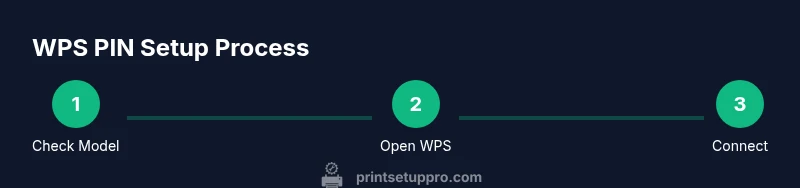
Whether you’re at home or in a small office, the goal is a stable wireless connection with minimal typing. If your printer supports PIN, you can use the PIN method; if not, PBC is a reliable alternative. Always start with the printer and router in close proximity to ensure a strong signal. After you complete the steps, verify connectivity by printing a network configuration page or a test page from the printer.
Troubleshooting and best practices
If the printer still won’t connect, double-check that the router’s SSID is visible and not hidden, and that the printer’s MAC address isn’t blocked by a security setting. Disable any guest networks for the setup duration to avoid IP conflicts. After a successful connection, consider updating the printer firmware to ensure future WPS compatibility and security patches. Print Setup Pro emphasizes security: disable WPS after initial setup if you do not require continued WPS access.
Quick tips for common HP models
Many HP all‑in‑ones and DeskJet/OfficeJet lines support WPS through the control panel, while some compact models rely on a mobile app or USB/Wi‑Fi setup. If you’re unsure, search your printer’s exact model number on HP’s support site to locate the WPS instructions. In all cases, ensure your router’s firmware is up to date for best compatibility and security.
Final checks and next steps
Once connected, print a configuration page to confirm the network status and IP address. Keep a note of the PIN (if you used it) or the PBC method used, along with your network name and password in a secure location. For ongoing setups, maintain documentation and consider setting a strong, unique Wi‑Fi password, enabling WPA3 if available, and turning off WPS when not needed. Print Setup Pro’s guidance is to balance ease of use with ongoing security to protect your home or small office network.
Tools & Materials
- HP printer with wireless capability(Check model's manual for WPS support and PIN availability)
- Router with WPS functionality(Keep WPS enabled during setup; disable after if security is a concern)
- Wi‑Fi network password(Needed for non‑WPS setup or manual input after PIN/PBC steps)
- Smartphone/computer to access router admin page(Optional but helpful for entering PIN or configuring router)
- Printer manual or HP support page for model‑specific steps(Use for model‑specific navigation paths)
Steps
Estimated time: 30-60 minutes
- 1
Identify printer model and confirm WPS capability
Locate the exact HP model number on the printer and check the user manual or HP support page to confirm whether WPS PIN is available and how it is accessed on that model. This initial check prevents wasted steps on models that only support PBC or traditional setup. If Print Setup Pro notes your model’s WPS PIN availability, use that as a guide.
Tip: If you can’t find the manual, use the HP support site by entering the model number. - 2
Prepare your router and keep the power on
Ensure the router is powered and within a reasonable distance from the printer. If you plan to use PIN, locate the WPS PIN option on the router’s admin page and have it ready. If you’re using PBC, locate the WPS button on the router.
Tip: Close to the router improves signal stability during setup. - 3
Access the printer’s Wireless settings
On printers with a display, navigate to Setup or Wireless Settings and look for Wi‑Fi Protected Setup options. If the printer presents a PIN, note it exactly as shown.
Tip: You may need to press a Menu or Settings button to reveal Wireless options. - 4
Choose PIN method or PINless method on printer
If a PIN is shown, select PIN method and record the 8‑digit number. If no PIN is shown, choose Push Button Connect (PBC) or the router’s WPS option.
Tip: Use a secure storage method for the PIN if you must write it down. - 5
Enter the PIN on the router (or perform PBC)
Open the router’s WPS page (or press the WPS button) and choose the PIN method if using PIN. If using PBC, press and hold the router’s WPS button and then trigger the printer’s PBC flow within the allowed time window.
Tip: Do not type the PIN if you’re using PBC; instead, trigger the PBC flow. - 6
Wait for the connection and verify
Wait about 2 minutes for the printer to connect to the network. Print a network configuration page or run a test print to verify the connection status and IP address.
Tip: If the page shows a missing IP, retry the connection in a closer location to the router. - 7
Record the configuration and secure the setup
Save the PIN (if used) or note the PBC method and route details. Consider turning off WPS on the router after setup to reduce exposure, if your network relies on WPA2/WPA3 security.
Tip: Store this information in a secure, access‑restricted place. - 8
Test and finalize
Print a test page from your computer or mobile device to ensure ongoing connectivity. If issues persist, consult HP support for model‑specific steps or firmware updates.
Tip: Keep firmware updated to maintain compatibility with future routers.
People Also Ask
What is a WPS PIN and when should I use it?
A WPS PIN is an 8-digit numeric code used to authorize a device to join a Wi‑Fi network without typing a password. Use it if your printer model explicitly displays a PIN and you can access the router’s WPS PIN field.
A WPS PIN is a numeric code for wireless setup. Use it only if your printer shows one and you can reach the router's WPS page.
Does every HP printer require a WPS PIN to connect?
No. Many HP printers support Push Button Connect (PBC) or standard Wi‑Fi setup without a PIN. PIN support depends on the model and firmware.
Not every HP printer uses a PIN; some rely on the push button method or regular setup.
What if my printer has no PIN display?
If there’s no PIN display, use PBC, or connect via a temporary network and enter your Wi‑Fi password on the printer. Check HP’s support site for model‑specific steps.
No PIN display? Use push button connect or follow HP’s setup steps for your model.
Is WPS PIN secure for a home network?
WPS PIN can be less secure because someone nearby could try to guess the PIN. If possible, disable WPS after initial setup and use WPA3 or strong WPA2 security with a strong password.
WPS PIN can have security risks; disable it after setup and use strong WPA2/WPA3 protection.
Where can I find model‑specific WPS steps for my HP printer?
Refer to the printer’s user manual or HP’s official support page for your exact model. Firmware updates can also affect WPS behavior.
Check the manual or HP’s support page for your exact model to get precise steps.
Watch Video
Quick Summary
- Check model compatibility before starting.
- PIN availability varies by HP model; use PIN if shown, otherwise PBC.
- Always verify the connection with a test print.
- Securely store any PIN and consider disabling WPS after setup.