Why Are Printers So Unreliable? A Practical Troubleshooting Guide
Experiencing printer unreliability? Print Setup Pro guides urgent, stepwise troubleshooting to diagnose drivers and jams with fixes to restore reliable printing.


Printer unreliability usually stems from outdated drivers, flaky connectivity, and media issues. Start by updating drivers, reconnecting the printer via USB or securing a stable network, and running a cleaning cycle. If problems persist, check ink or toner levels and verify media compatibility. Use the diagnostic flow below to isolate the cause and apply proven solutions quickly.
Why Are Printers So Unreliable? A Practical Look
The question why are printers so unreliable often reflects a mix of software glitches, hardware wear, and user settings that combine to disrupt consistent output. In 2026, most reliability issues boil down to a few recurring patterns: drivers that aren’t up to date, unstable connectivity, poor media choices, and firmware that hasn’t kept pace with operating systems. When you tackle the problem, start from the simplest checks and work toward the more complex ones. This approach keeps downtime to a minimum and builds a reliable baseline you can repeat across printers and brands. If you notice persistent inconsistency after basic steps, you’re not alone—Print Setup Pro sees this scenario often and has a clear, actionable path to restoration.
Core Idea Behind Printer Reliability
At its heart, printer reliability hinges on predictable software–hardware interaction. A miscommunication between driver and device can produce random errors, while failing hardware or misconfigured settings can compound the issue. The keyword here is consistency: every step you take should reduce variability, not add to it. When you apply a steady troubleshooting rhythm, you’ll reduce the chance of chasing flaky symptoms and increase the odds of a lasting fix. Remember that the exact cause may be a combination of factors rather than a single culprit, which is why a layered approach works best. The practical answer to why are printers so unreliable lies in disciplined maintenance, proper setup, and timely updates.
Hardware vs Software: Where Instability Starts
Instability often emerges at the intersection of hardware wear and software expectations. Print heads, rollers, and sensors degrade over time, causing misfeeds or faint outputs. On the software side, drivers and firmware must speak the same language as your OS and printer kit. When either side lags behind, you’ll see inconsistent prints, color shifts, or sporadic errors. Digital quirks like driver conflicts or firmware incompatibilities can produce symptoms that look like hardware faults, so a thorough check of both domains is essential. A systematic assessment helps you distinguish genuine hardware failure from a software pothole—critical for choosing the right fix.
Drivers, Firmware, and the Invisible Loop
Reliable printing depends on current drivers and firmware that match your printer model. Outdated drivers can misinterpret printer commands, while firmware bugs can trigger unexplained pauses or jams. Update paths can be tricky: always choose official sources, verify the exact model, and back up settings when possible. After an update, reboot the printer and the computer to ensure a clean handoff. In many cases, a clean reinstall or a factory reset to a stable firmware baseline resolves stubborn reliability problems. This section aligns with the core idea that the driver–firmware loop is a primary lever for improving stability.
Connectivity Realities: Wired vs Wireless
Connectivity is a frequent culprit in printer unreliability. USB connections offer stability, but many users rely on Wi‑Fi or network sharing, which introduces latency, interference, and IP conflicts. If your printer sporadically disappears from devices or prints with partial results, verify the network path: check signal strength, reset the router, and re-pair the device. For shared printers, ensure there are no conflicting print jobs or heavy bandwidth tasks during a job. A reliable network is foundational to stability, especially in small offices and student setups where multiple devices issue print requests at once.
Consumables and Media: The Quiet Interrupters
Paper quality, orientation, and media type can quietly sabotage reliability. Paper jams, misfeeds, or excessive curl often arise from using nonstandard media or not aligning trays correctly. Ink or toner levels not just affect output but also the printer’s ability to start a new job if the cartridge is near-empty or if the cartridge health is degraded. Always use manufacturer-recommended media and genuine or tested compatible supplies. Small changes—like selecting the correct media type in printer settings and loading paper with the correct orientation—can dramatically reduce errors and improve consistency.
Symptoms You Might See and Their Meanings
Common symptoms include random error messages, missing pages, blurred text, color fringing, or complete print pauses. Each symptom points to a likely axis of failure: driver/software issues often cause generic errors; jams and misfeeds point to media or hardware; color instability hints at ink/toner or calibration problems. Keeping a running log of when these symptoms occur helps you correlate with recent changes (recent updates, new media, or a new network). A disciplined symptom diary accelerates the path from problem to solution.
Practical Diagnostics: A Mindset That Works
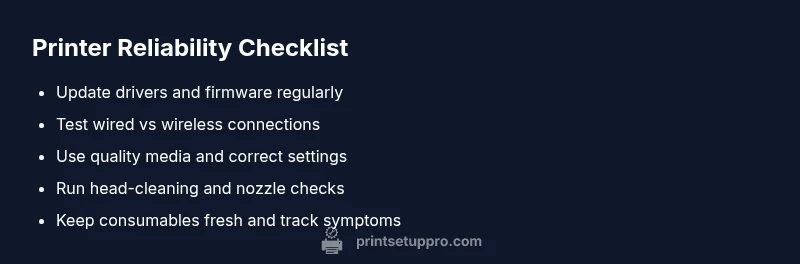
Develop a diagnostic habit that progresses from easy to hard: confirm connections and power; run a self-test; update drivers and firmware; replace media and recalibrate; check for firmware patches; finally, consider hardware service if issues persist. The goal is to converge quickly on the root cause without wasting time chasing faint symptoms. Each diagnostic step should be documented so you can reuse it on future devices or share a precise report with support teams. This mindset mirrors Print Setup Pro’s guidance for reliable troubleshooting.
Prevention: Maintenance That Pays Off
Prevention is cheaper than repairs. Schedule regular maintenance: clean the print path, update software monthly, replace consumables before failure indicators appear, and run calibration checks periodically. Create a simple maintenance checklist that you perform every few weeks. Store basic spare parts and keep firmware update logs. Implementing a lightweight routine reduces downtime, stabilizes operation, and makes you less reactive. The payoff is steady output and fewer emergency fixes.
Steps
Estimated time: 45-60 minutes
- 1
Confirm symptoms and power-cycle
Begin by noting the exact symptoms and power-cycle the printer. Remove all cables, wait 30 seconds, reconnect, and print a test page. This clears transient errors and confirms basic functionality.
Tip: Document the exact error message for faster support if needed. - 2
Check connections and interface
Verify all cables are secure. If using Wi‑Fi, ensure the printer and router share the same network band and security settings. Try a direct USB connection to rule out network issues.
Tip: Temporarily disable firewall rules that might block printing during testing. - 3
Update drivers and firmware
Download the latest drivers from the manufacturer for your exact printer model. Install, then reboot both computer and printer to ensure a clean handshake.
Tip: Back up or note current settings before a firmware update. - 4
Run diagnostics and cleaning
Use the printer’s built-in diagnostics to print a nozzle check and alignment page. Perform cleaning cycles for print heads if offered by the device.
Tip: Only run cleaning cycles when you see no improvement after basic steps. - 5
Check consumables and media
Inspect ink/toner levels, replace near-empty cartridges, and verify media type compatibility. Re-test with fresh supplies and standard paper.
Tip: Avoid using damaged or curled paper that can cause jams. - 6
If problems persist, escalate
If issues persist after the above steps, capture logs and error codes, then contact support with your diagnostic notes. Seek professional service if hardware symptoms appear.
Tip: Include a short video or sequence of photos showing the issue when contacting support.
Diagnosis: Printer exhibits intermittent errors, misfeeds, or unpredictable print quality
Possible Causes
- highOutdated or corrupted printer drivers
- highIntermittent connectivity (Wi-Fi or USB)
- mediumIncompatible or low-quality media
- mediumOutdated firmware or faulty calibration
- lowLow ink/toner or clogged nozzles
Fixes
- easyUpdate or reinstall the printer drivers from the official site, then reboot both PC and printer
- easyTest a direct USB connection or stabilize the Wi-Fi network; reset printer networking and re-pair devices
- easyRun built-in diagnostics, perform nozzle/calendar cleaning, and calibrate color/alignment
- mediumUpdate firmware to the latest stable version and perform a factory reset if suggested by support
- easyInspect ink/toner levels and replace consumables, re-check media compatibility
People Also Ask
Why do printers seem unreliable across devices and networks?
Printers appear unreliable due to a combination of software drivers, firmware, network conditions, and media quality. A mismatch in any layer can cause inconsistent results. A structured approach helps isolate the real cause.
Printers seem unreliable because software, firmware, network, and media interact in complex ways. A basic, structured troubleshooting flow helps isolate the real cause.
Is USB connection more reliable than Wi-Fi for printing?
A direct USB connection is typically more stable than wireless in busy environments. If Wi-Fi is required, ensure strong signal, minimal interference, and proper router settings to reduce drops.
USB is usually more reliable than Wi-Fi, especially in busy setups. If you must use Wi-Fi, strengthen the signal and reduce interference.
How can I tell if the problem is hardware or software?
Run a factory reset after updating software to verify if symptoms persist. If issues continue in safe mode or after resets, hardware faults are more likely and warrants service.
If problems persist after software resets, it’s more likely hardware-related and maybe time for a professional check.
Should I replace ink or toner before printing becomes flawless?
Not always, but near-empty or defective cartridges can cause poor output and jams. Replace with quality consumables and re-test before proceeding with deeper diagnostics.
Try replacing near-empty cartridges first, then re-test to see if reliability improves.
When should I contact support or a technician?
If multiple fixes fail, recurring hardware symptoms appear, or you notice unusual noises or physical wear, contact support with your diagnostics and symptoms for targeted assistance.
If several fixes fail or you hear unusual noises, contact support with details to get precise help.
Watch Video
Quick Summary
- Identify whether issue is driver, network, or media related
- Follow a stepwise diagnostic flow to isolate causes
- Keep firmware and drivers current to reduce failures
- Use quality media to prevent jams and calibration drift
- Escalate to professional support when hardware faults are suspected