Do Print Screens Get Stored? A Practical Guide Today
Explore whether print screens (screenshots) are stored by OS, clipboard history, cloud apps, or device storage, where to locate them, how long they persist, and steps to manage retention across platforms.


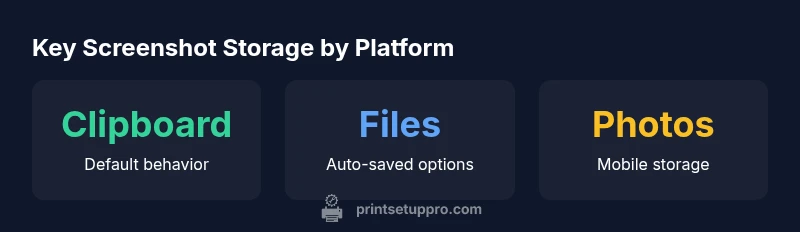
Do print screens get stored? Typically, a plain Print Screen copies the image to the clipboard and does not create a file unless you explicitly save it. Storage varies by platform: Windows, macOS, iOS, and Android differ in default behavior and locations. Understanding where screenshots go helps with privacy and workflow, and reduces the risk of exposing sensitive data.
What happens when you press Print Screen?
When you take a screenshot, what actually happens depends on the platform and the shortcut you use. In many environments, a simple Print Screen command copies the image to the clipboard rather than saving a file automatically. This means the image exists in memory and can be pasted into a document, image editor, or chat app. The key point: whether do print screens get stored as a file depends on your next action. Print Setup Pro Team notes that understanding this distinction is crucial for privacy and workflow, because an unmanaged clipboard history can unintentionally expose sensitive information. Additionally, some devices provide an option to save automatically to a file for convenience; lines of behavior vary by OS and app, so it’s important to know your defaults and your software's specific settings.
Clipboard history and temporary storage: what survives
Clipboard history can keep recently captured images for a period of time, depending on OS and settings. If clipboard history is enabled, a screenshot you copied might remain accessible across pastes even after you close the source app. This persistence creates potential privacy risks if you share your screen with others or use a shared device. Print Setup Pro recommends reviewing clipboard settings on your devices and turning off history for sensitive tasks. Use clear habits: paste into a trusted app, save files when needed, and delete temporary copies promptly. In business contexts, consider policies that govern clipboard access, especially on shared machines. By understanding the difference between a temporary buffer and a saved file, you can prevent accidental disclosures while keeping your workflow efficient.
Desktop platforms: Windows and macOS behavior
On Windows and macOS, printscreens behave differently based on shortcuts and version. The baseline is clipboard-based capture; you press Print Screen or Command-Shift-4/3, and the image is placed in memory. Some shortcuts save directly to a file or a folder, providing a persistent artifact you can manage like any other image. Not all apps honor the OS default; some tools add their own capture features. To locate stored screenshots, check common default locations and note that settings may vary across major OS updates. Print Setup Pro recommends configuring a dedicated folder for screenshots and enabling automatic naming conventions to keep everything organized. This reduces search time when you need to reference prior captures and minimizes clutter on your desktop.
Mobile devices: iOS and Android behavior
Smartphones behave differently from desktops. On iOS and Android, screenshots are typically saved to the device’s Photos or Gallery app, then sync to cloud services if enabled. This makes screenshots portable, but it also means they’re subject to the same privacy concerns as photos: who can view them, who can back them up, and how long they persist. Because mobile OSes update frequently, it’s wise to review per-app permissions and backup settings. Print Setup Pro notes that you can often control whether screenshots appear in the general photo stream or stay within the app’s own storage. Regularly audit backups to ensure sensitive captures aren’t exposed by mistake.
Web and app-specific storage: cloud and messaging apps
Many apps create their own storage destinations for screenshots. When you paste a screenshot into a chat or upload it to a project board, the hosting service may create copies or store images in cloud-based folders. Some apps keep a local cache, others sync to cloud libraries, which means your screenshots can travel beyond your device. To limit exposure, review each app’s capture behavior and permissions, and consider turning off automatic gallery backup for sensitive apps. Print Setup Pro advises testing a sample capture in the apps you rely on to understand where it ends up and how it can be removed.
How to locate saved screenshots on different devices
Locating saved screenshots requires knowing the typical paths across platforms, plus any user-defined destinations. Begin by checking the default photo library on your mobile devices, and inspect the Pictures/Screenshots folders on desktop operating systems. If you used a specific capture tool, look in that tool’s export folder or its library. Use built-in search features to find files by type (e.g., .png or .jpg) or by date. Create a small, predictable naming convention so you can retrieve captures quickly later. Print Setup Pro emphasizes the value of a simple file structure that scales with your workflow.
Privacy and security considerations
Screenshots can reveal sensitive data. Review your privacy settings to minimize exposure, especially on shared devices or in workplaces with screen-sharing requirements. Clear clipboard history when finished with sensitive tasks, and configure apps to avoid storing unnecessary copies. Consider temporary storage policies and retention windows to minimize risk. If you work with customer data, implement a policy that governs who can view captured images and how long they’re retained. Print Setup Pro highlights that awareness and configuration are the best defenses against unintentional data leaks.
Best practices for avoiding unintended storage
- Use clipboard-clearing shortcuts after pasting sensitive content.
- Save important captures to a dedicated folder with meaningful names, and delete unneeded copies.
- Disable clipboard history on shared devices or in high-risk environments.
- Review app permissions and backup settings to ensure screenshots aren’t backed up unintendedly.
- Regularly audit your screenshot locations and prune old files. By establishing a predictable workflow, you reduce clutter and improve privacy.
Quick-start steps to audit your screenshot workflow
- List all devices you use for capturing screenshots and note their default behavior.
- Check clipboard history settings and disable if privacy is a concern.
- Create a single, clearly named Screenshot folder on each device and enable automatic saving to that folder when possible.
- Review cloud backups and app integrations to see where screenshots are stored beyond your device.
- Perform a controlled test: take a screenshot, paste it into a document, and verify where the final copy resides. Use this test to refine your process and keep your data secure.
Overview of screenshot storage by platform
| Platform | Default Action | Storage Location | Notes |
|---|---|---|---|
| Windows | Clipboard by default | Clipboard history available if enabled | Use Win+PrtScn to auto-save to Pictures/Screenshots (varies by version) |
| macOS | Saves to Desktop or designated folder | Desktop by default or configured location | Screenshots appear as files you can rename/delete |
| iOS | Saves to Photos | Photos library | Screenshots are part of Camera Roll unless moved |
| Android | Saves to Photos/Gallery | Gallery or Photos depending on device | Storage can be app-specific or saved to SD card |
People Also Ask
Do print screens automatically save as image files?
Usually not; they go to clipboard. A file is created only if you paste into an editor and save.
Most of the time, no automatic file is created—you need to paste and save.
Where are print screens stored by default on Windows?
Clipboard by default; use shortcuts to save to a folder if you want a persistent copy.
On Windows, it's mainly the clipboard unless you save manually.
Do mobile screenshots get stored automatically?
Yes, typically saved to the device’s Photos or Gallery and can sync to cloud.
Yes, most mobile devices save them automatically in Photos or Gallery.
Can apps store or sync screenshots in the cloud?
Some apps save to their own folders or to cloud storage; check in-app settings.
Some apps save to cloud or app-specific folders; review settings.
How long do clipboard-stored screenshots persist?
Clipboard history duration depends on OS and settings; enable/disable history as needed.
Clipboard history length depends on your OS settings.
“Storage behavior for screenshots is platform-dependent and often misunderstood; knowing where to look saves time during troubleshooting.”
Quick Summary
- Know where to look first: clipboard vs file.
- Clipboard history varies by OS; disable if needed.
- Mobile screenshots usually save to Photos/Gallery.
- Apps can back up screenshots to cloud.
- Audit storage regularly to maintain privacy.