How to Remove Filament from a 3D Printer
Learn how to safely remove filament from a 3D printer, troubleshoot jams, and reload filament with clear steps, safety checks, and practical tips. Includes hot-end and cold-pull methods, and guidance for PLA, ABS, and PETG.


Goal: Learn a safe, reliable method to remove filament from a 3D printer, whether you’re clearing a jam, switching filament types, or swapping spools. This guide covers hot-end and cold-pull techniques, common troubleshooting steps, and reloading guidance for PLA, ABS, and PETG. Before you start, power off, unplug, and gather basic tools. Print Setup Pro emphasizes safety and clean, consistent technique.
Understanding the filament path and why removal matters
Filament in a 3D printer travels from the spool, through the filament guide, into the extruder, and finally into the hot end where it melts and is deposited as plastic. When a filament becomes stuck, breaks, or starts shedding debris, removing it safely protects your hot end, heat sink, and drive gears. According to Print Setup Pro, the most reliable removals rely on controlled steps rather than brute force, which can damage gears or deform the nozzle. Understanding where resistance occurs—whether at the spool, the drive gears, or inside the hot end—helps you decide which method to use and reduces the chance of a new jam forming after reloading.
Having a calm, methodical approach is more important than speed. Rushing a filament removal can cause burns, scalds, or unintended extrusion. Keeping a clean work surface, using the right temperature for your filament, and following a consistent sequence will yield a clean teardown and smoother future prints. This section sets the stage by clarifying common failure points and the rationale behind each removal technique.
Print Setup Pro notes that preparation reduces downtime and increases success rates when swapping materials or clearing obstructions. The goal is not merely to pull the filament out, but to restore a clear channel for consistent extrusion once you reload. With a clear plan, you’ll fix jams faster and avoid repeated teach-in repairs.
Safety first: prep and personal protection
Before touching any hardware, power down the printer, unplug the power supply, and allow the hot end to cool to a safe handling temperature. Use safety glasses to guard against hot-end debris and gloves if you anticipate handling hot components. A tidy workspace reduces the chance of accidentally contacting exposed electronics or hot surfaces. If you’re unsure about your printer’s specific safety warnings, consult the manufacturer’s manual and follow local electrical safety guidelines. Print Setup Pro’s guidance emphasizes a cautious, methodical approach to prevent injuries and equipment damage.
Tools, materials, and workspace setup
Prepare a small, dedicated workspace with a stable surface, good lighting, and minimal clutter. Gather safety glasses, heat-resistant gloves, needle-nose pliers, flush cutters, a cleaning needle (if available), and a clean rag. Keep spare filament ends trimmed to a clean angle to ease re-entry. A stable, non-slip mat under the printer helps prevent the unit from shifting during removal. These steps reduce the risk of accidental burns and help you manage delicate components safely.
Step-by-step overview (high-level) and decision points
This section provides an overview of the removal process and decision points you’ll encounter, without duplicating the step-by-step instructions below. You’ll decide between hot-end pull techniques for a smooth path and cold-pull methods for stubborn debris. The order of operations matters: start with a safe power-down, secure the spool, then proceed with the chosen method. If you’re dealing with a particularly stubborn jam, you may alternate between a controlled reheating and cold-pull approach to gradually loosen the blockage. Print Setup Pro recommends documenting any unusual resistance or unusual noises so you can consult the printer’s manual or seek support if needed.
Authority sources
For broader safety and best-practice context, you can consult general safety and engineering standards from reputable organizations such as:
- https://www.nist.gov
- https://www.osha.gov
- https://mit.edu
These sources provide foundational safety guidelines and best practices that underpin responsible printer maintenance, including handling hot surfaces, electrical safety, and proper tool use.
Tools & Materials
- Safety glasses(Protect eyes from hot-end debris and spring-loaded parts.)
- Heat-resistant gloves(Wear when handling hot components or hot nozzles.)
- Needle-nose pliers(Help grab small fragments or pull filament cleanly.)
- Flush cutters or scissors(Trim filament tail at a clean angle to prevent fraying.)
- Cleaning needle or thin-wire(Unblock small nozzle channels if available.)
- Lint-free cloth(Wipe the nozzle exterior and touchpoints.)
Steps
Estimated time: 30-60 minutes
- 1
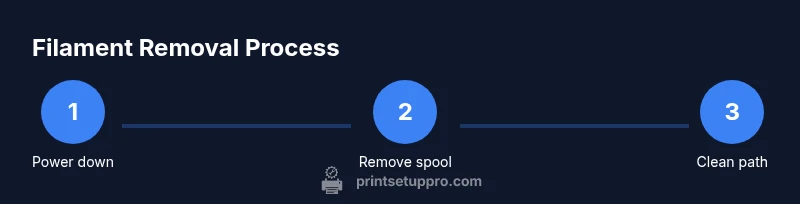
Power down and unplug
Shut off the printer and unplug the power supply. Allow the hot end to cool to a safe handling temperature before touching any components to prevent burns or damage. Keep hands away from the nozzle until it’s cool.
Tip: Set a timer to ensure you don’t rush the cooling period. - 2
Remove the spool and prepare the filament
Carefully remove the filament spool from the holder and place it on a stable surface. Cut the filament tail at a clean angle to minimize resistance when you re-insert later, and position the hot end in a way that won’t snag the filament during removal.
Tip: Make a fresh, clean cut to minimize friction inside the throat. - 3
Preheat for a controlled pull (PLA ~210°C / PETG ~235°C)
If you plan to pull the filament while it’s soft, preheat the nozzle to the appropriate temperature for your material. This softens the filament just enough to reduce the risk of a stubborn strand tearing and locking inside the hot end.
Tip: Do not exceed the recommended temperature for your filament to avoid damage. - 4
Gently push filament into the hot end to clear the path
Gently advance a short length of filament into the hot end to ensure the path is open. If extrusion begins, slowly back the filament out while maintaining light pressure to avoid stripping gears.
Tip: Avoid forcing filament; if resistance is high, stop and reassess the path. - 5
Retract filament with the hot end warm
With the nozzle still warm, slowly retract the filament while watching for consistent retraction. If the filament feeds smoothly, continue until you can pull a clean end from the extruder.
Tip: Take your time—hasty retractions can kink the filament and worsen jams. - 6
Perform a cold pull if needed
If fragments remain, let the hot end cool to around 90°C, reinsert filament, and pull out firmly. The cooling solidifies debris, allowing it to be removed with the filament end.
Tip: Cold pulls are effective for fine debris and residue. - 7
Clean and inspect the hot end
Check the nozzle tip for residue and verify there’s a clear channel. Use a cleaning needle cautiously if debris is present, and avoid forcing anything into the nozzle.
Tip: Work slowly and stop if you see damage or flexing in the nozzle. - 8
Reload filament and purge
Feed new filament into the extruder until it consistently flows from the nozzle. Purge a short length to ensure the path is clear before starting a test print.
Tip: Mark a fresh filament length so you can monitor any slipping. - 9
Test print and monitor
Run a small calibration print to confirm smooth extrusion. If any resistance returns, repeat the above steps or seek guidance from the printer’s manual.
Tip: Adjust retraction and feed rates if necessary after re-test.
People Also Ask
Safe filament removal?
Power down, unplug, and let the hot end cool before handling. Follow a controlled removal method and protect yourself with PPE.
Power down and unplug, then follow the safe removal steps.
Hot-end left filament?
Do not leave filament inside the hot end during maintenance. Remove it safely to prevent burns or damage.
Never leave filament in the hot end while working.
What is cold pull?
A cold pull is a cleaning technique that uses a cooled nozzle to pull debris from the nozzle and hot end. It’s helpful for stubborn blockages.
Cold pulls help remove debris when a jam is stubborn.
Filament jammed, stuck?
If the filament is stuck, stop forcing it and inspect the drive gear and nozzle. Try a cold pull or gentle re-clearing steps.
If it won’t move, stop and check the gears and nozzle.
How to reload after jam?
After clearing the jam, re-load the filament by guiding it into the extruder until it flows smoothly, then run a test print.
Feed the filament into the extruder until it flows.
Safety concerns?
Be mindful of hot surfaces, moving parts, and electrical components; wear PPE and work in a ventilated area.
Watch for heat, gears, and electricity.
Watch Video
Quick Summary
- Power down and unplug before touching the printer.
- Use clean cuts and gentle, controlled pulls to avoid damage.
- Cold pulls are effective for stubborn debris; don’t skip cleaning if jams persist.
- Reload and purge until the nozzle flows smoothly, then test print.