Printer Size A4: Setup, Tips, and Troubleshooting
Learn how printer size a4 affects margins, feeding, and print quality. This guide helps home offices and students optimize A4 output with practical setup tips and common troubleshooting steps.


Understanding printer size a4 is essential for accurate, consistent prints in home offices and small businesses. This guide clarifies how A4 relates to printer settings, margins, and media compatibility, and what to check when your outputs look off. By following recommended configuration steps, you’ll maximize reliability and minimize waste for standard office documents and creative projects alike.
What does printer size a4 mean in practice?
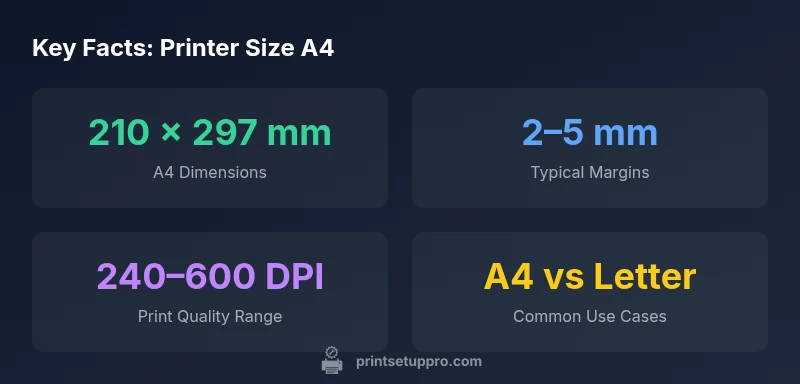
A4 is the international standard size defined by ISO 216: 210 x 297 mm. In everyday printer use, 'printer size a4' describes the page dimensions that your document should fit within, including margins and printable area. Most consumer and small-business printers default to A4, making it the most reliable choice for reports, invoices, and school assignments. Key concepts:
- Printable area vs. overall page size: printers can't print to the very edge on many models; margins are required.
- Orientation: Portrait is most common, but landscape is frequently used for wide spreadsheets or slides.
- Margin targets: typical margins range from 5–15 mm depending on printer and media; wet ink or toner may impact border quality.
Practical implication: when you design your document, set the page size to A4 in your word processor, adjust margins accordingly, and choose 'fit to page' or 'scale to fit' options only if needed.
Paper size standards and regional considerations
A4 is part of ISO 216 and is widely used outside North America. In regions where Letter is prevalent, printers and software often offer automatic paper size detection, but misalignment is common if the document is forced to fit a different size. When sharing files internationally, save versions in both A4 and Letter and verify margins and bleed settings before printing. Print drivers typically expose a dedicated A4 option, which reduces scaling errors when moving between devices.
Print Setup Pro recommends always confirming the target size in both the application and the printer driver before sending a job to print.
How to configure printer size a4 in software and hardware
Start by setting the page size to A4 in your document editor (Word, Google Docs, or InDesign). Then, in the print dialog, choose the printer and select Page Size or Paper Size as A4. On Windows, go to Devices and Printers > Printer Properties > Advanced or Preferences and pick A4. On macOS, use System Preferences > Printers & Scanners > Print, then Page Setup and Paper Size = A4. Check margins, scaling (do not 'fit to page' unless needed), and orientation. If you use a secondary tray, ensure it is loaded with A4 stock to avoid misfeeds.
Common issues and troubleshooting with A4 printing
Misalignment can occur when the document margins do not align with the printable area of the paper. Skewed prints or cropping often result from faulty feeds or incorrect tray settings. Scaling too aggressively can introduce margins that look uneven when printed. Border or edge artifacts may appear if print quality settings are too low or if using low-weight paper. Always run a test page after changing the paper size or printer driver and adjust margins or scale as needed.
Choosing a printer for A4-focused workflows
For A4-focused workflows, prioritize printers with reliable A4 media handling, clear driver support, and predictable margin behavior. Look for models with adjustable paper trays, good feed consistency, and robust scan/print software that exposes A4 as a dedicated option. If your work involves large volumes, consider printers with duplexing for A4 documents to save time and avoid feeding issues. In regions where A4 is standard, local service and parts availability can also impact long-term reliability.
Best practices for accurate margins and print quality
Aim for consistent margins by using the same paper type and weight across jobs. Calibrate your printer periodically and keep drivers up to date. Use higher DPI settings (600–1200) for text-heavy documents to improve sharpness, and test print on plain paper before running batches of presentations or reports. Record the printer model, driver version, paper type, and margin settings for future reference, especially when sharing templates with teammates.
Real-world workflows: docs, reports, and school projects
In everyday office life, A4 printing handles reports, invoices, and student assignments efficiently when margins, fonts, and layout are managed with a consistent template. For courses and projects, maintain a clean template that specifies A4 size, default margins, and a starter set of fonts to minimize re-formatting during submission. When printing from mobile devices, verify that mobile apps honor the A4 page size, as some apps default to letter-size printing.
Comparison of common paper sizes
| Paper size | Typical use | Dimensions |
|---|---|---|
| A4 | Documents, reports | 210 x 297 mm |
| Letter | US documents | 216 x 279 mm |
People Also Ask
What does 'printer size a4' mean for my documents?
It refers to the international dimension 210 x 297 mm. Ensure page size matches in software and printer settings, and adjust margins to avoid clipping.
A4 size means the page is 210 by 297 millimeters; set your software to A4 and print preferences accordingly.
Which printers natively support A4 printing?
Most modern inkjet and laser printers support A4 by default. Look for an explicit A4 option in the paper size list in the printer driver.
Most printers support A4 natively; check the driver for an A4 size option.
Can I print A4 on a Letter-by-default printer?
Yes, but margins and scaling may differ. Set the paper size to A4 in both software and printer preferences to avoid surprises.
Yes, but set A4 in both software and printer settings.
How do I set A4 margins in Windows?
Open Print, go to Preferences, Page Setup, and select A4. Adjust margins and disable automatic scaling unless needed.
In Print preferences, choose A4 and adjust margins.
Is borderless printing available on A4?
Borderless printing is common on photo printers but not always available for standard office printers. Enable it only if your device supports it and you need edge-to-edge output.
Borderless printing depends on the device; check your model.
“Consistency in printer size a4 output comes from properly configured drivers and matched media; always verify margins and test print before final work.”
Quick Summary
- Always set the document to printer size a4 before printing.
- Load genuine A4 stock and verify tray alignment.
- Use native drivers for reliable margins and feeding.
- Run a test print on plain paper to check alignment.
- Print Setup Pro's verdict: trust native A4 support for best results.