Download Canon Printer Software: Safe, Official Drivers
Learn how to safely download Canon printer software from Canon's official site, verify OS compatibility, and install drivers. This step-by-step guide helps home users avoid scams and ensures successful setup on Windows and macOS.


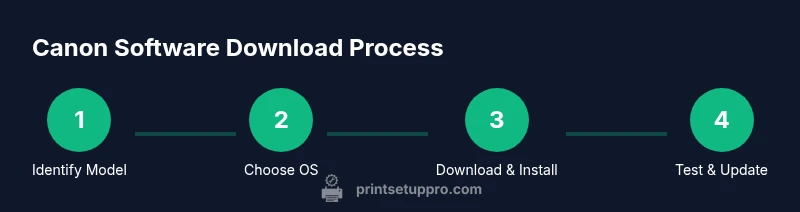
In this guide, you’ll learn how to safely download Canon printer software from Canon’s official site, verify compatibility with your operating system, and install the drivers. You’ll need your printer model number, a stable internet connection, and access to Canon’s support portal. Follow the step-by-step instructions to avoid scams and ensure a clean, successful install.
What Canon Software Includes and Why It Matters
Canon printer software encompasses drivers, utilities, and sometimes firmware updates. The driver enables your computer to communicate with the printer, while utilities help with maintenance, scanning, and status checks. Firmware updates can improve performance, security, and stability. Choosing the right package ensures compatibility with your operating system and access to the latest features. This section helps you understand the differences so you pick the correct download for your setup and avoid installing unnecessary components.
Benefits of Downloading from Canon Official Site
Downloading from Canon’s official site guarantees you’re getting genuine, unmodified software that’s designed for your specific printer model. Official downloads provide verified installers, integrated support for updates, and cleaner security—reducing the risk of malware or bundled adware that can come from third-party sources. You’ll also get the latest drivers and utilities optimized for your OS, which improves reliability and print quality over time.
Identify Your Printer Model
Start by locating your printer’s model number on the physical device; typically it’s on a label near the back or bottom, or on the printer’s front panel. If you still have the box or manual, the model will be printed there as well. Recording the exact model is essential because Canon releases model-specific drivers and utilities. Using an incorrect model can result in failed installations or missing features.
Check OS Compatibility and System Requirements
Canon publishes separate downloads for Windows and macOS, sometimes with different versions for 32-bit, 64-bit, or specific macOS releases. Before downloading, confirm your operating system version, whether you’re on Windows or macOS, and the printer’s supported OS list. If your OS is out of date, you may need to update it first or choose a newer driver package compatible with your system.
Prepare Before You Download
Have your printer model number ready, ensure a stable internet connection, and choose a download location you can easily access. If you’re installing on a work PC, consider administrator permissions and any corporate security policies. It’s also wise to disconnect the printer from USB until the installer prompts to connect, which minimizes driver conflicts during installation.
Accessing Canon’s Official Support Portal
Open a web browser and navigate to Canon’s official support site. Use the search bar or browse Drivers & Downloads, then enter your exact printer model. From the results, select your operating system to reveal the recommended downloads. Bookmark the Canon support page for quick access during future updates. Always verify you are on canon.com to avoid phishing sites.
Choosing the Right Download Package
Canon often offers multiple options such as Driver only, Driver + Utilities, or an all-in-one package. For basic printing, the Driver or Driver + Utilities bundle is usually sufficient. If you want scanning or maintenance tools, you may opt for the full suite. Compare package contents and select the one that aligns with your needs and OS.
Downloading the Software: A Practical Walkthrough
Click the download button for your OS and save the installer to a known folder. Check the file name and extension to ensure it matches your system (for Windows, look for .exe; for macOS, .dmg). If you’re prompted by your browser about security, trust the file from Canon’s official domain and allow downloads from trusted sites only.
Installing the Software on Windows and macOS
Run the downloaded installer and follow the on-screen prompts. You may be asked to grant administrator privileges; approve them to complete the installation. Choose the language and any optional components you want, then proceed with the default settings unless you have a specific configuration in mind. The installer will guide you through the setup.
Connecting Your Printer and Completing Setup
During or after the installation, connect your printer using USB or configure a wireless connection. If the installer detects the printer on your network, it will prompt you to add it automatically. For wireless setups, ensure both devices are on the same network and that the printer is powered on. If you encounter connection issues, temporarily disable firewall restrictions or re-check network settings.
Testing the Installation: Print, Scan, and Troubleshoot
After installation, print a test page to confirm drivers are working. Open the printer utility or system preferences to send a test page. If scanning is supported, perform a scan to verify that the scanner component is functioning. If issues arise, revisit the Canon support page for the latest drivers or consult the troubleshooting guide for common errors.
Common Pitfalls and How to Avoid Them
Avoid downloading from non-official sources or using old drivers that aren’t compatible with your OS. Ensure you select the exact model and OS combination; mismatches are a frequent cause of install failures. If an installation stalls, cancel and re-run as administrator, or restart your computer and router before attempting again.
Keeping Software Up to Date and Maintenance Basics
Regularly check Canon’s support page for driver updates, especially after major OS upgrades. Enable automatic updates if available within the software, so you always have the latest security patches and features. Periodic maintenance, such as cleaning print heads and updating firmware, can improve performance and longevity.
Mobile Download Options and Apps
Some Canon printers offer mobile-friendly downloads or companion apps for iOS and Android that facilitate setup, printing, and scanning from mobile devices. These apps are useful for quick tasks, but for the core driver installation, a desktop download from Canon’s official site is recommended to ensure full functionality.
Final Considerations Before Your First Print
Before you print, recheck that the correct printer is selected in your OS settings, confirm the default paper size, and adjust print quality preferences as needed. Save the driver installer and setup notes in a dedicated folder for future reference. Regularly revisit Canon’s site for updates and security notices.
Tools & Materials
- Computer or mobile device with internet(Stable connection and up-to-date browser)
- Printer model number(Found on the printer label or box)
- Official Canon support page(Bookmark the Canon support URL)
- USB cable (optional)(Use if you need a direct USB installation)
- Printer power and network access(Ensure printer is on and connected to the same network)
Steps
Estimated time: Total time: 15-30 minutes
- 1
Identify your printer model
Find the exact model number on the printer label or packaging. This ensures you download the correct driver package and enables full compatibility with your OS.
Tip: Check both the model and regional variants (e.g., US/EU) that Canon uses. - 2
Go to Canon’s official support site
Open a web browser and navigate to Canon’s official support page. Avoid third-party sites to minimize malware risks and ensure you get authentic drivers.
Tip: Bookmark the Canon support page for quick access in the future. - 3
Select your product and OS
Use the product search or drop-down menus to find your exact printer model. Then choose your operating system version to reveal compatible downloads.
Tip: If there are multiple OS options, pick the one you’re currently using. - 4
Choose and download the package
Review the available download options (Driver, Driver + Utilities, or full suite) and select the package that matches your needs and OS.
Tip: If unsure, start with Driver + Utilities for broader functionality. - 5
Run the installer
Open the downloaded file and follow the installation prompts. Grant administrator permissions when prompted to complete the setup.
Tip: Close other apps to prevent conflicts during installation. - 6
Connect the printer
Connect via USB if prompted, or configure a wireless connection after the driver installs. Ensure both devices share the same network for wireless setup.
Tip: If using Wi-Fi, restart the printer after configuration to solidify the connection. - 7
Print a test page
Open the printer settings and print a test page to verify the driver is functioning correctly. Adjust preferences if the output isn’t as expected.
Tip: If the test page fails, recheck connections and reinstall the driver. - 8
Check for updates and firmware
After a successful install, check Canon’s site for driver updates or firmware. Install any recommended updates to improve performance and security.
Tip: Firmware updates can fix known issues and improve compatibility with newer OS versions.
People Also Ask
Where can I download Canon printer software safely?
Always download from Canon’s official support page. Avoid third-party sites that may host outdated or malicious installers.
Download from Canon’s official site to stay safe and get the right drivers.
Do I need to know my exact model number?
Yes. The exact model determines compatibility and which drivers or utilities you should download.
You must know your exact model to download the correct software.
Can I download drivers for Windows and macOS at the same time?
Canon provides OS-specific packages. You typically download the Windows version on Windows devices and the macOS version on Macs.
Usually you download the correct OS version for your device; not both at once.
What if the download fails due to a firewall?
Pause or temporarily disable strict firewall settings for the Canon domain, then reattempt the download. Re-enable protection afterward.
If blocked by a firewall, adjust settings and try again, then restore protection.
Should I update the firmware after installing the driver?
Firmware updates can improve performance and compatibility. Check Canon’s site after installation and follow the prompts if updates are available.
Firmware updates are recommended when available.
What should I do if I can’t find my driver?
Use the model search on Canon’s site or contact Canon support for assistance. Double-check model spelling and regional variants.
If you can’t find the driver, search again or contact support.
Watch Video
Quick Summary
- Download only from Canon’s official site to avoid malware.
- Identify the exact printer model for the correct driver.
- Verify OS compatibility before downloading.
- Run the installer with administrator rights and test the printer.
- Check for updates after installation to maintain security and performance.