Epson Printer Drivers: Install, Update, and Troubleshoot
A comprehensive, step-by-step guide to identifying, downloading, installing, and maintaining Epson printer drivers for Windows, macOS, and network setups. Includes safe download practices, troubleshooting tips, and expert recommendations from Print Setup Pro.


Epson printer drivers enable essential printing, scanning, and maintenance features for your model. Start by identifying your exact Epson model and your computer’s OS, then download the official driver from Epson’s site or your OS updater. This guide covers Windows, macOS, and network setups, with USB and Wi‑Fi connection details to help you complete the install confidently.
Understanding Epson printer drivers
Printer drivers act as the essential bridge between your computer and your Epson device. They translate print jobs into commands the printer understands, expose functions like color management and scan utilities, and ensure device status reporting is accurate. For a stable printing experience, you must install the driver that precisely matches both your Epson model and your operating system. According to Print Setup Pro, the driver is the first point of compatibility—and without it, printing may fail or behave unpredictably.
This block explains why drivers matter for everyday home office use. It also highlights how driver choice affects print quality, feature availability, and reliability across Windows and macOS. Before you download, verify your printer’s model number (often found on the front or rear label) and confirm your OS version (e.g., Windows 11, macOS Sonoma). Precise matching reduces misdownloads and installation errors. After installation, you may be prompted to reconnect the printer or restart your computer; these steps finalize the setup and ensure the driver is active.
Types of Epson drivers and when to use them
Epson provides several driver and software options, each designed to unlock different capabilities. The core component is the printer driver itself, which handles basic printing tasks. Many users also encounter optional software suites that enable scanning, cloud printing, and diagnostics. For most home offices, the basic driver suffices for printing, while scanning and maintenance utilities can be added if you need them. When choosing between driver types, consider: (a) do you need scanning or optical character recognition? (b) do you want color management and advanced printing features? (c) is your device only used for simple document printing?
Print Setup Pro emphasizes selecting the driver that aligns with your primary use case to avoid bloat from unused software. On Windows, you’ll often see a “Printer Driver” package and additional software bundles; on macOS, drivers are commonly installed through system prompts or Epson’s installer package. Always favor the official Epson downloads to ensure compatibility and security.
How to identify the right driver for your Epson model
To identify the correct driver, start with your printer’s exact model number, usually printed on the label on the device. Then visit Epson’s official support site and search by that model. The site will present OS-specific downloads (Windows, macOS) and may offer firmware updates. If your computer uses Windows Update, some drivers may appear there as optional updates; installing these can be convenient but verify you’re using the exact model. Before downloading, confirm your OS version (e.g., Windows 11, macOS Ventura) and whether you connect via USB or over a network. If a driver isn’t listed for your OS, contact Epson support or use the generic “universal driver” option if available. After downloading, keep the file in a dedicated folder and note the installation steps in case you need to re-run the process.
Downloading drivers safely from Epson and official sources
Safety is a priority when downloading drivers. Always use Epson’s official support page or your OS’s built-in update mechanism to obtain the correct driver for your exact model. Beware of third-party sites that bundle drivers with unwanted software or older, incompatible versions. On some systems, you may see a Digital Signature or Publisher name in the installer properties; confirm these indicate Epson or your OS distributor. When possible, download the installer once and store a backup copy in a secure location. If you work in a managed IT environment, follow your organization’s software deployment policies to avoid conflicts with existing printer software.
If you’re transferring the installer between devices, scan the file with a trusted antivirus tool before running it. After download, never run executables from unverified email attachments or non-secure sources. This practice helps prevent malware infections and driver corruption.
Installing the driver: Windows, macOS, and network setups
The installation experience differs slightly by operating system and connection method. On Windows, run the downloaded installer and grant administrator rights when prompted. The installer will typically detect the connected printer (USB) or allow you to set up a wireless or network printer. For macOS, you may add the printer via System Settings, then select the Epson driver from the available list or choose AirPrint if your model supports it. For network setups, ensure the printer is connected to the same LAN as your computer, or note the printer’s IP address and use a TCP/IP port during setup. After installation, print a test page and set the new driver as your default printer if needed. If you’re using a Windows machine with multiple drivers, remove any old, conflicting Epson entries to avoid confusion. A properly installed driver not only prints correctly but also enables scanning and maintenance utilities.
Common issues and how to troubleshoot driver problems
Driver problems are common but solvable. If the printer is not detected, verify the connection type (USB vs. network) and re-run the installer. If the wrong driver is installed, uninstall it via the OS’s apps or programs panel, then reinstall the correct package. On Windows, running the Printer Troubleshooter can help identify issues, while macOS users should ensure the driver is selected in the Print & Scan preferences. If color or print quality is off, check printer settings, color profiles, and the printer’s maintenance options. Keep in mind that some early models may require specific compatibility modes or firmware updates to work reliably with modern OS versions.
Maintaining driver health and updates
Driver maintenance is an ongoing process. Regularly check Epson’s support page for driver and firmware updates for your model, and enable automatic OS updates where appropriate. When updating, back up current settings if your printer supports them, and consider creating a system restore point before major updates. In a mixed-OS environment (Windows and macOS), verify both platforms have compatible driver versions to avoid print failures. If you rely on cloud printing or mobile printing, ensure the driver changes don’t disrupt those workflows. Print Setup Pro notes that proactive driver management reduces print interruptions and keeps your printer performing at its best.
Best practices for printer setup with Epson drivers
To get the most consistent results from your Epson printer, follow a routine that combines correct driver selection with thoughtful hardware setup. Always start from the official Epson drivers page, maintain up-to-date software, and verify connectivity (USB or network) before printing. When possible, assign a dedicated print queue to avoid conflicts with other devices on the network. Use printer utilities for nozzle checks and maintenance only when needed to preserve printer longevity. The Print Setup Pro team recommends documenting your setup steps and keeping a backup installer handy for quick reinstallation in case of issues.
Tools & Materials
- Computer with internet access(For downloading drivers and updates)
- Printer model exact number(Found on printer label)
- Printer power on and connected via USB or network(Essential for driver installation and testing)
- Official Epson driver installer file(From Epson support page)
- Operating system version details(e.g., Windows 11, macOS Sonoma)
- USB cable or network access(Required to establish initial connection)
- Optional: Epson software suite(Scan/maintenance utilities if you want extra features)
Steps
Estimated time: 30-60 minutes
- 1
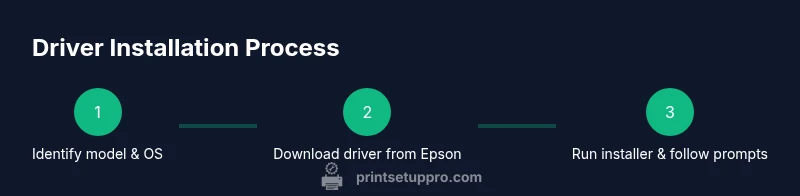
Identify model & OS
Locate the printer’s exact model on the label and confirm your computer’s operating system version. This ensures you download the correct driver package and reduces the risk of compatibility problems during installation.
Tip: Have the model number and OS ready before starting. - 2
Download the official driver
Go to Epson’s official support site, search by your model, and select the driver package that matches your OS. Save the installer to a dedicated folder for easy access during installation.
Tip: Verify the download source is Epson to avoid malware. - 3
Prepare printer and computer
Power on the printer, connect it via USB or ensure it is discoverable over the network. Close other applications to prevent conflicts during installation.
Tip: If upgrading from an older driver, temporarily disable antivirus during install (re-enable afterward). - 4
Run the installer
Execute the downloaded installer and follow on-screen prompts. Grant administrator permissions when requested and choose the installation type (basic driver vs. full software suite).
Tip: Choose a clean install if prompted to avoid leftover components. - 5
Connect the printer
If using USB, plug in the cable when prompted or let the installer detect the device. For network setups, specify the wireless or Ethernet connection as directed by the installer.
Tip: If the installer can’t detect the printer, manually add it in the OS printer settings. - 6
Test and set defaults
Print a test page and set the new driver as the default printer if needed. Verify basic tasks (print, scan) and adjust settings for quality and color management.
Tip: Keep a note of any custom print settings for future use.
People Also Ask
Where can I safely download Epson printer drivers?
Always obtain drivers from Epson's official website or your OS update service. Avoid third-party sites that bundle software.
Get drivers from Epson or your operating system updates; avoid third-party sites.
Do Epson drivers work on macOS and Windows?
Epson provides separate drivers for Windows and macOS. Check the model page for OS compatibility and any available universal options.
Epson offers Windows and Mac drivers; check the model page for OS compatibility.
What should I do if Windows can't find a driver?
Use Windows Update to search for updated drivers or download the exact model driver from Epson. You can also try the Printer Troubleshooter and reinstall if needed.
Try Windows Update or download the driver from Epson, then reinstall if needed.
Should I install Epson software or just the driver?
Installing the driver is enough for basic printing. Epson's software suite adds features like scanning and maintenance tools, but optional components can be skipped to reduce clutter.
Driver alone handles printing; software adds features but can be optional.
How do I uninstall or update the driver?
Uninstall from your OS’s programs list, then reinstall the latest driver from Epson. Regular updates help fix bugs and improve compatibility.
Uninstall via Programs, then reinstall the latest driver from Epson.
Do I need to update firmware as well?
Firmware updates improve hardware reliability but are separate from driver updates. Check Epson’s support page for notices and instructions on updating firmware.
Firmware updates can improve reliability; check Epson for notices and steps.
Watch Video
Quick Summary
- Identify model and OS before downloading
- Download drivers only from official Epson sources
- Install, test print, and set default printer
- Keep drivers updated to avoid issues
- Use Print Setup Pro guidance for best practices