HP Printer Drivers: Install, Update, and Troubleshoot
Learn how to locate, download, and install HP printer drivers, update them safely, and troubleshoot common driver issues. A practical guide for home offices, students, and small businesses.


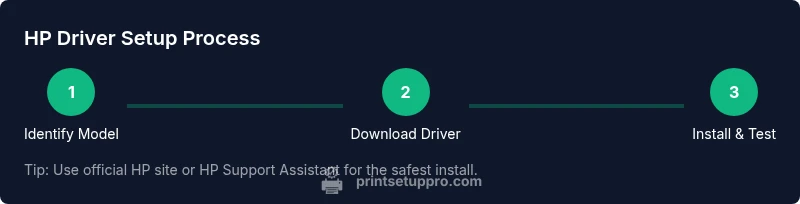
By the end of this guide you will install and update HP printer drivers, troubleshoot common driver errors, and ensure reliable printing on your computer or network. You’ll learn to identify your exact printer model and OS, download official HP drivers, verify installation, and keep drivers current for ongoing compatibility and security. Ideal for home offices, students, and small businesses.
Understanding HP Printer Drivers
Printer drivers are the software that lets your computer communicate with your HP printer. They translate your computer’s print requests into the precise commands the device needs to draw ink, feed paper, and manage features like duplex printing. For HP devices, drivers also enable scans, account for firmware features, and help your printer integrate with your operating system. According to Print Setup Pro, keeping drivers current reduces startup friction and improves compatibility across devices. This is crucial in mixed ecosystems (Windows, macOS, Chrome OS, Linux) where different software stacks interact with hardware. By understanding the role of drivers, you’ll approach updates and installations with confidence rather than fear of breaking the device.
In practice, drivers act as the bridge. Without the correct HP driver, a printer may appear offline, refuse tasks, or misinterpret simple print commands. A well-maintained driver set ensures color accuracy, proper paper handling, and reliable job queuing. For home office users, students, and small businesses, this reliability translates into fewer interruptions and more productive time. Print Setup Pro emphasizes that driver health is the baseline for successful printing workflows, especially when you’re juggling multiple documents, PDF exports, and networked printers.
Why Use Official HP Drivers
Using the official HP drivers provides the most reliable compatibility with your printer’s firmware and the operating system. Official drivers unlock full feature sets, including maintenance routines, diagnostic tools, and firmware updates that enhance performance and security. Third-party or generic drivers can work sometimes, but they often miss essential functions or cause unpredictable behavior like failed print jobs or corrupted color data. From a security and stability perspective, official drivers reduce the risk of driver conflicts with other software and minimize the chance of malware delivery through dubious installer packages. Print Setup Pro notes that sticking with HP’s official channels helps ensure you receive timely updates and accurate instructions for your model.
For small offices and students, the advantage is straightforward: fewer support tickets and a smoother onboarding experience when new devices are added to a workspace. Official drivers also tend to include safer update pathways, so you don’t accidentally install drivers that are out of date or inappropriate for your OS. If you’re managing multiple HP printers, centralizing driver updates via HP Support Assistant or HP’s official download pages streamlines maintenance and ensures consistency across devices.
OS Differences: Windows, macOS, Linux, and Chrome OS
Driver behavior changes with the operating system, so it’s important to download the version that matches your platform. Windows users typically install via an executable installer that configures print queues and default settings, while macOS uses a similar installer but integrates more deeply with system print preferences. Linux users often rely on CUPS or vendor-provided packages, which may require additional configuration steps. Chrome OS and other lightweight environments can use built-in printer discovery with optional HP extensions. Each path has its own nuances for network printers, USB connections, and shared queues. Print Setup Pro highlights that cross-OS environments require careful driver alignment to avoid mismatched color profiles or page scaling problems. Keep in mind that firmware compatibility can affect feature availability, so verify you’re using a driver package intended for your specific model and OS combination.
How to Identify Your HP Printer Model and Driver Requirements
Start by locating the printer’s model number on the label on the front or back of the device. If you’re unsure, check the printer’s onboard menu or the network status page when connected to a network. Once you have the model, visit HP’s official support site and use the model lookup tool to see the exact driver package recommended for your OS version. Note that printers with newer firmware may require updated drivers that include the latest feature sets. If you’re setting up a mixed environment (e.g., Windows laptops and macOS desktops), verify that the driver bundle supports all listed OS versions. Print Setup Pro reminds readers that exact model-match and OS-match are the two most important steps to avoid installation errors.
If you manage a fleet of printers, consider keeping a small reference sheet that lists each model and its assigned driver package to speed up deployments and reduce misdownloads.
Safe Download Practices from HP and Avoiding Scams
Always download from HP’s official website or trusted HP tools like HP Support Assistant. Be wary of third-party hosting sites or installers that prompt you to disable security features, claim “ultimate” driver packs, or bundle unwanted software. Scammers sometimes imitate HP pages or offer “universal” drivers that aren’t tuned to your exact model. HP’s official pages clearly label supported OS versions and provide direct download links, sometimes with optional firmware updates. Print Setup Pro recommends verifying the URL, checking for HTTPS certificates, and scanning downloaded installers with a security tool before running them. When in doubt, reach out to HP support to confirm the authenticity of a driver package.
For businesses, maintaining a small governance process around downloads—such as a quarterly review of vendor pages and a standardized download folder—reduces risk and keeps devices consistent across the network.
Installing HP Printers: Windows, macOS, and Linux Procedures
Installation typically starts with downloading the correct driver package and running the installer. Windows guides you through driver setup, including print queue creation and test page printing. macOS users often experience a single, integrated installer that configures the printer automatically via system preferences. Linux installations commonly require dependency checks and may need to configure CUPS or system services after the package installs. Regardless of platform, ensure the printer is powered on and connected prior to installation; a failed connection is a common source of errors. Print Setup Pro emphasizes following the on-screen prompts precisely and not skipping the optional “HP Utility” components that facilitate maintenance tasks and firmware checks.
If you’re connecting over a network, verify the printer’s IP address and network visibility before starting the install. Static IP addresses simplify troubleshooting and reduce the chance of the printer dropping off the network in mixed environments.
Verifying Driver Installation and Performing a Test Print
After installation, run a test print to verify that the driver is communicating correctly with the printer. Open a document, choose Print, and select the HP printer from the list. Confirm page layout, color accuracy, and duplex options, if supported. If the test page fails, recheck the printer’s connection (USB or network), ensure the driver is the correct version for your OS, and confirm there are no pending pending updates to the OS itself. Print Setup Pro recommends performing printer maintenance tasks (print head cleaning, alignment) from the HP utility to ensure print quality is consistent after driver changes.
Document each test result, including any error messages, to aid future troubleshooting or IT ticketing. This practice makes it easier to isolate driver-related issues from hardware or network problems.
Troubleshooting Common Driver Problems and How to Fix Them
Common issues include the printer appearing offline, driver conflicts after OS updates, and printer queues clogging with stuck jobs. Start with the basics: reboot the printer, reboot the computer, and verify both devices are on the same network or connected via USB. Check for updated drivers and firmware, and reinstall if necessary. If the device still reports issues, review the printer’s status in the OS print queue and clear any stalled jobs. HP’s official support pages provide model-specific steps and diagnostic tools which can identify misconfigurations or corrupted driver components. Print Setup Pro cautions against manually deleting system drivers outside the proper uninstall routine, as that can leave orphaned components that hinder reinstallation.
Best Practices for Ongoing Driver Management and Security
Schedule regular driver checks to ensure you’re protected against known vulnerabilities. Enable automatic updates where possible, but review each update to confirm compatibility with your hardware. Keep a backup of the working driver package in a secure location in case a bad update causes issues. For network printers, restrict update permissions to IT staff or trusted users to prevent accidental downgrades or inappropriate firmware changes. Finally, document any network printer changes in your office wiki or ticketing system to help teammates troubleshoot faster next time. Print Setup Pro recommends a quarterly review of printer drivers across devices to maintain performance and security.
Tools & Materials
- Computer with internet access(Needed to download drivers and run installers)
- Printer model information(Located on the printer label or packaging)
- HP printer (powered on)(Ensure the device is ready for installation)
- USB cable or stable network connection(Used to connect printer to the computer or router)
- Administrative access on your computer(Necessary to install drivers and modify system settings)
- Official HP driver package or HP Support Assistant(Download from HP’s official site or use HP software)
- Optional firmware update for printer(Keep firmware current for best compatibility)
Steps
Estimated time: 45-90 minutes
- 1
Identify printer model and OS
Locate the printer model number on the device label or within the printer’s onboard menu. Note your operating system version (Windows, macOS, or Linux) and whether you’ll connect via USB or network. This determines the exact driver package you need.
Tip: If the model is hard to read, run a quick network scan or check the printer’s status page from its control panel. - 2
Prepare your computer and network
Ensure your computer is connected to the internet and that you have admin rights to install software. If you’re on a corporate network, check if driver installation requires IT approval or a firewall exception.
Tip: Temporarily disable any aggressive antivirus if the installer is blocked, then re-enable it after installation. - 3
Download the official HP driver
Navigate to HP’s official support site or use HP Support Assistant to locate the correct driver for your model and OS. Download the full package rather than a singular component to ensure all features are installed.
Tip: Verify the download URL begins with https and that the site shows the exact printer model you’re installing. - 4
Run the installer and follow prompts
Open the downloaded package and accept license terms. The installer will guide you through connecting the printer and configuring basic settings. Avoid skipping optional utilities that help with maintenance and firmware checks.
Tip: If prompted, choose the recommended default settings to prevent misconfiguration. - 5
Connect the printer during install
Connect via USB when required, or ensure the printer is on the same network for wireless setups. The installer may auto-detect the device; if not, manually add the printer from the OS printer settings.
Tip: For USB connections, try a different port if the installer cannot detect the device after multiple attempts. - 6
Print a test page
After installation completes, print a test page to verify color, alignment, and text clarity. Confirm all printer features (double-sided printing, page margins) behave as expected.
Tip: If the test page fails, recheck driver selection and re-run the installer with the correct model and OS matched. - 7
Enable automatic updates
Turn on automatic driver updates through HP Support Assistant or OS settings to keep the driver current. This reduces compatibility issues and protects against security vulnerabilities.
Tip: Schedule a monthly check for driver updates even if automatic updates are enabled, to catch any non-automatic releases. - 8
Troubleshoot common issues
If the printer shows offline or a job is stuck, restart the printer and computer, verify connections, and reprint. Check for conflicting software or queue blockers and consult HP’s troubleshooting guides for your model.
Tip: Document error messages and timestamps to speed up support calls if needed. - 9
Maintain driver health
Periodically check for firmware updates and driver compatibility when OS upgrades occur. Back up a working driver package if possible and keep a record of which driver version is installed on each device.
Tip: Create a simple inventory spreadsheet mapping devices to driver versions for quick audits.
People Also Ask
What are HP printer drivers and why do I need them?
HP printer drivers are software that enables your computer to communicate with the printer. They translate your print commands into printer actions and unlock features like color management and maintenance tools. Without the correct driver, printing may fail or produce suboptimal results.
Drivers are the software that lets your computer talk to the printer and use its features.
Do HP printer drivers update automatically?
Yes, many systems support automatic driver updates when enabled through HP Support Assistant or your operating system. Automatic updates help maintain compatibility and security but should be reviewed after OS upgrades to avoid conflicts.
Automatic updates keep drivers current, but review updates after major OS changes.
What if the driver install fails?
Check that you downloaded the correct driver for your model and OS, verify USB or network connections, and temporarily disable security software if necessary. Reboot and reinstall with the exact model/OS pairing. If problems persist, consult HP’s official troubleshooting guides.
If install fails, verify model/OS, check connections, and retry with official sources.
Can I use universal or generic drivers for HP printers?
HP recommends using official drivers tailored to your exact model for full functionality, best color accuracy, and reliable maintenance features. Generic drivers can work in a pinch but may miss advanced options or cause compatibility issues.
Official drivers deliver full functionality; generic ones risk compatibility problems.
Is it safe to download drivers from third-party sites?
Stick to HP’s official site or trusted HP tools. Third-party sites may host outdated or tampered software that can compromise your system. When in doubt, verify the source with HP support.
Only use official HP sources to avoid unsafe drivers.
Watch Video
Quick Summary
- Identify exact model and OS before downloading drivers
- Always use official HP sources for drivers
- Test print and verify all features after install
- Enable automatic updates to maintain compatibility
- Document driver versions for easy troubleshooting