HP Printer Driver Update Guide: Step-by-Step
Learn how to safely update the HP printer driver on Windows and Mac with a clear, step-by-step process, troubleshooting tips, and best practices for reliable printing.


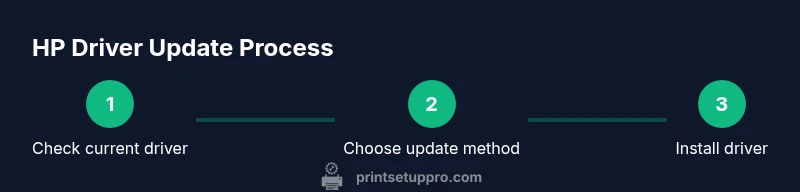
Complete an hp printer update driver to fix printing problems, improve compatibility, and strengthen security. This quick guide shows how to check your current driver version, choose an update method (Windows Update, HP Support Assistant, or manual download), and verify success.
Why Updating Your HP Printer Driver Matters
According to Print Setup Pro, keeping the HP printer driver up to date reduces print errors and unlocks new features. Updated drivers improve compatibility with operating system updates, enhance security, and ensure advanced printer functions (like scanning or wireless printing) continue to work smoothly. Regular updates also simplify future maintenance by aligning firmware and software components.
How to Check Your Current HP Printer Driver Version
Begin by identifying your printer model and the OS you’re using. On Windows, you can open Device Manager, locate your HP printer under "Print queues" or "Printers," right-click, and select "Properties" to view the driver version. On macOS, go to About This Mac > System Report > Printers to note the driver family. Write down the exact version number and date; this will help you determine if an update is needed.
Methods to Update HP Printer Drivers on Windows
Windows users have multiple paths to update drivers. The simplest is Windows Update, which occasionally provides HP driver updates bundled with system updates. Another reliable route is HP Support Assistant, a free utility that scans your hardware, offers recommended updates, and installs them with a click. For a manual approach, visit HP’s official support site, enter your printer model, select the correct OS, and download the latest driver package.
Methods to Update HP Printer Drivers on macOS
Mac users typically receive driver updates through macOS Software Update. This keeps both the OS-level printer framework and HP software aligned. If your Mac relies on HP software utilities, you can also download the driver package from HP’s site and install it manually. Always ensure compatibility with your macOS version before applying updates.
Using HP Support Assistant for One-Click Updates
HP Support Assistant (Windows) guides you to the correct driver version for your specific printer and OS. It automates download, verification, and installation steps, minimizing the risk of selecting an incompatible driver. If you encounter issues during the process, the tool also offers rollback options and post-install checks.
Manual Download from HP's Official Website
When opting for a manual download, visit HP’s official support portal, enter your printer model, and choose the exact OS version. Download the latest available driver package, then run the installer and follow on-screen prompts. After installation, restart your computer and printer to ensure the new drivers load correctly.
Install the Driver and Complete the Setup
Run the downloaded installer, accept the license terms, and allow the setup to complete. If prompted, approve a system restart. After reboot, open a test document and print a page to confirm the driver functions correctly. If your printer appears offline, re-add the device in the printer settings and try a test print again.
Troubleshooting Update Failures
If an update fails, first verify network stability and ensure you downloaded the correct file for your printer model and OS. Temporarily disable antivirus if it mislabels the installer, then reattempt installation. If the issue persists, use a rollback to the previous driver version or uninstall and reinstall the driver package fresh.
Post-Update Verification and Best Practices
After updating, perform a printer test, scan a page if supported, and print from another app to ensure full functionality. Keep a record of the driver version and update date. Schedule periodic checks with official sources to maintain compatibility with future OS updates and app changes.
Safety, Security, and Source Verification
Always download drivers from official HP pages or trusted OS update mechanisms. Be cautious of third-party sites offering "driver bundles"; they may contain malware or unstable components. Enable automatic OS updates where possible to receive timely security patches.
Common Pitfalls to Avoid
Avoid mixing driver versions across devices or using outdated drivers from unverified sources. Do not skip restart after installation, as the new driver may not load correctly. If you switch printer connections (USB to Wi‑Fi), recheck the updated path in the printer settings.
Quick-Reference Update Checklist
- Identify printer model and OS.
- Check existing driver version.
- Choose an update method (Windows Update, HP Support Assistant, or HP site).
- Install and restart as needed.
- Verify by printing a test page and scanning if available.
Tools & Materials
- Computer with internet access(Windows or macOS; ensure browser is up to date)
- HP printer model number(Find on the printer label or in the control panel)
- Access to HP’s official driver download page(Bookmark the page for your model)
- HP Support Assistant (Windows)(Optional tool for guided updates)
- Backup plan (system restore point or driver backup)(Helpful if something goes wrong)
- Printer power and network connectivity(Keep the printer on and connected to the computer or network)
Steps
Estimated time: 45-75 minutes
- 1
Check current driver version
Open your printer settings and note the driver version and date. This establishes a baseline and helps determine if an update is needed. If using Windows, check Device Manager; on macOS, use System Report.
Tip: Document the exact version before changing anything. - 2
Identify printer model and OS
Confirm the exact HP printer model and your operating system version. Incorrect pairing can lead to incompatible updates that fail to install or cause new issues.
Tip: Model numbers are usually on the printer label or within the printer menu. - 3
Choose update method
Decide between Windows Update, HP Support Assistant, or manual download from HP's site. Each method has its own steps and success rates depending on your setup.
Tip: For beginners, start with Windows Update or HP Support Assistant. - 4
Update via Windows Update
Open Windows Update settings and check for driver updates for your HP printer. Install any available HP driver updates and reboot if prompted.
Tip: If no HP update appears, proceed to HP Support Assistant or the HP site. - 5
Update with HP Support Assistant
Launch HP Support Assistant, select Updates, and install HP printer driver updates recommended for your device.
Tip: Use this tool to ensure compatibility with your OS and printer model. - 6
Manual download from HP
Go to HP’s official support portal, enter your model, select the correct OS, and download the latest driver package. Run the installer and follow prompts.
Tip: Verify the file originates from HP to avoid malware. - 7
Install the driver
Run the downloaded installer, accept terms, and proceed with the default settings. Allow any required permissions and consider a restart after installation.
Tip: If installation stalls, cancel and re-run as administrator. - 8
Restart and re-test
After installation, restart your computer and printer, then print a test page to confirm functionality.
Tip: Test both basic print and any additional features your model supports. - 9
Verify features and connectivity
Check wireless printing, scan (if supported), and mobile printing options. Reconfigure settings if necessary, ensuring the printer appears online.
Tip: Keep the updated driver version noted for future reference. - 10
Document and schedule future updates
Record the driver version, update date, and source. Plan regular checks for driver updates to maintain compatibility with OS updates.
Tip: Set a reminder to review updates every few months.
People Also Ask
Why should I update my HP printer driver?
Driver updates fix bugs, add features, and improve security. They also improve compatibility with newer OS updates and maintain printer functionality.
Driver updates fix bugs, add features, and improve security, while keeping your printer compatible with your computer's latest software.
How can I tell if a driver is up to date on Windows?
Use Windows Update or HP Support Assistant to check for available HP driver updates. Compare the installed version with the latest listed on HP’s site.
Check Windows Update or HP Support Assistant for available HP driver updates and compare versions.
What if the update breaks printing after installation?
Try rolling back to the previous driver version or reinstalling the driver. Ensure you download the correct OS and printer model. If issues persist, consult HP support.
If printing breaks after an update, roll back or reinstall the previous driver, then contact HP support if needed.
Do I need to update drivers on macOS differently?
Mac users often receive printer driver updates through macOS Software Update. If HP software is used, install via the HP site only when necessary and ensure OS compatibility.
Mac updates usually come with macOS updates; use HP site only if you need HP-specific utilities.
Can I update drivers for multiple HP printers at once?
In many environments, centralized management tools exist, but for home setups, update each printer individually using official sources.
For multiple printers, use centralized tools if available; otherwise update each printer with official sources.
Is it safe to download drivers over public networks?
Prefer a secure network when downloading drivers to prevent interception of installer files. If possible, use a trusted private network.
Stay on a secure network when downloading drivers to avoid tampered installers.
Watch Video
Quick Summary
- Update from official sources only
- Verify with a test print after installation
- Document driver version and date for future reference
- Schedule regular driver checks to maintain compatibility