How to Check Printer Drivers: A Step-by-Step Guide
Learn how to check printer drivers across Windows and macOS, update safely, and troubleshoot common issues with step-by-step guidance from Print Setup Pro.


According to Print Setup Pro, this guide helps you verify your printer driver version, compare it to the latest release, and install updates with minimal downtime. You'll learn checks you can run on Windows and macOS, plus tips to avoid common pitfalls like stalled updates or misidentified printers. By the end, your printer should communicate reliably with current software.
Why Printer Drivers Matter
Printer drivers act as the translator between your computer and the printer hardware. When you print, the operating system sends commands in a language the printer understands; the driver translates that language into printable instructions. Keeping these drivers up to date matters because newer releases fix bugs, improve compatibility with modern operating systems, and sometimes unlock new features like enhanced color management or duplex printing. Under the hood, outdated drivers can cause random print failures, misaligned pages, or slower performance. According to Print Setup Pro Analysis, driver-related issues are among the most common troubleshooting topics for home offices and small teams. Understanding how to check printer drivers is not just about chasing the latest version; it's about ensuring reliable, predictable results. This guide focuses on practical checks you can perform on Windows and macOS, with safe strategies to update drivers without disrupting your existing setup. If you rely on a printer for daily tasks, this knowledge helps keep projects moving smoothly, whether you’re drafting reports, printing invoices, or preparing classroom handouts.
Quick checks before updating drivers
Before you jump into updates, perform a few quick checks to avoid wasted time or accidental missteps. First, confirm your OS version is supported by the driver you plan to install. Look at the release notes to see which Windows or macOS versions are compatible. Second, record the current driver version and date so you can compare against new releases. Third, back up the current driver if your system allows exporting or creating a restore point; this makes it easier to roll back if something goes wrong. Fourth, decide if you actually need an update; if your printer is functioning reliably, you may schedule updates during a maintenance window rather than immediately after a new release. Finally, determine whether you’ll update via Windows/Mac updates, or download a standalone installer from the manufacturer. Each path has its own safeguards; using the official source reduces the risk of bundled software or malware.
How to check printer driver version on Windows
On Windows, you can verify your printer driver version from the Settings app or Control Panel. Start by opening Settings > Devices > Printers & scanners, then click 'Manage' or 'Open queue' for your printer. In the Printer properties dialog, switch to the Driver tab to see the Driver Version, Provider, and Driver Date. If your driver is older than the latest release published on the manufacturer’s site, you should proceed to update. You can also check for updates automatically through Windows Update, which sometimes supplies driver updates integrated with system updates. If you see a driver date that predates your printer model’s release, that’s a strong signal to download the latest from the vendor. This process helps ensure you’re not missing critical security or performance improvements.
How to check printer driver version on macOS
Mac users can view driver details via System Settings (Ventura and later) or System Preferences (older versions). Open System Settings > Printers & Scanners, select your printer, and click 'Options & Supplies' (or 'More Info' depending on macOS version). Look for a 'Driver Version' line in the Overview or Drivers tab. If there’s an updated version available on the manufacturer site, compare the version number to what’s listed in macOS. Update steps are similar: download the proper package, run the installer, and restart the printer service or the computer as required. If you’re using AirPrint, note that macOS may rely on built-in drivers and not require a separate download; however, for features like duplex printing or color controls, vendor drivers may still be necessary.
How to update or reinstall printer drivers
Sometimes a straightforward update is enough, but other times you should reinstall the driver to fix corrupted files. Start by visiting the vendor’s official support page, search for your printer model, and download the correct driver package for your OS. Once downloaded, run the installer and follow the prompts. If you’re given an option to 'Remove old drivers' or 'Perform clean installation', choose it to minimize conflicts. After installation, restart your computer and, if needed, restart the Print Spooler service on Windows or reset the printing system on macOS. Finally, print a test page to confirm the new driver is functioning as expected.
Troubleshooting common driver issues
Driver problems can show up in several ways: a printer appearing offline after a driver update, the system not finding the printer, or poor print quality after installation. Start by confirming the driver version matches the one you intended to install and that the OS is compatible. If the printer remains offline, disable and re-enable the printer, restart the spooler, and re-add the device. For print quality issues, check color profiles, enable/disable advanced features, and run a align or calibration page if your printer supports it. Security warnings during installation often indicate a malware risk; always download from the official site and verify digital signatures. If all else fails, revert to the previous driver version and re-test.
Verifying printer communication after driver changes
After installing or updating drivers, perform a practical check by printing a test page and a simple document with common features (text, images, color). Confirm that the printer appears online, the status shows as ready, and jobs clear from the queue promptly. If issues persist, re-check the cable/network connection, verify printer IP address if using a networked setup, and consult the vendor’s support resources for model-specific guidance. Regular verification helps catch subtle issues before they affect your daily tasks.
Tools & Materials
- Computer (Windows or macOS)(Admin rights recommended for driver installation)
- Official printer driver installer or driver package(Download from the manufacturer’s site; avoid third-party sources)
- USB cable or reliable network connection(Used for installation with direct or networked printers)
- Printer model number and current driver version(Needed to identify the correct driver)
- Internet access(To fetch updates and verify versions)
- Printer documentation/manual(Helpful for model-specific steps)
Steps
Estimated time: 40-75 minutes
- 1
Open Printer Settings to view the current driver version
Open the Printers control panel (Windows) or Printers & Scanners preferences (macOS) and select your printer. Locate the Driver version and Date in the printer properties. Record the exact version string for later comparison.
Tip: Take a screenshot of the driver details so you have a reference if you need to backtrack. - 2
Check the latest driver version from the manufacturer
Visit the vendor’s official support page for your printer model and OS. Compare the published Driver Version and Date with the ones you recorded. If the vendor lists a newer version, plan an update.
Tip: Double-check the OS build (Windows 10/11, macOS version) matches your device before downloading. - 3
Download the correct driver package for your OS
From the official support page, download the exact driver package that matches your operating system. Save it to a known folder and verify the file name corresponds to your printer model.
Tip: Save the file to a known folder and avoid downloads in temporary folders to prevent accidental deletion. - 4
Install or update the driver
Run the installer and follow prompts. If offered, choose a clean install to remove old components. Cancel any bundled software you don’t need to minimize bloat.
Tip: Close other programs to reduce installation conflicts; disable antivirus if the installer is blocked—re-enable afterward. - 5
Restart the printer spooler service or your computer
On Windows, restart the Print Spooler service via Services. On macOS, you may need to reset the printing system or restart the computer for the OS to recognize the new driver.
Tip: A fresh start clears stuck print jobs that could otherwise masquerade as driver problems. - 6
Print a test page to verify the driver is functioning
After the reboot, print a test page to confirm correct text, alignment, and color. If it fails, re-run the installation or revert to the previous driver version.
Tip: If the test page shows issues, note the symptom (e.g., color drift, misalignment) to guide subsequent fixes.
People Also Ask
Do I need to update printer drivers even if the printer works?
Yes. Updates fix bugs, improve security, and enhance compatibility. If there are no issues, you can schedule updates, but don’t skip checks entirely.
Yes. Updates fix bugs, improve security, and enhance compatibility. Schedule checks even if everything seems fine.
How do I know if the driver is the latest version?
Compare the installed version and date with the vendor’s published release notes. If the vendor shows a newer version, plan the update.
Compare your current driver version with the vendor’s latest release notes to confirm you’re up to date.
Can I update drivers for Windows and macOS at the same time?
Driver updates are OS-specific. Update Windows and macOS drivers separately, following each platform’s official process.
Updates must be done separately for Windows and macOS using their respective official methods.
What if updating the driver doesn't fix the issue?
If issues persist, try a clean reinstall, reset the printer spooler, or test with another driver version. Check for firmware updates from the manufacturer.
If issues persist, reinstall cleanly and consider firmware updates. Recheck with a different driver version if needed.
Is it safe to uninstall and reinstall drivers?
Generally safe when done using the manufacturer’s installer. Ensure you have a backup and a known-good driver to reinstall.
Yes, use the official installer and keep a backup so you can reinstall if needed.
How often should I check printer drivers?
Aim for a quarterly check or anytime you encounter printing issues after a system update. Stay proactive during major OS upgrades.
Check a few times a year or whenever your OS updates. It's a good maintenance habit.
Watch Video
Quick Summary
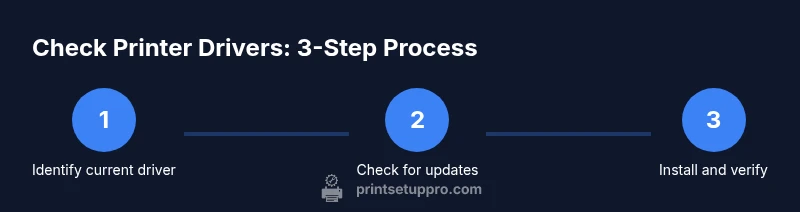
- Identify your current driver version.
- Check for official updates from the manufacturer.
- Install the correct OS driver package.
- Restart services and verify with a test print.
- Document driver versions for future reference.