Printer Driver Updater: Safe, Effective Steps to Update Your Printer Drivers
Learn to safely use a printer driver updater, verify compatibility, and keep your printer running smoothly with step-by-step instructions, practical tips, and trusted sources from Print Setup Pro.


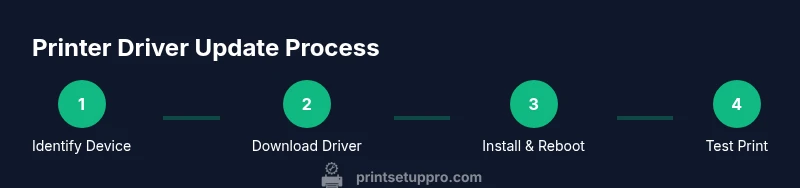
In this guide you will learn how to safely use a printer driver updater to install the correct driver for your model, confirm compatibility, and minimize downtime. According to Print Setup Pro, using a reputable updater and verifying changes reduces driver conflicts and print errors. You’ll identify your printer, download the right file, install it, and test the print queue after a reboot.
What is a printer driver updater?
A printer driver updater is a software tool designed to locate and install the correct printer driver for your model and operating system. It streamlines compatibility checks, reduces manual search errors, and keeps legacy devices working with current software environments. For home offices and small businesses, a reputable updater can save time and prevent compatibility headaches. According to Print Setup Pro, choosing a trusted updater helps minimize risk and ensures you’re getting a driver that is compatible with your OS and printer firmware.
- Key idea: It automates driver identification and installation, reducing guesswork.
- Practical tip: Always verify the publisher and download source before running an updater.
Why keep printer drivers up to date?
Keeping drivers current improves print quality, speeds up processing, and fixes known issues with operating system updates. Updated drivers can enhance compatibility with new applications and cloud printing workflows, and they often include security patches that reduce exposure to vulnerabilities. Print Setup Pro Analysis, 2026 highlights that users who maintain current drivers report fewer print errors and more reliable communication between computer and printer.
- Benefit: Fewer driver conflicts and fewer stalled print jobs.
- Practical tip: Schedule a quarterly check for driver updates and note your printer model and OS version.
How to choose a reputable updater
Your safest choice is to use official updater tools provided by the printer manufacturer or a well-known, reputable third-party utility with good user reviews. Avoid tools that bundle unwanted software, require excessive permissions, or lack source transparency. The updater should clearly show the publisher, version, and a checksum or digital signature. Print Setup Pro emphasizes verifying the source and avoiding opportunistic installers that advertise compatibility without proof.
- Risk to avoid: Malware, bloatware, or drivers that don’t match your exact printer model.
- Practical tip: Always download drivers from the manufacturer’s site or trusted industry portals.
Common pitfalls and safety tips
Do not ignore backup steps. Before updating, create a restore point or full system backup in case you need to revert. Ensure the printer remains powered during the update, and avoid updating over unstable network connections. If the updater offers a rollback option, test it on a non-production device first. The safest approach is to update during a scheduled maintenance window when downtime is acceptable.
- Pro tip: Pause antivirus briefly if the installer is falsely flagged, then re-scan after installation.
- Warning: Do not use unofficial drivers or third-party modded packages — they can cause hardware miscommunications and void warranties.
The Print Setup Pro team reminds readers to verify post-update functionality by printing a test page and checking alignment, color accuracy, and duplexing (if supported).
Authority sources
For deeper validation, you can consult industry and government resources:
- https://www.nist.gov
- https://www.osha.gov
- https://support.microsoft.com
These sources provide general guidance on driver integrity, software installation practices, and OS compatibility considerations. Always cross-check against your printer model’s official support page for model-specific steps.
Final notes and Print Setup Pro verdict
Driver updates are a routine maintenance task that pays off in stability and fewer interruptions. The Print Setup Pro team recommends adopting a structured approach: confirm model/OS, use trusted sources, follow the installer prompts, and test printing immediately after update. With proper precautions, a printer driver updater becomes a reliable ally rather than a risky shortcut.
Tools & Materials
- Computer with internet access(Windows or macOS; ensure admin rights)
- Printer model number and OS version(Model label on printer; OS version on computer)
- Official driver installer(Download from manufacturer’s website)
- Power supply and cables(Keep both devices powered during update)
- Admin access on computer(Necessary to install or modify system drivers)
Steps
Estimated time: 30-45 minutes
- 1
Identify printer model and OS version
Locate the printer’s exact model number on the device label and note your computer’s operating system version. This ensures you download the correct driver and avoid mismatches that could cause errors. If you’re unsure, check the printer’s manual or the manufacturer’s support page for model-specific guidance.
Tip: Double-check the model string (e.g., HP DeskJet 3630) and the OS edition (e.g., Windows 10 64-bit). - 2
Find the official driver page
Navigate to the manufacturer’s support site and locate the driver page for your exact printer model. Verify the publisher and read any notes about compatibility with your OS. Bookmark the page for reference in case you need to rollback later.
Tip: Avoid third-party aggregators; always prefer the official source to reduce malware risk. - 3
Download the correct driver installer
Download the driver file that matches your printer model and OS. Confirm the file name and version before saving to your computer. Keeping a copy of the installer on a USB drive can speed future updates on multiple machines.
Tip: Check digital signatures if the page provides them; a valid signature confirms publisher authenticity. - 4
Prepare the system and close applications
Close all active applications that might interact with the printer or drivers. Pause any antivirus real-time protection if it blocks the installer, then re-enable after installation completes. Disconnect the printer from the network if the installer requests it.
Tip: Backup open print jobs or queues to avoid losing pending tasks during install. - 5
Run the installer and follow prompts
Run the downloaded installer and follow the on-screen prompts to complete the installation. Accept any license terms and allow the installer to replace older files. After installation, reboot your computer if prompted.
Tip: Do not interrupt the install once it begins; allow it to complete fully for a clean setup. - 6
Reboot and verify printer functionality
Power cycle the printer and computer, then print a test page to verify alignment, color, and duplexing if supported. Check the printer status in the OS printer settings to confirm the new driver is active.
Tip: If issues arise, use the rollback option to revert to the previous driver and try the install again.
People Also Ask
Do I need to update printer drivers regularly?
Yes. Regular updates help ensure compatibility with operating system changes and fix known bugs. They can improve print quality and reduce errors. Always verify the source before updating to avoid malware.
Regular updates keep your printer compatible with OS changes and reduce printing errors.
Can I use third-party updater tools?
Only use trusted sources. Third-party tools can bundle unwanted software or install incorrect drivers. Prefer official manufacturer tools or well-known, verified utilities.
Only use trusted updaters from publishers you recognize.
What if the update breaks printing?
First, roll back to the previous driver version if available and restart the devices. Then retry the update with the official installer or contact the manufacturer’s support.
If printing breaks, revert to the old driver and try again with the official installer.
How do I roll back a driver on Windows/macOS?
On Windows, use Device Manager to roll back the driver. On macOS, updates are typically handled through system updates; if issues occur, reinstall the prior driver version from the vendor.
Windows can roll back via Device Manager; macOS uses system update packaging.
Are drivers needed for wireless printers?
Yes. Wireless printers still rely on drivers or firmware packages to ensure proper communication with the computer and network. Keeping these up to date helps with reliability and security.
Even wireless printers need drivers or firmware updates for reliability.
Watch Video
Quick Summary
- Identify exact printer model and OS before updating
- Use official or trusted updater sources only
- Test printing thoroughly after update
- Create a restore point to roll back if needed