Update HP Printer Firmware: A Step-by-Step Guide
Learn how to safely update hp printer firmware with a clear, step-by-step process. This guide covers checks, methods, safeguards, and verification to keep your printer secure and compatible.


This quick guide helps you safely update hp printer firmware and keep your device secure. You’ll learn how to check your current firmware version, verify update availability, choose the best method (Wi‑Fi, USB, or HP Smart), and confirm the success of the update. Following these steps minimizes downtime and errors. According to Print Setup Pro, staying current improves reliability and security.
What firmware is and why it matters for HP printers
Firmware is the built-in software that controls how your HP printer operates, interfaces with hardware components, and communicates with computers and mobile devices. Keeping this software up to date matters for compatibility with new print features, security patches, and bug fixes. For home offices and small businesses, a current firmware version can improve reliability when printing from different apps, enhance network stability, and reduce the likelihood of driver conflicts with operating systems. According to Print Setup Pro, regular firmware maintenance reduces common print problems and helps you stay aligned with evolving security standards. In practice, this means you’ll spend less time dealing with unexplained paper jams, stalled print queues, or connectivity hiccups when sending jobs from your computer or smartphone.
How HP firmware updates are delivered
HP delivers firmware updates through several channels to accommodate different user environments. The most common method is via the HP Smart app or HP’s official support site, where you can check for available updates and install them directly over Wi‑Fi. In some cases, updates can be performed using a USB flash drive by loading a downloaded firmware file onto the drive and applying it from the printer's control panel. Networked printers may also receive automatic updates when connected to the internet, depending on device policy and customer preferences. The key is to use official sources to avoid tampered files and to follow printer prompts precisely during the update process.
Benefits of keeping firmware current
A current firmware version brings several tangible benefits for HP printers. First, compatibility with new print drivers and operating systems improves performance and reduces the chance of miscommunication between devices. Second, security patches help defend against emerging threats that could expose your network or print data. Third, firmware updates often unlock or stabilize features such as enhanced color accuracy, improved scan-to-network behavior, or smoother operation with mobile printing apps. Print Setup Pro analysis shows that consistent updates correlate with fewer support tickets related to printer connectivity, a smoother user experience, and better alignment with enterprise-grade security practices.
Finding your current firmware version and model
Start by identifying your exact printer model number (found on the front or back label) and locating the current firmware version in the printer menu or the HP Smart app. On many HP printers, you can navigate to Settings > About or Information to view firmware details. If you use the HP Smart app, go to your printer’s page and select About or Firmware Information. Recording the model and firmware version helps you determine the correct update file and ensures you don’t install an incompatible version that could cause issues.
How to determine if an update is available
Check HP’s official support pages for your printer model or use the HP Smart app’s built-in update feature. On the support site, search for your exact model and review the Firmware or Drivers section for the latest version. The HP Smart app will typically indicate that an update is ready, or you can trigger a manual check from the printer’s Ethernet/Wi‑Fi interface. Only download firmware from trusted sources to protect your device from corrupted or malicious files.
Preparation before updating: power, network, and backups
Before initiating any firmware update, ensure the printer is powered from a reliable source—ideally a surge protector or UPS—to avoid power loss during the upgrade. Connect the printer to a stable network (Wi‑Fi or Ethernet) with adequate bandwidth. If you rely on a shared network, plan the update for a low-traffic window to minimize interruptions. It’s also prudent to back up settings like wireless configurations and scanner preferences if your printer stores them in memory—this makes reconfiguration after a firmware update faster and less confusing.
Update methods: HP Smart app, web interface, USB
HP provides three main pathways for firmware updates. The HP Smart app on your mobile device or computer can download and install updates over the network in a few taps. The printer’s web interface (or embedded printer control panel) often offers a firmware update option when connected to a browser. A USB update involves downloading the firmware file to a computer, copying it to a USB drive, and applying it from the printer’s control panel. Choose the method that matches your environment: network updates are convenient, USB updates are useful where network reliability is uncertain, and using official sources is essential for security.
Step-by-step approach to planning the update (high-level overview)
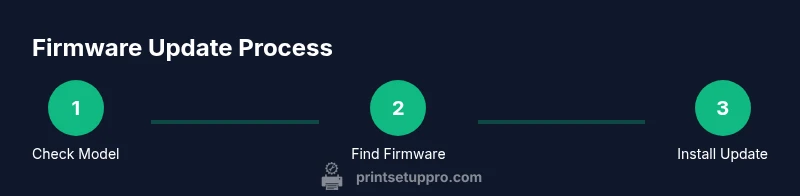
Before you start, outline the steps you’ll take and have the necessary equipment ready. Verify model and current firmware, confirm update availability, choose the update method, and ensure power stability. Prepare a brief rollback plan in case the update doesn’t complete successfully. While this section offers a high-level roadmap, you’ll find a detailed step-by-step guide in the dedicated STEP-BY-STEP block to follow in order and avoid skipping critical actions.
Troubleshooting common update issues
If an update fails, note any error codes displayed by the printer or app. Retry with an alternate method (USB vs Wi‑Fi) and verify that the downloaded file is intact and uncorrupted. Check that the printer has sufficient power, isn’t in sleep mode, and that the network connection remains stable during the process. Persistent failures may indicate a hardware fault or compatibility anomaly; contact HP support for further guidance, providing model, firmware version, and screenshots of error messages.
After updating: verification and security best practices
Post-update verification is essential. Print a test page to confirm print quality, run a scan test if applicable, and recheck the firmware version in the printer menu or HP Smart app to confirm the upgrade. Revisit any network settings or security preferences that may have changed during the process, such as wireless LAN security mode or print server IPs. Finally, schedule the next update check so your printer remains current with security patches and feature enhancements into 2026 and beyond.
Tools & Materials
- Printer connected to a reliable power source(Use a surge protector or UPS to prevent power loss during the update.)
- Official HP firmware source (HP Smart app or HP support site)(Only download from HP to avoid corrupted files.)
- Computer or mobile device with internet access(Needed to fetch the firmware or run the app during update.)
- USB flash drive (optional)(Only if you plan to update via USB; ensure it’s clean and formatted.)
- Stable network connection (Wi‑Fi or Ethernet)(A solid connection minimizes update interruptions.)
- Printer model, serial number, and current firmware version(Needed to verify you download the correct firmware.)
- Backup of printer settings(Helpful if your printer stores network or scanner preferences.)
Steps
Estimated time: 30-45 minutes
- 1
Identify printer model and current firmware
Locate the model number on the printer label. Open the printer menu or the HP Smart app to view the current firmware version. Document both details to ensure you fetch the correct update.
Tip: Take a photo of the label and the firmware screen for quick reference. - 2
Check for update availability
Visit the official HP support site for your model or use the HP Smart app to check for updates. Compare the listed firmware version with what’s currently installed.
Tip: Only download updates from official HP sources to avoid tampered files. - 3
Choose update method
Decide whether to update over the network via HP Smart, through the printer’s web interface, or by USB. Pick the method that best suits your network stability and hardware setup.
Tip: USB updates can be safer on unreliable networks. - 4
Prepare hardware and power
Ensure the printer is plugged into a stable power source and connected to a reliable network. Disable sleep/auto-off during the process if applicable.
Tip: Use a UPS if power outages are a concern in your area. - 5
Download or load firmware file
If using HP Smart or the web interface, download the firmware from the official source. If using USB, copy the file to the drive and insert it into the printer.
Tip: Verify integrity if a checksum is provided by HP. - 6
Initiate the update
Start the update from the chosen method and monitor progress. Do not disconnect power or network during installation.
Tip: Keep the printer close to the router for stable connectivity. - 7
Verify success and reconfigure if needed
Print a test page and check the firmware version again to confirm the update. Reapply network settings if the update altered them.
Tip: Keep a log of the update date and version. - 8
Troubleshoot failed updates
If the update fails, attempt a second time with a different method. If problems persist, contact HP support with error codes and screenshots.
Tip: Document any error messages to speed up support calls.
People Also Ask
Do HP printers require an internet connection to update firmware?
Updates can often be performed over the internet via the HP Smart app or the HP support site, but USB updates are available for offline scenarios. Ensure the device is connected when using online methods.
Most HP firmware updates require internet access when using the HP Smart app, but USB updates are available if you need an offline option.
What should I do if the update fails?
Retry using an alternate method (USB vs Wi‑Fi), check power and connection stability, and verify the firmware file integrity. If it still fails, contact HP support with error codes and steps you used.
If the update fails, try another method, check power and internet, and contact HP support with details.
Can firmware updates reset printer settings?
Most firmware updates don’t erase custom settings, but some network or wireless configurations may temporarily reset. After updating, recheck and reconfigure as needed.
Usually settings stay the same, but you may need to recheck network settings after an update.
How long does an update take?
The duration varies by method and device, but most HP firmware updates complete within a short session. Plan for a window of time where printing is paused.
Expect updates to take several minutes up to a quarter-hour depending on method.
Is it safe to update firmware on a busy network?
Yes, but ensure a stable connection and try to update during periods of lower network traffic to minimize interruptions. If needed, use a wired Ethernet connection.
It's generally safe on a busy network if you use a reliable connection and avoid interruptions.
Where can I download firmware safely?
Always use HP’s official support site or the HP Smart app to download firmware. Avoid third-party sites to reduce risk of corrupted software.
Get firmware only from HP’s official site or the HP Smart app.
Watch Video
Quick Summary
- Verify printer model and firmware version first
- Use official HP sources for updates
- Ensure stable power and network during update
- Test print and verify firmware version afterward
- Document update details for future reference