HP Printer Firmware Update: Step-by-Step Guide for 2026
Learn how to safely update HP printer firmware with a practical, step-by-step walkthrough. This guide covers prerequisites, download sources, and troubleshooting to keep your printer secure and reliable in 2026.


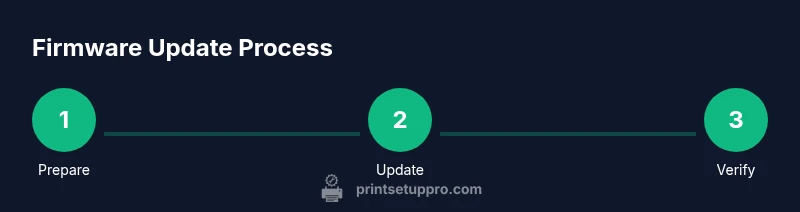
You will safely update your HP printer firmware to improve performance, fix bugs, and strengthen security. Before you start, ensure the printer is plugged in, connected to your computer or network, and has paper. Download the correct firmware from HP Support, verify your model number, and back up any custom settings. Follow the step-by-step guide to complete the update without interruption.
Understanding HP Printer Firmware Updates
Firmware updates for HP printers improve compatibility, fix bugs, and strengthen security. This article explains what a firmware update is, why it matters for ongoing reliability, and how it differs from a simple driver update. By following the steps in this guide, you’ll learn how to perform an HP printer firmware update safely, confirm you have the right version, and test that the printer operates normally afterward. According to Print Setup Pro, staying current with firmware reduces vulnerability exposure and expands feature support across models.
Pre-Update Readiness
Before attempting any firmware update, establish a clear readiness plan. Confirm your printer model and current firmware version, ensure a reliable power source, and choose a update path (USB or network) that matches what your device supports. Print Setup Pro emphasizes that preparation minimizes the risk of bricking the device. A basic readiness checklist includes power stability (use a surge protector), an active internet connection if you download updates online, and access to the official HP support page for your model. This effort reduces downtime and helps you recover quickly if something goes awry.
Identifying Your Printer Model and Firmware Version
Accurate model identification is essential to download the correct firmware file. Start by noting the exact model name from the front panel or status page, then locate the serial number on the label underside. With the information in hand, visit HP Support and enter your model to view available firmware updates. After listing the matching firmware, record the version number and build date to verify you’re updating to the intended release. This step saves time and prevents accidental upgrades to an unsupported variant.
Update Methods: USB, Network, and HP Smart App
HP printers offer multiple firmware update pathways depending on model and network setup. If your printer supports USB, you can load a downloaded firmware file directly via the device or computer. Network updates usually run through the printer’s embedded web server or the HP Smart App, delivering updates over Wi‑Fi or Ethernet. Choose the method that minimizes interruption and is compatible with your environment. Note that not all models support every method, so consult the manual for model-specific instructions.
How Updates Are Delivered and What to Expect
Firmware delivery can occur over the air (via network) or from a connected USB drive. In both cases, the printer enters a update state and will temporarily pause printing. The duration depends on the file size and the printer model but generally ranges from a few minutes to longer for larger updates. During this time, avoid power interruptions and do not disconnect cables. HP’s official guidance is to supervise the process and ensure power remains stable throughout the operation.
Verifying the Update and Troubleshooting
After the update completes, verify the new firmware version shown on the printer control panel or in the printer settings on your computer. Run a quick test page and verify print quality and functionality of network features. If issues arise, consult HP Support for rollback options or reattempt the update using the correct firmware file. Print Setup Pro analysis shows that confirming a successful update reduces post-update troubleshooting and ensures new features are active.
Security Best Practices and Maintenance
Keeping firmware current is a foundational security practice. Enable automatic notifications if your printer model supports them, and set a reminder to check for new firmware annually or after critical vulnerability disclosures. Maintain a short changelog of updates and test essential features after each upgrade. The Print Setup Pro team emphasizes treating firmware updates as part of routine maintenance to preserve device integrity and performance.
Tools & Materials
- HP printer model and serial information(Locate model and serial on the printer label or status page.)
- Stable internet connection(Wi-Fi or Ethernet; ensure download and update won’t be interrupted.)
- Computer or mobile device with HP Smart app or browser(Access HP Support pages and run updates.)
- USB cable (optional)(Use only if your printer supports USB firmware updates.)
- Surge protector or uninterruptible power supply(Prevents power loss during the update.)
- Backup/export of printer settings(Back up network settings and preferences if possible.)
Steps
Estimated time: 30-60 minutes
- 1
Identify model and download correct firmware
Confirm the exact printer model and serial. Visit HP Support, select your model, and download the latest firmware file. Verify the version and date before downloading to avoid installing incorrect software. This step reduces the risk of failed updates and ensures compatibility with your hardware.
Tip: Double-check the model number against the printer label to prevent mismatches. - 2
Prepare the printer and power
Ensure the printer is plugged into a reliable power source and placed near the updating device. If using USB, connect the USB cable securely. Close all other applications that may interfere with the update. A stable power and connection setup minimizes update failures.
Tip: Use a surge protector to guard against outages during the update. - 3
Choose update method and connect
Decide whether to update via USB, network, or HP Smart App. Follow model-specific instructions for your chosen path. Ensure the printer and update device are on the same network if updating over the air, and that firewalls won’t block the download.
Tip: If unsure, start with the network/HP Smart App method as it’s most common for many HP models. - 4
Run the firmware update
Open the downloaded firmware file or use the HP Smart App’s firmware update option. Initiate the update and monitor progress. Do not interrupt the process once it starts, and avoid closing windows or turning off devices during the operation.
Tip: Do not press reset or unplug the printer while the update is in progress. - 5
Wait for the update to complete
Allow the update to run to completion. Depending on file size, this may take several minutes. The printer may restart automatically. Do not power off or disconnect during the restart phase.
Tip: If the update seems stalled for more than 10 minutes, check cables and power; retry if needed. - 6
Verify, test, and finalize
Print a test page and verify the new firmware version on the control panel or via the driver. Confirm basic functions (copy/scan/network printing) and features enabled by the update. Document the new version for future reference.
Tip: Keep a short changelog with the new version and date.
People Also Ask
Do I really need to update my HP printer firmware?
Firmware updates fix bugs, improve compatibility, and address security concerns. If your model has a newer recommended version on HP Support, updating is advisable for reliability and access to new features.
Firmware updates fix bugs and improve security, so check HP Support and update when recommended.
What should I do if the update fails?
If an update fails, review the error message, verify model compatibility, check connections, and retry using the same official file. If it continues to fail, contact HP Support for guidance or a rollback option.
If updating fails, check connections and retry once with the official file; contact HP Support if problems persist.
Can I downgrade firmware after updating?
Downgrading firmware is often not supported by manufacturers and can void warranties. If you need an older version due to a compatibility issue, consult HP Support for guidance.
Downgrades aren’t usually supported; ask HP Support before attempting any rollback.
Is the HP Smart app required to update firmware?
The update method varies by model. Some printers allow updates through the HP Smart app or web interface, while others require a USB or built-in updater. Check your model’s instructions on HP Support.
Some models let you update via the HP Smart app, others don’t; check your printer’s instructions.
How long does a firmware update typically take?
Most firmware updates complete in a short period, typically under 30 minutes, but larger files or slow networks can extend this time. Plan for a window where printing is unavailable.
Usually under 30 minutes, but it can take longer if your network is slow.
Watch Video
Quick Summary
- Back up settings before updating.
- Verify model and firmware version.
- Use official HP sources when updating.
- Test print after update.