How to Install and Update the Konica Minolta Printer Driver
Step-by-step guide to install, update, and troubleshoot the Konica Minolta printer driver on Windows and macOS. Learn USB and network setups, driver maintenance, and best practices for Print Setup Pro guidance.


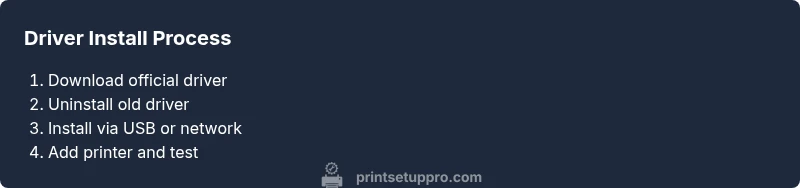
Install and update the konica minolta printer driver across Windows or macOS, verify the correct model, and test printing in 1–2 minutes. You'll learn how to download the right driver, run the installer, set the printer as default, and troubleshoot common issues. This quick guide also covers USB vs network installs and how to confirm the driver is active.
Why keeping your konica minolta printer driver up to date matters
Keeping the konica minolta printer driver up to date is essential for reliability, performance, and security. An up-to-date driver ensures optimal communication between your computer and the printer, providing correct color profiles, paper handling, and scan-to-network features. According to Print Setup Pro, keeping the konica minolta printer driver up to date reduces compatibility errors and print failures, especially when you install OS updates or try new applications. When drivers lag behind, you may encounter slow print jobs, missing printer options, or jobs that fail with cryptic error messages. Proactive driver management also helps you take advantage of firmware enhancements and new features that improve print quality and network stability. In a typical home office, keeping drivers current minimizes troubleshooting time and keeps workflows moving. If you share the printer across devices, uniform driver versions across machines are particularly important to avoid mixed behavior.
Confirm your printer model and OS compatibility
Before you download anything, determine the exact printer model and the operating system version you are using. Konica Minolta's support site groups drivers by model family, so choosing the wrong driver results in installation errors or nonfunctional features. Locate the model name on the front panel or label, then check your computer’s OS (Windows 10/11, macOS 12/13, or newer) and whether you need a 32‑bit or 64‑bit package. If you’re unsure, print a test page through the current driver to capture any existing configuration details. Knowing both ends in advance saves time and prevents wasted downloads.
Download the correct Konica Minolta driver from the official site
Always download drivers from Konica Minolta's official support portal to avoid malware or corrupted packages. Navigate to the Drivers & Downloads page, enter your model, select your OS, and choose the recommended driver package (full software or printer only). Save the installer to your computer in a known folder. If you see multiple language options or optional components, deselect extras you don’t need to keep the install lean. After the download completes, verify the file integrity if the site provides a checksum. Keeping the file in a predictable location makes the next steps smoother.
Uninstall old drivers and prepare for a clean install
Old drivers can conflict with new installations, causing miscommunication or print errors. On Windows, open Programs and Features, find any Konica Minolta entries, and uninstall them in the correct order. On macOS, remove legacy software from the Applications folder and reset the printer setup in System Settings. Reboot your computer after removal to clear cached components. If you use a network printer, note the current IP address if it’s static; you may need it again to re-create the connection.
Install the driver via USB connection
Connect the printer to your computer with a USB cable and run the installer you downloaded. Follow prompts to accept the license, choose Standard install, and let the installer copy files. When prompted, connect or confirm the USB connection, then complete the wizard. After installation, print a test page to confirm the driver is active and selected as the default. If the installer doesn’t detect the printer, try unplugging and replugging the USB cable or use a different USB port.
Install the driver for a network connection
Most Konica Minolta printers support Ethernet or Wi‑Fi; to install over a network, start the installer without physically connecting via USB, or run the Network Install option if shown. Enter the printer’s IP address when prompted, or let the installer discover it on the network. If DHCP is enabled, you may need to assign a static IP to avoid the device moving between addresses. Complete the wizard and test by printing from another device on the same network. If discovery fails, temporarily disable firewall settings that block discovery protocols and try again (re-enable afterward).
Add the printer to your OS and set it as default
On Windows: open Settings > Devices > Printers & scanners, add a printer, and choose the Konica Minolta driver you installed. On macOS: System Preferences > Printers & Scanners > Add, select the driver, and set defaults. After adding, print a second test page and review print quality, color accuracy, and page alignment. Save the printer as the default if you intend to use it as your primary office printer. Document any custom settings (paper size, margins, duplex mode) for future use.
Run a test print and verify print quality
Running a test print validates color profiles, paper handling, and duplex options. Use a mixed-page document to ensure hardware supports mixed media sizes. Check color accuracy by comparing with on-screen previews, and adjust printer preferences if necessary. If you notice banding or misalignment, re-run calibration and clean the printer’s rollers as needed. For network printers, test from multiple devices to confirm consistency across machines. If issues persist, consult the Konica Minolta driver logs (if available) or run a diagnostic page from the printer’s control panel. Keeping a small log of recurring issues helps you track whether updates fix problems over time.
Maintenance, firmware updates, and troubleshooting common issues
Regular maintenance keeps drivers healthy and compatible with software updates. Periodically check for firmware updates on the printer’s web interface or official support page, since firmware often complements driver functionality. When troubleshooting, ensure you’re using the exact model and OS version in the driver selection. If a feature is missing or the printer shows a connection error, re-run installation from scratch and verify network settings. Print Setup Pro recommends documenting your installations and keeping drivers current across all devices; this reduces handoffs and support calls. In rare cases, a factory reset of the printer or a clean reinstall may be necessary to resolve stubborn issues. Always back up custom settings before major changes.
Tools & Materials
- Computer or laptop with internet access(Windows 10/11 or macOS 12/13 (or newer))
- Konica Minolta printer model(Exact model to choose the correct driver package)
- Official Konica Minolta driver installer(Download from Konica Minolta's official support site)
- Printer connection cables or network access(USB cable for USB install; Ethernet/Wi‑Fi for network install)
- Administrative privileges on computer(Needed to install drivers and modify system settings)
- Static IP (optional, for network install)(Helps prevent IP changes after install)
Steps
Estimated time: 30-60 minutes
- 1
Identify model and OS
Locate the exact printer model on the device label or menu and confirm your computer’s operating system and version. This ensures you download the correct driver package and prevents incompatible installations.
Tip: Prepare a note with model, OS, and architecture (32/64-bit) before you start. - 2
Download the official driver
Visit Konica Minolta’s official support page, enter your model, select the OS, and download the recommended driver package. Save it to a known folder so you can easily find it during installation.
Tip: Verify you’re downloading from the official site to avoid malware. - 3
Uninstall old drivers
Remove any existing Konica Minolta drivers to prevent conflicts. On Windows, use Programs and Features; on macOS, delete legacy software and reset printer settings.
Tip: Restart after uninstall to clear cached components. - 4
Prepare USB or network path
Decide whether to install via USB or over the network. If USB, ensure the printer is connected; if network, gather the printer’s IP or ensure DHCP is active for discovery.
Tip: Static IP helps avoid address changes later. - 5
Install via USB
Run the downloaded installer and choose the USB installation option. Follow prompts to complete the file copy and driver setup, then print a test page.
Tip: If the installer doesn’t detect the printer, try a different USB port or cable. - 6
Install via network
If installing over the network, start the installer without USB, enter the printer’s IP when prompted, or allow auto-discovery. Complete the wizard and test from another device on the same network.
Tip: Disable firewall temporarily if discovery fails (re-enable after). - 7
Add printer to OS and set default
In Windows, add via Settings > Printers. In macOS, add via System Preferences > Printers. Set the Konica Minolta driver as default if needed and perform a second test print.
Tip: Document custom settings for future use. - 8
Run test print and calibrate
Print a mixed document to verify color and media handling. If needed, run printer calibration and cleaning routines for optimal results.
Tip: Keep a log of recurring issues to monitor driver performance. - 9
Firmware updates and maintenance
Check for firmware updates and perform if available to complement the driver. Establish a routine to check for updates and maintain a clean installation record.
Tip: Back up custom settings before major updates.
People Also Ask
What should I do if the driver won’t install on Windows or macOS?
Ensure you downloaded the correct OS-specific package from the official site and have administrator rights. Temporarily disable firewall or antivirus if necessary, then re-run the installer. If problems persist, consult the support page for known issues specific to your model.
Make sure you downloaded the right OS driver and run the installer with admin rights; if it still fails, check firewall settings and try again.
Can I install the Konica Minolta driver without using USB?
Yes. You can install over the network by discovering the printer on the local network or by entering the printer’s IP address during the network install.
Yes, network installation is supported; just know the printer’s IP or let it auto-discover on the network.
How do I know I downloaded the correct driver for my model?
Always double-check the model number on the printer and select the exact model on Konica Minolta’s drivers page. Use the recommended full package if you want all features, otherwise printer-only may suffice.
Match the exact model on the official page to ensure compatibility.
Should I update firmware after installing the driver?
Firmware updates can improve compatibility and performance. Check the printer’s web interface or official site for available updates and apply them if recommended.
Firmware updates can help; verify whether your model benefits from the latest version.
What OS versions are supported by Konica Minolta drivers?
Konica Minolta provides drivers for Windows and macOS; check the product page for exact supported versions and any prerequisites.
Look up the exact OS versions on the official product page.
How can I verify the driver is active after installation?
Print a test page and verify the printer status in your OS’s printer settings. If errors appear, re-check the driver selection and re-run the installation as needed.
Print a test page to confirm the driver is active and the printer is communicating.
Watch Video
Quick Summary
- Verify model and OS before download
- Always download from official site
- Choose USB or network install based on your setup
- Test print to confirm driver activation
- Keep drivers and firmware up to date
- Document settings for future updates